aethersx2 android tv
AetherSX2 on Android TV Setup
By HBKPublished Last updated
Tested on: Onn 4K Google TV (Amlogic) and a phone HDMI dongle, AetherSX2 v1.5-4248
Quick summary
AetherSX2 on Android TV is the same ARM64 APK sideloaded onto a box, then driven with a Bluetooth or USB pad. Amlogic/Mali boxes often need OpenGL and 1x–2x. TV Game Mode cuts display lag more than emulator sliders.
- Install: sideload via Downloader / USB; Play Store will not list it
- Renderer: OpenGL on many TV SoCs; Vulkan if Adreno
- Pad: USB OTG or 2.4 GHz dongle beats Bluetooth on cheap boxes
- Display: enable Game Mode; 120 Hz panels do not make PS2 120 FPS
Playing PlayStation 2 games on the big screen in your living room used to require bulky hardware, long cables, and original console discs. Today, with the remarkable power of modern emulation, transforming your smart TV setup into a retro gaming powerhouse is completely possible. The Android PS2 emulator install hub, isn't just limited to smartphones and tablets; it can absolutely be installed and run on Android TV operating systems and dedicated Smart TV Boxes. However, because Android TV environments differ significantly from mobile phones in both interface and hardware architecture, getting the emulator to run flawlessly requires a specific approach.
The rest of this page is the TV-specific path: sideloading with Downloader, remote versus gamepad navigation, 1080p settings, and what a Shield can do that a cheap TV box cannot.
On this page ▾
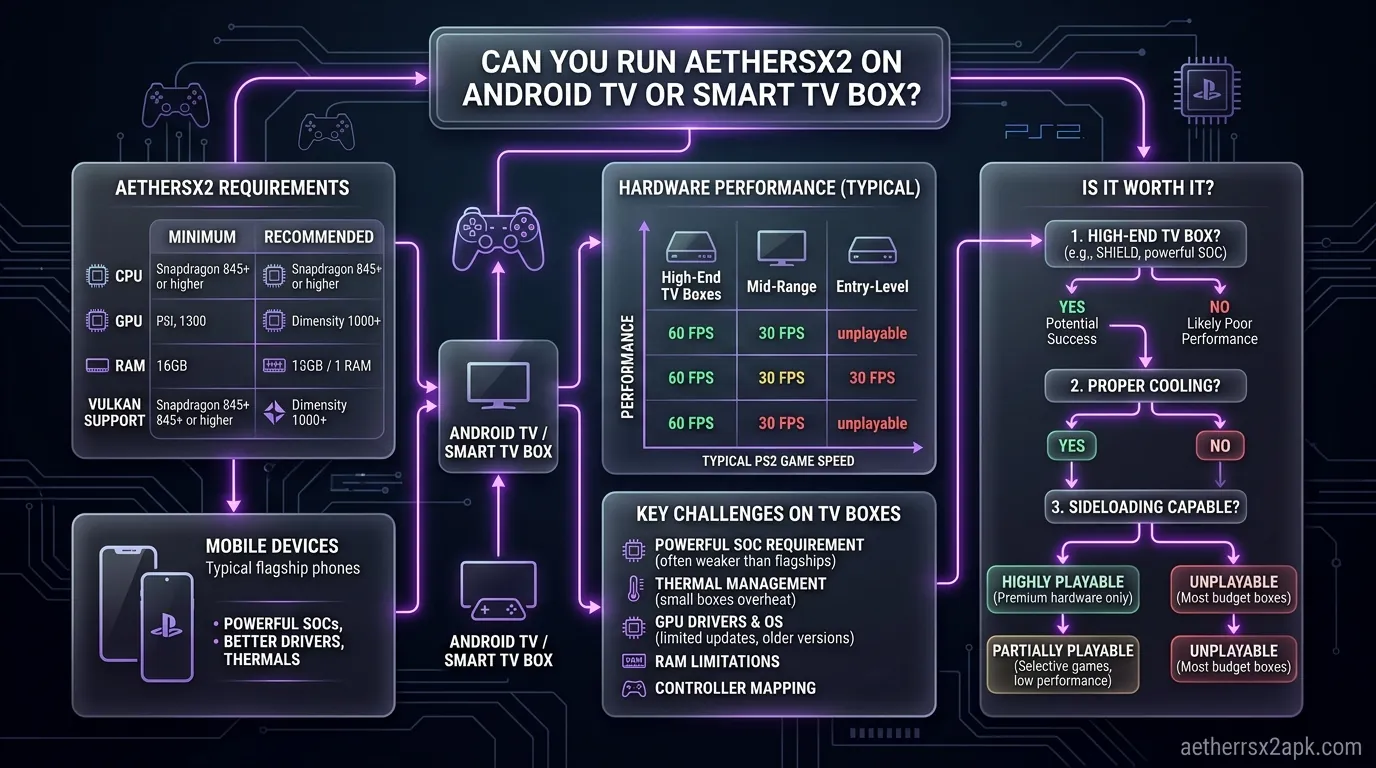
The short answer is a resounding yes, but the long answer carries several critical caveats regarding hardware requirements and operating system compatibility. Android TV is fundamentally the same operating system as the Android running on your smartphone, but it is heavily modified with a "leanback" launcher designed for D-pad navigation via a remote control. Because AetherSX2 was built primarily with touchscreens and mobile form factors in mind, it lacks the necessary metadata flags to appear organically when you search for it on the Android TV version of the Google Play Store.
The 64-bit Requirement
The most significant hurdle you will face when trying to run aethersx2 android tv installations is the processor architecture. AetherSX2 strictly requires a 64-bit processor (ARMv8-A) and a 64-bit operating system. This is a non-negotiable requirement. While many modern Android TV devices and cheap smart TV boxes claim to have 64-bit processors (like the Amlogic S905X series), manufacturers frequently install a 32-bit version of the Android OS on them to save RAM overhead. If your TV box runs a 32-bit OS, the AetherSX2 APK simply will not parse or install, returning an "App not installed" error.
To verify your device's architecture, you can download an app called AIDA64 from the Play Store on your TV. Check the "CPU" and "Android" tabs to ensure both the instruction set and kernel architecture state "64-bit" or "AArch64".
Storage and Thermal Considerations
PS2 game files (ISOs or CHDs) are massive, frequently ranging from 1GB to 4GB per game. Most Android TV devices: including the Chromecast and basic Mi Box models: ship with a paltry 8GB of internal storage, much of which is consumed by the system. You will almost certainly need an external USB drive formatted as adoptable storage, or a hub with a MicroSD card slot, to house your game library and AetherSX2 BIOS files. Furthermore, TV boxes often have poor passive cooling. PS2 emulation pushes the CPU and GPU to their absolute limits, so thermal throttling can become a severe issue on cheaper devices during extended play sessions.
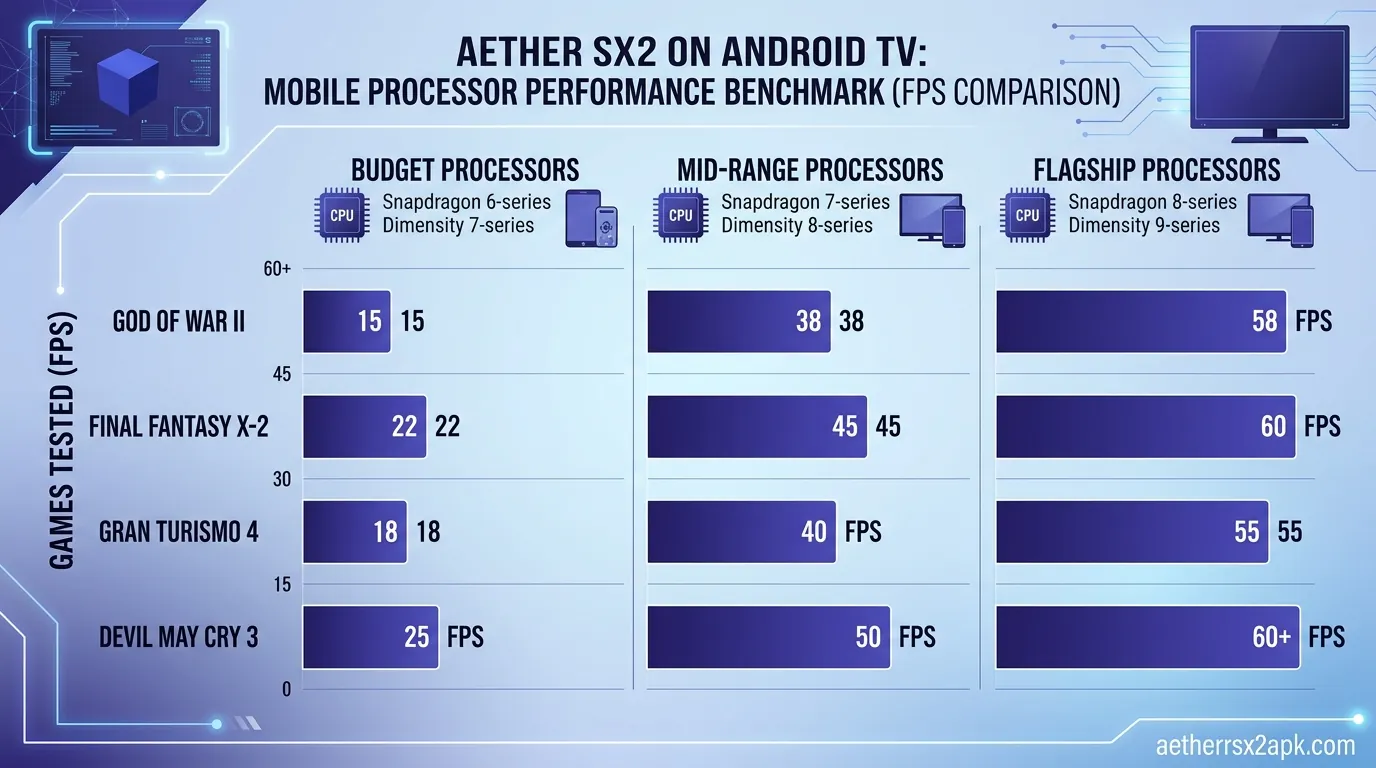
Performance Benchmarks on Popular Android TV Devices
When discussing a ps2 emulator android tv setup, expectations need to be managed. The silicon powering our living room media players is generally far weaker than the Snapdragon chips found in flagship smartphones. Let's break down how the most popular devices on the market handle AetherSX2.
NVIDIA Shield TV Pro (2019)
The NVIDIA Shield TV Pro remains the undisputed king of Android TV gaming. Powered by the Tegra X1+ processor (the same family of chips found in the Nintendo Switch) and equipped with 3GB of RAM, this device is the only mainstream Android TV box capable of delivering a genuinely enjoyable AetherSX2 experience.
- Performance: You can expect full speed (60fps/50fps depending on region) on roughly 60-70% of the PS2 catalog at a native 1x resolution. Less demanding titles like Final Fantasy X, Kingdom Hearts, and Crash Bandicoot can even be upscaled to 2x (720p) or sometimes 3x (1080p).
- Limitations: Heavy hitters like God of War II, Shadow of the Colossus, or Need for Speed: Most Wanted will struggle significantly, requiring underclocking the emulated EE cycle rate to maintain playable audio and speed.
- Verdict: The absolute best option for aethersx2 tv box emulation, thanks to active cooling (it has a built-in fan) and robust driver support.
Chromecast with Google TV 4K
Google's popular dongle runs on an Amlogic S905X3 SoC with 2GB of RAM. It does run a 64-bit OS, allowing the emulator to be installed.
- Performance: Weak. You are limited strictly to lightweight 2D games and very basic 3D titles (e.g., Disgaea, Persona 4 with underclocking). Most mainstream 3D action games will suffer from severe slowdowns, audio stuttering, and unplayable framerates.
- Limitations: The lack of a USB port means you must use a powered USB-C hub to connect external storage or wired controllers. Thermal throttling happens rapidly because it is a passively cooled plastic dongle hanging behind a warm television.
- Verdict: Only suitable for very light PS2 emulation and patient users willing to endlessly tweak settings.
Xiaomi Mi Box S (Gen 2)
The newer Gen 2 model uses the Amlogic S905X4 and features better performance than the Chromecast, but still falls squarely in the budget category.
- Performance: Marginally better than the Chromecast. You might squeeze out playable framerates on games like Sly Cooper or Jak and Daxter if you aggressively use cycle skipping and underclocking hacks.
- Limitations: Similar to the Chromecast, thermal constraints and a weak Mali GPU mean Vulkan rendering often causes glitches, forcing you to use the slower OpenGL backend.
- Verdict: Passable for 2D games, but a frustrating experience for complex 3D titles.
Fire TV Cube (3rd Gen)
Amazon's latest streaming cube features a surprisingly robust octa-core processor (Amlogic POP1-G) which benchmark tests show is quite capable.
- Performance: Excellent, coming close to the Nvidia Shield TV Pro. You can run a significant portion of the PS2 library at native resolution with minimal tweaking.
- Limitations: It runs Fire OS, not standard Android TV. This means sideloading is slightly more complex, and background app management can sometimes aggressively kill the emulator if you pause your game and return to the home screen.
- Verdict: A fantastic, often overlooked device for emulation if you don't mind Amazon's walled-garden ecosystem.
For a deeper dive into optimizing specific games on weaker hardware, be sure to consult our comprehensive AetherSX2 Best Settings guide.
How to Sideload AetherSX2 APK onto Android TV
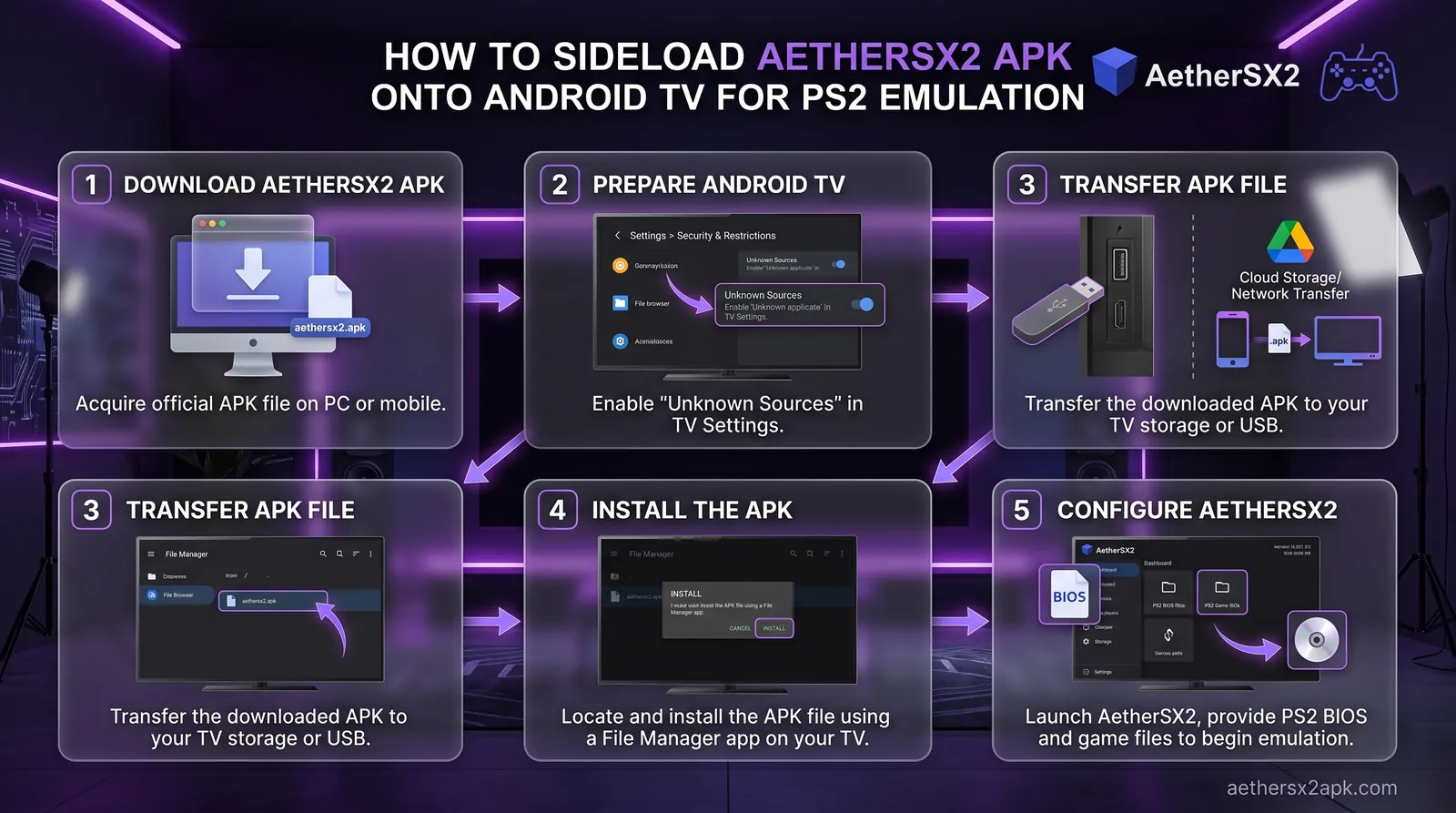
Because AetherSX2 won't show up in your TV's Play Store, you have to sideload the APK file. The easiest method utilizes an app called "Downloader." Here is the step-by-step process.
Step 1: Install the Downloader App
- Boot up your Android TV and navigate to the Google Play Store.
- Go to the search icon (magnifying glass) and type in "Downloader".
- Look for the app with the orange icon developed by AFTVnews.
- Click Install.
Step 2: Enable Unknown Sources
Before Downloader can install an APK, you must give it permission.
- Go to your Android TV's main home screen and click the Gear Icon (Settings) in the top right corner.
- Scroll down to Apps > Security & Restrictions (on some devices, this is under Device Preferences > Security).
- Select Unknown sources.
- Find the Downloader app in the list and toggle the switch to the ON position.
Step 3: Download and Install AetherSX2
- Open the Downloader app from your home screen.
- In the URL/Search bar on the home tab, you can either enter the direct download link if you know it, or type in
aethersx2apk.comto navigate to our site. - Once on our site via the Downloader's built-in browser, navigate to the download section and click the button for the latest AetherSX2 APK. Alternatively, you can grab the NetherSX2 APK, which is the popular community-patched version that removes ads and restores functionality.
- The APK file will begin downloading. Once finished, Downloader will automatically prompt you with an installation screen.
- Click Install.
- Once installed, click Done (do not open it just yet). You can delete the APK file when prompted to save precious TV storage space.
Step 4: Transfer Your BIOS and Game Files
To actually play games, you need a PS2 BIOS dumped from your own console and your game ISO files.
- The easiest method is to copy these files from your PC onto a USB flash drive.
- Plug the flash drive into the USB port on your Nvidia Shield, Mi Box, or USB hub connected to your TV dongle.
- Open AetherSX2 on your TV. The initial setup wizard will ask you to point to the directory containing your BIOS file, and then ask for your game directory. Navigate to your USB drive within the app and select the appropriate folders.
Setting Up Bluetooth Gamepads on Android TV
Playing PS2 games with a TV remote is impossible. You need a dedicated gamepad. Android TV natively supports a wide range of Bluetooth controllers, including Xbox Wireless Controllers, DualShock 4 (PS4), DualSense (PS5), and various 8BitDo models.
Pairing the Controller to the TV
- Put your controller into Bluetooth pairing mode.
PlayStation: Hold the PS Button and the Share/Create button simultaneously until the light bar flashes quickly.
- On your Android TV, go to Settings > Remotes & Accessories.
- Select Add accessory. The TV will begin scanning for Bluetooth devices.
- When your controller appears on the screen, select it to pair.
Mapping Controls in AetherSX2
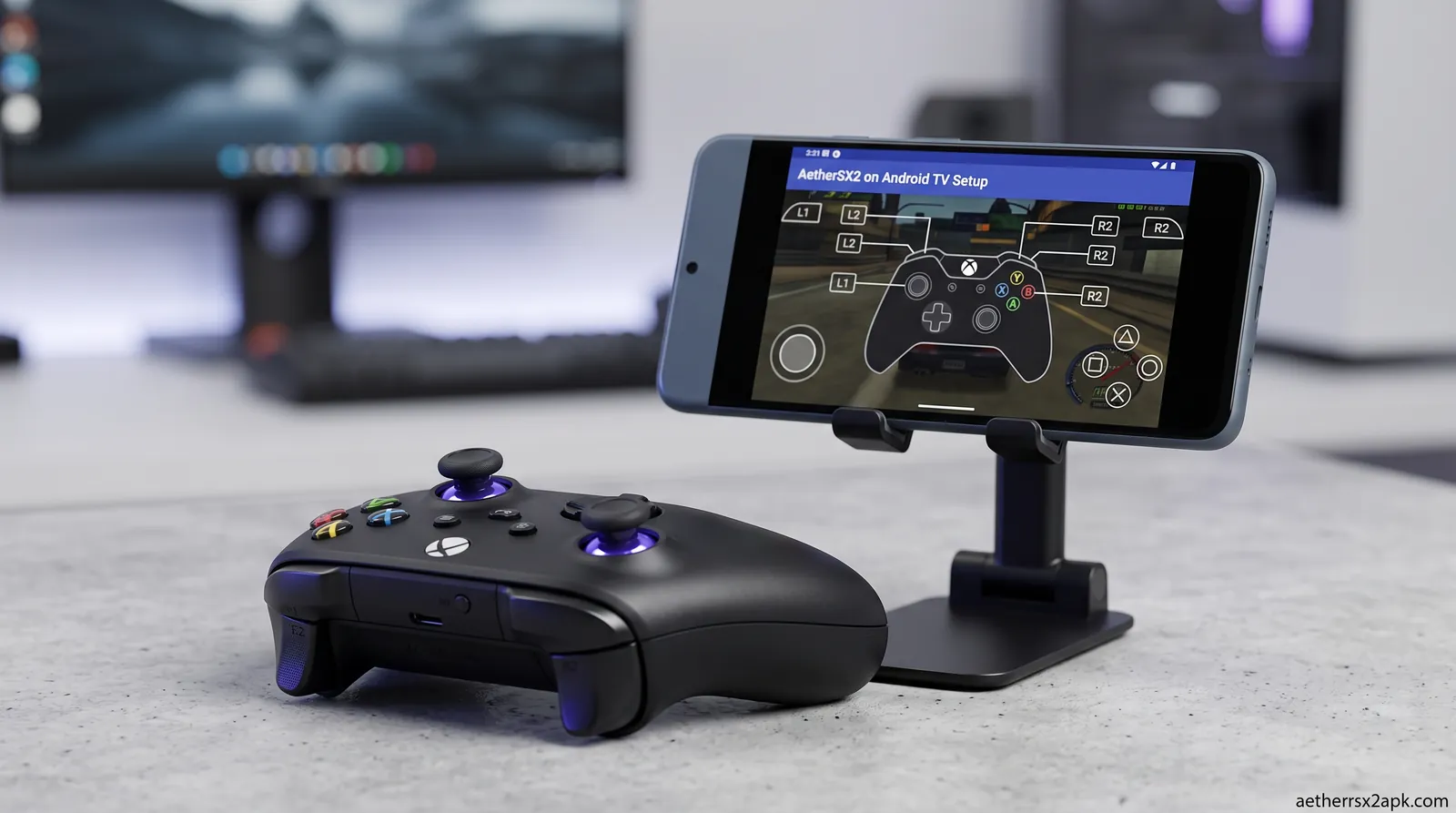
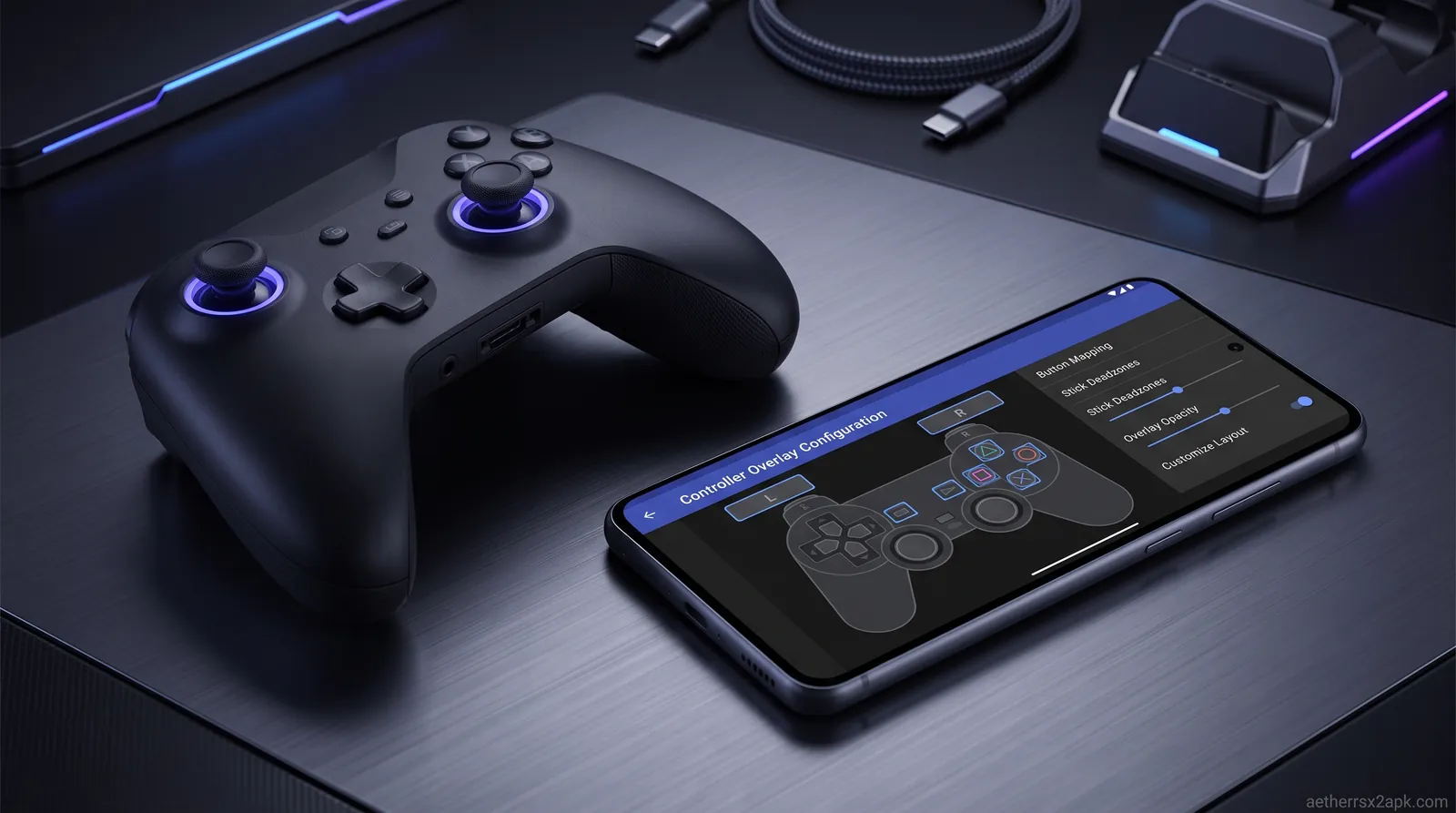
Once paired, AetherSX2 usually detects standard controllers automatically. However, it's highly recommended to map them manually to ensure everything is correct, particularly analog stick deadzones.
- Open AetherSX2 and navigate to the Settings menu (three horizontal lines).
- Go to the Controller Settings (the gamepad icon).
- Select Port 1.
- Change the controller type to DualShock 2.
- Go through each button prompt (D-Pad, Cross, Circle, Square, Triangle, Triggers, and Analog Sticks) and press the corresponding button on your physical gamepad.
A Note on Bluetooth Latency: Televisions natively introduce display lag, and Android's Bluetooth stack can sometimes add noticeable input latency. To minimize this, ensure your TV is set to "Game Mode" in its picture settings. If you still experience terrible input lag, the most reliable solution is to use a wired USB controller plugged directly into your Android TV box. For an exhaustive breakdown of controller configurations, check out our AetherSX2 Controller Setup guide.
Best Settings for Android TV & Big Screen Gaming
Because you are playing on a massive 40 to 75-inch screen, the native PS2 resolution (usually 480i or 480p) will look incredibly pixelated and blurry. However, increasing the resolution takes massive computational power. Here is how to strike the perfect balance for an aethersx2 android tv setup.
Graphics Settings
Navigate to Settings > Graphics in AetherSX2.
- GPU Renderer: Set this to Vulkan. Vulkan generally provides superior performance and less CPU overhead, which is crucial for weak TV processors. If a game has missing textures or crashes, switch this back to OpenGL.
- Upscale Multiplier: This is the resolution.
For Chromecast/Mi Box: Leave this strictly at 1x (Native). Do not attempt to upscale.
- Bilinear Filtering: Set to Bilinear (PS2). This helps smooth out the jagged edges of native resolution games on a large 4K TV.
- Widescreen Hacks: Toggle this ON. Native PS2 games were 4:3 aspect ratio. Widescreen hacks attempt to force the game to fill your modern 16:9 TV without stretching the 3D models. Note: This causes graphical glitches at the edge of the screen in some games.
System Settings (Performance Hacks)
If your TV box is struggling to maintain a solid framerate, navigate to Settings > System.
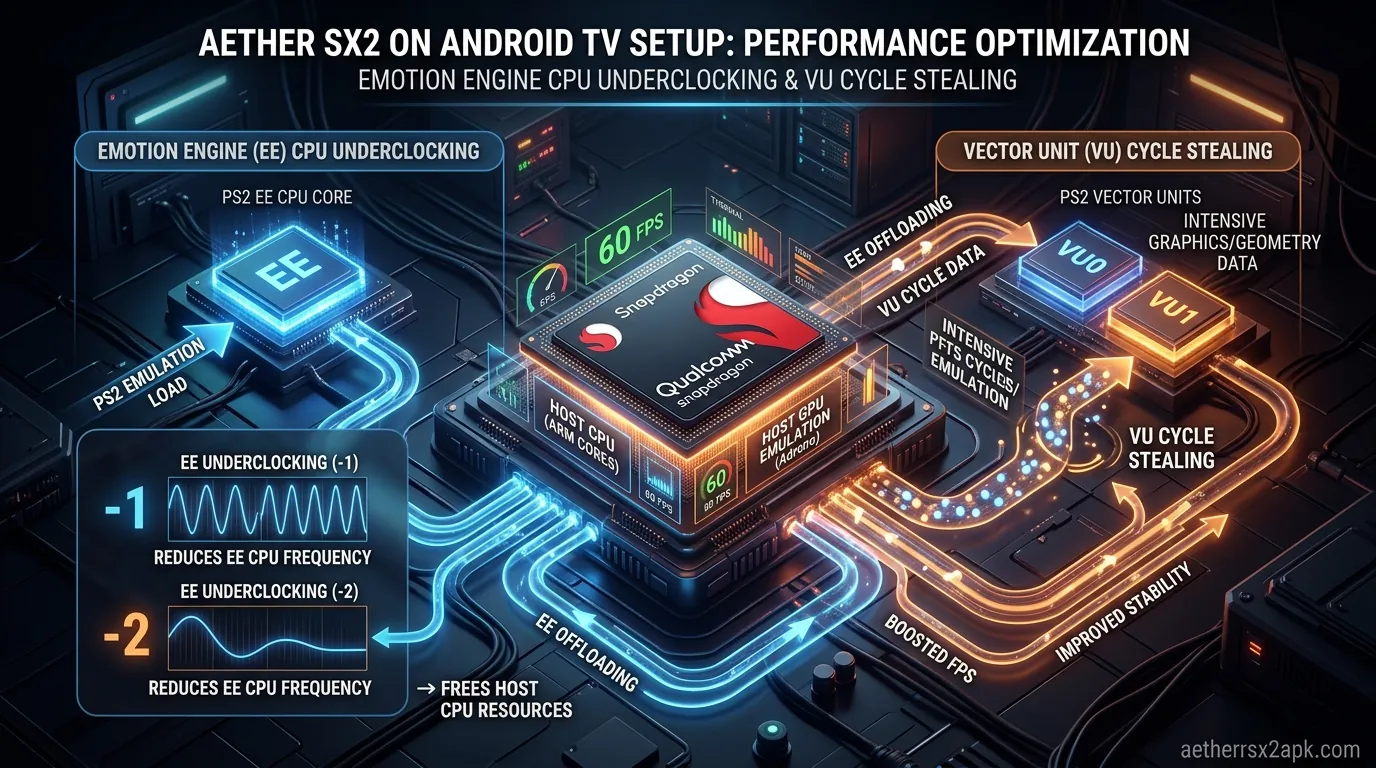
- EE Cycle Rate (Underclocking): This is your best friend on Android TV. By setting this to -1 (75%) or -2 (50%), you are telling the emulator to emulate a slower PS2 processor. The game might run internally at a lower framerate (e.g., 20fps instead of 30fps), but it prevents the emulator from stuttering and keeps the audio playing smoothly.
- EE Cycle Skip: If underclocking doesn't work, set this to 1 (Mild Underclock). It skips rendering certain cycles. It can cause games to feel choppy, but it will keep the audio synced on weak devices.
- Multi-Threaded VU1: Ensure this is turned ON. It forces the emulator to use multiple CPU cores, which is essential for multi-core TV box SoCs.
Navigating the AetherSX2 Interface with a TV Remote vs Gamepad
One of the quirks of sideloading mobile apps onto Android TV is interface navigation. AetherSX2 does support D-pad navigation, meaning you can largely use your TV remote or the D-pad on your paired gamepad to move through menus.
However, certain deep settings menus or pop-up dialogues might fail to register a remote control's "Enter" press. If you find yourself stuck on a screen and cannot click a button, you have two options:
- Use a Bluetooth Mouse: Temporarily connect a wireless mouse to click the stubborn UI element.
- Use a Mouse Toggle App: There are apps available for Android TV (like Mouse Toggle) that allow you to use your TV remote's directional buttons to move an on-screen mouse cursor.
- Touchpad Controllers: Controllers like the DualShock 4 and DualSense have built-in touchpads. If paired correctly via Bluetooth, lightly swiping the touchpad will bring up a mouse cursor on your Android TV screen, making UI navigation infinitely easier.
Once you are in a game, you can bring up the AetherSX2 pause menu (to save states, load states, or exit) by pressing the "Back" button on your Android TV remote, or by mapping a specific hotkey combo on your gamepad (e.g., L3 + R3) in the controller settings.
Renderer and pad notes follow the same PCSX2-lineage rules as phones: see the PCSX2 wiki, PCSX2 on GitHub, and living-room Android reports on r/EmulationOnAndroid.
Frequently Asked Questions
Can I play AetherSX2 on a Samsung or LG Smart TV?
No. Samsung TVs run Tizen OS, and LG TVs run WebOS. AetherSX2 is an Android application (.apk). You can only install it if you purchase an external Android TV streaming device (like a Chromecast or Nvidia Shield) and plug it into the HDMI port of your Samsung or LG TV.
Why is my game running in slow motion with distorted audio?
This means your Android TV box's processor is not powerful enough to run that specific game at full speed. The emulator slows down the audio to match the lagging video. To fix this, try underclocking the EE Cycle Rate in the System settings, or drop your resolution back to 1x Native.
How do I update AetherSX2 on my TV?
Because it was sideloaded, it will not update automatically via the Play Store. You must use the Downloader app to download the newest APK file and install it over the old one. Your save files and settings will remain intact.
Do I still need a PS2 BIOS file on Android TV?
Yes. The operating system does not change the emulator's core requirements. You must still provide a legally dumped PlayStation 2 BIOS file. Please refer to our AetherSX2 BIOS page for details on how to acquire and install this file correctly.
Can I run games from an external hard drive?
Yes, and on Android TV, this is highly recommended due to low internal storage. Format your external USB drive as exFAT. When you plug it into your TV box, Android may ask to format it as "Device Storage" (Adoptable Storage) or leave it as "Removable Storage." Leaving it as Removable is usually fine, but you will need to grant AetherSX2 permission to read that specific folder when you set up your game directory.
Will AetherSX2 drain my TV Box's lifespan?
Running heavy emulation generates heat. While modern SoCs have thermal throttling to protect themselves from physical damage, consistently running an uncooled device (like a Chromecast) at maximum temperature for hours every day could theoretically degrade the silicon faster. If you plan to play heavily, invest in a device with active cooling, like the Nvidia Shield TV Pro.
Transforming your living room into a retro gaming arcade is a highly rewarding project. While getting an aethersx2 tv box setup optimized requires a bit of patience and tweaking: especially on budget hardware: the payoff of experiencing your favorite childhood classics on a massive screen from the comfort of your couch is unparalleled. Follow the settings outlined above, manage your expectations based on your hardware, and enjoy the nostalgia!