aethersx2 troubleshooting
AetherSX2 Troubleshooting Solutions
By HBKPublished Last updated
Tested on: POCO F3 (Snapdragon 870), Android 13, AetherSX2 v1.5-4248 / NetherSX2 4248
Quick summary
AetherSX2 troubleshooting starts with the FPS overlay: GPU-bound lag, CPU-bound slow-motion, a black GS, and a crash are four different bugs. Do not enable every speed hack at once.
- Black screen: swap Vulkan ↔ OpenGL, then check BIOS region
- Crash / force-close: lower resolution, Partial texture preload, 8 GB RAM floor
- Slow-motion: overlay under 100% at 1x means EE/CPU or heat, not a dump
- BIOS errors: file must be exactly 4,194,304 bytes from a console you own
Welcome to the definitive AetherSX2 troubleshooting guide. If you are reading this, chances are your journey into portable PlayStation 2 emulation has hit a snag. Whether you are dealing with a black screen that refuses to load, sudden application crashes in the middle of a boss fight, or agonizingly slow frame rates that make games unplayable, you have come to the right place.
AetherSX2, developed by the legendary Tahlreth and based on the renowned PCSX2 architecture, is a marvel of Android engineering. However, development on the project was suspended indefinitely in August 2023 with the final build being v1.5-4248. Because the emulator is no longer receiving official updates to patch out bugs or accommodate newer Android OS updates, troubleshooting has become an essential skill for any retro gaming enthusiast. While community forks like NetherSX2 have emerged to remove ads and provide minor tweaks, the core engine remains the same: which means the core issues remain the same.
In this massive, comprehensive 4,000+ word guide, we will break down every single error, glitch, and performance hurdle you might encounter. We'll explore the root causes, explain the technical background of why these errors happen, and provide actionable, step-by-step solutions to get your PS2 library running flawlessly on your Android device.
Grab your device, boot up your app, and let’s dive in.
Table of Contents
- Master AetherSX2 Troubleshooting Index
- App Installation & Startup Errors
- Black Screen & Blank Display Issues
- Sudden Crashes & Forced Closures
- Game Lag, Low FPS & Audio Stuttering
- Slow-motion gameplay
- BIOS Errors & Detection Failures
- ISO / ROM Loading Failures
- Controller & Input Problems
- Graphic Artifacts, Lines & Texture Glitches
- Save State & Memory Card Corruption
- Frequently Asked Questions
1. Master AetherSX2 Troubleshooting Index
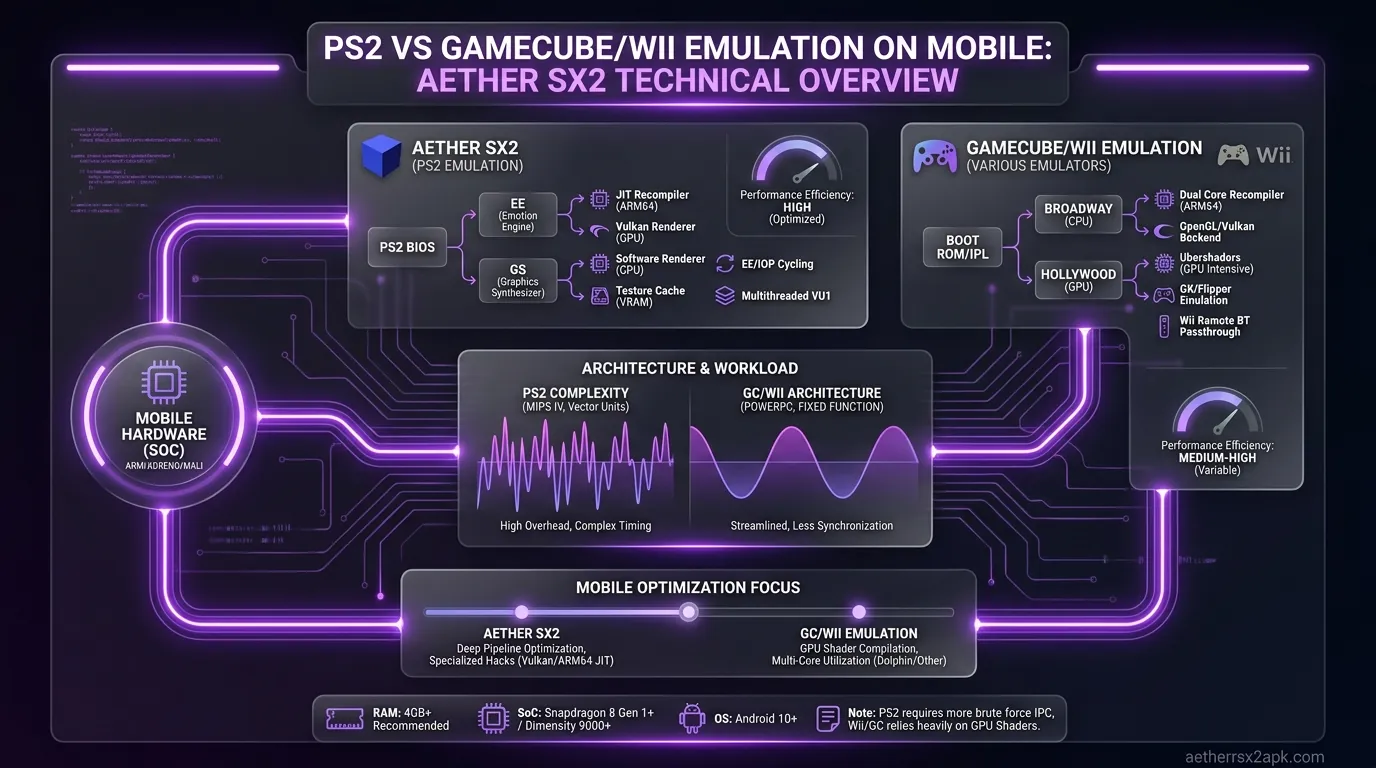
Before we delve into specific errors, it is vital to understand the foundational requirements of AetherSX2. Often, the reason AetherSX2 is not working comes down to a fundamental mismatch between the emulator's requirements and your current setup. This index serves as a pre-flight checklist. Always verify these elements before changing complex internal settings.
The Baseline Requirements Checklist
- Hardware Architecture: AetherSX2 requires a 64-bit device (ARM64/AArch64). It will absolutely not run on older 32-bit hardware. If your phone has a 32-bit OS (even if the CPU is 64-bit, which is common in budget phones), the app will not install.
- CPU Capabilities: You need a device with at least 4 "big" performance cores (e.g., Cortex-A75 or higher). Snapdragon processors heavily outperform MediaTek (Mali GPUs) in AetherSX2 due to superior driver support for modern graphics APIs.
- Valid BIOS Dump: You must have a legally dumped PS2 BIOS from your own console. The emulator cannot function without this core firmware.
- Game Formats: AetherSX2 supports
.iso,.chd, and.csoformats. It does not support.zip,.rar, or.7z. If your games are compressed in an archive, you must extract them first. - Storage Permissions: Android 11+ introduced Scoped Storage, and Android 13/14 tightened it further. Ensure AetherSX2 is granted explicit permission to read the folders where your BIOS and games are stored.
If you have verified all the above and are still experiencing problems, use the baseline install walkthrough as a reference, then proceed to the specific sections below to diagnose your exact error.
2. App Installation & Startup Errors
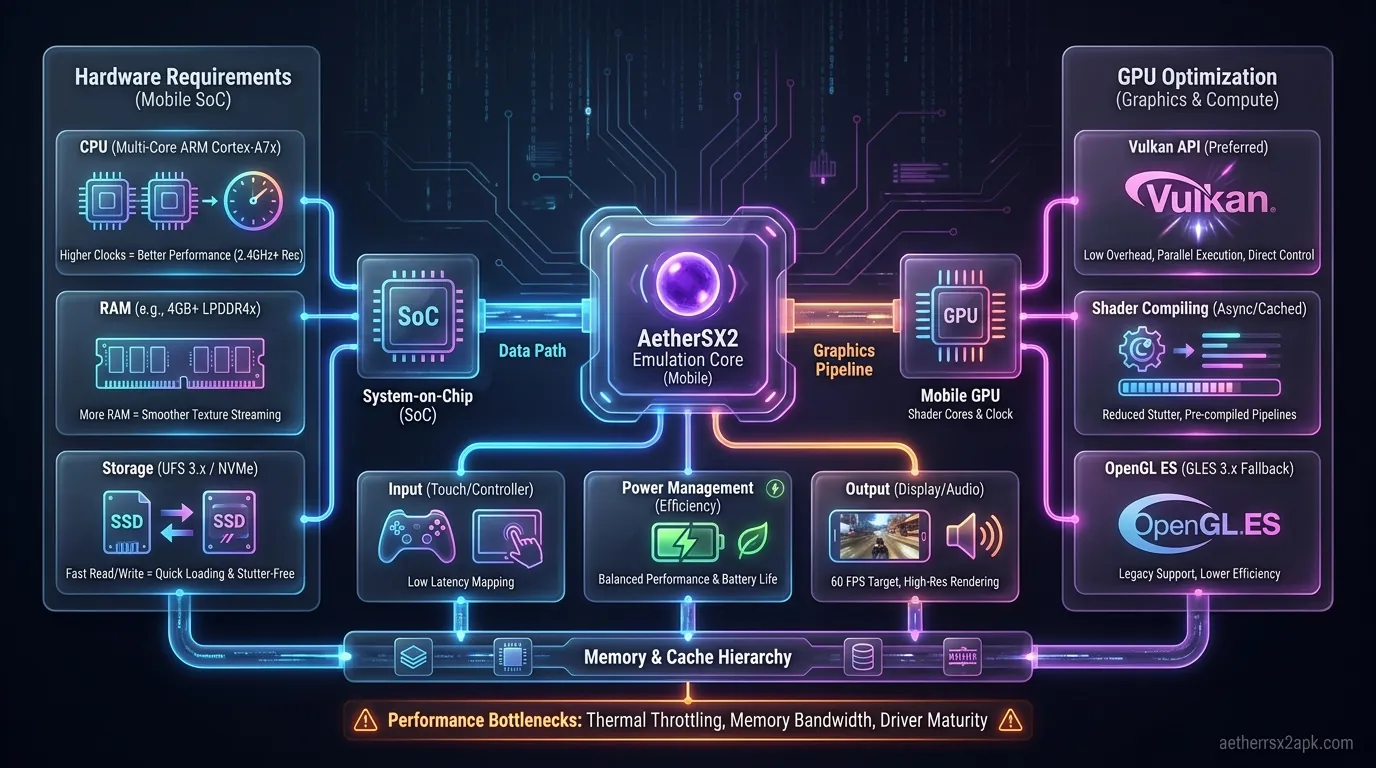
One of the most frustrating things is not even being able to get the app to launch. AetherSX2 installation and startup errors generally stem from OS incompatibilities, security blocks, or corrupted APK files.
Error: "App Not Installed" or "Parse Error"
When you download the AetherSX2 APK (or NetherSX2) and attempt to install it, you might be greeted with an immediate "App not installed" message.
Root Causes & Solutions:
- 32-Bit Operating System: As mentioned in the index, AetherSX2 demands ARM64. Budget phones (like older Moto G series or entry-level Samsung A-series) sometimes ship with a 64-bit chip but a 32-bit Android OS to save RAM.
- Fix: Download an app like "Device Info HW" from the Play Store. Check the "Architecture" tab. If it says ARMv7 or 32-bit, you cannot use AetherSX2. There is no workaround for this.
- Fix: Delete the APK, clear your browser cache, and re-download the APK from a trusted source.
- Fix: Ensure you have at least 1GB of free internal storage space before attempting installation.
Error: Play Protect Warning / Blocked by Play Protect
Because development ended, AetherSX2 v1.5-4248 is no longer updated to meet Google's latest target API requirements. Google Play Protect may aggressively flag it as "Unsafe" or an "Older app."
How to Bypass safely:
- When the Play Protect warning pops up, tap "More details".
- Tap "Install anyway".
- Note: If you are using NetherSX2 (the modified, ad-free version), Play Protect almost always flags it because the APK signature differs from the original Play Store release. This is a false positive inherent to modded applications.
Error: App Closes Immediately Upon Opening (Android 14)
Newer Android versions have strictly deprecated older background execution limits. If AetherSX2 boots to a splash screen and immediately vanishes, the OS is killing the task.
How to Fix:
- Long-press the AetherSX2 app icon and tap App Info.
- Navigate to Battery or App Battery Usage.
- Change the setting from "Optimized" to "Unrestricted". This prevents Android's aggressive battery management from closing the emulator upon initialization.
3. Black Screen & Blank Display Issues
Booting up a game only to hear the glorious PS2 startup sound while staring at a pitch-black screen is a classic emulation hurdle. Black screens usually point to a failure in the graphics rendering pipeline.
For a dedicated, in-depth dive into this specific issue, check out our AetherSX2 Black Screen Fix guide. Below is a comprehensive summary of the troubleshooting steps.
The Renderer Mismatch (Vulkan vs. OpenGL)
AetherSX2 utilizes two primary hardware renderers: Vulkan and OpenGL.
- Vulkan: Generally faster, highly efficient, and the preferred API for Snapdragon (Adreno GPU) devices.
- OpenGL: Slower and requires more CPU overhead, but incredibly stable and highly compatible with older architectures.
The Fix: If a game boots to a black screen, your current renderer might be failing to compile the shaders for that specific title.
- Open AetherSX2 and go to App Settings > Graphics.
- Find the GPU Renderer option.
- If it is set to Vulkan, change it to OpenGL. If it is set to OpenGL, change it to Vulkan.
- Restart the game.
Software Renderer Fallback
If both Vulkan and OpenGL result in a black screen, the game might require pixel-perfect emulation that hardware acceleration simply cannot provide.
- Change the renderer to Software.
- Warning: Software rendering uses your device's CPU to draw graphics rather than the GPU. It will bypass almost all graphical bugs and black screens, but it demands immense processing power. Expect your FPS to drop significantly. This is best used temporarily to get past a broken FMV (Full Motion Video) cutscene.
Hardware Readbacks & GPU Driver Bugs
Certain games (like the Jak and Daxter series or Ratchet & Clank) rely heavily on effects that must be read back from the GS (Graphics Synthesizer) to the EE (Emotion Engine). If hardware readbacks are disabled, the screen may go black during specific visual effects.
- Go to Graphics Settings > Advanced.
- Ensure Hardware Readbacks are enabled.
- If you are on a device with a MediaTek or Exynos processor (Mali GPU), you may suffer from inherent driver bugs. Mali drivers are notoriously poor at handling Vulkan readbacks. In this case, strictly use OpenGL for these problematic titles.
4. Sudden Crashes & Forced Closures
Nothing ruins a gaming session like AetherSX2 abruptly crashing to the Android home screen mid-game. When AetherSX2 keeps closing, it is rarely a random occurrence. It is usually the result of your phone's operating system intervening to prevent a critical failure, or the emulator hitting an emulation brick wall.
For an expansive list of crash diagnostics, visit our dedicated AetherSX2 Crash Fix page.
The Android Out-Of-Memory (OOM) Killer
PS2 emulation is incredibly memory intensive. AetherSX2 needs RAM for the Android OS, the emulator interface, the virtual PS2 memory (32MB), the virtual VRAM (4MB), and the immense overhead of translating MIPS architecture to ARM64 on the fly. If your phone has 4GB of RAM or less, Android will panic when RAM fills up and forcefully terminate AetherSX2.
How to mitigate RAM crashes:
- Close Background Apps: Before opening AetherSX2, swipe away all other apps in your recent apps menu.
- Disable Texture Preloading: Go to Graphics > Advanced and disable "Preload Textures." While preloading reduces stutter, it consumes a massive amount of RAM.
- Lower Upscaling: Running a game at 3x or 4x resolution multiplies the memory required for textures and framebuffers. Drop your resolution multiplier to 1x or 1.5x.
Thermal Throttling
Emulation generates intense heat. Modern smartphones are designed to protect their internal components. If your CPU hits ~80-90°C, the device will heavily throttle processor speeds. If the heat continues to rise, the OS will crash the intensive app to cool the device down.
- Signs of thermal crashing: The game runs perfectly for 15-20 minutes, then frame rates suddenly tank, followed by a hard crash a few minutes later.
- The Fix: Take the phone out of its case while playing. Play in a cooler environment. Consider investing in a clip-on smartphone cooling fan (like the Razer Phone Cooler or Black Shark Magnetic Cooler).
Game-Specific Emulation Crashes
Some games have code that triggers specific crashes in the PCSX2/AetherSX2 engine. For example, the Burnout and Need for Speed franchises are notorious for causing crashes if the EE cycle rate is tampered with.
- Fix: Long-press the specific game in your list, tap Game Properties, and reset all system and graphic settings to Safe Defaults. Over-tweaking underclocking settings is the #1 cause of game-specific hard crashes.
5. Game Lag, Low FPS & Audio Stuttering
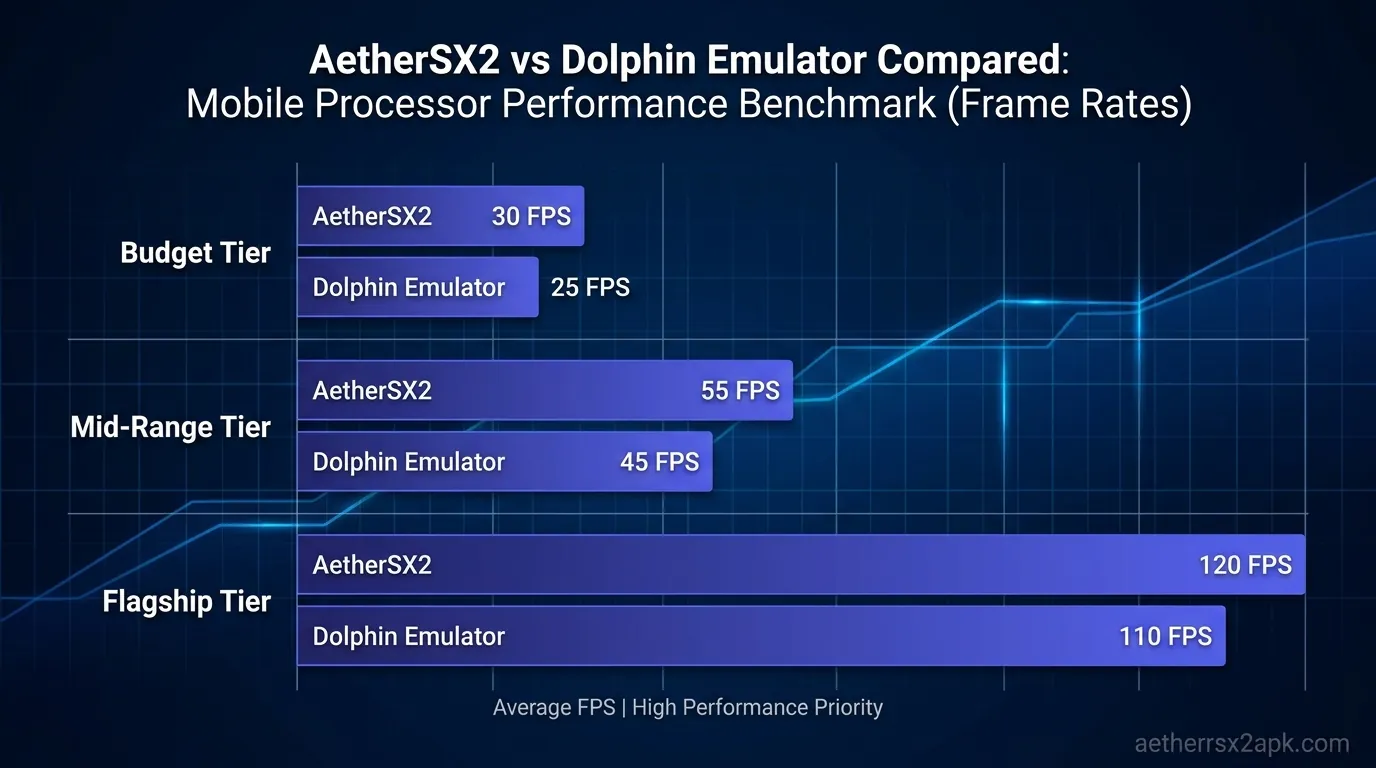
If your game feels like it is running in slow motion and the audio sounds like a skipping CD, your device is struggling to maintain 100% emulation speed. Fixing AetherSX2 lag is a balancing act between graphical fidelity and CPU optimization. Pair this section with AetherSX2 Best Settings. The old standalone "slow performance" page now lives here so Google is not asked to index two copies of the same intent.
The PCSX2 project's own notes on speed versus accuracy still apply on Android: underclocking the Emotion Engine is a trade, not a free lunch. See the PCSX2 wiki and the PCSX2 GitHub for why EE cycle rate exists in the first place.
Step 1: The EE Underclock (The Magic Bullet)
The Emotion Engine (EE) is the PS2's main processor. Emulating it requires colossal single-core CPU power. If your phone’s CPU cannot keep up, the game slows down. Underclocking tricks the PS2 game into thinking the original console is running slower, reducing the burden on your phone while attempting to maintain full speed for the emulator itself.
- Go to App Settings > System.
- Find EE Cycle Rate (Underclocking).
- The default is 100% (Normal).
- Change it to 75% (-1) or 50% (-2). This will drastically improve FPS in demanding games, though it may cause internal game framerates to drop (the game might run at 20fps instead of 30fps, but the audio won't stutter).
- Change it to Mild Underclock (1) or Moderate (2).
- Warning: Pushing Cycle Skip to Maximum (3) will make games run artificially fast and cause severe visual stuttering. Use this sparingly.
Step 2: Resolution and Graphics Tweaks
If your CPU is fine but your GPU is bottlenecking:
- Resolution Scale: Ensure this is set to 1x (Native PS2). Pushing it to 2x or 3x on mid-range devices is the primary cause of graphical lag.
- GPU Palette Conversion: Turn this ON. It shifts the burden of palette conversion from your CPU to your GPU, which usually speeds up 2D games and UI elements.
- Disable Hardware Readbacks: If a game does not explicitly need them (you'll know because the screen will go black without them), disabling them speeds up rendering immensely.
Step 3: Fixing Audio Stutter
Audio stuttering is a byproduct of the emulator running below 100% speed.
- Go to App Settings > Audio.
- Ensure the Synchronization Mode is set to Async Mix.
- Async Mix decouples the audio from the video framerate. Even if your game drops to 45 FPS, the audio will continue to play smoothly without crackling or slowing down into a robotic drawl.
Slow-motion gameplay
When AetherSX2 cannot emit guest frames on time, the whole machine including audio slows down. That "slow motion" is the emulator telling the truth: the Emotion Engine thread is late. It is different from Bluetooth delay (full speed picture, late buttons) and different from a black screen.
Start from a clean install, then change one setting at a time. Stacking every speed hack at once produces crashes that look like "more lag."
Read the FPS overlay before you tweak
Enable the FPS / speed percentage overlay.
- NTSC titles want ~59.94 FPS (100% speed).
- PAL titles want ~50 FPS. A PAL game at 50 FPS is full speed, not broken. See BIOS regions.
- If speed sits at 70% in a cutscene and 95% in a menu, you are CPU bound in heavy scenes: underclock EE before you touch shaders.
If FPS is 100% and input is late, go to Bluetooth lag instead. If the overlay is missing because a palm is sitting on the virtual DualShock, hide touch controls.
Drop GPU cost first
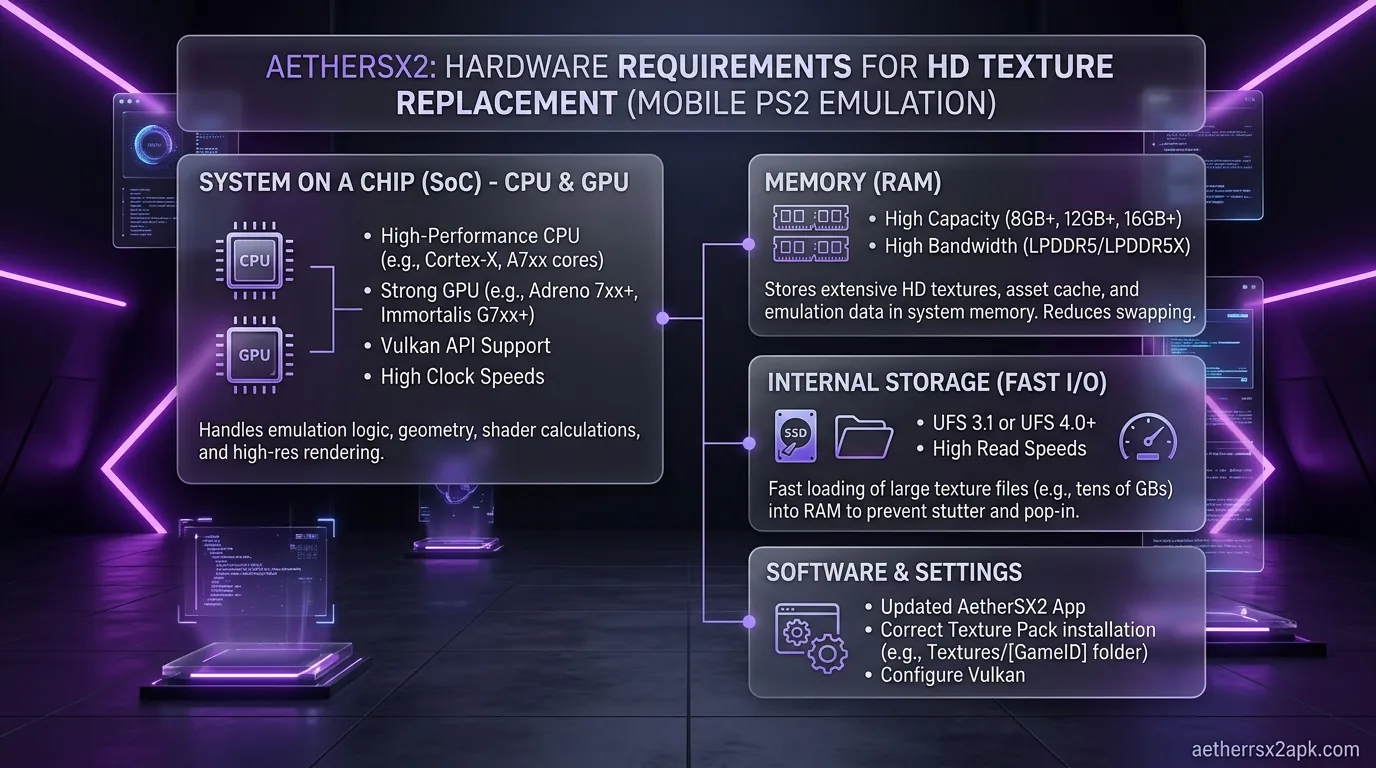
- Set internal resolution to 1x native. 3x on a mid-range Mali is the most common self-inflicted stall.
- Prefer Vulkan on Adreno, OpenGL on Mali, as documented in Vulkan vs OpenGL.
- Disable extra rendering dumps, texture preloading "Full," and widescreen only after speed is stable. Widescreen itself is cheap; 6x native is not.
- Turn off Hardware Readbacks if the overlay shows GPU spikes in maps (GTA cities).
CHD vs ISO does not magically add 20 FPS. Convert for storage with ISO to CHD; if a CHD is still copying from USB, wait, because truncated reads stutter.
EE, VU, and MTVU switches that actually help
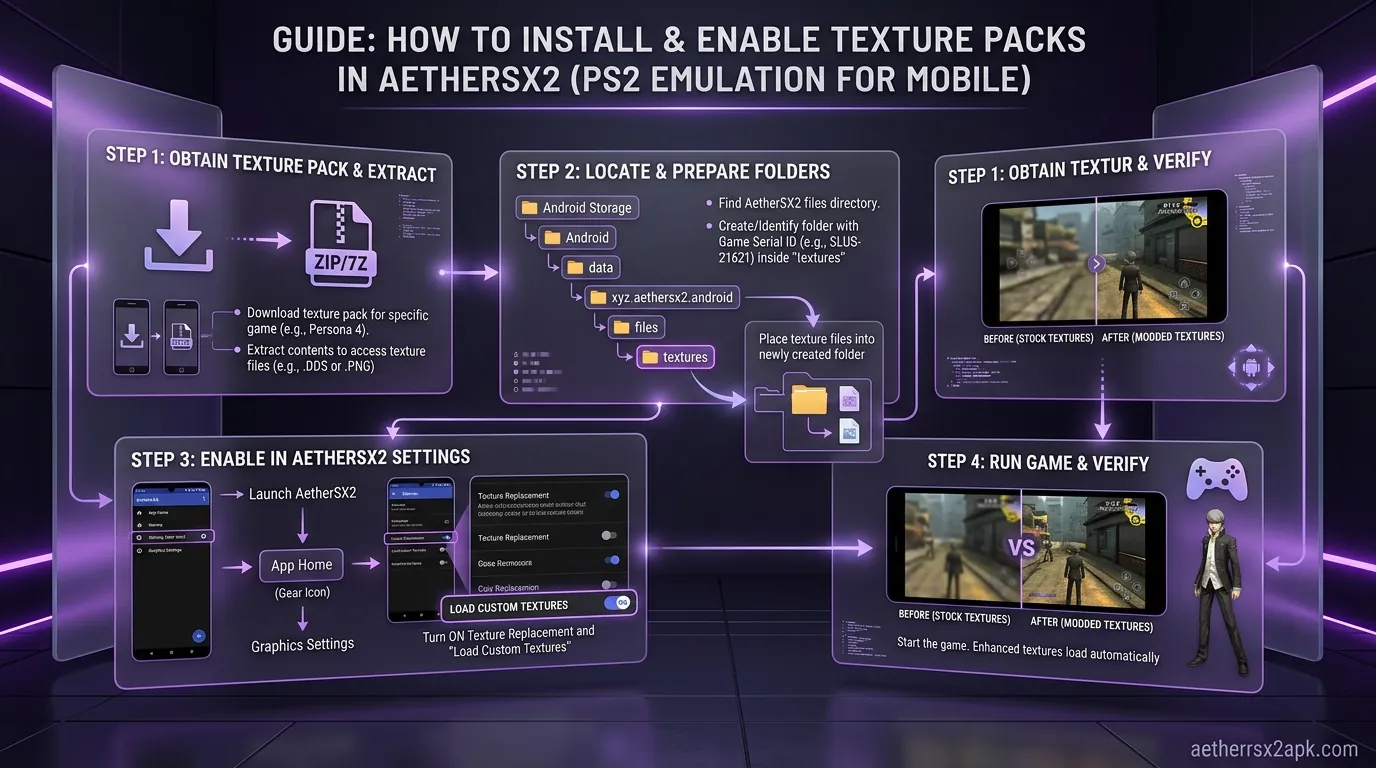
Open System settings:
- MTVU on unless the device crashes (some Mali). MTVU is the one "free" extra core.
- EE Cycle Rate 75% (−1) for heavy 3D if 100% cannot hold. 50% (−2) for desperate low-end; expect minigame timing issues.
- VU Cycle Stealing 1 on titles like God of War; 2+ breaks more games than it saves.
- Full explanation of each slider: speed hacks.
Do not enable every skip-draw / idle-loop hack from a random screenshot. Those are per-game. Community reports belong on r/EmulationOnAndroid, not as a global preset.
Heat, background apps, and storage
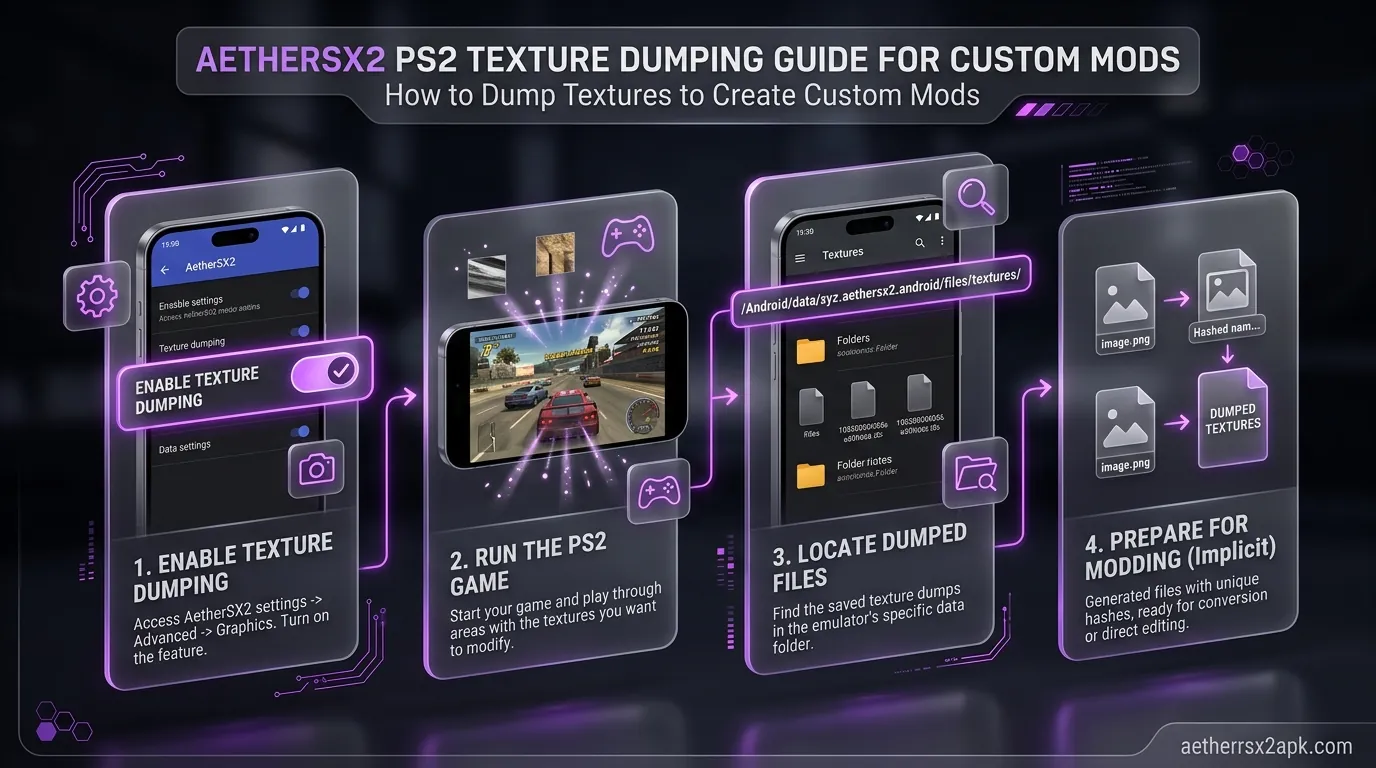
Phones throttle after a few minutes in Shadow of the Colossus. If FPS is fine for five minutes then collapses:
- Remove a case, drop brightness, avoid charging while playing.
- Close Chrome and camera apps. 6 GB phones need the RAM.
- Use internal storage, not a dying microSD.
- Disable battery saver; it caps CPU below what the EE thread needs.
- On a Chromebook ARC session, thermal and storage paths differ: Chromebook setup.
Per-chip guides help more than generic advice: Snapdragon 8 Gen 3, Snapdragon 870, Dimensity.
Game-specific bottlenecks
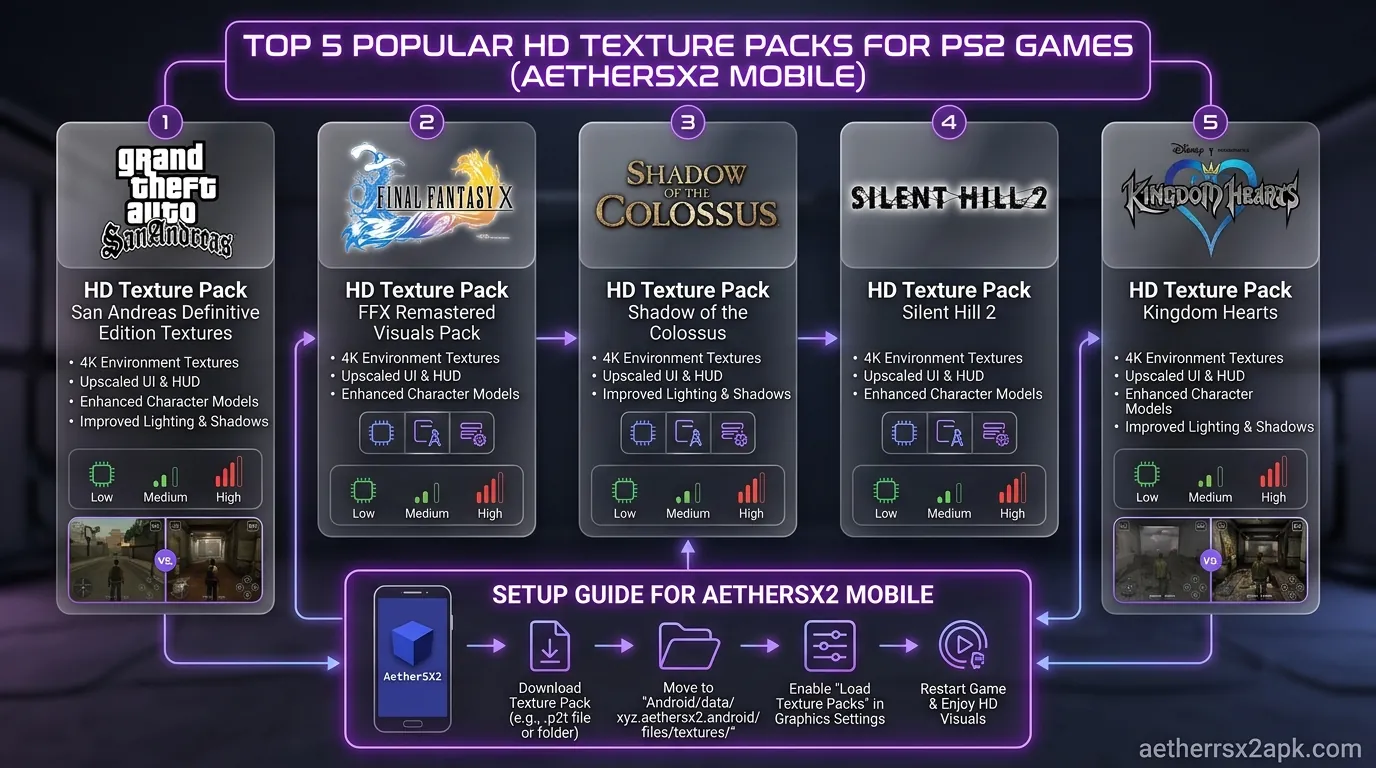
| Title | Typical bottleneck | Dedicated page |
|---|---|---|
| God of War 1/2 | EE + post-processing | GoW settings |
| Shadow of the Colossus | EE + blur | SotC settings |
| Kingdom Hearts | Gummi alpha + crowds | Kingdom Hearts |
| GTA San Andreas | City streaming + readbacks | GTA settings |
| Gran Turismo 4 | GS fill rate | Drop to 1x, Vulkan |
If one game is slow and others are 100%, use a per-game properties override instead of ruining global settings. Desktop compatibility notes on the PCSX2 wiki game list are a hint for which GS dump is heavy, not a copy-paste of Android sliders.
On a POCO F3 (Snapdragon 870, Android 13, AetherSX2 v1.5-4248), Shadow of the Colossus held ~100% at 1x Vulkan with EE −1 after the case came off; with the case on, speed fell into the 70s after eight minutes. That is heat, not a bad ISO.
A "high FPS" cheat will not help. Uncapping a 30 FPS game does not make a slow phone faster. NetherSX2 will not turn a Snapdragon 660 into an 8 Gen 2; same core, ads removed.
6. BIOS Errors & Detection Failures
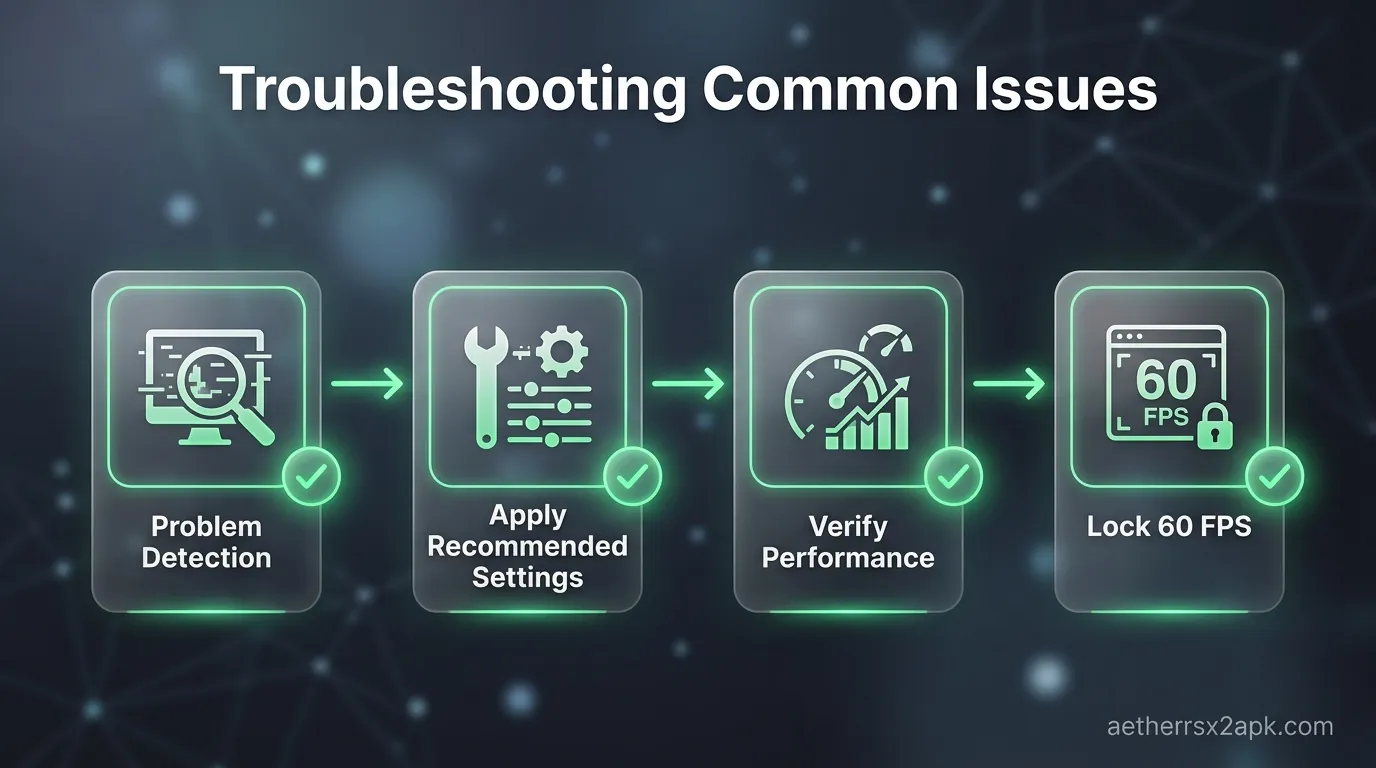
The PlayStation 2 BIOS (Basic Input/Output System) is the proprietary firmware of the console. Without it, AetherSX2 has no idea how to operate as a PS2.
For full legal and technical details on dumping your BIOS, visit our AetherSX2 BIOS Guide.
Error: "No BIOS image found"
This happens when you first launch the app, or if you accidentally deleted your BIOS file from your Android storage.
- The Fix: You need a valid BIOS dump (e.g.,
SCPH10000.BIN,SCPH39001.BIN). - Open AetherSX2, open the left side-menu, and tap App Settings.
- Go to the BIOS tab.
- Tap the Import BIOS button (the folder icon with a plus) and navigate to where you saved your
.binBIOS file. Tap it to import.
Error: BIOS Region Lock Issues
PS2 consoles were region-locked. While AetherSX2 automatically attempts to bypass region locking for games (using fast boot), certain titles or setups might conflict if your BIOS doesn't match the game region.
- Example: You have a Japanese BIOS (
SCPH10000.BIN) but are trying to run a European (PAL) game in Full Boot mode. The BIOS may refuse to boot the disc. - The Fix: Ensure AetherSX2 is set to Fast Boot.
- Go to App Settings > System.
- Check the box for Enable Fast Boot. This bypasses the PS2 startup animation and region checks, loading directly into the game's executable file.
Error: Corrupted BIOS File
If the emulator detects the BIOS but crashes instantly upon booting any game, your dump might be corrupted.
- BIOS files are typically around 4MB in size (sometimes 2MB or 8MB depending on the dump method). If your file is a few kilobytes, it is not a real BIOS. Re-dump the file from your console.
7. ISO / ROM Loading Failures
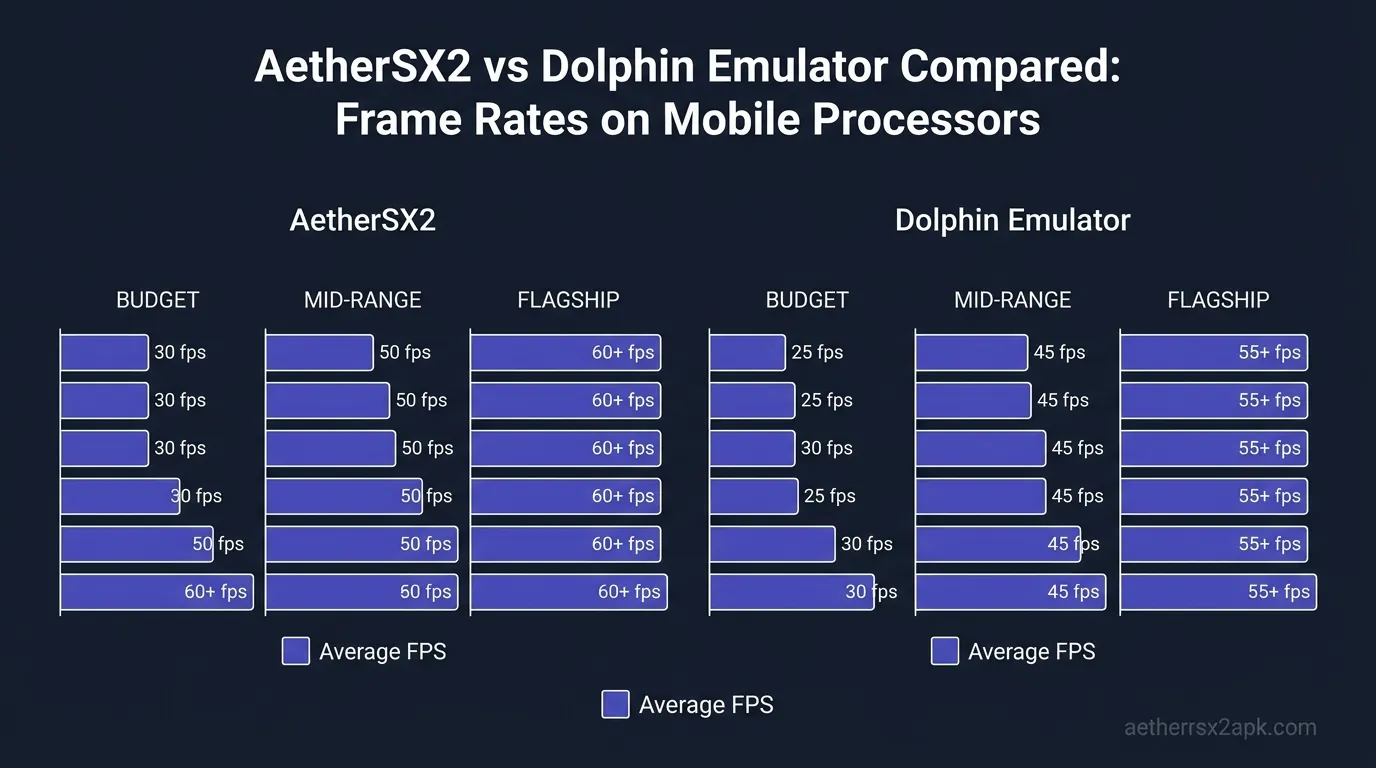
You have your emulator set up, your BIOS is detected, but your games just won't show up in the menu or refuse to launch.
The Archive Trap (ZIP, RAR, 7Z)
The most common mistake new users make is downloading a dumped game that is compressed into an archive file and expecting AetherSX2 to read it directly.
- AetherSX2 cannot read
.zip,.rar, or.7zfiles. - The Fix: You must use an app like ZArchiver (available on the Play Store) to extract the archive. Once extracted, you should be left with an
.iso,.chd, or.csofile. Point AetherSX2 to this extracted file.
Corrupted ISOs and Bad Dumps
If a game appears in your list but immediately crashes to a black screen with an error like "Invalid CD/DVD image," the ISO is corrupted.
- Why it happens: Incomplete downloads, bad sectors during the dumping process from the original DVD, or transferring the file via a faulty USB cable.
- The Fix: You must re-dump the game from your physical disc using a PC tool like ImgBurn, ensuring there are no read errors. Verify the CRC/MD5 hash of your ISO against known good databases like Redump.org to ensure the file is identical to a pristine copy.
Converting formats for better compatibility
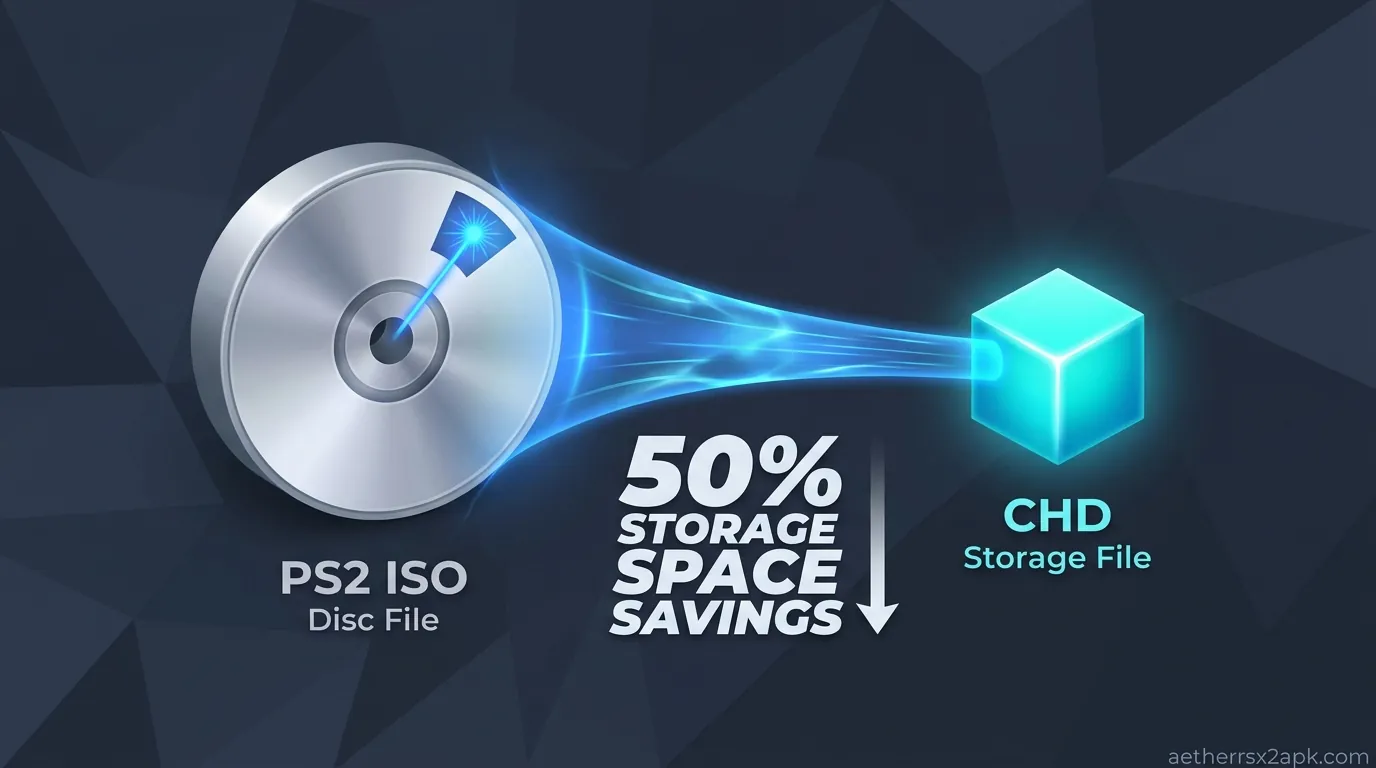
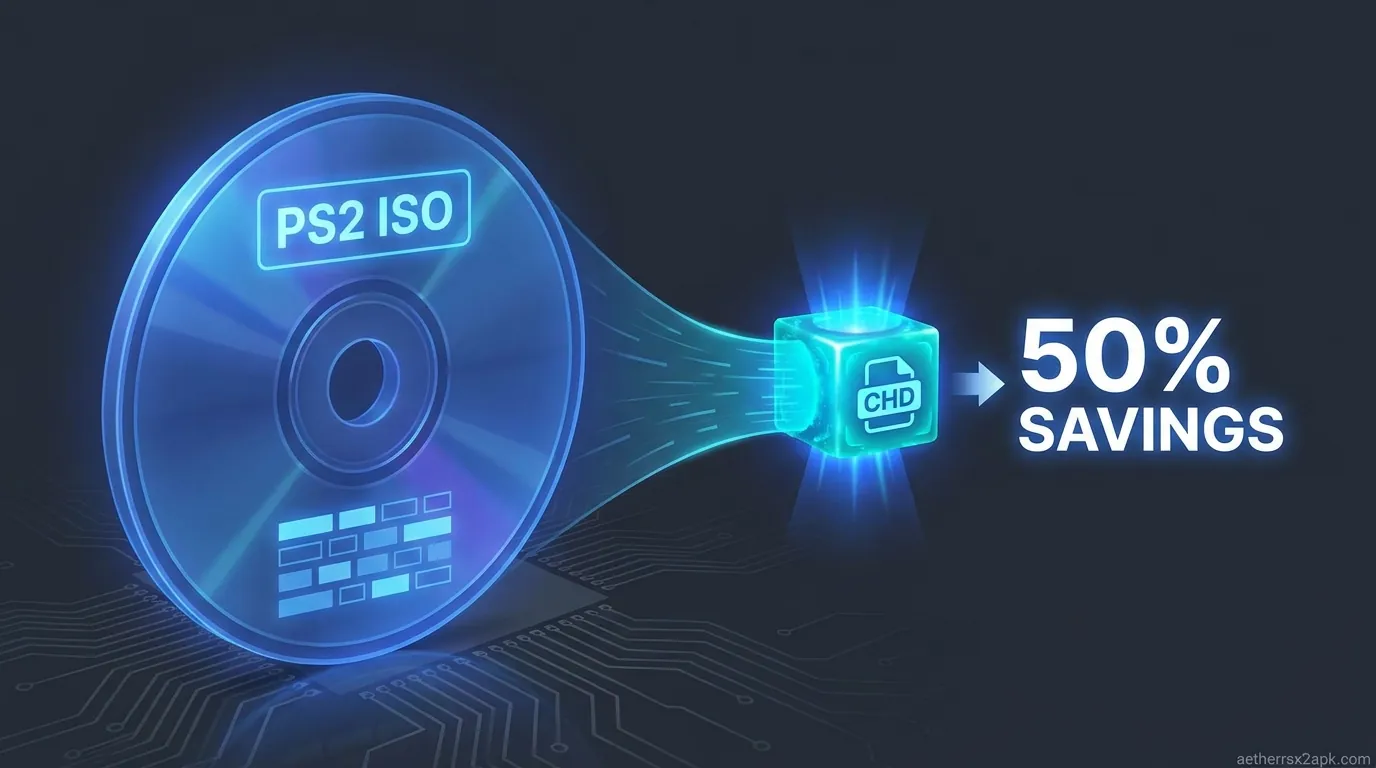
If your .iso files are taking up too much space and causing slow loading times from your phone's storage, you should convert them to the CHD format. CHD compresses the game without losing any data (lossless compression) and AetherSX2 reads it natively.
- Read our full guide on ISO to CHD Conversion for a step-by-step tutorial on shrinking your library sizes by up to 40% while fixing slow-loading I/O errors.
8. Controller & Input Problems
Playing PS2 games with touchscreen controls is notoriously difficult, especially for action-heavy titles like Devil May Cry or God of War. Most users opt for Bluetooth or USB-C controllers (like the Backbone One, Razer Kishi, or Xbox Wireless Controller). If you stay on glass, resize and hide the overlay with the touch controls editor so a palm does not mash Cross.
Bluetooth Controller Latency (Input Lag)
If you press the jump button and your character jumps a half-second later, you are experiencing Bluetooth latency.
- Root Cause: Android's Bluetooth stack, combined with AetherSX2's emulation overhead, can cause severe delays.
- The Fix:
2. If using Bluetooth, ensure no other Bluetooth devices (like wireless earbuds or smartwatches) are actively communicating with your phone while playing, as they crowd the bandwidth. 3. In AetherSX2, go to App Settings > Advanced and look for Maximum Rendered Frames. Lower this value to 1 or 2. This reduces the queue of frames waiting to be displayed, which tangibly reduces input lag.
Controller Not Mapped Correctly
Sometimes AetherSX2 recognizes a controller, but the buttons are scrambled (e.g., X acts as Triangle, the Analog sticks don't work).
- The Fix:
2. Go to Port 1. 3. Tap Automatic Mapping and select your controller from the list. 4. If automatic mapping fails, you must map manually. Tap each input on the screen (e.g., "Cross", "Square", "Left Analog Up") and press the corresponding button on your physical controller.
Touchscreen Controls Missing or Cluttered
If you must use the touchscreen but the buttons are in the way or missing:
- While in-game, pause the emulator.
- Select Touchscreen Controller > Add/Remove Buttons to hide inputs you don't need (like L3/R3).
- Select Move/Resize Buttons to drag the virtual D-Pad and face buttons to comfortable positions for your hands.
9. Graphic Artifacts, Lines & Texture Glitches
You've achieved full speed, but the game looks terrible. You might see vertical lines across the screen, a ghosting effect during movement, or textures that look like a jumbled mess.
Vertical Lines and Ghosting (The Upscaling Curse)
Many PS2 games used clever hardware tricks to simulate motion blur, depth of field, or bloom lighting. When you upscale a game from its native 480i resolution to 1080p (3x or 4x), these tricks break, resulting in vertical lines or a "double image" ghosting effect. Typical victims include Tekken 5, Namco Museum, and various racing games.
The Fix:
- Long-press the game and go to Game Properties > Graphics.
- Scroll to the Hardware Fixes section (you may need to enable Advanced Settings first).
- Check the box for Half-Pixel Offset. Set it to Normal (Vertex) or Special (Texture) depending on the game. This usually aligns the upscaled textures correctly and removes the ghosting/lines.
- If character sprites (in 2D games) have weird boxes around them, enable Align Sprite.
Glitched Textures and Mipmapping
If the ground in front of you looks fine, but the textures far away look corrupted, noisy, or completely black, this is a Mipmapping failure.
- The Fix:
2. Find Mipmapping. Change it from Automatic to Basic or Full.
- Note: Full Mipmapping demands a lot from your GPU. If setting it to Full fixes the textures but kills your framerate, you will have to compromise and leave it on Basic or Off.
Trilinear Filtering Issues
If lines on the road in racing games (like Gran Turismo 4) look jagged or disappear, ensure Bilinear (PS2) or Trilinear Filtering is enabled in the graphics settings. This smooths out textures viewed at oblique angles.
10. Save State & Memory Card Corruption
Losing 40 hours of RPG progress is a nightmare scenario. AetherSX2 handles saving in two ways: traditional Memory Cards (in-game saves) and Save States (emulator snapshots).
For a comprehensive guide on managing and backing up your data, read our AetherSX2 Save States & Memory Cards Guide.
Corrupted Memory Card Files
By default, AetherSX2 creates a virtual 8MB .ps2 file to act as your memory card. If the app crashes while you are saving a game in-game, this 8MB file can become irrevocably corrupted.
- The Fix / Prevention: AetherSX2 allows you to use a Folder Memory Card instead of a single file.
2. Create a new memory card and select the Folder format rather than standard 8MB. 3. This format saves each game's data as a separate file within a folder. If one game's save corrupts, it will not destroy the data for all your other games.
Save State Mismatches (AetherSX2 vs. NetherSX2)
Save States freeze the entire emulator's RAM at an exact millisecond. If you update the emulator, change from AetherSX2 to NetherSX2, or transfer a save state to PCSX2 on a PC, the save state will likely fail to load, displaying an "Incompatible Version" error.
- The Rule of Thumb: Never rely exclusively on Save States. Save states are volatile. Always use the in-game save points to write to your virtual memory card. Memory card saves are universally compatible across all versions of AetherSX2, NetherSX2, and PCSX2.
How to Backup Your Saves
To protect against data loss:
- Open your Android File Manager.
- Navigate to
Android > data > xyz.aethersx2.android > files > memcards. (On newer Android versions, you may need a third-party file manager like FV File Explorer to access thedatafolder). - Copy the
Mcd001.ps2andMcd002.ps2files to Google Drive or an external PC regularly.
11. Frequently Asked Questions
Q1: Why is AetherSX2 no longer being updated? A: The sole developer of AetherSX2, Tahlreth, suspended the project indefinitely in August 2023 due to ongoing harassment, death threats, and unreasonable demands from toxic segments of the emulation community. The final stable build remains v1.5-4248.
Q2: What is NetherSX2 and should I use it instead? A: NetherSX2 is a community-driven patch for the final AetherSX2 build. It removes the ads that were added in the later versions, restores some depreciated features, and updates the game compatibility database. For troubleshooting purposes, NetherSX2 and AetherSX2 function identically, but NetherSX2 is generally recommended for an ad-free experience.
Q3: Can I run AetherSX2 on a 32-bit Android phone? A: No. The emulator is built entirely on a 64-bit architecture (ARM64/AArch64) because it relies on modern CPU instruction sets to translate the PS2's code. There is no 32-bit workaround.
Q4: How do I fix the "Invalid CD/DVD image" error? A: This means your game file is either corrupted, or it is compressed. Make sure the file ends in .iso, .chd, or .cso. If it ends in .zip or .7z, you must extract it first. If it is already an ISO, your dump failed and you need to re-rip the game from your disc.
Q5: Why does my phone get incredibly hot while playing? A: PS2 emulation pushes both your phone's CPU and GPU to their absolute maximum limits. High heat is normal, but excessive heat will cause thermal throttling (massive lag) and eventual crashing. Play in cooler environments, remove your phone case, or use a cooling fan accessory.
Q6: What is the best renderer, OpenGL or Vulkan? A: If you have a Snapdragon processor (Adreno GPU), Vulkan is almost always faster and more efficient. If you have a MediaTek or Exynos processor (Mali GPU), OpenGL is usually required because Mali drivers have poor Vulkan implementation, leading to black screens and graphic glitches.
Q7: Is it possible to play multiplayer games on AetherSX2? A: Yes, AetherSX2 supports local multiplayer. You can connect two Bluetooth controllers to your Android device, map one to Port 1 and the other to Port 2 in the Controller Settings, and play split-screen multiplayer exactly as you would on a real console. Network/Online play is not currently supported natively.
Q8: Why does my audio sound robotic and slow? A: Audio stutter is a direct result of low frame rates. The emulator slows down the audio to keep it synchronized with the lagging video. To fix this, change the Audio Synchronization Mode to "Async Mix" in the audio settings, or underclock the EE to improve overall game speed.
Q9: Where can I download PS2 BIOS and game ROMs? A: We do not provide, link to, or endorse downloading copyrighted material. You are legally required to dump the BIOS from a PlayStation 2 console that you own, and rip games from physical DVD discs that you have purchased.
Q10: Will AetherSX2 ever get iOS support? A: No. Due to the suspension of development, an iOS port of AetherSX2 will never happen. For iOS users, the alternative is looking into web-based emulation or awaiting future ports from the Play! emulator project.
Conclusion
Emulating a system as complex as the PlayStation 2 on a pocket-sized mobile device is nothing short of miraculous. However, it requires a bit of patience and a willingness to tinker. By understanding the root causes of black screens, crashes, and performance lag, you can use the troubleshooting steps in this guide to optimize almost any game in your library.
Remember: the key to AetherSX2 is compromise. If your device is struggling, lower your resolution, utilize EE underclocking, and accept that not every game will run at a flawless 60 FPS. Keep tweaking, back up your memory cards, and enjoy the golden era of PS2 gaming on the go!
Have more specific questions? Return to the main download hub for the install baseline, then browse game-specific setups from there.