
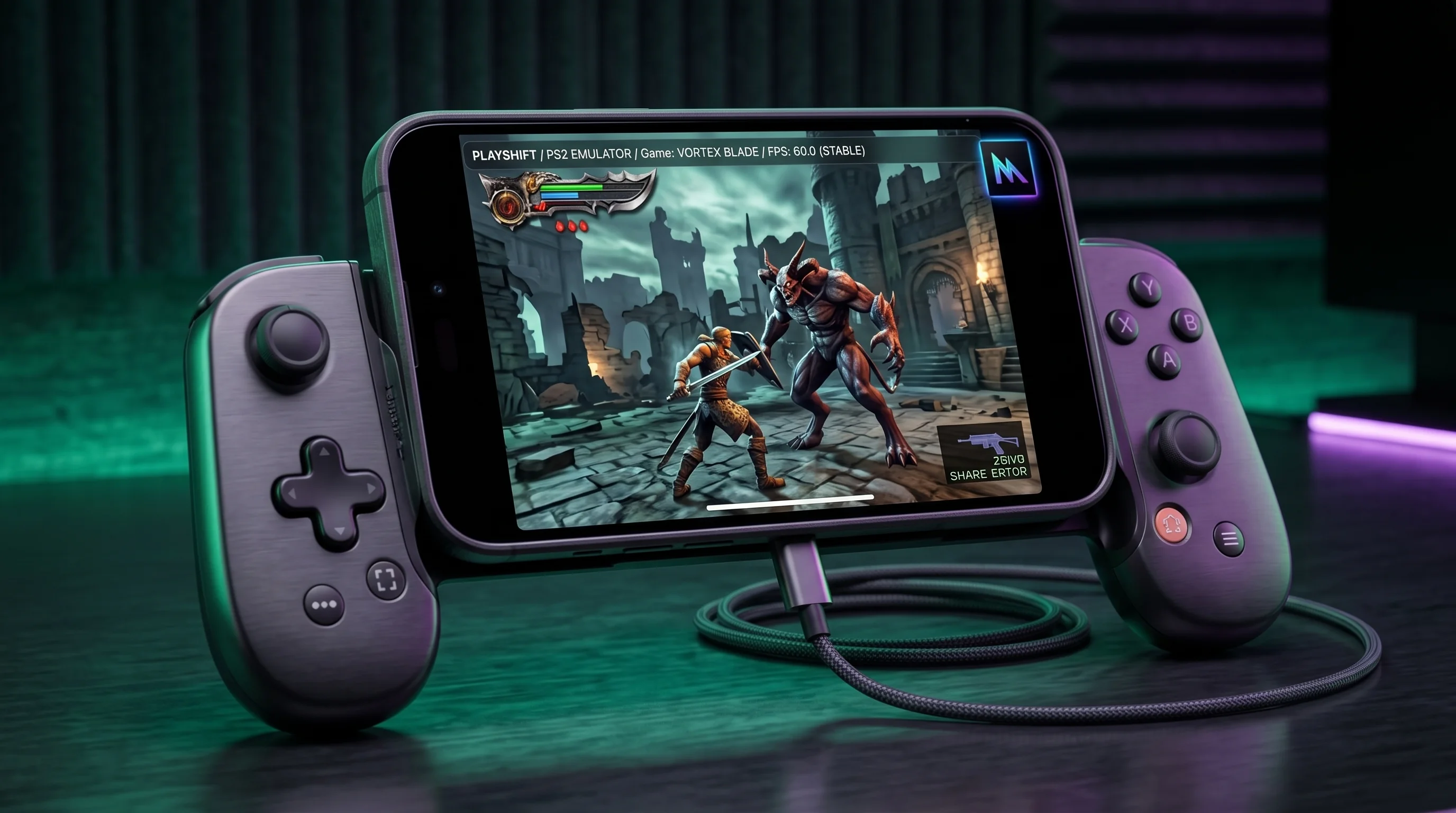
AetherSX2 for iOs OFFICIALLY SUPPORTED EMULATION ENGINE
AetherSX2 for iOS iPhone Setup
By HBKPublished Last updated
Quick summary
There is no App Store AetherSX2. iPhone and iPad users sideload Play! iOS (AltStore / SideStore), enable JIT for playable FPS, and import a PS2 BIOS via the Files app.
- Emulator: Play!, not AetherSX2's Android core
- JIT: required for 60 FPS; without it, expect slideshows
- BIOS: dump from a console you own; A12+ for 480p–1080p
- Pad: Bluetooth DualShock / DualSense for action games
Running PlayStation 2 games natively on Apple iOS and iPadOS devices has become a reality thanks to modern 64-bit ARM A-series and M-series processor power. While native AetherSX2 was created for Android mobile devices, iOS users have access to Play! iOS: an open-source native C++ PlayStation 2 emulator compiled specifically for Apple's mobile operating system. Compare options in our mobile emulator comparison guide.
Whether you are using an iPhone 11, 12, 13, 14, 15, 16, or an M-series iPad Air/Pro, this guide covers .ipa sideloading, JIT (Just-In-Time) compilation setup, AltStore/SideStore workflows, BIOS configuration in the iOS Files app, and Bluetooth controller pairing.
On this page
Emulating Sony's 128-bit PlayStation 2 hardware on mobile operating systems requires immense computational power. The PS2's Emotion Engine CPU runs at 294 MHz with dual Vector Units (VU0 and VU1) that compute complex 3D geometry, lighting, and physics.
On iOS, native C++ emulators translate these 128-bit instructions into native Apple 64-bit ARM64 machine code. Because Apple's A-series and M-series chips lead the mobile industry in single-core CPU clock speeds and GPU compute per watt, iPhones and iPads possess the raw hardware capability to render demanding PS2 titles at 60 FPS in upscaled 1080p HD.
Key Features of iOS PS2 Emulation:
- Native Metal Rendering: Capitalizes on Apple's Metal graphics framework for high frame rates and minimal battery consumption.
- Retina Display Scaling: Renders original 480i retro titles in 2x, 3x, or 4x crisp resolution on Super Retina XDR OLED screens.
- On-Screen Touch Controls: Dynamic haptic touch overlay with full customization of button layout, opacity, and analog stick sensitivity.
- Physical Gamepad Support: Plug-and-play compatibility with PlayStation 5 DualSense, Xbox Wireless, Backbone One, and Razer Kishi V2 controllers.
iOS & iPadOS Hardware Performance Matrix
Use this table to set realistic resolution targets before you tune graphics. These figures assume JIT is enabled — without JIT, every device drops to interpreter speeds (10–20 FPS) regardless of chip tier.
| Device Generation | Chipset & RAM | Target Frame Rate | Expected Resolution | JIT Status |
|---|---|---|---|---|
| iPhone XS / XR / 11 | A12 / A13 Bionic (3–4 GB RAM) | 30–60 FPS | 1× Native (480p) | Required |
| iPhone 12 / 13 / 14 | A14 / A15 Bionic (4–6 GB RAM) | 60 FPS locked | 2× HD (720p–1080p) | Required |
| iPhone 15 Pro / 16 Pro | A17 Pro / A18 Pro (8 GB RAM) | 60 FPS locked | 3× Full HD (1080p–1440p) | Required |
| iPad Air / Pro (M1/M2/M4) | M1 / M2 / M4 (8–16 GB RAM) | 60 FPS locked | 4×–6× Ultra HD (up to 4K) | Required |
How to read this table: Start at the resolution column for your row, then raise upscale only if frame time stays under 16 ms. Thermal throttling on iPhone (no fan) matters more than raw benchmark scores — remove cases and disable Low Power Mode during long sessions. For Android cross-reference, see phones that handle PS2 well.
The Critical Role of JIT (Just-In-Time) Compilation
The single most important factor determining PS2 emulation speed on iOS is JIT (Just-In-Time) Compilation.
What is JIT?
JIT compilation is a mechanism where binary instructions for the PS2's Emotion Engine CPU are compiled into native Apple ARM64 code on-the-fly while the game is running. Without JIT, the emulator must use Interpreted mode, which translates instructions line-by-line, causing massive slowdowns (10–15 FPS).
The JIT Performance Impact:
- Interpreter Mode (No JIT): 10 - 20 FPS (Unplayable lag, severe audio stuttering).
- JIT Enabled: 60 FPS Full Speed (Smooth 300% to 500% performance increase).
Apple's iOS Security Constraints:
Apple disables arbitrary executable memory allocation (JIT) by default on standard iOS app installations for security reasons. To enable JIT, you must sideload the .ipa using tools that attach a debugger or developer entitlement flag (such as AltStore, SideStore, Jitterbug, or TrollStore).
Step-by-Step Sideloading via AltStore
AltStore is the most reliable, free sideloading solution for non-jailbroken iPhones and iPads.
Step 1: Install AltServer on Computer
- Download AltServer for Windows or Mac from the official website (
altstore.io). - Install AltServer and launch it in your system tray or Mac menu bar.
- Connect your iPhone to your computer using a Lightning or USB-C cable.
- On your iPhone, select Trust This Computer and enter your passcode.
Step 2: Install AltStore App on iPhone
- Click the AltServer icon on your computer.
- Select Install AltStore ➔ [Your iPhone Name].
- Enter your Apple ID and password (used by Apple to sign developer certificates).
- On your iPhone, go to Settings ➔ General ➔ VPN & Device Management, tap your Apple ID under Developer App, and tap Trust.
Step 3: Sideload the IPA File
- Open Safari on your iPhone and click the green Download AetherSX2 for iOs button at the top of this guide.
- Once downloaded, open the AltStore app on your iPhone.
- Tap My Apps, tap the + icon in the top corner, and select
aethersx2-ios-aetherrsx2apk-com-version.ipa. - AltStore will sign and install the app onto your iPhone home screen.
Alternative Sideloading: SideStore & TrollStore
Option 1: SideStore (No PC Required After Setup)
SideStore is a fork of AltStore that operates directly on your iPhone using a local WireGuard VPN loopback connection, allowing you to refresh apps and enable JIT without plugging into a computer ever again:
- Install SideStore
.ipavia AltServer initially. - Connect to the local SideStore WireGuard VPN profile inside your iOS settings.
- Open SideStore to enable JIT for Play! iOS directly over Wi-Fi.
Option 2: TrollStore (iOS 14.0 - 16.6.1 Only)
If your device is running a compatible iOS version supported by TrollStore, you can permanently install the .ipa with permanent JIT permissions and zero 7-day certificate expiration limits:
- Install TrollStore using the helper app for your iOS build.
- Share
aethersx2-ios-aetherrsx2apk-com-version.ipato TrollStore. - Tap Install. The app will launch with full, permanent JIT access instantly.
Setting Up PS2 BIOS & Games in iOS Files App
Like native hardware, the emulator requires a valid PlayStation 2 BIOS file (.bin) extracted from a real PS2 console to boot games:
Folder Hierarchy Setup:
- Open the built-in Files app on your iPhone.
- Navigate to On My iPhone ➔ Play! (or the emulator folder).
- Create a folder named
biosand paste your extracted BIOS file (e.g.,SCPH-70012.binorSCPH-39001.bin). - Create a folder named
Gamesand transfer your.isoor.chdgame ROMs here. - Launch the emulator app, tap Settings ➔ Select BIOS Path, and point to your
SCPH-70012.binfile. Region timing notes in NTSC vs PAL timing differences. Full dump steps in BIOS walkthrough.
Connecting Bluetooth & Lightning/USB-C Controllers
Playing PS2 games on a touchscreen can be challenging for complex action games. iOS includes native system support for modern game controllers:
Bluetooth Gamepad Pairing:
- PlayStation 5 DualSense: Hold the Create + PS Button until the light bar flashes blue.
- Xbox Wireless: Hold the Pairing Button on top until the Xbox logo flashes rapidly.
- Open iPhone Settings ➔ Bluetooth and select your controller under Other Devices.
Mobile Snap-On Controllers (Lightning & USB-C):
- Backbone One (PlayStation & Xbox editions).
- Razer Kishi V2.
- GameSir X2 / G8 Galileo.
These controllers connect directly via Lightning or USB-C, providing zero input latency, physical analog triggers, and pass-through charging. Mapping tips in wireless gamepad pairing and Bluetooth input latency fixes.
Graphics & Frame Rate Optimization
To maintain a smooth 60 FPS on iOS without thermal throttling:
- Internal Resolution: Start at 1x Native (480p) on A12/A13 chips. Step up to 2x (720p/1080p) on A14/A15/A16 chips, and 3x/4x on A17 Pro, A18 Pro, or M-series iPads.
- Frame Skipping: Keep Disabled unless playing on older A12 hardware.
- Audio Sync: Set Audio Stretching to On to prevent sound crackling during momentary FPS dips.
- Low Power Mode: Ensure iOS Low Power Mode is OFF in Settings ➔ Battery, as Low Power Mode throttles CPU clock speeds by 50%. If games still dip, read when games feel sluggish.
PC Remote Play Alternative (Moonlight & Steam Link)
If your iOS device cannot run heavy PS2 games at 60 FPS natively due to lack of JIT, you can stream PCSX2 / AetherSX2 from a host PC over home Wi-Fi:
- Install Sunshine (host server) on your desktop PC.
- Install Moonlight Game Streaming from the iOS App Store.
- Pair Moonlight with your PC over local Wi-Fi.
- Enjoy 4K 60 FPS PS2 emulation on your iPhone with zero battery strain and full controller support.
There is no AetherSX2 iOS build. Play! is a separate core (Play! on GitHub). Desktop Mac users want PCSX2. JIT policy discussions belong on r/EmulationOnAndroid only as Android context.
Frequently Asked Questions
Is the download file hosted directly on your website?
Yes. The download link at the top of this guide starts an immediate file transfer from our server (aetherrsx2apk.com).
Does this require a jailbreak?
No. You can sideload the .ipa package on stock, non-jailbroken iOS firmware using AltStore or SideStore.
Why does the emulator lag without JIT enabled?
Without JIT (Just-In-Time compilation), iOS forces the CPU to interpret PS2 code line-by-line, causing severe lag (10-15 FPS). Enabling JIT via AltStore, SideStore, or TrollStore grants full 60 FPS speed.
How often do I need to refresh the app in AltStore?
Free Apple Developer accounts expire every 7 days. If using AltStore or SideStore, connect to Wi-Fi once a week to refresh the app certificate automatically. If using TrollStore, certificates never expire.
Which PS2 game formats are supported on iOS?
The emulator supports .iso, .chd (compressed hunk data), .bin/.cue, and .cso disc images. We recommend compressing disc images to CHD to save 40–60% storage on your iPhone.