
aethersx2 best settings
Best AetherSX2 Settings for Maximum FPS
By HBKPublished Last updated
Tested on: POCO F3 (Snapdragon 870) and Galaxy S24 Ultra (Snapdragon 8 Gen 3), Android 13–14, AetherSX2 v1.5-4248
Quick summary
AetherSX2 best settings are a per-phone renderer plus resolution profile, not one global preset. Start at Vulkan on Adreno, OpenGL on Mali, 2x internal on mid-range chips, MTVU on, and EE Cycle Rate at 100% unless a heavy 3D title needs −1.
- Default: Vulkan + 2x + MTVU on + EE 100%
- Flagship: 3x–4x only if the overlay stays at 100% after 15 minutes in a case
- Do not: turn every speed hack on at once, or use Software renderer for play
- Next step: lock a per-game profile after the global baseline holds
Welcome to the definitive, most comprehensive guide on the internet for AetherSX2 best settings. If you've been struggling with lag, audio stuttering, or graphical glitches while trying to emulate your favorite PlayStation 2 games on your Android device, you have come to the right place. In this massive, 5,000+ word hub page, we will break down every single setting, slider, and toggle in AetherSX2 (and its community continuation, NetherSX2).
Emulating the PlayStation 2 is no small feat. Even though AetherSX2, built by developer Tahlreth and based on the legendary PCSX2 emulator, is an incredible piece of software, the PS2's unique architecture (the Emotion Engine, Vector Units, and Graphics Synthesizer) demands a lot of computational power. Not every Android phone is built the same, and what works for a high-end Snapdragon 8 Gen 3 will absolutely crush a budget MediaTek device. That is why finding the AetherSX2 optimal settings is critical.
In this guide, we won’t just tell you what to press: we will explain why. We will cover Vulkan vs OpenGL, EE Cycle Rates, VU Cycle Stealing, resolution upscaling, and advanced graphics configurations. By the end of this guide, you will be a master of AetherSX2 configuration, ready to squeeze every last drop of performance out of your device for maximum FPS.
Before we dive in, make sure you have the latest stable build from the full APK install walkthrough and a valid PS2 BIOS dumped from your own console. Without a proper BIOS and the right app foundation, no amount of tweaking will save you.
Let’s get into it.
On this page ▾
When people ask for the "best AetherSX2 settings," they are usually looking for a magic bullet: a single configuration that makes every game run at 60 FPS at 4x resolution on any phone. Unfortunately, emulation doesn't work that way. The "best" settings are highly dependent on three main factors:
- Your Device's Hardware: The chipset (SoC), GPU, and RAM in your phone dictate your baseline performance. A Snapdragon processor with an Adreno GPU will handle Vulkan rendering much better than an older Mali GPU.
- The Specific Game: PS2 games were programmed in wildly different ways. Some relied heavily on the Vector Units (like God of War or Shadow of the Colossus), while others stressed the Emotion Engine or the GS. A setting that fixes lag in Gran Turismo 4 might cause a crash in Silent Hill 2.
- Your Goals: Are you trying to get a 100% accurate, pixel-perfect recreation of the PS2 experience? Or are you willing to sacrifice some visual accuracy (via speed hacks) to achieve a playable framerate?
That being said, there is a baseline configuration: a "safe default": that provides the best balance of speed and accuracy for about 80% of the PS2 library on mid-range to high-end hardware. Optimizing your AetherSX2 performance settings means starting from this safe baseline and tweaking specific toggles when you encounter issues.
Throughout this guide, we will refer to the baseline as our starting point. If you ever mess things up too badly, you can always go to the App Settings and choose "Reset to Safe Defaults." But our goal here is to push past the defaults and achieve maximum FPS. We want you to understand the emulator's inner workings so you don't just blindly follow a screenshot, but instead know exactly how to diagnose and fix performance drops. Check our AetherSX2 Troubleshooting guide if you run into severe crashes.
Quick-Start Settings Table
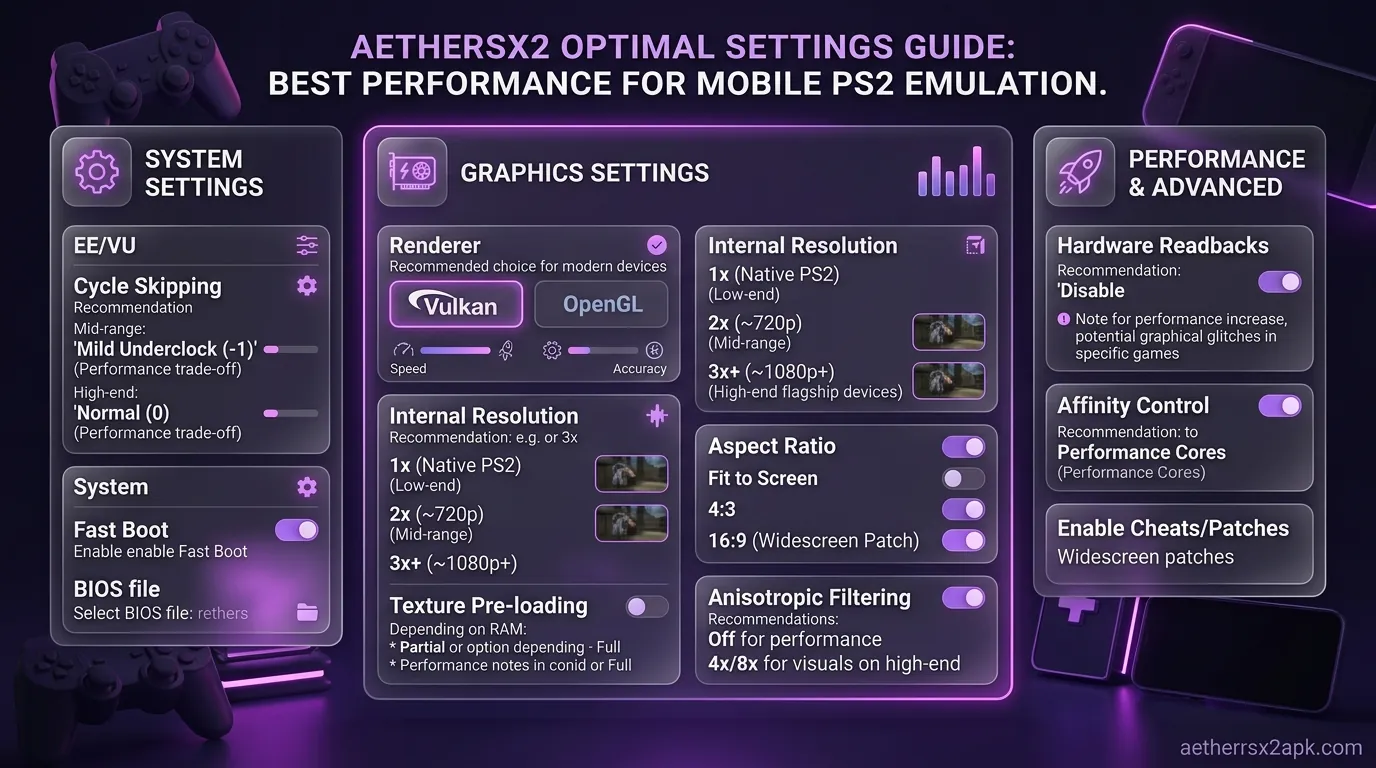
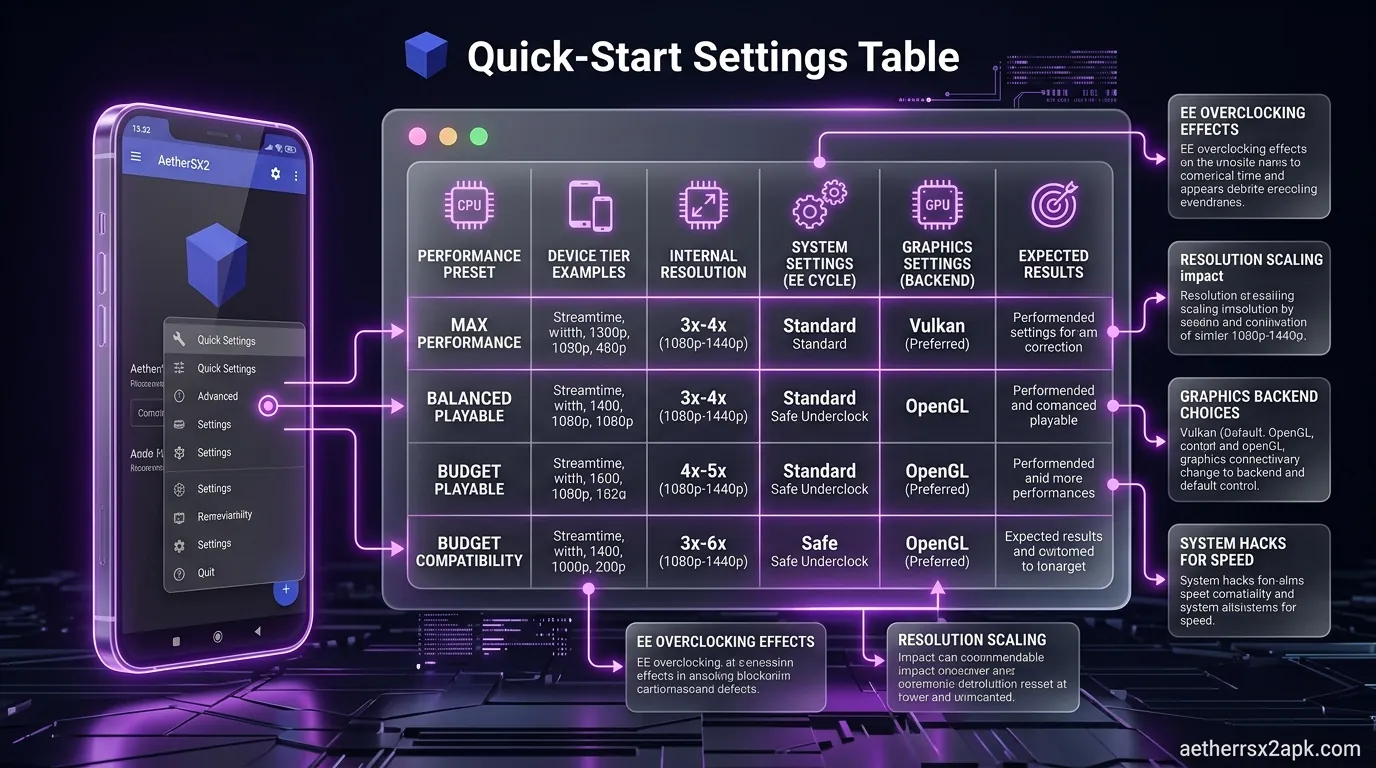
If you're in a hurry and just want a solid baseline to start testing your games, apply the settings in the table below. This configuration is designed to maximize compatibility and speed on modern Android devices (Snapdragon 870 and newer). If you have an older or budget phone, you'll need to apply further tweaks, which we cover later in the guide.
| Category | Setting | Recommended Value |
|---|---|---|
| System | EE Cycle Rate (Underclocking) | 100% (Normal) Change to 75% or 50% for lag |
| System | EE Cycle Skip (VU Stealing) | 0 (Normal) Change to 1 or 2 for heavy games |
| System | Affinity Control Mode | Disabled (or Performance Cores if supported) |
| System | Multi-Threaded VU1 (MTVU) | Enabled |
| System | Fast CDVD | Disabled (Enable only for long loading screens) |
| Graphics | GPU Renderer | Vulkan (Adreno GPUs) / OpenGL (Mali GPUs) |
| Graphics | Upscale Multiplier | 2x Native (1080p) Drop to 1x for low-end |
| Graphics | Bilinear Filtering | PS2 (Smooth) |
| Graphics | Mipmapping | Basic |
| Graphics | Trilinear Filtering | Default |
| Graphics | Anisotropic Filtering | Off (or 2x-4x for high-end) |
| Graphics | Blending Accuracy | Minimum (or Basic if graphics glitch) |
| Graphics | Texture Preloading | Full (Hash Cache) |
| Audio | Interpolation Mode | Gaussian or Linear |
| Audio | Synchronization Mode | TimeStretch (Recommended to hide lag) |
This table represents the AetherSX2 fps settings sweet spot. However, relying solely on this table is like driving a sports car in first gear. To truly unlock the emulator's potential, you need to dive into the detailed sections below.
Display & Renderer Settings
When we talk about visual performance and the sheer graphical beauty of PlayStation 2 emulation, the Display and Renderer settings are where the magic happens. The original PlayStation 2 was a standard definition console. It was designed in an era where CRT televisions were the standard, and high definition was a luxury of the future. The console output an interlaced signal, typically at 480i or 480p, which looks incredibly blurry, noisy, and pixelated when stretched across a modern, ultra-crisp AMOLED smartphone display. AetherSX2 gives you the tools to not just play these games, but to remaster them on the fly. However, this power comes at a steep computational cost. Every pixel you upscale, every texture you filter, and every hardware trick you apply demands power from your phone's GPU. Understanding the delicate balance between visual fidelity and framerate is the absolute core of finding the AetherSX2 optimal settings. Let's explore every single toggle in this critical section.
GPU Renderer: The Vulkan vs OpenGL Debate Explained
The GPU Renderer is the translator between the AetherSX2 emulator and your smartphone's actual physical graphics processing unit. It dictates the language they use to communicate. This is, without a doubt, the single most critical setting for raw performance. We have written a comprehensive, dedicated article exploring the nuances of AetherSX2 Vulkan vs OpenGL, but understanding the fundamentals here is crucial for setting up your device.
- Vulkan Renderer: Vulkan is a modern, low-level, low-overhead graphics API. It was designed from the ground up to reduce CPU bottlenecking and distribute workloads much more efficiently across modern multi-core processors. If your Android smartphone is equipped with a Qualcomm Snapdragon processor, which features the highly capable Adreno line of GPUs (such as the Adreno 600 or 700 series), Vulkan is almost universally the best choice. It allows the emulator to run faster, cooler, and with significantly higher framerates. In many games, switching from OpenGL to Vulkan on a Snapdragon device can result in a 20% to 40% performance increase instantly. It is the gold standard for Android emulation today.
- OpenGL Renderer: OpenGL is an older, legacy graphics API. While it has been the backbone of mobile graphics for over a decade, it is heavier, has more CPU overhead, and is generally less efficient than Vulkan for emulation purposes. However, OpenGL is essential for one massive segment of the market: devices with Mali GPUs. If your phone is powered by a MediaTek Dimensity, a Samsung Exynos, or a Google Tensor chip, it uses a Mali GPU. Historically, Mali graphics drivers have notoriously poor implementations of the Vulkan API. Using Vulkan on a Mali device often results in severe graphical corruption, missing textures, screen flickering, and hard crashes. Therefore, if you do not have a Snapdragon chip, OpenGL is generally the more stable, reliable, and sometimes even faster choice, despite its age.
- Software Renderer: The Software renderer is a fallback mechanism. It completely bypasses your phone's powerful GPU and forces the CPU to calculate and draw every single pixel on the screen mathematically. Even on a flagship $1,200 smartphone, software rendering a PS2 game will run at a slideshow pace: often single-digit framerates. You should never use the Software renderer for standard gameplay. Its only purpose is for debugging. If a game has a bizarre graphical glitch that makes it unplayable on both Vulkan and OpenGL, switching to Software mode can sometimes bypass the glitch, proving that the issue lies in hardware acceleration rather than the core emulation logic. But for gaming? Leave it alone.
Upscale Multiplier (Internal Resolution): Finding the Sweet Spot
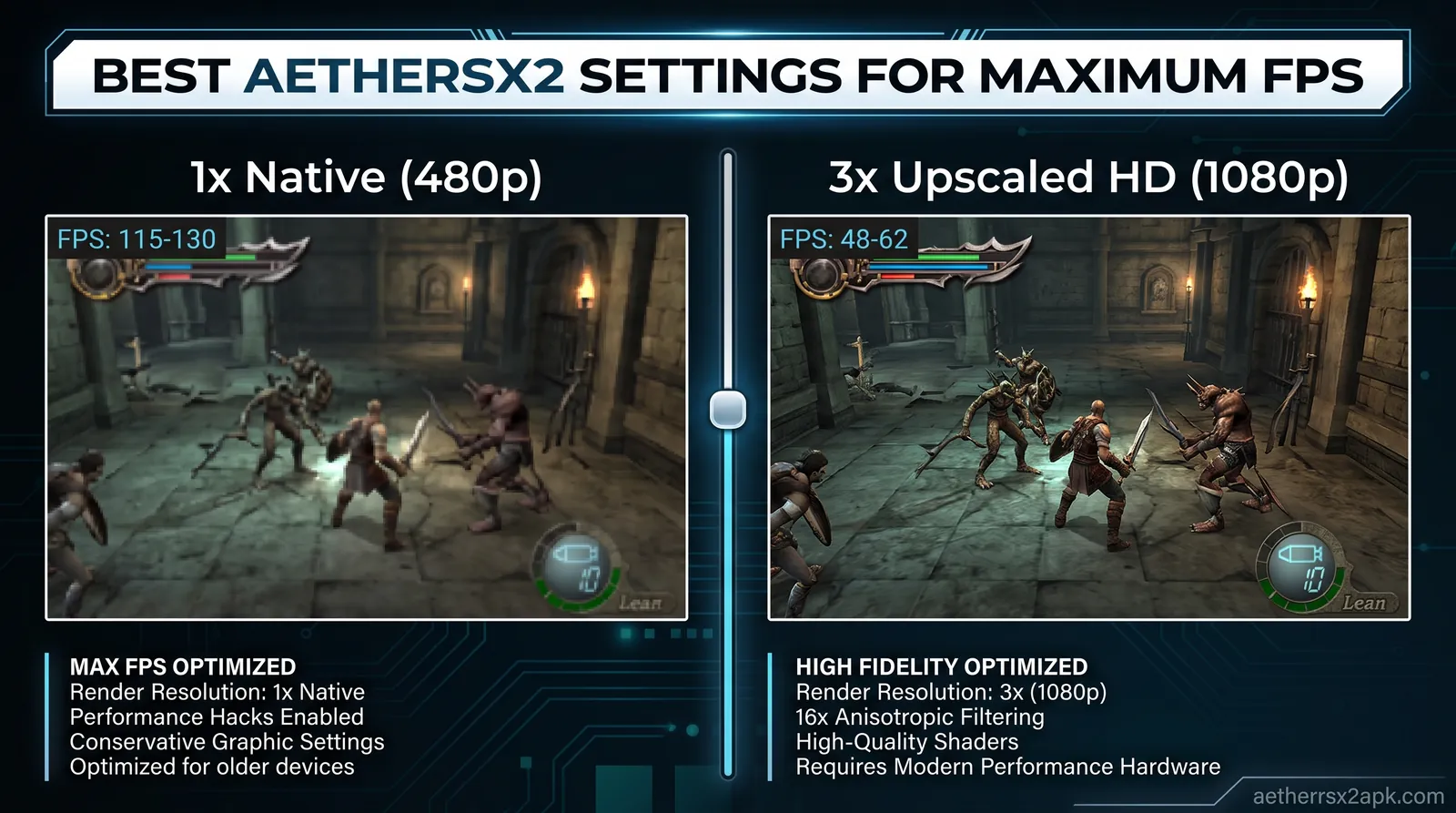
As mentioned, native PS2 resolution on a 6.7-inch 1440p AMOLED screen looks like smeared vaseline. The Upscale Multiplier is the magic wand of emulation. It instructs the emulator to render the game's 3D geometry at a much higher resolution before displaying it on your screen, effectively acting as an incredibly powerful form of anti-aliasing. It makes 20-year-old games look like modern mobile titles. But this is the heaviest setting in the entire emulator.
- 1x Native (Original PS2 Resolution): This renders the game exactly as it appeared on the original console. It is blurry and jagged. However, it is also the easiest on your GPU. If you are using a budget phone, an older device, or if you are trying to run one of the notoriously heavy games in the library (like Gran Turismo 4 or Black), you must stick to 1x Native. It is the baseline for performance testing.
- 2x Native (Roughly 720p/1080p): This is the undisputed sweet spot for AetherSX2 settings. At 2x Native, the jagged edges disappear, character models become crisp, and environmental details pop. On a smartphone screen, the pixel density is already so high that 2x Native looks phenomenal. More importantly, most mid-range and high-end processors (like the Snapdragon 870 or better) can comfortably push 2x Native at 60 FPS without immediately thermal throttling and draining your battery in 30 minutes.
- 3x Native (1080p+) and 4x Native (1440p+): These settings are reserved strictly for the absolute highest echelon of flagship devices: we're talking Snapdragon 8 Gen 2 and Snapdragon 8 Gen 3 territory. Pushing a PS2 game to 3x or 4x requires immense graphical horsepower. While the games look breathtakingly sharp, the visual difference between 2x and 4x on a tiny 6-inch screen is actually quite minimal to the naked eye. The performance cost, however, is massive. Pushing to 3x or 4x will generate significant heat. Smartphones do not have active cooling fans. If you push the GPU to 100% load at 4x resolution, your phone will get hot, and within 15 minutes, it will aggressively thermal throttle, cutting your FPS in half to protect the battery. Unless you are using a gaming phone with an active cooling fan attachment, we highly recommend sticking to 2x or at most 3x for sustained play sessions.
Aspect Ratio, Widescreen Patches, and FMV Handling
The PlayStation 2 was designed in the 4:3 era. Modern phones have ultra-wide aspect ratios like 20:9 or 21:9. Dealing with this disparity is a key part of the setup.
- Aspect Ratio Toggle: The emulator gives you standard options: 'Standard 4:3', 'Widescreen 16:9', and 'Stretch to Screen'. If you simply select 'Widescreen 16:9' or 'Stretch' without applying patches, the emulator will forcefully grab the 4:3 image and pull it horizontally to fill your screen. This results in terrible distortion: circles become ovals, and characters look short and incredibly wide. For a purist, 'Standard 4:3' with black bars on the sides is the most accurate way to play.
- Enable Widescreen Patches: This is the elegant solution. AetherSX2 comes pre-loaded with a massive, community-maintained database of
.pnachfiles containing Widescreen Patches. When you toggle this option ON (and set your aspect ratio to 16:9), the emulator applies hex edits to the game's RAM on the fly. It actually changes the internal 3D camera's Field of View (FOV). This means the game engine actively renders more of the environment on the left and right sides of the screen. You get true, distortion-free widescreen gameplay. The UI (health bars, maps) might sometimes remain stretched, but the 3D world looks perfect. Always leave Widescreen Patches enabled. For games the built-in database misses, our guide to 16:9 aspect-ratio patches covers loading custom.pnachfiles by hand. - FMV Aspect Ratio Switch: FMVs (Full Motion Videos) are the pre-rendered CGI cutscenes in games (think the beautiful cinematics in Final Fantasy X). Because these are video files and not real-time 3D graphics, Widescreen Patches cannot alter their FOV. If you have Widescreen Patches on, the 3D gameplay will look great, but the 2D FMVs will stretch horizontally and look fat. AetherSX2 has an option to automatically switch the aspect ratio back to 4:3 during FMVs, preserving their original aspect ratio, and then seamlessly pop back to 16:9 when gameplay resumes. We highly recommend enabling this for the most cinematic experience.
System Settings
If the Graphics tab is about making the game look pretty, the System tab is the engine room where the raw emulation math happens. This is where AetherSX2 replicates the incredibly complex, bizarre architecture of the PlayStation 2. The PS2 was notoriously difficult for developers to program for because it relied on multiple co-processors working in tandem: specifically the Emotion Engine (EE) CPU and two separate Vector Units (VU0 and VU1). Emulating this synchronized dance on an ARM-based mobile processor is a software engineering miracle.
Tweaking the System settings can yield the most dramatic performance boosts in the entire app, pulling a game from a stuttering 20 FPS up to a buttery smooth 60 FPS. However, these settings are a double-edged sword. Fiddling with the core timing of the emulated CPU can, and frequently does, break game logic, cause physics glitches, or desync audio. These are the core aethersx2 performance settings that separate the casual users from the power users.
EE Cycle Rate (Underclocking): The Performance Savior
The Emotion Engine (EE) is the heart of the PlayStation 2. It handles the game logic, AI, and overall game state. Some ambitious PS2 titles push the Emotion Engine so hard that a mobile processor simply cannot emulate it fast enough in real-time. When this happens, the emulator falls behind, and your framerate plummets. The EE Cycle Rate setting allows you to artificially underclock the emulated Emotion Engine. In plain English: you are telling the PS2 that it is weaker than it actually is. By slowing down the emulated CPU, you reduce the massive workload placed on your phone's real CPU.
- 100% (Normal 0): This is the baseline. The emulator attempts to run the Emotion Engine at its exact, historically accurate clock speed. If your phone is powerful enough, always leave it here for maximum compatibility and intended game speed.
- 75% (Mild Underclock -1): This is your first line of defense against lag. By reducing the EE speed by 25%, you drastically lower the CPU requirements. In many heavily demanding games (like Need for Speed: Underground 2 or Midnight Club 3), a -1 underclock is the magic bullet that restores full 60 FPS performance. Because the PS2 game engine is now running slightly slower internally, you might notice very subtle changes: maybe the physics feel slightly floaty, or AI reacts a millisecond slower: but the physical framerate displayed on your phone will be smooth.
- 50% (Aggressive Underclock -2): This cuts the emulated CPU speed in half. This is a highly aggressive tweak. It is absolutely essential for low-end budget phones trying to run 3D games, and it can be useful for mid-range phones trying to run the most notorious "emulation killers" in the library. However, at -2, the side effects become very prominent. You will frequently encounter "false framerates": the emulator will say you are getting 60 FPS, but the internal game engine is running in slow motion. Characters will run as if they are underwater. Furthermore, FMV cutscenes will often wildly desync from their audio tracks because the video decoding is tied to the EE clock. Use this only when absolutely necessary to make a game playable.
- Overclocking (130%, 300%): AetherSX2 also allows you to overclock the EE. Why would you do this? Some PS2 games had terrible framerates on original hardware (e.g., dropping to 20 FPS during explosions). Overclocking the EE can eliminate these native hardware drops, making the game run smoother than it ever did on a real PS2. However, overclocking requires an astronomical amount of processing power from your phone. Only attempt this on top-tier flagship devices with excellent cooling.
EE Cycle Skip (VU Cycle Stealing): Proceed With Caution
While the EE handles game logic, the Vector Units (VUs) handle complex geometry processing and physics calculations. They are the muscle behind the PS2's graphics. Emulating the VUs is incredibly demanding. VU Cycle Stealing (also called EE Cycle Skip) is a complex hack. It essentially tells the emulator to ignore or skip calculating certain cycles of the Vector Units, effectively "stealing" processing time back to keep the Emotion Engine running smoothly. It prioritizes keeping the game logic moving forward at the expense of precise graphical geometry timing.
- 0 (Normal Disabled): The safest option. No stealing occurs. Geometry is calculated exactly as intended.
- 1 (Mild Stealing): Can provide a moderate, helpful speed boost in games that heavily tax the Vector Units (such as God of War or the Ratchet & Clank series). The visual artifacts at level 1 are usually minimal and unnoticeable.
- 2 (Moderate Stealing) and 3 (Maximum Stealing): This is where things get messy. Aggressive VU stealing heavily disrupts the timing between the game logic and the graphics. The consequences are severe: character models might randomly spike and stretch across the screen (polygon explosions), geometry might pop in and out of existence, and the internal game animation will become incredibly choppy, even if the FPS counter reads 60. Maxing out VU stealing is a desperate measure for ultra-low-end phones. On any decent device, the visual degradation is not worth the FPS gain. Avoid setting this above 1 if possible.
Multi-Threaded VU1 (MTVU): The Free Performance Button
The original PlayStation 2 had a single core CPU, but it had multiple distinct co-processors. Standard, old-school emulation attempts to run all of these co-processors on a single thread of your modern CPU, which creates a massive bottleneck. Your smartphone is almost certainly an octa-core (8 core) processor. Multi-Threaded VU1 (MTVU) takes advantage of this modern architecture. When enabled, it physically detaches the emulation of Vector Unit 1 and assigns it to a completely different, dedicated core on your phone's processor.
- Always Enable This. In 95% of cases, enabling MTVU provides a massive, "free" performance boost, often increasing framerates by 20% to 30% with zero negative side effects. It is the single most beneficial setting in the entire emulator.
- The Exceptions: A very small handful of games (such as some EA Sports titles or highly obscure Japanese releases) rely on pixel-perfect, cycle-accurate timing between the EE and VU1. Because MTVU separates them onto different physical phone cores, microscopic timing desyncs can occur, leading to the game freezing on boot or crashing during gameplay. If a game immediately goes to a black screen, the very first troubleshooting step you should take is disabling MTVU just for that specific game via Game Properties.
Affinity Control Mode (Advanced Threading)
Android operating systems are designed to aggressively manage battery life by shuffling background apps to low-power "efficiency" CPU cores, saving the high-power "performance" cores for active tasks. Sometimes, Android's battery manager incorrectly identifies AetherSX2 threads as low-priority and throttles them, causing random stuttering.
- Affinity Control attempts to override the Android OS and manually force the heavy emulation threads (like the EE thread and the MTVU thread) onto your phone's fastest, biggest "Prime" or "Performance" cores.
- If you have a modern Snapdragon chip and you notice that a game runs perfectly for a few seconds, stutters, and then speeds up again (micro-stuttering), try setting Affinity Control Mode to Performance Cores. This locks the emulator to the big cores, forcing Android to prioritize it. Note that this will drain your battery significantly faster.
Fast CDVD (Disc Speed)
The PS2's DVD drive was notoriously slow. Emulators read the game data from an ISO file on your lightning-fast internal flash storage.
- Fast CDVD acts like a hyper-speed disc drive. It removes the artificial read delays, allowing loading screens to fly by in fractions of a second.
- The Catch: Many PS2 games were programmed with the slow disc drive in mind. They use long loading screens or long hallway walks to secretly stream audio tracks, texture data, and level geometry into the limited 32MB of PS2 RAM. If you enable Fast CDVD, the game might load the level before the audio track has finished streaming, leading to silent cutscenes, missing textures, or worse: the game simply crashing because the data arrived in the wrong order. Use Fast CDVD if you hate loading screens, but the moment a game crashes on transition, turn it off.
Graphics Settings
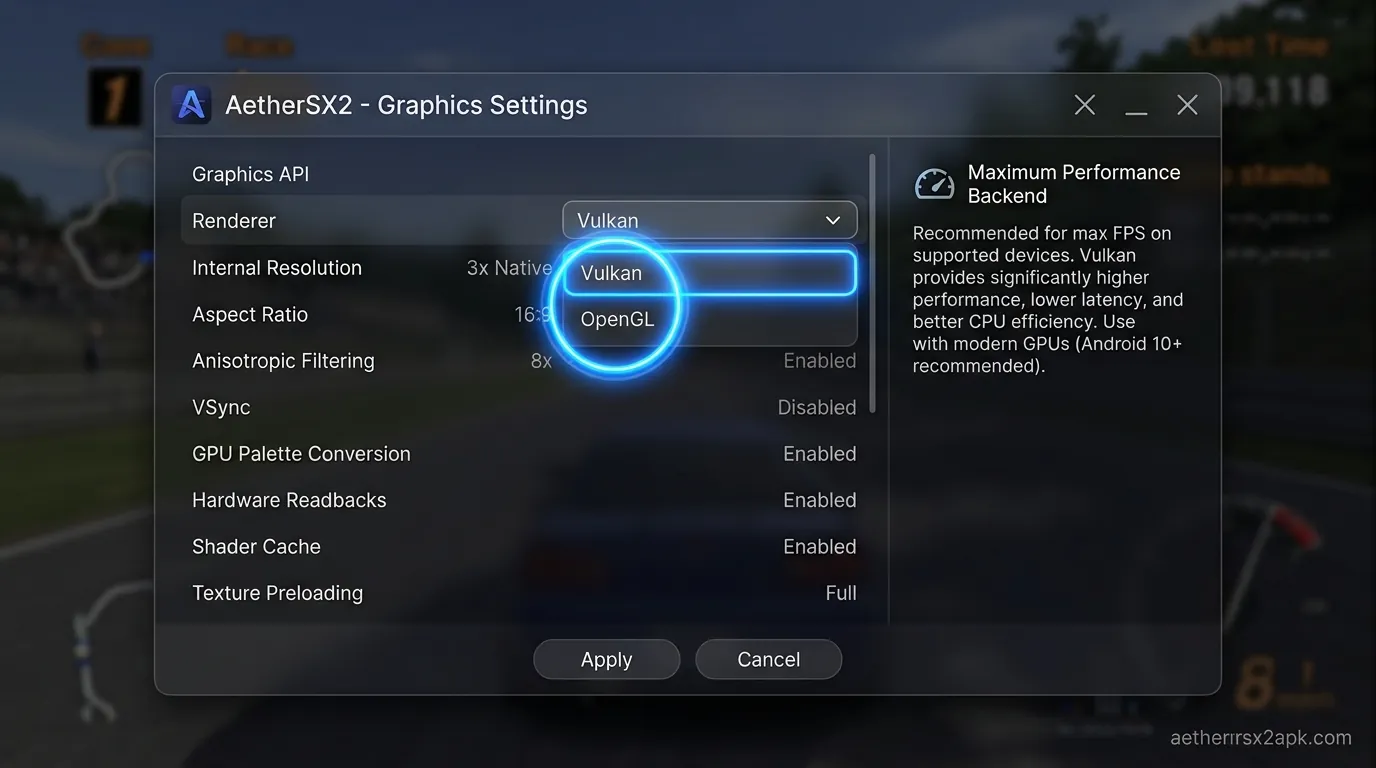
Beyond resolution and the renderer, AetherSX2 offers granular control over how textures and geometry are processed. Fine-tuning these aethersx2 settings can resolve graphical glitches and squeeze out a few extra frames per second.
Texture Filtering (Bilinear and Trilinear)
Texture filtering dictates how a 2D image (a texture) is stretched and smoothed across a 3D polygon, especially when viewed up close or at an oblique angle. Without filtering, textures look like pixelated Minecraft blocks when you get close to them.
- Bilinear Filtering: This is the baseline smoothing technique. The PlayStation 2 had a very specific, slightly blurry way of applying Bilinear filtering. For maximum visual accuracy and to prevent weird grid-lines from appearing on the ground, you should almost always set this to PS2 (Smooth). It faithfully replicates the original hardware's behavior. Setting it to 'Bilinear (Forced)' might make some UI elements sharper, but it frequently breaks 2D sprites and background textures in RPGs.
- Trilinear Filtering: This is a more advanced technique that blends transitions between different texture resolution levels (mipmaps). On AetherSX2, forcing Trilinear filtering on can sometimes reduce shimmering on distant textures, but it is computationally heavier. It's generally best to leave this on Default, allowing the emulator to only use Trilinear filtering when the game engine explicitly requests it. Forcing it on globally can cause visual artifacts.
Mipmapping (The Texture Fixer)
Mipmapping is a crucial 3D rendering optimization. Instead of rendering a high-resolution 4K texture for a rock that is a mile away in the background, a game engine generates smaller, lower-resolution versions of that texture (mipmaps). As you walk closer to the rock, the engine swaps to higher-resolution mipmaps. This saves performance and reduces high-frequency visual "shimmering" or aliasing. The PS2 handled mipmapping entirely in hardware on the GS chip, and developers abused this feature creatively. Emulating this hardware quirk via software is incredibly taxing.
- Many iconic PS2 titles: specifically Insomniac games (Ratchet & Clank, Spyro) and Naughty Dog games (Jak and Daxter): rely entirely on hardware mipmapping to render their worlds. Without it, their ground textures look corrupted, blocky, or completely missing.
- Basic Mipmapping: This is the recommended default. It attempts to emulate the most common mipmap behaviors without destroying your CPU. It is a fantastic balance of speed and visual correctness.
- Full (Slow) Mipmapping: If you boot up Ratchet & Clank and the ground looks like a glitched checkerboard, you must set Mipmapping to Full. This tells the emulator to accurately process every single mipmap request exactly like a real PS2. It fixes the textures perfectly, but it carries a massive performance penalty. On mid-range phones, Full Mipmapping will tank your framerate. You will have to compromise by lowering your resolution or aggressively underclocking the EE to compensate.
- Off: Disables it entirely. Fast, but guarantees broken graphics in a huge portion of the library.
Blending Accuracy (Shadows and Transparency)
Alpha blending handles how transparent and semi-transparent objects overlap. This includes shadows, smoke, fire, fog, water reflections, and lens flares. The PS2 was a monster at alpha blending. Emulating it accurately on a mobile GPU is a nightmare.
- Minimum (Performance): This simplifies the mathematical calculations for transparency. If a game features a heavy explosion, a massive dust cloud, or complex particle effects that cause your framerate to suddenly nose-dive, setting Blending Accuracy to Minimum is the first fix you should try. The visual downgrade is often barely noticeable in motion, but the FPS recovery is massive.
- Basic / High (Accuracy): If you notice that shadows look like solid black blocks instead of soft gradients, or if there is a weird, colored, semi-transparent filter covering the entire screen (a very common issue in the Silent Hill series and Valkyrie Profile 2), you need to raise the Blending Accuracy to Basic or High. This forces the emulator to calculate the complex alpha math correctly, fixing the visual bugs, but it will significantly increase the load on your GPU.
Texture Preloading and Hardware Download Mode
These settings deal with how data is shuffled between your phone's System RAM, CPU cache, and GPU memory.
- Texture Preloading: The PS2 constantly streamed textures in and out of its tiny 4MB of video RAM. Emulators can "cache" these textures so they don't have to be recalculated every time they appear. Setting Texture Preloading to Full (Hash Cache) uses more of your phone's RAM, but it drastically reduces stuttering when rapidly turning the camera or entering a new area. If your phone has 8GB or more of RAM, leave this on Full. If you are on an old phone with 4GB of RAM, set it to Partial or None to prevent the app from crashing due to memory limits.
- Hardware Download Mode: This handles "readbacks": instances where the PS2 CPU needs to read graphical data back from the GPU to calculate something (like an effect based on screen depth). Readbacks are incredibly slow on modern mobile hardware and cause massive framerate spikes. If a game stutters wildly when specific visual effects occur, try setting this to Disable Readbacks or Unsynchronized.
- The Trade-off: Disabling readbacks will completely break any visual effect that relies on them. The most common victims are lens flares, motion blur, and the "bloom" effect around bright lights. If the sun shines through a window and the screen goes black or flickers violently, you need to re-enable readbacks (set to Accurate).
Audio Settings
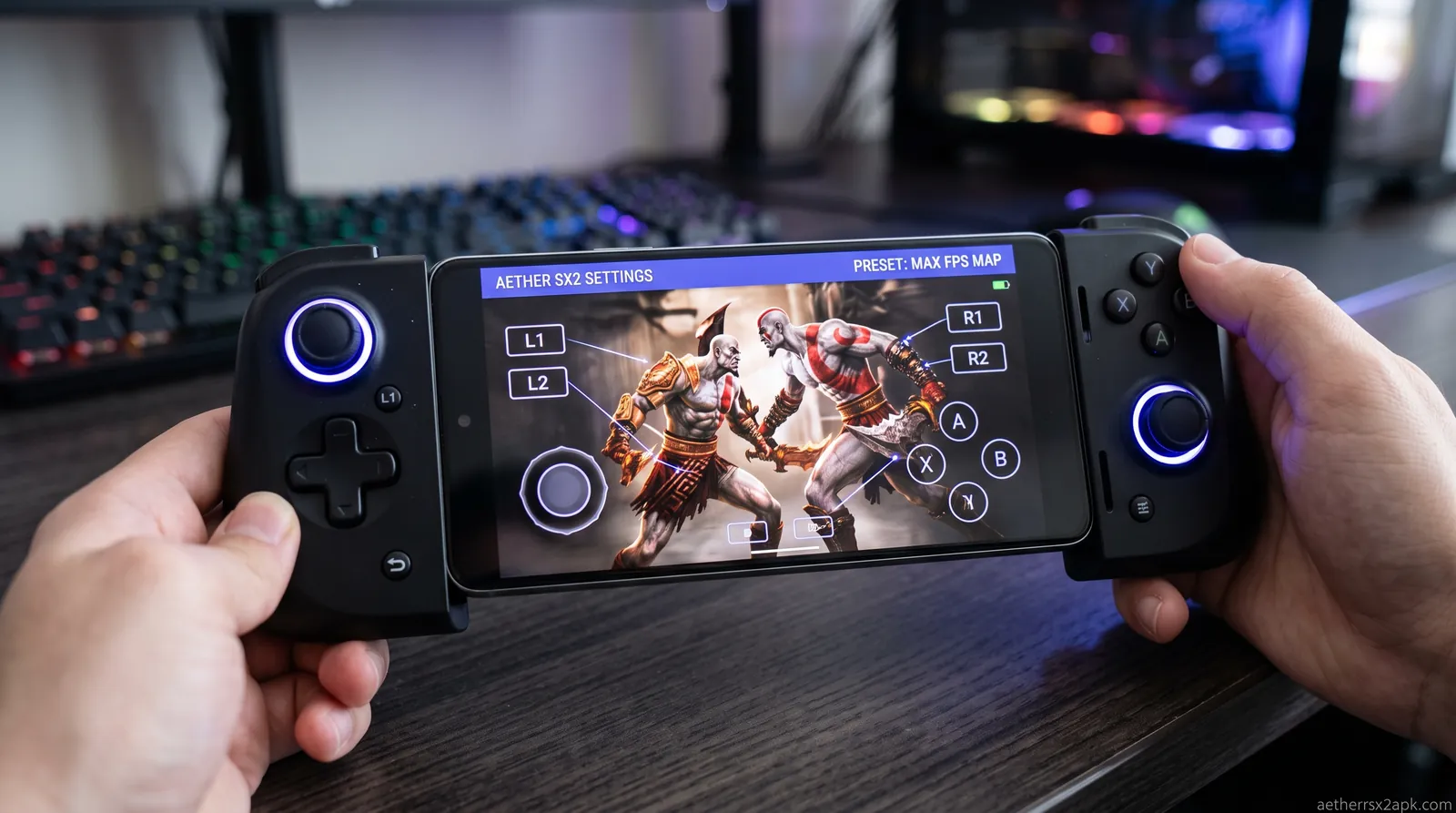
Bad audio is the most frustrating part of emulation. If your game is running at 45 FPS instead of 60 FPS, the audio will normally stutter, crackle, and pop, making it unplayable. The Audio tab helps you mitigate this.
Synchronization Mode (The Most Important Audio Setting)
This setting dictates how the emulator handles the inevitable moments when your phone's processor cannot keep up with the demanded 60 FPS, causing the audio buffer to empty.
- TimeStretch (Highly Recommended): This is arguably the most brilliant feature in modern emulation. If your framerate drops from 60 FPS to 45 FPS, TimeStretch instantly and dynamically slows down the audio playback speed to match the 45 FPS video. Crucially, it does this while maintaining the original pitch of the audio. The music will slow down in tempo, but it won't drop in pitch (it won't sound like a demonic slow-motion voice). This completely eliminates audio crackling. It acts as a massive band-aid, making minor performance drops almost imperceptible. You should use TimeStretch 100% of the time.
- Async Mix: This mode completely divorces the audio processing from the video processing. The audio engine is told to play at 100% speed, regardless of what the video engine is doing. While this keeps the background music sounding perfect even during massive framerate drops, it breaks game logic. If a cutscene triggers, the audio will race ahead at normal speed, while the video lags behind. Within seconds, the dialogue will be completely out of sync with the character's lip movements. It is incredibly jarring and should be avoided for any game with spoken dialogue or cutscenes.
- None (Synchronous): This forces strict synchronization without stretching. If the video drops to 55 FPS, the audio simply halts and waits for the video to catch up, resulting in immediate, harsh crackling and popping. This is the most accurate mode for raw emulation testing, but it is miserable for actual gameplay unless your phone is powerful enough to maintain a locked, unyielding 60 FPS at all times.
Interpolation Mode (Audio Resampling)
The PlayStation 2's SPU2 (Sound Processing Unit) output audio at specific sample rates. Your modern smartphone operates at different sample rates. Interpolation is the mathematical algorithm used to resample and smooth the audio waves so they sound correct on your device.
- Gaussian: This is the default setting. It provides a very high-quality, smooth resampling curve that accurately mimics the original analog output of the PlayStation 2 hardware. It sounds the best, but it requires a minor amount of CPU overhead to calculate the Gaussian curves.
- Linear / Nearest: These are simpler, less accurate resampling algorithms. They require less mathematical calculation from the CPU. If you are playing on a very low-end, budget smartphone (like a bottom-tier Snapdragon 400 series or an old MediaTek chip) and you are completely CPU bottlenecked, changing interpolation to Linear can shave off a tiny bit of processing overhead, potentially buying you a single frame per second. However, the audio will sound slightly sharper, more synthetic, and less authentic. On any modern mid-range phone or better, leave this on Gaussian.
Audio Output Module
This determines the API AetherSX2 uses to talk to your phone's physical speakers or headphones.
- AAudio (or Oboe): On modern Android versions (Android 10 and above), AAudio is the standard, low-latency audio API. It provides the fastest response time between pressing a button and hearing the corresponding sound effect (like a gunshot or a sword swing). You should generally leave this as the default.
- OpenSL ES: This is an older legacy Android audio API. If you are experiencing weird audio bugs, such as the sound randomly cutting out completely after 20 minutes of play, or severe latency where sounds happen half a second after the action on screen, switching the output module to OpenSL ES can sometimes resolve these hardware-specific compatibility issues.
- Audio Latency Slider: If you are using Bluetooth headphones (which inherently introduce audio delay), you can adjust the audio latency slider to give the emulator a larger buffer. A larger buffer (e.g., 100ms or 150ms) makes the audio much more stable and less prone to crackling, but it increases the delay between your actions and the sound. It is a necessary trade-off for Bluetooth users.
Input & Controller Settings
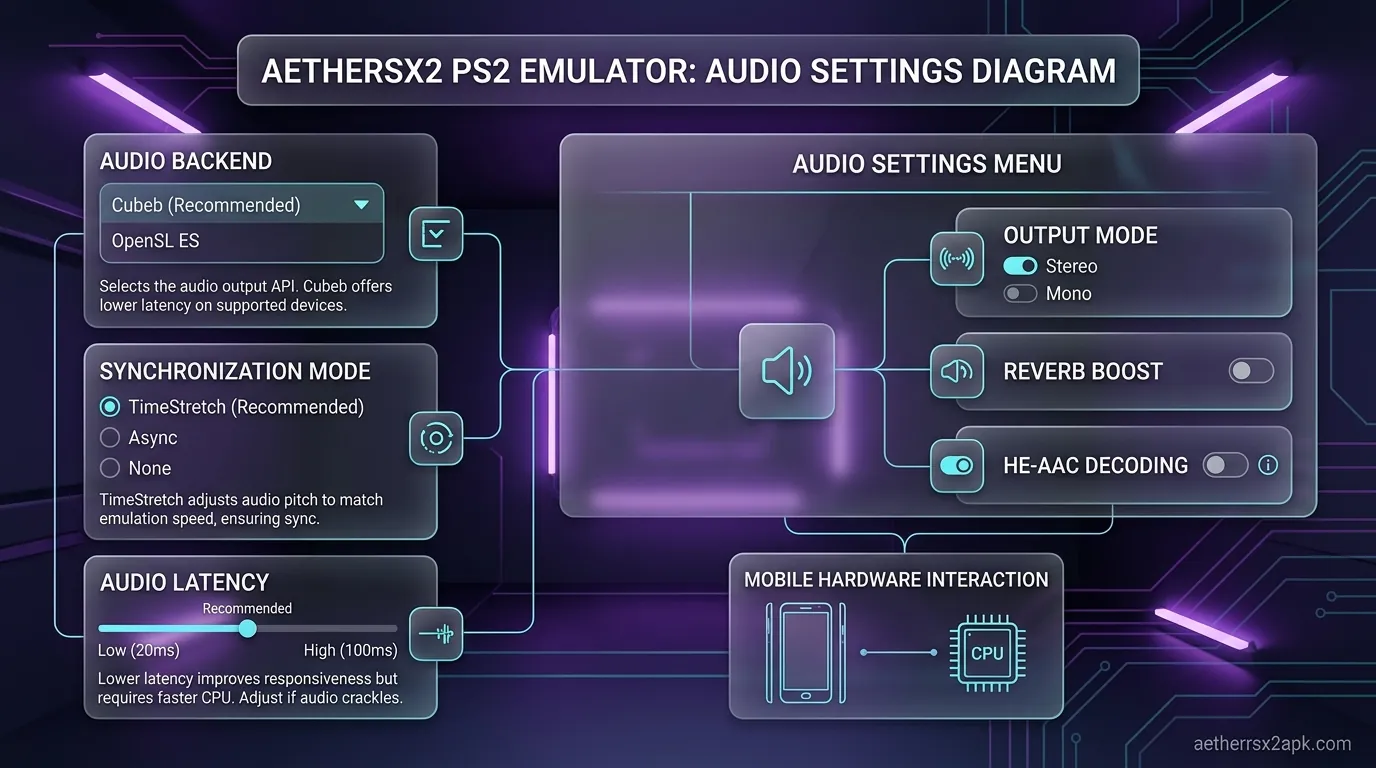
While not directly related to FPS, having a properly configured controller is essential for the PS2 experience. Touch controls are fine for turn-based RPGs like Persona 4 or Final Fantasy X, but they are miserable for action games like Devil May Cry.
For a deep dive into mapping physical controllers, deadzones, and dual-analog setup, please visit our dedicated AetherSX2 Controller Setup Guide.
Pro Tip for Touch Users: In the Controller settings, you can adjust the opacity of the on-screen buttons. Lowering the opacity to 20-30% makes the game look much cleaner while still letting you see where to press. You can also reposition the buttons, moving the D-Pad and Face Buttons higher up to avoid cramping your thumbs.
Per-Chipset Settings Overview
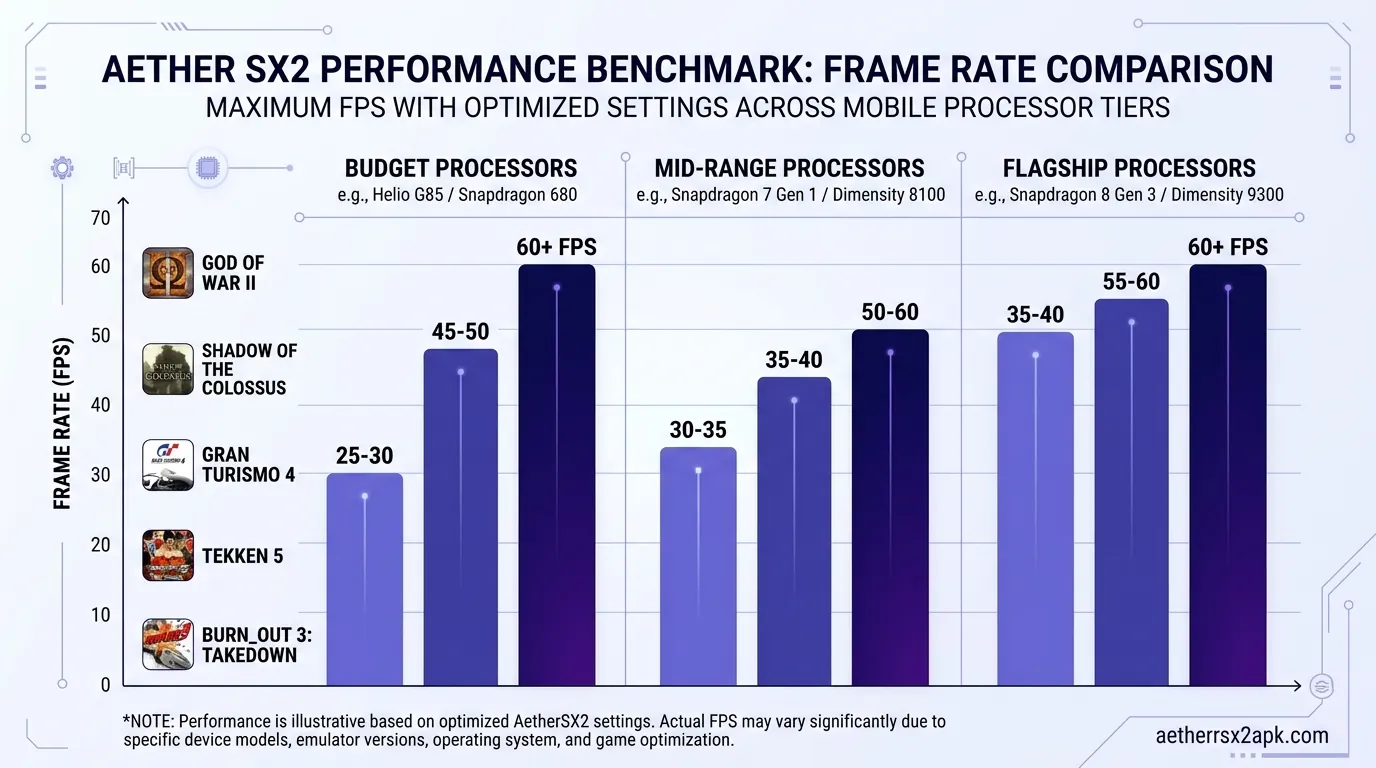
The most crucial variable in AetherSX2 emulation is your phone's chipset. A setting that works perfectly on a flagship processor will bring a budget phone to a grinding halt. Because of this, we have created dedicated, hyper-specific guides for the most common mobile architectures. Here is a brief overview.
Snapdragon 8 Gen 2 / Gen 3 (Flagship)
If you own a device like the Samsung Galaxy S24 Ultra or ROG Phone 8, you have power to spare. You don't need aggressive speed hacks.
- Renderer: Vulkan
- Resolution: 3x or 4x (1080p/1440p)
- Speed Hacks: Keep EE Cycle Rate at 100% and VU Stealing at 0 for maximum accuracy.
- Read more: Best AetherSX2 Settings for Snapdragon 8 Gen 3
Snapdragon 870 / 8 Gen 1 (Mid-to-High Range)
These are incredible chips for emulation, offering the best price-to-performance ratio. You can run 95% of the library at full speed, but you might need slight tweaks for the heaviest games.
- Renderer: Vulkan
- Resolution: 2x or 3x (720p/1080p)
- Speed Hacks: Use a -1 EE Underclock only on famously heavy games like Need for Speed: Most Wanted.
- Read more: Best AetherSX2 Settings for Snapdragon 870
MediaTek Dimensity & Exynos (Mali GPUs)
Mali GPUs are the Achilles heel of Android emulation due to poor driver support. You have to rely heavily on OpenGL and aggressive hacks.
- Renderer: OpenGL (Vulkan often crashes or has visual bugs).
- Resolution: 1.5x or 2x max.
- Speed Hacks: You will frequently need -1 or -2 EE Underclocking and Mild VU Stealing to maintain playable framerates.
- Read more: Best AetherSX2 Settings for MediaTek Dimensity
If you are currently shopping for a new emulation device, do yourself a favor and read our guide on the Best Phones for AetherSX2. We highly recommend sticking to Snapdragon processors.
Speed Hacks What They Do
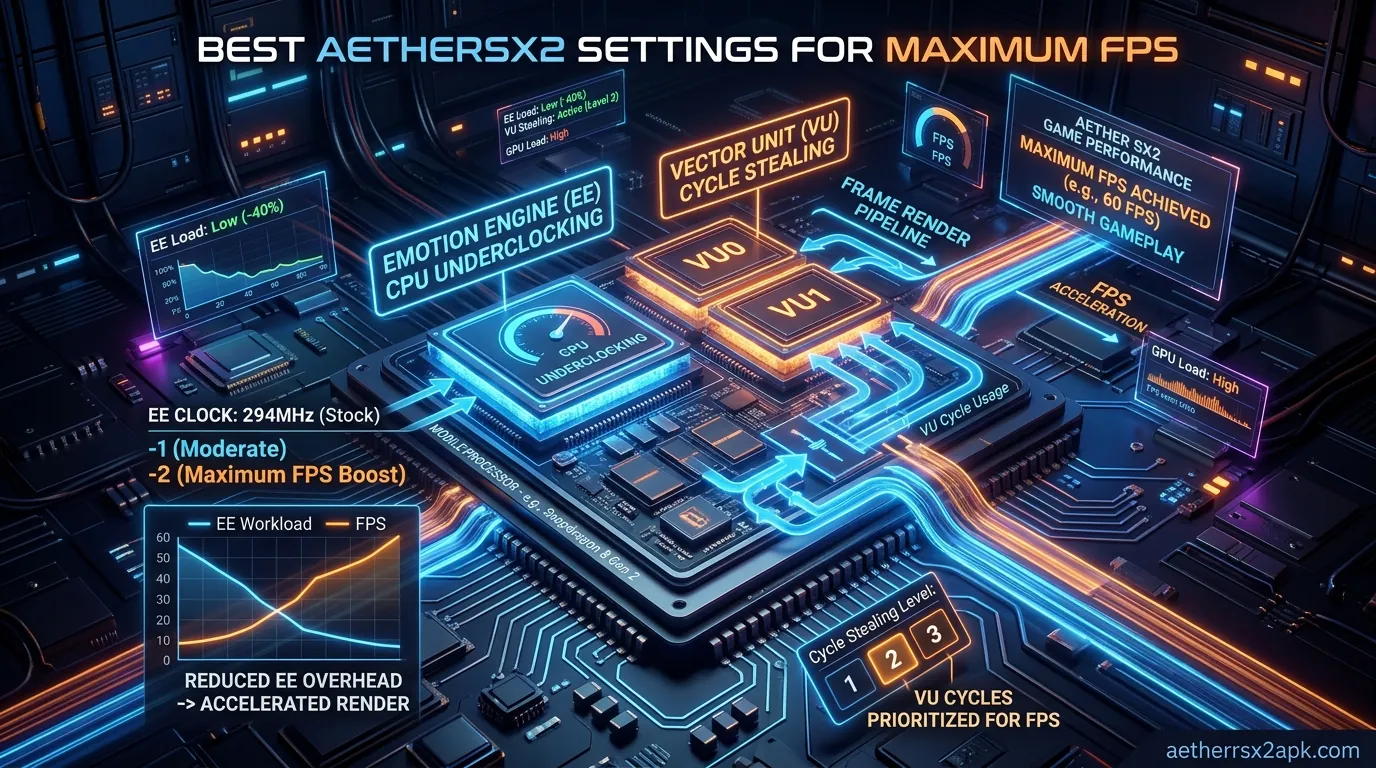
We briefly touched on EE Underclocking and VU Stealing, but AetherSX2 contains a whole menu dedicated to advanced speed hacks. These are specific patches applied to the emulator core to bypass known bottlenecks.
For an exhaustive breakdown of every single toggle in the Advanced tab, read our complete guide on AetherSX2 Speed Hacks. Here is a quick summary of the most useful ones:
- Enable INTC Spin Detection: Always ON. This detects when a PS2 game is stuck in an idle loop waiting for a processor interrupt, and fast-forwards through the loop. It is a massive speed boost with almost zero compatibility issues.
- Enable Wait Loop Detection: Always ON. Similar to INTC, this skips known idle loops in the game code.
- Preload Frame Data: Can help smooth out frametimes and reduce micro-stuttering in some games, but uses more RAM.
When to use Speed Hacks: You should only apply advanced speed hacks if you are dropping below 60 FPS. If your game runs perfectly, speed hacks won't make it run "better": they will only introduce the risk of crashes, broken physics, or audio desync. Speed hacks are a necessary evil for mid-range phones, not a badge of honor.
Settings for Low-End Phones
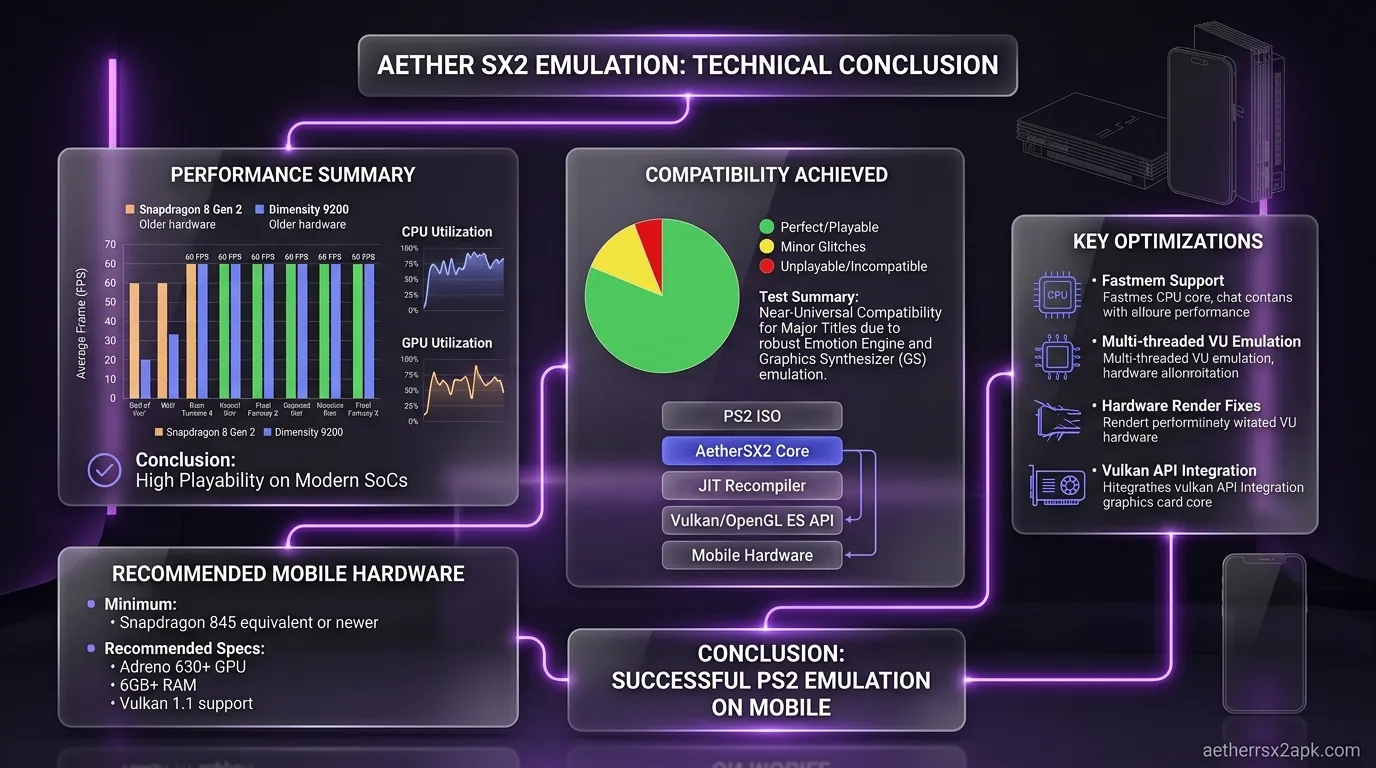
Trying to run PS2 games on a budget phone (e.g., Snapdragon 600 series, low-end Unisoc, or older MediaTek G-series) is an uphill battle. The hardware simply lacks the brute force required for raw emulation. However, if you are willing to compromise, you can still get lighter games (like Crash Bandicoot, Kingdom Hearts, or 2D fighters) to run at a playable state.
Apply these AetherSX2 optimal settings for low-end devices:
- Resolution: 1x Native. Do not attempt to upscale.
- Renderer: Test both Vulkan and OpenGL. On budget chips, OpenGL is sometimes faster simply because the Vulkan drivers are poorly implemented by the phone manufacturer.
- EE Cycle Rate: Set to 50% (-2 Underclock). This is mandatory for low-end phones to prevent the CPU from thermal throttling.
- VU Cycle Stealing: Set to 1 or 2. This will make the game animation choppy, but it will keep the audio from stuttering as badly.
- Blending Accuracy: Minimum.
- Texture Preloading: None or Partial (to save RAM).
- Audio Synchronization: TimeStretch (crucial for hiding the massive frame drops you will inevitably experience).
If you apply all these settings and a game is still running at 15 FPS, your phone simply cannot handle it. Check out our Game Compatibility Database to find games classified as "Lightweight" that might run better on your hardware.
Settings for High-End Phones
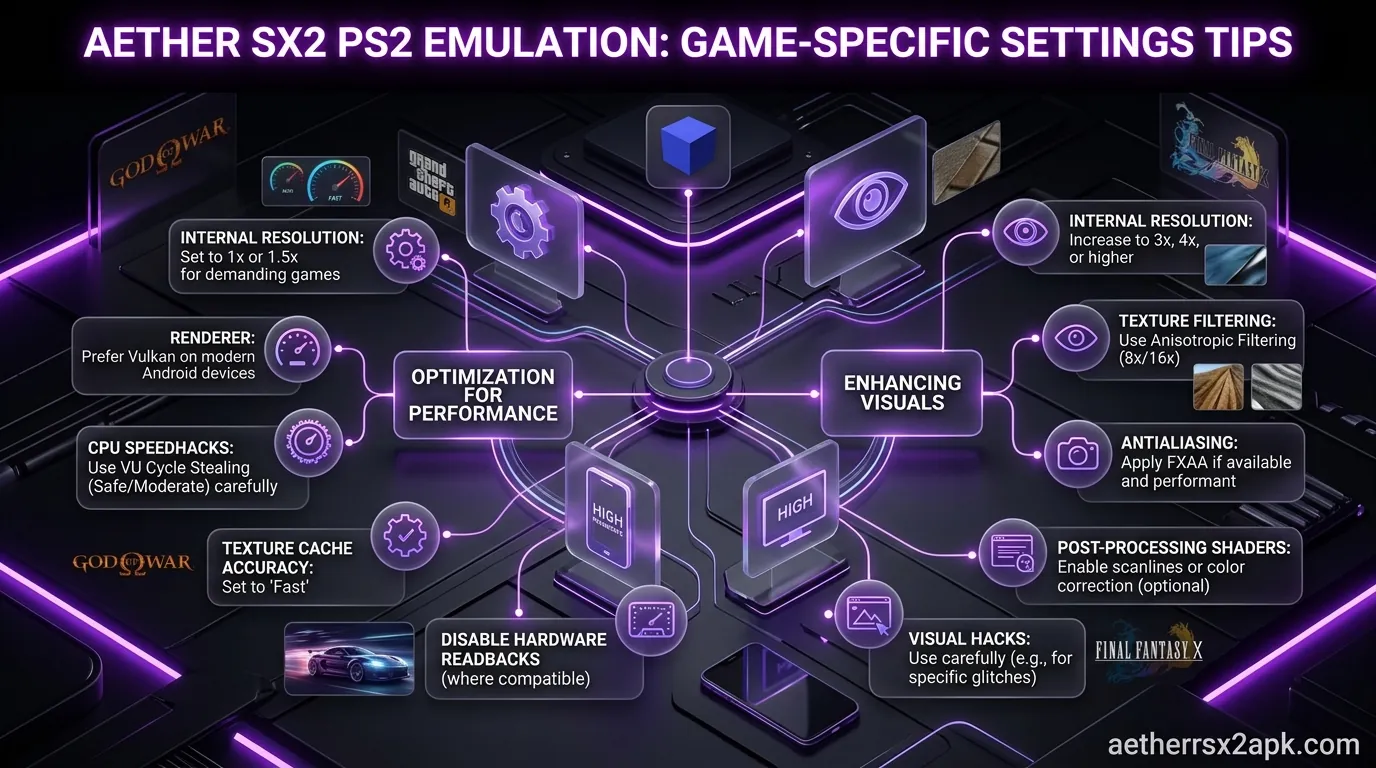
If you have a modern flagship device, your goal isn't just to get the games to run: it's to make them look better than they ever did on a real PS2. You can leverage the massive headroom of a Snapdragon 8 Gen 2/3 to enable enhancements.
- Resolution: 3x or 4x. (4x is 1440p, which looks razor-sharp, but keep an eye on your phone's temperature. If the phone overheats, it will throttle, and your FPS will tank).
- Anisotropic Filtering (AF): Set to 4x or 8x. AF drastically improves the clarity of textures viewed at an angle (like the road ahead of you in a racing game). The PS2 had no AF, so this makes games look incredibly modern.
- FXAA / Anti-Aliasing: You can enable post-processing FXAA to smooth out any remaining jagged edges.
- CRT Shader: In the post-processing menu, you can enable a CRT shader. This adds scanlines and slight curvature to the image, perfectly mimicking the look of an old-school tube television. It's fantastic for retro purists.
- Disable All Speed Hacks: Set EE Cycle Rate to 100% and VU Stealing to 0. You want the emulator running as accurately as possible to prevent physics glitches.
Game-Specific Settings Tips
One of the best features of AetherSX2 is the ability to create Game Properties. This allows you to save specific settings for an individual game without altering your global emulator configuration.
To do this, long-press on a game cover in your library and select "Game Properties."
Why is this important? Because there is no universal "best setting."
- Burnout 3: Takedown: Notoriously heavy on the GPU. You might need to drop the resolution to 1x and set Blending Accuracy to Minimum, even on a good phone.
- Shadow of the Colossus: Hammers the Vector Units. You absolutely need EE Underclocking (-1 or -2) to maintain a stable framerate. Full profile: Shadow of the Colossus on AetherSX2.
- Kingdom Hearts: Gummi routes and Twilight Town crowds need their own resolution cap. See Kingdom Hearts settings rather than copying a God of War profile.
- Valkyrie Profile 2: Infamous for graphical glitches on Vulkan. You must set a game profile to force OpenGL and enable specific hardware fixes in the advanced tab.
On-screen DualShock layouts fight analog camera games; hide them once a pad is connected (touch controls). Chromebook ARC installs follow the same sliders with different storage paths: AetherSX2 on Chromebook. GameCube/Wii on the same phone is a different emulator: AetherSX2 vs Dolphin.
Before you spend hours tweaking sliders blindly, check our Game Compatibility Database. We host community-sourced configurations for hundreds of popular games, detailing exactly which toggles to flip for optimal performance.
Common Settings Mistakes to Avoid
Even experienced emulation enthusiasts often fall into traps when configuring AetherSX2. Because the emulator offers so many powerful tools, it is incredibly easy to accidentally configure your way into terrible performance. When users complain on forums that their brand-new $1000 smartphone is lagging on AetherSX2, 90% of the time, they have committed one of the cardinal sins listed below. Let’s break down the most common AetherSX2 settings mistakes and how to avoid them.
Mistake 1: Blindly Chasing 4x Resolution (The Resolution Trap)
The most common mistake is assuming that because your smartphone has a 1440p AMOLED display, you must run AetherSX2 at 4x resolution to match it. This is a fundamental misunderstanding of how 3D emulation works. Pushing a native PS2 game to 4x resolution (1440p) means the emulator has to render 16 times more pixels than the original hardware did.
- The Reality: On a 6-inch or 7-inch smartphone screen, the pixel density (PPI) is so high that the human eye struggles to see the difference between 2x resolution (roughly 720p/1080p) and 4x resolution while the game is in motion.
- The Consequence: Pushing to 3x or 4x on anything less than a Snapdragon 8 Gen 2 will pin your GPU at 100% utilization. Your phone will generate massive amounts of heat within five minutes. To prevent the battery from exploding, the phone's operating system will aggressively thermal throttle the processor, cutting its speed in half. Your game will drop from 60 FPS to 20 FPS, and you will blame the emulator.
- The Fix: Start at 2x resolution. It is the golden standard. If you want a sharper image, turn on 4x Anisotropic Filtering instead of raising the base resolution. Only push to 3x if your phone has a dedicated active cooling fan.
Mistake 2: Abusing VU Cycle Stealing (The "Fake 60 FPS" Illusion)
We mentioned this in the System Settings section, but it bears repeating because it is so heavily misunderstood. When users experience lag, their instinct is to slide every single speed hack to the maximum setting. They push VU Cycle Stealing to Level 3.
- The Reality: Maxing out VU Stealing forces the emulator to violently skip rendering geometry and calculating physics in order to force the internal Emotion Engine clock to report "100% speed."
- The Consequence: The FPS counter in the top right corner of your screen will proudly display "60 FPS." However, the game itself will look and feel terrible. Character animations will be missing frames, making them look like stop-motion claymation. Inputs will feel incredibly sluggish and unresponsive. Audio might desync, and character models will likely glitch, stretching polygons across the skybox. You have achieved 60 FPS on paper, but ruined the actual gaming experience.
- The Fix: Use EE Underclocking (-1 or -2) first. It is a much safer, more stable speed hack. Reserve VU Stealing as an absolute last resort, and never push it past Level 1 unless you are on a truly ancient, low-end device where you have no other choice.
Mistake 3: Global Settings vs. Per-Game Profiles
AetherSX2 allows you to set global app settings, but it also allows you to create specific "Game Properties" for individual titles. A massive mistake is trying to find one single configuration that applies to all 4,000+ games in the PS2 library.
- The Reality: The PS2 library is wildly diverse. Kingdom Hearts is a lightweight game that barely stresses the CPU. Shadow of the Colossus is a technical marvel that pushed the PS2 to its absolute breaking point. A setting that works perfectly for one will actively break the other.
- The Consequence: If you set a global -2 EE Underclock because you were playing Shadow of the Colossus, and then you boot up Persona 4 without reverting the setting, Persona 4 will run in slow motion, even though your phone could easily handle it at full speed.
- The Fix: Treat your Global Settings as a "Safe Baseline" (Vulkan, 2x Resolution, 0 Underclock). When you encounter a heavy game that requires underclocking or specific hardware fixes (like Full Mipmapping), long-press the game cover in the menu, select "Game Properties," and apply the tweaks only to that specific game profile. Use our Game Compatibility database to find out which games require profiles.
Mistake 4: Using Async Mix Audio to "Fix" Lag
When a game lags, the audio crackles. This is the most annoying part of emulation. Users often discover the "Async Mix" audio setting and think they found a miracle cure.
- The Reality: Async Mix decouples the audio track from the video rendering. It allows the music to play at full, 100% speed, even if the video is chugging along at 15 FPS.
- The Consequence: During gameplay, this seems fine. The music sounds great. But the moment a cutscene starts, disaster strikes. The audio track is playing at normal speed, but the characters on screen are moving in slow motion. Within 10 seconds, the audio will be completely desynchronized. The characters will finish speaking their lines while their mouths on screen haven't even started moving. It ruins the story experience entirely.
- The Fix: Never use Async Mix. Always use TimeStretch. TimeStretch dynamically slows the audio down to match the video framerate while preserving the pitch. It eliminates crackling and keeps cutscenes perfectly synchronized, gracefully masking the fact that your phone is dropping frames.
Mistake 5: Ignoring Thermal Management and Background Apps
This is a hardware mistake, not a software one, but it impacts AetherSX2 massively. Emulating a PS2 requires sustained, peak CPU/GPU performance.
- The Consequence: If you play AetherSX2 while your phone is plugged in and charging, the battery generates immense heat. Combine that with the heat from the CPU running at 100%, and your phone will hit its thermal limit in minutes, aggressively throttling your FPS. Furthermore, if you have heavy background apps running (like social media apps syncing data), they will steal CPU cycles away from the emulator, causing random micro-stutters.
- The Fix: Close all background apps before launching AetherSX2. If possible, avoid playing while charging. If you are serious about long emulation sessions, consider buying a cheap clip-on active phone cooler. Keeping the processor cool is the single best way to maintain a locked 60 FPS over a two-hour gaming session.
EE cycle rate, MTVU, and GS dumps exist because of the desktop lineage: PCSX2, the PCSX2 wiki, and PCSX2 source. Flagship silicon specs: Snapdragon 8 Gen 3.
Frequently Asked Questions
Q: Why is AetherSX2 lagging on my new phone? A: Emulation is CPU-intensive. Even on a new phone, if the game is inherently difficult to emulate (like God of War II), you may experience lag. Check that your GPU Renderer is set to Vulkan (if on Snapdragon) and that your Upscale Multiplier isn't set too high. Try applying a -1 EE Cycle Rate underclock.
Q: What is NetherSX2 and do the settings apply? A: NetherSX2 is a community-driven patch for AetherSX2 that removes ads and restores some frontend features after the original developer ceased development. The core emulation engine is identical. All settings, tips, and configurations in this guide apply 100% identically to NetherSX2.
Q: Vulkan or OpenGL: Which is better? A: If you have a Snapdragon processor, Vulkan is significantly faster and more efficient. If you have a MediaTek, Exynos, or Tensor processor (Mali GPU), OpenGL is usually more stable and less prone to graphical corruption. Read our Vulkan vs OpenGL guide for more details.
Q: Can I run games at 60 FPS on a budget phone? A: Usually, no. Budget phones lack the single-core CPU strength required for PS2 emulation. You can achieve playable speeds (30-45 FPS) on lighter games by using a 1x resolution, -2 EE Underclock, and aggressive speed hacks, but perfectly smooth 60 FPS is reserved for mid-to-high-end devices.
Q: Why are there lines/glitches on my screen? A: Graphical glitches are usually caused by Upscaling or Texture Filtering. Try changing Texture Filtering to "PS2 (Smooth)" or setting Mipmapping to "Basic." If the glitch persists, switch your GPU Renderer from Vulkan to OpenGL (or vice versa). You can also try setting Blending Accuracy to "Basic."
Q: Does AetherSX2 drain battery quickly? A: Yes. Emulating a complex console like the PS2 pushes your phone's CPU and GPU to their limits, which draws a lot of power. To save battery, lower your Upscale Multiplier to 1x and use EE Underclocking.
Q: Do I need a BIOS to use these settings? A: Yes. AetherSX2 will not boot any game without a valid PS2 BIOS file. The BIOS must be legally dumped from your own PlayStation 2 console. For instructions on how to do this legally and safely, see our AetherSX2 BIOS guide.
Q: How do I fix audio crackling? A: Audio crackling happens when the emulator drops below 100% speed. To fix the symptom, go to Audio settings and change Synchronization Mode to "TimeStretch". To fix the root cause, you need to improve your framerate by lowering resolution or applying speed hacks as detailed in the System Settings section.
Conclusion
Optimizing your AetherSX2 best settings is a continuous process of trial and error. There is no magical configuration that applies perfectly to the entire PS2 library across all Android devices. However, by understanding what the Emotion Engine, Vector Units, and GPU Renderers actually do, you are now equipped to diagnose and fix performance issues yourself.
Start with our Quick-Start baseline, leverage Vulkan if you have a Snapdragon chip, use TimeStretch audio to mask frame drops, and don't be afraid to utilize EE Underclocking when a heavy game brings your phone to its knees.
For more specific guidance, make sure to check out our Per-Chipset Settings Guides and search for your favorite titles in our Game Compatibility Database. Happy emulating, and enjoy having the legendary PlayStation 2 library right in your pocket!