
AetherSX2 for PC OFFICIALLY SUPPORTED EMULATION ENGINE
AetherSX2 for PC Setup Walkthrough
By HBKPublished Last updated
Quick summary
There is no AetherSX2.exe for Windows. The desktop path is PCSX2, which shares the same C++ PS2 core. Import a BIOS dumped from your own console, pick DirectX 12 or Vulkan, and start at 2× native on a mid-range PC.
- Use: PCSX2 Qt for Windows 10/11
- BIOS: same .bin as Android; region still has to match the disc
- Saves: .ps2 cards usually move; save states often do not
- Phone: keep AetherSX2 / NetherSX2 — do not expect the APK on PC
AetherSX2 was engineered specifically for Android ARM mobile processors, but it shares its foundational C++ codebase directly with PCSX2: the original, world-renowned PlayStation 2 desktop emulator. On Windows, PCSX2 serves as the native desktop equivalent of AetherSX2, taking advantage of desktop-grade graphics cards (NVIDIA GeForce RTX, AMD Radeon) and high-clocked x86 CPUs for unparalleled emulation fidelity. The AetherSX2 vs PCSX2 section below covers what you can copy between phone and PC.
On this page
Many users search for an executable named "AetherSX2.exe", but understanding the relationship between mobile and desktop PS2 emulation clarifies why PCSX2 is the definitive software for PC gaming:
- Shared Open-Source Core: Developer Tahlreth created AetherSX2 by taking the mature, open-source C++ core of PCSX2 and writing a custom ARM64 recompilation engine.
- Identical Settings & Architecture: Core parameters: such as Emotion Engine (EE) Cycle Rate, Vector Unit (VU) Cycle Stealing, Multi-Threaded VU1 (MTVU), and Texture Pre-loading: behave identically across both emulators.
- Desktop Hardware Headroom: Mobile phones are tightly constrained by thermal throttling, battery limits, and passive cooling. Desktop PCs feature active fan cooling and dedicated GPUs capable of rendering games at 8x native resolution (4K/8K) with zero slowdown.
Comprehensive Hardware & System Requirements
Before setting up the emulator on your desktop or laptop, inspect the system requirement benchmarks below to ensure smooth performance:
| Component | Minimum Requirements (720p 30 FPS) | Recommended Specifications (4K 60 FPS) | Extreme Gaming Rig (8K / HD Mods) |
|---|---|---|---|
| Operating System | Windows 10 64-bit (Build 1809+) | Windows 11 64-bit | Windows 11 64-bit |
| Processor (CPU) | Intel Core i3-8100 / AMD Ryzen 3 1200 | Intel Core i5-12400 / AMD Ryzen 5 5600X | Intel Core i7-14700K / AMD Ryzen 7 7800X3D |
| Graphics Card | GTX 1050 / RX 560 (PassMark 3,000+) | RTX 3060 / RX 6700 XT (PassMark 12,000+) | RTX 4070 Ti / RX 7900 XT |
| System Memory | 8 GB DDR4 RAM | 16 GB DDR4 / DDR5 RAM | 32 GB DDR5 RAM |
| Graphics API | Direct3D 11 / Vulkan 1.1 | Direct3D 12 / Vulkan 1.3 | Direct3D 12 / Vulkan 1.3 |
| Storage Type | Standard SATA HDD | NVMe M.2 Solid State Drive | High-Speed PCIe 4.0 NVMe SSD |
Step-by-Step Installation Walkthrough for Windows
Installing the desktop emulator on Windows 10 or 11 takes only a few minutes:
Step 1: Extract the Zip Folder
- Click the green Download AetherSX2 for PC button at the top of this guide.
- Open your
Downloadsfolder, right-clickaethersx2-pc-aetherrsx2apk-com-version.zip, and choose Extract All. - Choose a permanent directory such as
C:\Emulators\PCSX2\. Do not place the folder inProgram Filesto avoid Windows administrator permission issues.
Step 2: Configure Firmware (PS2 BIOS)
- Create a subfolder named
biosinsideC:\Emulators\PCSX2\bios\. - Copy your legally dumped PlayStation 2 console firmware files (such as
SCPH-70012.binorSCPH-39001.bin) into thisbiosdirectory. - For full instructions on extracting firmware from your physical console, read our BIOS walkthrough.
Step 3: Initial Launch and Game Import
- Double-click
pcsx2-qt-x64.exeto launch the modern Qt interface. - In the setup wizard, point the BIOS search directory to your
biosfolder. - Select your primary game folder containing PS2 game images (
.iso,.chd, or.cso). - To compress large ISO files by 50% without quality loss, see compressing disc images to CHD.
Graphics Renderer Benchmarks: DirectX 12 vs Vulkan vs OpenGL
Selecting the correct graphics API is essential for achieving maximum FPS without texture glitches:
- Direct3D 12 (DirectX 12): The recommended renderer for modern Windows 10 and 11 systems equipped with NVIDIA GeForce or AMD Radeon GPUs. It provides optimal hardware acceleration and ultra-low CPU overhead. See Vulkan vs OpenGL on mobile GPUs for the same renderer trade-offs on other platforms.
- Vulkan: Outstanding choice for AMD Radeon graphics cards and integrated Intel Iris Xe / AMD Radeon 700M graphics. Vulkan offers smooth frame pacing and low stutter.
- OpenGL: Essential fallback renderer for fixing broken shadows, missing post-processing effects, or glitched textures in specific titles like Silent Hill 3 or Metal Gear Solid 3.
- Internal Resolution Scaling: Set to
2x Native (1080p)for mid-range systems, or4x Native (4K)for dedicated gaming desktops.
Controller Configuration & Auto-Mapping (Xbox, PS5, Switch Pro)
PCSX2 supports full XInput and DirectInput controller integration:
- Connect your Xbox Wireless Controller, PlayStation 5 DualSense, PlayStation 4 DualShock, or 8BitDo gamepad via Bluetooth or USB cable.
- In the emulator menu, navigate to Settings ➔ Controllers ➔ Controller Port 1.
- Click Automatic Mapping and select your connected gamepad from the drop-down menu.
- All face buttons, analog sticks, D-pad, and pressure-sensitive triggers will be mapped automatically. For Bluetooth pairing details, see wireless gamepad pairing.
Custom Texture Packs & Widescreen 16:9 Patching
Upgrade your classic PlayStation 2 games into modern HD remasters:
- Widescreen 16:9 Hacks: Enable Settings ➔ Display ➔ Enable Widescreen Patches to render 3D games in native 16:9 aspect ratio without stretching the screen. Read our guide to 16:9 patch options.
- HD Texture Packs: Place community HD replacement textures inside
PCSX2/textures/GAME-ID/replacement/and check Load Textures in the Graphics menu. See the HD texture replacement workflow.
Cross-Platform Memory Card & Save State Transfer
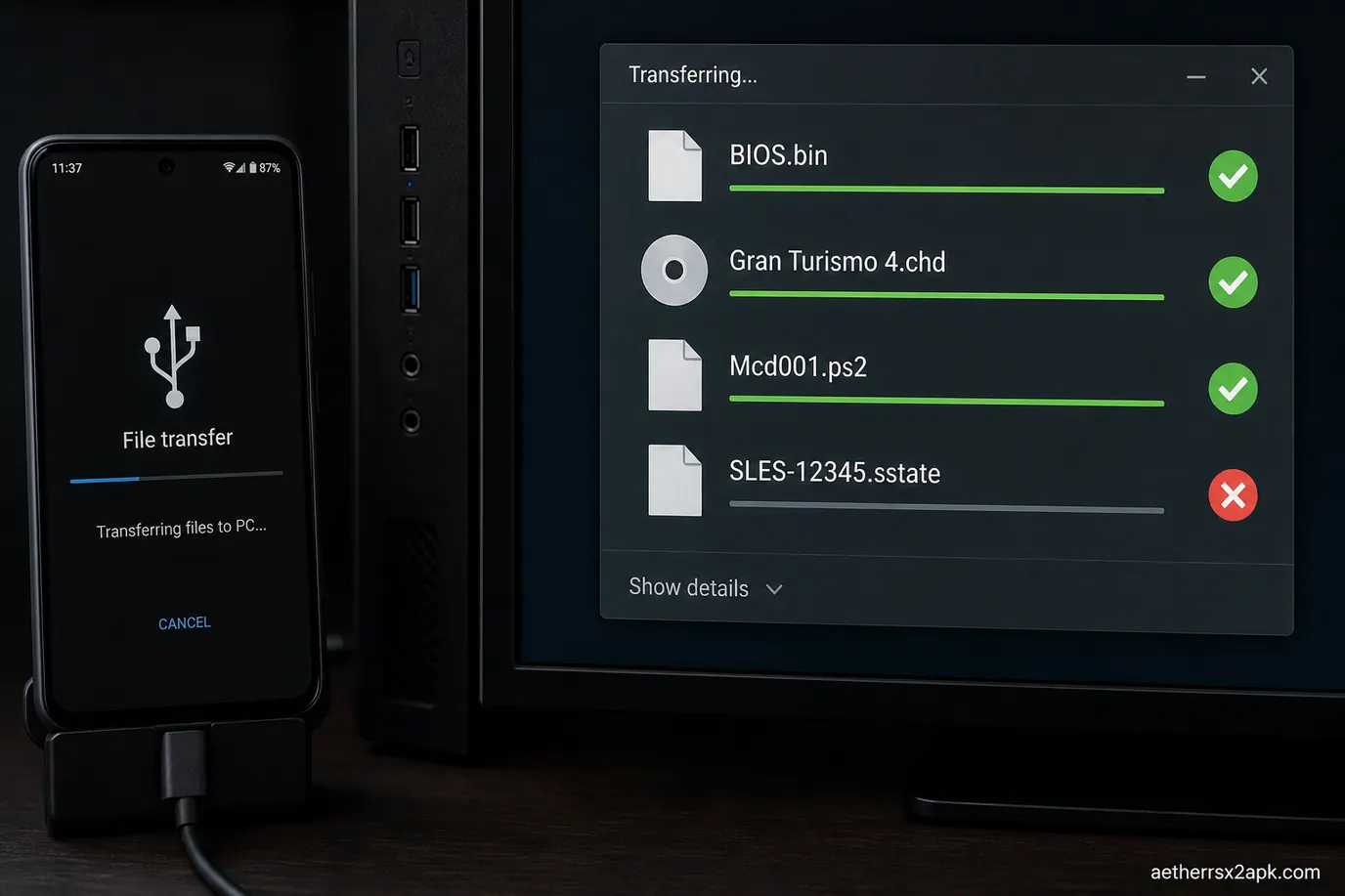
You can easily transfer save files back and forth between your Android phone running AetherSX2 / NetherSX2 and your Windows PC:
- Locate your 8 MB memory card binary file
Mcd001.ps2on Android under/Android/data/xyz.aethersx2.android/files/memcards/. - Copy the file to your PC inside
C:\Emulators\PCSX2\memcards\Mcd001.ps2. - Open the emulator on PC to instantly resume your game from the exact point you saved on your phone. See the saves hub for version caveats when moving between builds. Save states do not transfer.
Troubleshooting Common PC Performance & Graphical Bugs
Fix 1: Game Running Slower Than 100% Speed (Lag)
- Set EE Cycle Rate to
100% (Normal)or75% (-1)under System Settings. - Enable Multi-Threaded VU1 (MTVU) to offload Vector Unit routines to a secondary CPU core.
- Read our guide for when games feel sluggish.
Fix 2: Black Screen on Boot
- Switch Graphics Renderer from Vulkan to DirectX 12 or OpenGL.
- Verify your PS2 BIOS firmware region matches your game disc region (NTSC-U, PAL, NTSC-J). See NTSC vs PAL timing and our guide for blank display after launch.
Windows users should install current PCSX2. There is no AetherSX2.exe. Source: PCSX2 GitHub. Compatibility: PCSX2 wiki.
AetherSX2 vs PCSX2
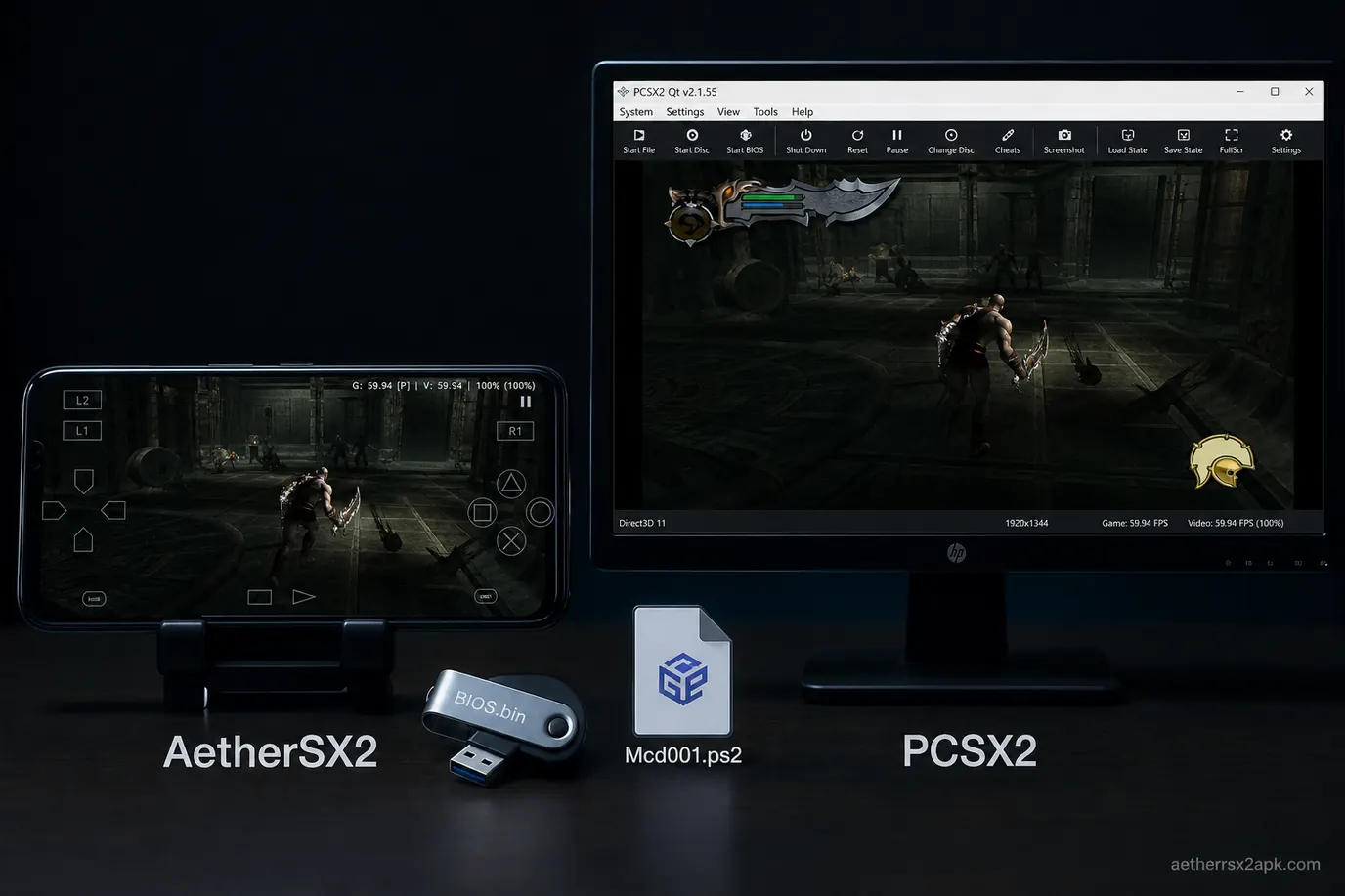
AetherSX2 is a mobile port of the PCSX2 emulation lineage, not a clone of current PCSX2 Qt. Tahlreth froze Android development on v1.5-4248 in 2023. PCSX2 on Windows, Linux, and macOS kept moving: Vulkan/D3D12, new GS dumps, per-game fixes. They share BIOS files, CHD discs, and .ps2 memory cards. They do not share save states or identical renderer menus.
Calling AetherSX2 "PCSX2 APK" is marketing shorthand. It is not a build you compile from today's PCSX2 repo and sideload. After 4248, Android users apply NetherSX2 for ads and community patches. Desktop users just update PCSX2.
What you can copy between phone and PC
| Asset | Portable? |
|---|---|
BIOS .bin | Yes, same dump (BIOS guide) |
| CHD / ISO | Yes |
Memory card .ps2 | Yes (saves hub) |
| Save states | No |
| Texture packs | Sometimes; path layouts differ (texture packs) |
.pnach cheats | Often, if CRC matches (cheats) |
Region still matters. A PAL card save on an NTSC BIOS can refuse to load on either side.
Renderers, upscaling, and speed hacks
PCSX2 offers D3D11/12, Vulkan, OpenGL, and a software renderer that is usable on a desktop CPU. AetherSX2 offers Vulkan, OpenGL, and a software fallback that is a debug option on phones.
EE cycle rate and MTVU exist in both. Desktop PCSX2's extra GS dumps and automatic per-game patches are newer. If a title is broken only on Android, check NetherSX2's patch set before you assume the dump is bad.
Internal 4x–6x is a PC hobby. On Snapdragon, 2x–3x is the realistic window (best settings).
When the phone is enough
Flagship Adreno + 8+ GB RAM plays a large chunk of the library at 2x. RPGs and 2D fighters are the sweet spot. Read best phones before buying hardware for emulation. Controllers: Bluetooth is fine; USB OTG is better. Mapping is in controller setup.
When you should sit at a PC
Choose PCSX2 for God of War at 60 FPS patches, Shadow of the Colossus without blur hacks fighting a thermal wall, GT4 at high internal res, and for dumping discs with a SATA drive. Linux notes live on the Linux setup page. If you want Play!, RetroArch cores, or PPSSPP on the same phone, that is a different comparison: AetherSX2 vs other Android emulators.
On the POCO F3, a USA SCPH-70012.BIN dumped from a slim PS2 booted the same CHD set in AetherSX2 v1.5-4248 and in current PCSX2 on a Ryzen desktop. Mcd001.ps2 from the phone loaded in PCSX2 after a one-time "overwrite Slot 1" confirm. A save state from PCSX2 Qt did not load on Android — expected.
Frequently Asked Questions
Can I run AetherSX2 on a budget laptop?
Yes. Modern integrated graphics (Intel Iris Xe, AMD Radeon 680M/780M) can run most PS2 games at native 720p or 1080p resolution at full speed.
Is this download hosted directly on your website?
Yes. Clicking the green download button at the top of this page starts an instant, direct file transfer from our server (aetherrsx2apk.com).
Does PCSX2 support cheat codes?
Yes. The emulator supports .pnach cheat files, Action Replay codes, and CodeBreaker cheats. Explore our patch and cheat workflow.
Is there an official PCSX2 Android app?
No. AetherSX2 was the Android port. PCSX2's team did not ship that APK.
Can I remote-play PCSX2 to the phone instead?
Yes, via Moonlight or similar, if you own a gaming PC. That is streaming, not AetherSX2. Input lag depends on Wi-Fi.
Will NetherSX2 catch up to PCSX2 nightly?
It applies targeted patches on a frozen core. It will not track every desktop GS commit.