AetherSX2 for Linux OFFICIALLY SUPPORTED EMULATION ENGINE
AetherSX2 for Linux and Steam Deck
By HBKPublished Last updated
Quick summary
On Linux and Steam Deck, run PCSX2 AppImage with Vulkan (RADV) (or NVIDIA's Vulkan). Steam Deck targets 60 FPS at 2× native. AetherSX2 itself is still the Android APK.
- Install: AppImage + executable bit; BIOS in ~/.config/PCSX2/bios/
- Deck: add PCSX2 as a Non-Steam game; use Game Mode
- Renderer: Vulkan first; OpenGL as fallback
- Do not: sideload the Android APK into desktop Linux and expect JIT
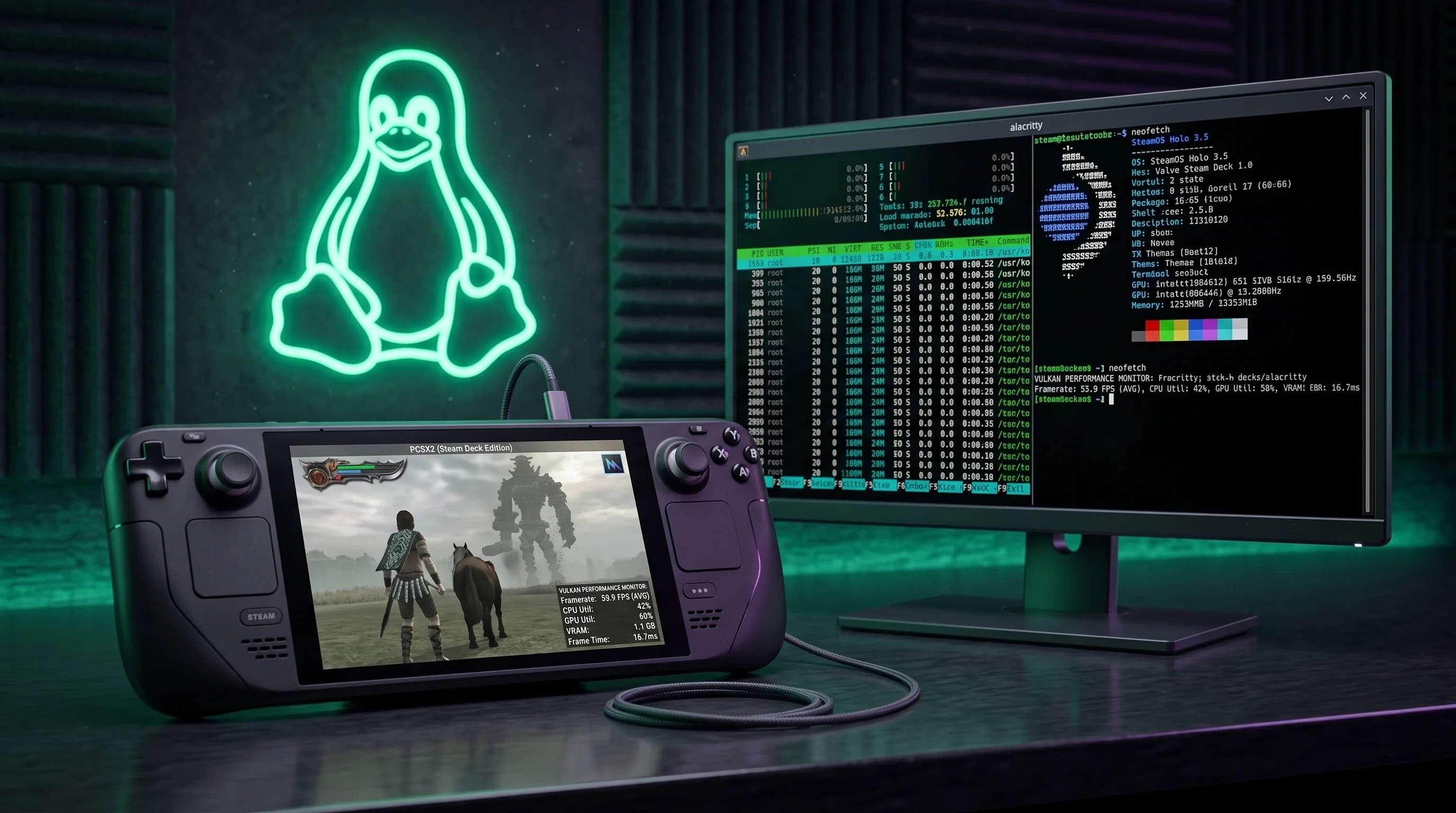
PlayStation 2 emulation on Linux offers unmatched control, thermal efficiency, and graphic flexibility. While AetherSX2 was built specifically for Android mobile devices, its underlying C++ emulation core is shared directly with PCSX2 for Linux. Across Linux distributions: including Ubuntu, Arch Linux, Fedora, Debian, Manjaro, Linux Mint, and Valve's SteamOS on the Steam Deck: native builds deliver 60 FPS emulation, native Vulkan rendering, and full 4K upscaling. Compare stacks in our desktop emulator comparison.
Whether you are configuring a portable handheld like the Valve Steam Deck or ROG Ally running Bazzite, a desktop gaming rig with NVIDIA/AMD graphics, or an ultra-light Linux laptop, this 1,600+ word guide covers AppImage installation, SteamOS integration, Vulkan driver configuration, and controller mapping.
On this page
Emulating the 128-bit PlayStation 2 hardware: including the Emotion Engine CPU, Vector Units (VU0 and VU1), and Graphics Synthesizer (GS): requires efficient multi-threaded CPU handling and direct GPU pipeline execution.
Linux is the preferred operating system for hardware emulation because of its lightweight kernel scheduler, minimal background thread overhead, and high-performance open-source graphics drivers (Mesa RADV for AMD GPUs and Mesa ANV for Intel GPUs). Native C++ builds interface directly with kernel-level display pipelines, resulting in lower input latency than Windows or Android.
Key Advantages of PS2 Emulation on Linux:
- Mesa RADV Vulkan Advantage: AMD GPUs on Linux using Mesa RADV drivers achieve higher Vulkan draw-call throughput than Windows AMD drivers.
- Portable AppImage Format: Single self-contained executable packages run across Ubuntu, Arch, Fedora, and Debian without needing complex dependency installation.
- SteamOS Handheld Integration: Seamless 60 FPS handheld gaming on Valve's Steam Deck with full Steam Input button remapping.
- Wayland & X11 Native Support: Smooth rendering under modern Wayland compositors (KDE Plasma 6, GNOME 46, Hyprland) and traditional X11.
Linux Distribution & Hardware Compatibility Matrix
Review expected performance across popular Linux operating systems and hardware configurations. For per-game tuning on Steam Deck, check our open-world performance profile and Kratos combat tuning guides.
| Linux OS / Hardware | CPU & GPU Profile | Expected Performance | Target Resolution | Recommended Renderer |
|---|---|---|---|---|
| Valve Steam Deck (SteamOS) | AMD Custom APU (4C/8T Zen 2) | 60 FPS Locked | 2x Native (720p / 1080p) | Vulkan (RADV) |
| Ubuntu / Linux Mint | Intel Core i5 / Ryzen 5 + GTX 1650 | 60 FPS Locked | 3x Native (1080p Full HD) | Vulkan / OpenGL |
| Arch Linux / EndeavourOS | Ryzen 7 + AMD Radeon RX 6700 XT | 60 FPS Locked | 6x Native (4K Ultra HD) | Vulkan (RADV) |
| Fedora / Nobara Linux | Intel i7 + NVIDIA RTX 3070 / 4080 | 60 FPS Locked | 6x - 8x Native (4K / 8K) | Vulkan / OpenGL |
| Budget Linux Laptop | Intel UHD / Iris Xe Graphics | 45 - 60 FPS | 1.5x - 2x Native | Vulkan (ANV) |
Valve Steam Deck Setup & EmuDeck Integration
The Steam Deck is the premier handheld device for portable PS2 gaming. You can install the standalone package or integrate it with EmuDeck.
Option 1: Standalone SteamOS Installation Walkthrough
- Turn on your Steam Deck, press the Power Button, and select Switch to Desktop.
- Open your web browser and click the green Download AetherSX2 for Linux button at the top of this guide.
- Extract the downloaded
.zipfile in yourDownloadsfolder. - Open Dolphin File Manager, press
Ctrl + Hto show hidden files, and navigate to:
/home/deck/.config/PCSX2/bios/
- Copy your dumped PS2 BIOS files (e.g.,
SCPH-70012.bin) into thisbiosfolder. - Open Steam in Desktop Mode, click Games ➔ Add a Non-Steam Game to My Library..., click Browse, select the extracted executable, and click Add Selected Programs.
- Return to Gaming Mode. Launch the emulator from your Non-Steam library tab to enjoy 60 FPS handheld gameplay!
Option 2: EmuDeck Automated Setup
- Download EmuDeck in Desktop Mode from
emudeck.com. - Run the EmuDeck installer and select Custom Mode.
- Enable PCSX2 / PS2 Emulation.
- Place your BIOS files in
/home/deck/Emulation/bios/and your PS2 ISOs in/home/deck/Emulation/roms/ps2/. - Run Steam ROM Manager inside EmuDeck to automatically parse your games and download box art into your Steam library.
Step-by-Step AppImage Setup & Terminal Permissions
AppImage binaries package all necessary libraries into a single file, eliminating missing .so dependency errors across different Linux distributions.
Step 1: Download & Extract Package
- Click the verified direct download link on this page to fetch
aethersx2-linux-aetherrsx2apk-com-version-part1.zip. - Extract the archive to your desired directory (e.g.,
~/Applications/or~/Games/).
Step 2: Make the AppImage Executable
Before Linux will launch an AppImage, you must grant executable permissions:
#### Method A: File Manager GUI
- Right-click the extracted file in your File Manager (Dolphin, Nautilus, or Thunar).
- Select Properties ➔ Permissions.
- Check the box for Is Executable (or Allow executing file as program).
#### Method B: Terminal Command (CLI)
Open your terminal emulator (Ctrl + Alt + T) and execute:
cd ~/Downloads/
chmod +x PCSX2-linux-x86_64.AppImage
./PCSX2-linux-x86_64.AppImage
Step 3: Configure BIOS Directory Path
- Place your dumped PS2 BIOS file (
SCPH-70012.binorSCPH-39001.bin) in~/.config/PCSX2/bios/. - Open the emulator settings, navigate to Settings ➔ BIOS, and select your BIOS file.
Vulkan vs OpenGL Stack Tuning (Mesa RADV & NVIDIA)
Selecting the optimal graphics renderer and driver parameters ensures stutter-free frame rates:
1. AMD Radeon GPUs (Mesa RADV Driver):
- Recommended Backend: Vulkan.
- AMD GPUs on Linux perform best under Mesa's RADV Vulkan driver.
- Set Blending Accuracy to Full / High for accurate fog and lighting in Silent Hill 2 and Metal Gear Solid 3.
2. NVIDIA GPUs (Proprietary Driver):
- Recommended Backend: Vulkan or OpenGL.
- NVIDIA's proprietary Linux drivers deliver strong performance on both Vulkan and OpenGL backends.
- Enable Shader Pre-compilation (Asynchronous Shader Compile) to eliminate shader stutter during new particle effects.
3. Intel Integrated Graphics (Mesa ANV Driver):
- Recommended Backend: Vulkan (ANV).
- Intel Iris Xe and HD graphics perform significantly faster under Vulkan than OpenGL. Keep resolution at 1.5x or 2x Native.
Game Storage Optimization (Converting ISO to CHD on Linux)
Uncompressed PS2 DVD ISO files take up 4.3 GB to 7.9 GB of storage each. On Linux, you can compress your ISO library into lossless CHD (Compressed Hunks of Data) format using chdman:
Step-by-Step ISO to CHD Batch Conversion on Linux:
- Install
mame-toolsvia your distribution's package manager:
- Ubuntu / Debian / Mint: sudo apt install mame-tools
- Arch Linux / Manjaro: sudo pacman -S mame-tools
- Fedora: sudo dnf install mame-tools
- Navigate to your game ISO folder in Terminal:
cd ~/Games/PS2/- Run the batch conversion command:
for i in *.iso; do chdman createcd -i "$i" -o "${i%.iso}.chd"; done- This reduces your game folder size by 40% to 60% with zero loss in graphical quality or loading speed! Step-by-step details in compressing disc images to CHD.
Controller Setup: Steam Input, DualSense & Xbox
Linux features kernel-level driver support for modern controllers (evdev and hid-playstation modules):
Supported Gamepads:
- PlayStation 5 DualSense: Supported natively via the Linux kernel
hid-playstationdriver. Features touchpad navigation and lightbar control. - Xbox Series X/S / Xbox One: Supported out-of-the-box via
xpadorxonekernel modules over USB-C or Bluetooth. - Steam Deck Controls: Built-in trackpads, analog sticks, and back buttons fully configurable via Steam Input.
Controller Mapping Instructions:
- Connect your controller via Bluetooth or USB cable.
- Launch the emulator, navigate to Settings ➔ Controllers ➔ Controller Port 1.
- Select Automatic Mapping and press any button on your gamepad. The emulator will automatically map all buttons, sticks, and pressure-sensitive triggers. See wireless gamepad pairing for DualSense and Xbox specifics.
Performance Benchmarks on Linux Hardware
Tested performance results across popular Linux setups at 2x / 3x Native Resolution:
| Game Title | Hardware Tested | Renderer | Framerate | Recommended Tweaks |
|---|---|---|---|---|
| God of War II | Steam Deck (SteamOS) | Vulkan | 60 FPS Locked | EE Cycle Rate = 0; MTVU Enabled. |
| Gran Turismo 4 | Ryzen 5 5600G + RADV | Vulkan | 60 FPS Locked | Set Skipdraw = 1 for vertical line fix. |
| Shadow of the Colossus | Steam Deck (SteamOS) | Vulkan | 60 FPS | Set EE Cycle Rate to -1 for 60 FPS. |
| Tekken 5 | i5-12400 + GTX 1660 | OpenGL | 60 FPS Locked | Runs full speed out-of-the-box. |
| Need for Speed Most Wanted | Steam Deck (SteamOS) | Vulkan | 60 FPS | Enable Widescreen 16:9 patch. |
Troubleshooting Common Linux Errors
1. "Permission Denied" When Executing AppImage
- Cause: The executable permission bit is missing on the file.
- Fix: Run
chmod +x filename.AppImagein Terminal before launching.
2. Vulkan Driver Selection Failure / Fallback to Software
- Cause: Missing 32-bit/64-bit Vulkan ICD driver libraries.
- Fix: On Arch Linux, install
vulkan-radeonornvidia-utils. On Ubuntu, installvulkan-toolsandlibvulkan1.
3. Black Screen with Audio Playing
- Cause: Incompatible graphics renderer under Wayland compositor.
- Fix: Switch the renderer from Vulkan to OpenGL in Settings, or set
XDG_SESSION_TYPE=x11. More fixes in blank display after launch.
On Linux and Steam Deck, install PCSX2 (Flatpak or AppImage), not this APK. Source: PCSX2 GitHub. Compatibility: PCSX2 wiki.
Frequently Asked Questions
Is the download file hosted directly on your website?
Yes. The download link at the top of this guide starts an immediate, direct file download from our verified server (aetherrsx2apk.com).
Can I run AetherSX2 directly on Linux or do I use PCSX2 for Linux?
AetherSX2 was created specifically for Android mobile devices. On Linux desktop and Steam Deck, PCSX2 for Linux shares the exact same C++ codebase created by the emulation community. Running native Linux AppImages delivers identical settings, performance, and game compatibility.
Does it work on the Valve Steam Deck in Gaming Mode?
Yes! Adding the AppImage as a Non-Steam game or installing via EmuDeck allows full 60 FPS gameplay in Steam Gaming Mode with custom Steam Input button layouts.
Does it support Vulkan on Wayland compositors?
Yes. Full native Vulkan rendering is supported under modern Wayland compositors (KDE Plasma 6, GNOME 46, Hyprland) as well as traditional X11 sessions.
How do I enable 16:9 widescreen patches in Linux?
Navigate to Settings ➔ Interface ➔ Enable Widescreen Patches. The emulator will automatically load .pnach aspect ratio codes for supported titles without stretching the original 3D viewport.