iso to chd
How to Convert PS2 ISO to CHD Format
By HBKPublished Last updated
Quick summary
ISO to CHD is lossless PlayStation 2 disc compression with MAME's chdman. AetherSX2 and PCSX2 read CHD natively. It saves storage; it does not change BIOS, saves, or renderer settings.
- Why: 4 GB ISOs on Class 10 microSD hitch; CHD on internal UFS does not
- Tool: chdman createdvd from MAME; keep .cue+.bin together
- Do not: convert a .zip/.7z until it is extracted to ISO or cue/bin
- Saves: shrines stay on the .ps2 card; they are not inside the CHD
Are you tired of constantly running out of storage space on your Android device while trying to build the ultimate PlayStation 2 emulation library? You are not alone. A typical PS2 game in standard ISO format can take anywhere from 1GB to a staggering 4.7GB (or even over 8GB for dual-layer DVDs like God of War or Gran Turismo 4). When you have dozens of games in your collection, you can easily max out a 128GB or 256GB phone in no time. But what if we told you there is a way to compress those massive files by up to 60% without losing a single frame of performance, audio quality, or graphical fidelity in AetherSX2?
Welcome to the world of CHD compression. Learning how to convert ISO to CHD is a rite of passage for serious emulation enthusiasts. It is the single most effective way to maximize your phone's storage capacity while maintaining a flawless emulation experience. In this comprehensive guide, we will break down exactly what the CHD format is, why it is the absolute best format for PS2 emulation on Android, and how you can easily compress your games across various platforms including Windows, Android, Mac, and Linux.
If you are new to the scene, make sure to check out our AetherSX2 BIOS guide and our AetherSX2 best settings guide to get your emulator running perfectly before you start building a massive library. Let's dive in!
On this page ▾
The transition from storing raw ISO files to adopting the CHD format is one of the most significant quality-of-life improvements for any emulation setup, especially on mobile devices where internal storage is often limited and non-expandable. But why exactly should you take the time to convert your entire library? Let's explore the massive benefits.
1. Massive Storage Savings (Lossless Compression)
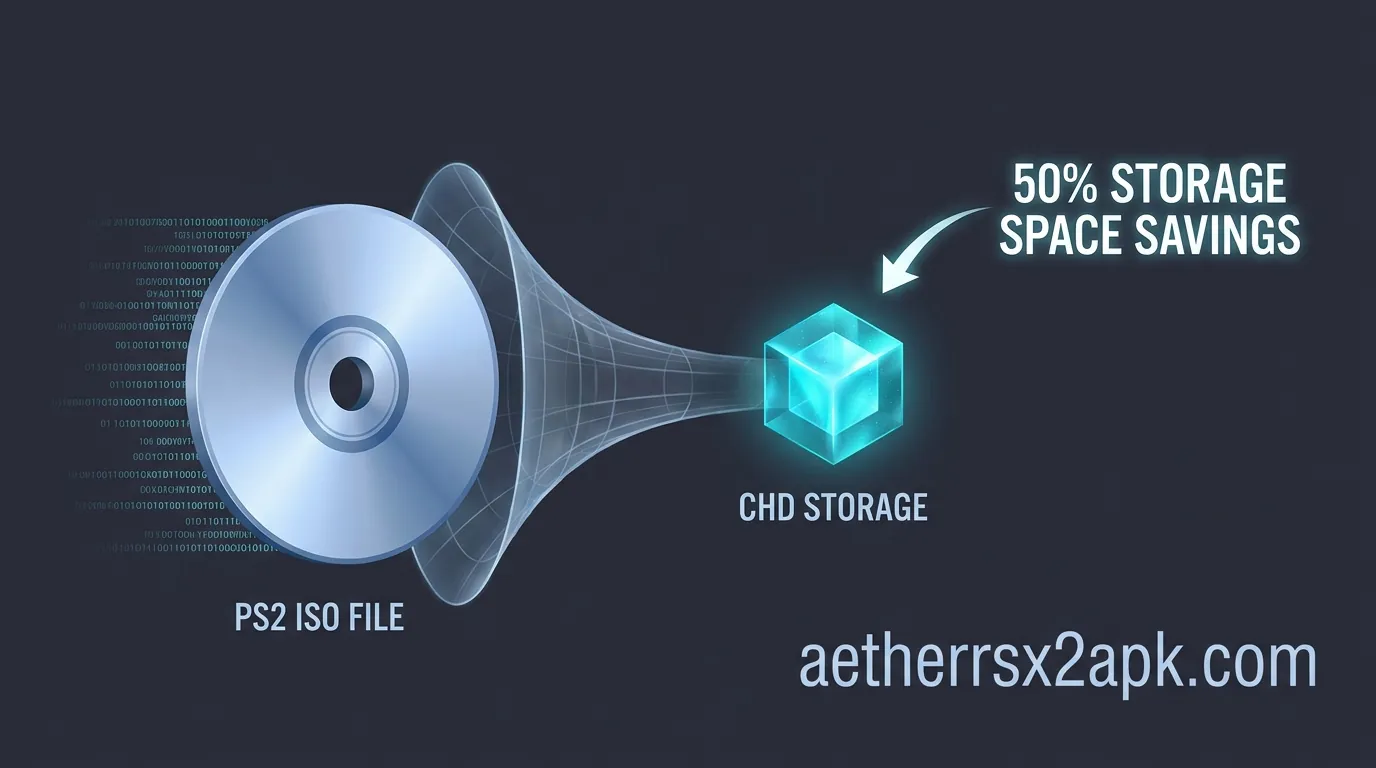
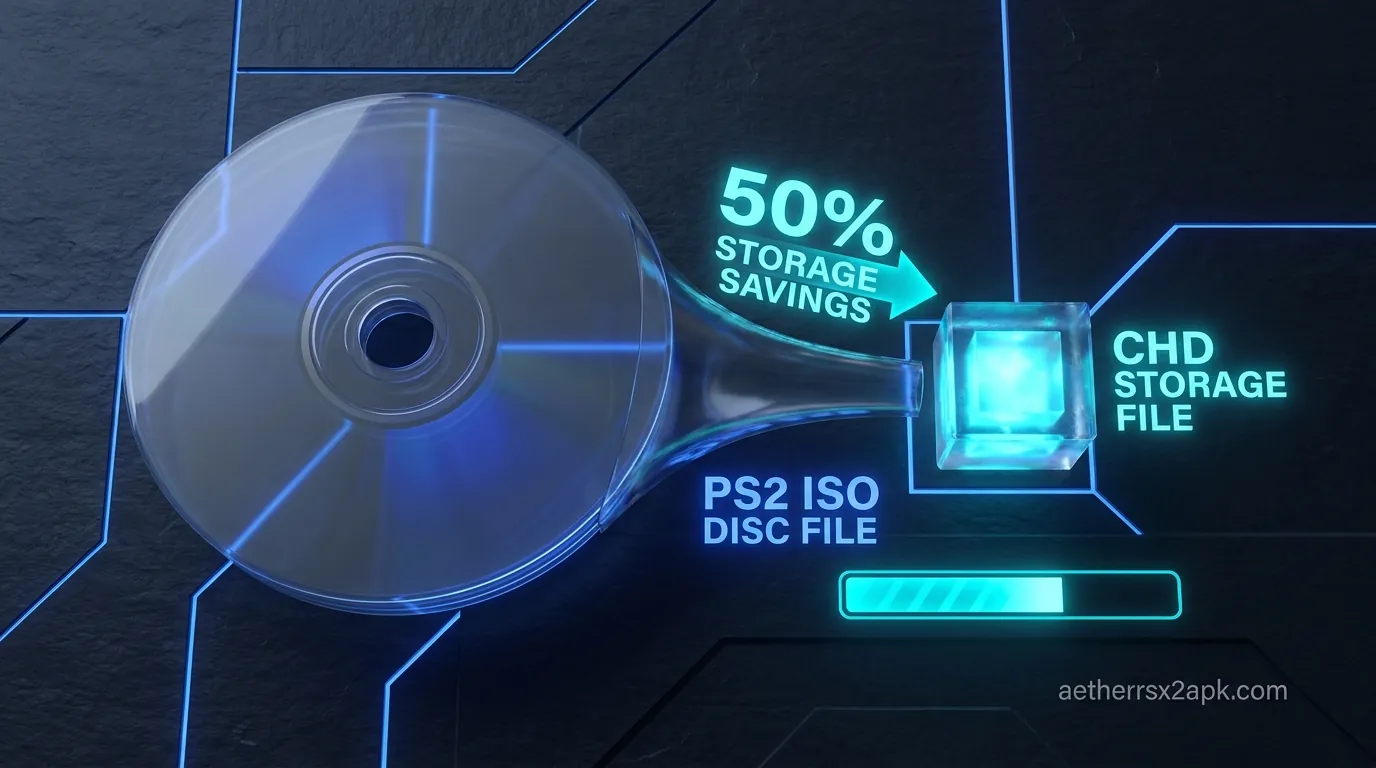
The primary reason to convert ISO to CHD is the sheer amount of space you will save. Unlike traditional zip or rar archives: which must be fully extracted before an emulator can read the game data: CHD is designed to be read on the fly. The compression algorithm used by CHD is incredibly efficient for optical disc media. On average, you can expect a file size reduction of 30% to 50%, and in some cases with games that have a lot of "dummy data" (empty padding used by developers to push data to the outer edge of the disc for faster read times on original hardware), the savings can reach an astonishing 60% to 70%.
For example, a game that takes up 4.3GB as an ISO might only take up 1.8GB as a CHD file. Over a library of 50 games, you could be saving well over 100GB of storage space on your phone or microSD card.
2. Zero Performance Impact in AetherSX2
A common misconception among newcomers to the emulation community is that compressing a game will lead to stuttering, longer loading times, or audio desync issues because the device has to "decompress" the game while playing. With CHD, this is simply not true. Modern smartphones: even budget models: have CPUs that are more than capable of handling the real-time decompression of CHD files without breaking a sweat. AetherSX2 was built with native support for the CHD format, meaning the emulator seamlessly streams the compressed data exactly as it would a standard ISO. You will experience identical performance, identical loading times, and identical compatibility.
3. It is Completely Lossless
When we talk about compression, people often think of formats like JPEG or MP3, where data is permanently discarded to save space (lossy compression). CHD, on the other hand, is a lossless compression format. This means that every single byte of the original game data: including audio tracks, FMV cutscenes, and hidden files: is perfectly preserved. If you ever need to convert the CHD back into an ISO, the resulting file will be a 1:1 mathematically perfect match to your original dump. You lose absolutely nothing except the wasted, empty space.
4. Cleaner ROM Directories
If you have ever dumped CD-based PS2 games (games with a blue bottom instead of silver), you know they often dump as a .bin and .cue file combination, sometimes with multiple .bin files for different audio tracks. Managing these multi-file games can be messy and confusing. Converting them to CHD combines all of these separate tracks into a single, neat .chd file, making your game library look much cleaner and easier to manage within the AetherSX2 interface.
What is CHDMan?
Before we jump into the step-by-step tutorials, it is important to understand the tool we will be using: CHDMan.
CHDMan stands for "Compressed Hunks of Data Manager." It is a specialized command-line utility that was originally developed for the MAME (Multiple Arcade Machine Emulator) project. The MAME team needed a way to highly compress and efficiently read massive arcade hard drive images and CD-ROM dumps, and thus the CHD format was born.
Over the years, the emulation community realized that the exact same technology could be perfectly applied to home console CD and DVD dumps, including Sega CD, Sega Saturn, Dreamcast, PlayStation 1, and crucially for us, PlayStation 2.
Because CHDMan is a command-line tool (meaning it lacks a traditional graphical user interface with buttons and menus), it can seem intimidating at first. However, the community has created simple batch scripts (small text files containing the necessary commands) that automate the entire process. With these scripts, converting an ISO to CHD is as simple as dragging and dropping a file, making the power of CHDMan accessible to absolutely everyone, regardless of technical expertise.
CHDMan uses various compression algorithms under the hood: such as LZMA, zlib, and FLAC for CD audio tracks: to ensure the maximum possible reduction in file size without sacrificing speed. It analyzes the structure of the disc image, identifies raw data, audio tracks, and padding, and applies the most efficient compression method to each "hunk" of data.
How to Convert ISO to CHD on Windows
Windows is by far the easiest and most common platform for compressing PS2 games. Since you likely used a PC to dump your original PS2 game discs, it makes sense to compress them before transferring them over to your Android device for AetherSX2.
Here is the ultimate, foolproof guide to converting your ISOs to CHDs using a Windows PC.
Step 1: Download the CHDMan Tool
Because CHDMan is part of the MAME project, you could technically download the entire MAME emulator package to get it. However, that is a massive download that you do not need. Instead, the emulation community maintains standalone packages of CHDMan bundled with easy-to-use batch scripts specifically for PS2 games.
- Search online for "namDHC" (a popular GUI wrapper for CHDMan) or a pre-configured "CHDMan PS2 batch script" zip file. You can easily find these on GitHub, Reddit's emulation communities, or major emulation wikis.
- Download the ZIP file containing the
chdman.exefile and the associated.bat(batch) files.
Step 2: Extract the Files
- Create a new folder on your desktop and name it something like
PS2 Compressor. - Extract the contents of the ZIP file you just downloaded into this new folder.
- Inside, you should see
chdman.exeand several batch files with names likeCUE to CHD.batandISO to CHD.bat.
Step 3: Prepare Your Game Files
- Locate your legally dumped PS2 games. These will typically end in
.iso(for DVD games) or a combination of.binand.cue(for CD games). - Move or copy your game files into the same
PS2 Compressorfolder that containschdman.exe.
.cue file and all associated .bin files are in the folder.
Step 4: Run the Batch Script
Now for the magic. We are going to use a simple drag-and-drop method.
- Click and hold your PS2
.isofile. - Drag the file directly on top of the batch script named
ISO to CHD.bat(or similar). - Let go of the mouse button.
- A black Command Prompt window will instantly appear. You will see a progress bar made of text, along with statistics showing the read speed, compression speed, and current ratio.
Alternative Method: If the batch script is designed to run automatically on the entire folder, you can simply double-click the ISO to CHD.bat file. The script will scan the folder for any .iso files and begin converting them one by one automatically.
Step 5: Wait for Compression
The time it takes to compress a game depends entirely on two factors: the size of the game and the speed of your computer's CPU. A powerful modern desktop processor might compress a 4GB ISO in under a minute, while an older laptop might take 5 to 10 minutes.
Do not close the black command window while it is running. Once the compression reaches 100%, the window will usually display a message like "Compression complete" or simply close itself.
Step 6: Verify and Transfer
Once the process is finished, look inside your PS2 Compressor folder. You will see a brand new file with the exact same name as your original game, but ending in .chd.
Compare the file sizes: you will likely see a massive difference! You can now safely delete the original .iso file (or move it to a backup drive) and transfer your shiny new .chd file to your phone's storage for AetherSX2. If you experience any issues loading the game, refer to our AetherSX2 troubleshooting guide.
How to Convert ISO to CHD on Android Directly
What if you don't have access to a PC? Perhaps you downloaded a massive homebrew title or dumped a disc via a compatible external USB DVD drive directly to your phone. Can you convert ISO to CHD entirely on your Android device?
Yes, you absolutely can! While it is slightly more technical than the Windows drag-and-drop method, it is entirely possible thanks to powerful terminal emulation apps like Termux, which allow you to run Linux command-line tools natively on Android.
Here is how to compress your PS2 ISOs right on your phone.
Step 1: Install Termux
Termux is a powerful terminal emulator for Android.
- Do not download Termux from the Google Play Store, as that version is heavily outdated and no longer supported.
- Instead, download and install the open-source app store F-Droid, and search for Termux there. Alternatively, you can download the latest Termux APK directly from the official Termux GitHub releases page.
- Install and open the Termux app.
Step 2: Update Packages and Request Storage Access
When you first open Termux, you are greeted with a black command-line interface. You need to prepare the environment. Type the following commands, pressing "Enter" (or the return key on your digital keyboard) after each one:
pkg update && pkg upgrade(Type "y" if prompted to confirm updates). This ensures your environment is fully up to date.termux-setup-storage. A system pop-up will appear asking you to grant Termux permission to access your files and media. Tap "Allow." This is crucial, otherwise Termux cannot see your PS2 ISOs.
Step 3: Install CHDMan for Android
Fortunately, CHDMan is available in the Termux repositories as part of the MAME tools package.
- Type the following command and press Enter:
pkg install mame-tools - Wait for the installation to complete. You now have the full power of CHDMan installed on your phone.
Step 4: Navigate to Your Game Folder
This is where you need a basic understanding of Linux file navigation. You need to tell Termux to look in the folder where your PS2 ISO is stored. Let's assume your ISO is stored in a folder named PS2Games on your internal storage.
- Type:
cd ~/storage/shared/PS2Gamesand press Enter. (The~storage/shared/path points to the root of your internal Android storage). - Type
lsand press Enter to list the files in that folder. You should see your game, for example,GodOfWar.iso.
Step 5: Execute the Compression Command
Now you will manually type the command that the Windows batch script handles automatically.
- Type the following command carefully, replacing the filenames with your actual game name:
chdman createcd -i "GodOfWar.iso" -o "GodOfWar.chd"
- Press Enter.
(Note: Use createcd for standard ISOs and BIN/CUE files. CHDMan is smart enough to handle DVD-based ISOs with this command as well).
The compression process will begin right on your phone screen! Because mobile CPUs (even powerful Snapdragon chips) are generally less powerful at raw data crunching than desktop processors, this process will take significantly longer than on a PC. Your phone may also get quite warm during this process.
Once it reaches 100%, the process is complete. You can open AetherSX2, point it to your folder, and play your newly compressed game.
How to Convert ISO to CHD on Mac & Linux
If you are an Apple user or a Linux enthusiast, you have not been left behind. Converting ISO to CHD is incredibly straightforward on Unix-based systems. In fact, because macOS and Linux have powerful terminal environments built-in, you don't even need to rely on community batch scripts.
For macOS Users
To get CHDMan on a Mac, the easiest method is to use Homebrew, the popular package manager for macOS.
- Install Homebrew: If you do not have Homebrew installed, open your Mac's Terminal app and paste the installation command found on the official Homebrew website (brew.sh).
- Install rom-tools: Once Homebrew is ready, type the following command in Terminal and press Enter:
brew install rom-tools. This package contains several useful emulation utilities, including CHDMan. - Navigate to your games: Use the
cdcommand to navigate to the folder containing your PS2 ISOs. For example:cd ~/Downloads/PS2Games/ - Compress the game: Run the following command:
chdman createcd -i "YourGame.iso" -o "YourGame.chd"
- Wait for the process to finish, and you are ready to transfer the
.chdfile to your Android device for AetherSX2.
For Linux Users
The process on Linux is practically identical to macOS, just using a different package manager depending on your distribution.
- Install MAME Tools:
- On Debian/Ubuntu-based distributions (like Linux Mint or Pop!_OS), open the terminal and type:
sudo apt-get install mame-tools - On Arch-based distributions (like SteamOS on the Steam Deck), type:
sudo pacman -S mame-tools
cd /path/to/your/ps2/games
- Run CHDMan:
chdman createcd -i "YourGame.iso" -o "YourGame.chd"
For Linux users who prefer a graphical interface, you can search for a community script like chdman-gui-linux on GitHub, which provides a simple drag-and-drop window similar to the Windows batch scripts.
How to Uncompress CHD back to ISO if Needed
Because the CHD format is completely lossless, reversing the process to get your original ISO (or BIN/CUE files) back is entirely possible, fast, and results in a mathematically identical file to your original dump.
Why would you want to do this? Perhaps you want to patch a game with an English translation, apply a widescreen hack at the file level, or use a modding tool that only accepts raw .iso files. Once the patching is done, you can compress it right back to .chd.
Reverting on Windows
If you downloaded a comprehensive PS2 CHDMan batch script pack, it likely came with a script named something like Extract CHD to ISO.bat or CHD to CUE.bat.
- Simply drag your
.chdfile onto this extraction batch script. - The command window will open, and within a few minutes, your original
.iso(or.bin/.cue) will be recreated in the same folder.
Reverting via Command Line (Windows, Mac, Linux, Android)
If you do not have an extraction batch script, or you are on Mac/Linux/Termux, you can use a simple command to extract the file.
Open your terminal or command prompt, navigate to the folder with your .chd file, and type:
chdman extractcd -i "YourGame.chd" -o "YourGame.iso"
Press Enter. CHDMan will rapidly decompress the data and output a perfect copy of your original disc image. It is that simple!
ISO vs CHD vs CSO Comparison Table
While we highly recommend CHD, it is not the only compression format in the emulation world. You might have seen mentions of CSO (Compressed ISO), which was popularized during the PSP emulation era. Let's look at how standard ISO, CHD, and CSO stack up against each other specifically in the context of AetherSX2.
| Feature | Standard ISO / BIN+CUE | CHD (Compressed Hunks of Data) | CSO (Compressed ISO) |
|---|---|---|---|
| File Size | 100% (Original Size) | 40% 70% of original size | 50% 80% of original size |
| Compression Algorithm | None | LZMA / FLAC / zlib | Deflate (Zip) |
| AetherSX2 Support | Perfect | Perfect (Native Support) | Supported, but can be buggy |
| Performance Impact | None | None | Minor (Possible stutter on weak CPUs) |
| Lossless Quality | Yes | Yes | Yes |
| Multi-Track CD Support | Yes (Requires multiple files) | Yes (Combines into one single file) | No (Usually fails with CD audio tracks) |
| Best Used For | Archiving on massive external HDDs | Playing on Android via AetherSX2 | Legacy PSP/PS2 emulators (Not recommended now) |
The Verdict: As you can see, CHD is the clear winner across the board. It offers significantly better compression ratios than CSO, handles multi-track audio perfectly (which CSO struggles with), and causes zero performance hit in AetherSX2. There is virtually no reason to use ISO or CSO for playing games on your mobile device when CHD exists. Check out our Game Compatibility Database to see how specific games perform once compressed.
CHD is MAME's compressed disc format. Tool docs: chdman. Hash dumps against Redump. PCSX2 also reads CHD (PCSX2 wiki).
Frequently Asked Questions
1. Will compressing to CHD break my game saves or save states?
No! Game saves (memory card data) and save states are generated and managed by the AetherSX2 emulator itself, not the game file. They are stored in a completely separate directory on your Android device. You can swap an ISO file for a CHD file of the exact same game, and AetherSX2 will load your save data seamlessly.
2. Can I compress a PS2 game that is already compressed in .7z, .rar, or .zip?
No. CHDMan cannot read standard archive formats. If you downloaded a legally backed-up game that arrived in a .7z or .zip format, you must first fully extract it using a program like WinRAR or 7-Zip to reveal the raw .iso or .bin/.cue files. Only then can you run those raw files through CHDMan to create a .chd file. AetherSX2 cannot play games directly from .zip or .7z archives anyway.
3. I have a game with a .bin and .cue file. Which one do I compress?
You must point CHDMan to the .cue file. The .cue file is a small text document that acts as a map, telling the software where the audio tracks and data tracks are located within the larger .bin file(s). If you use a drag-and-drop batch script, drag the .cue file onto the script. If you use the command line, type chdman createcd -i game.cue -o game.chd. CHDMan will automatically read the .bin files via the .cue map and compress everything into a single .chd.
4. Does compressing to CHD reduce the graphics or audio quality?
Absolutely not. As emphasized earlier in this guide, CHD is a lossless compression format. It is mathematically identical to the original disc. Every pixel, every texture, and every piece of audio remains in its exact, original quality.
5. Why do some games compress by 60% and others only by 10%?
The compression ratio heavily depends on the data structure of the specific game. Early PS2 games, or games that were simply small in scope, often had gigabytes of "dummy data" (literally empty zeroes) added to the disc by the developers. This was done because the physical laser of the PS2 disc drive reads data faster near the outer edge of the disc. CHDMan identifies this empty dummy data and compresses it into almost nothing, resulting in massive space savings. Conversely, massive RPGs like Final Fantasy XII that utilize almost every megabyte of the DVD for actual game assets, high-quality FMVs, and audio will compress much less, perhaps only saving 10% to 15%.
6. Can I use these CHD files on the PC emulator PCSX2?
Yes! AetherSX2 is heavily based on the architecture of PCSX2 (with permission from the developers). The PC version of PCSX2 fully supports CHD files. This means you can create a single, highly compressed library of .chd files and use the exact same files on your gaming PC and your Android phone without needing multiple versions of the games.
Conclusion
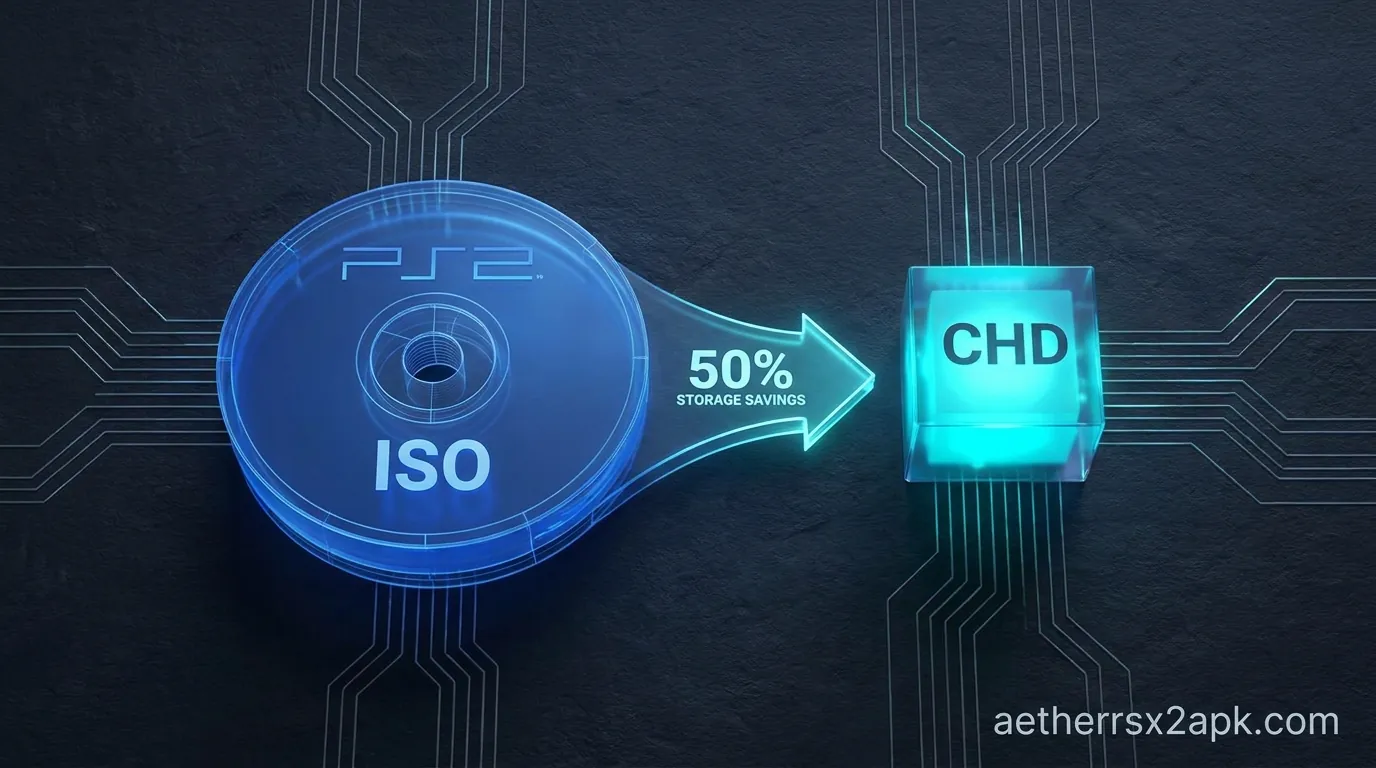
Maximizing your storage space is one of the most important aspects of maintaining a healthy emulation setup on Android. By taking the time to convert your PlayStation 2 library from bloated ISOs to incredibly efficient CHDs, you are essentially doubling the number of games you can carry in your pocket. With zero downsides in performance, lossless data preservation, and cleaner directories, learning how to use CHDMan is a skill that will serve you well for years to come.
Now that you have your library compressed and ready to go, make sure to browse our main AetherSX2 setup guide, or head over to the AetherSX2 best settings page to ensure you are squeezing every ounce of performance out of your Android device!