aethersx2 texture packs
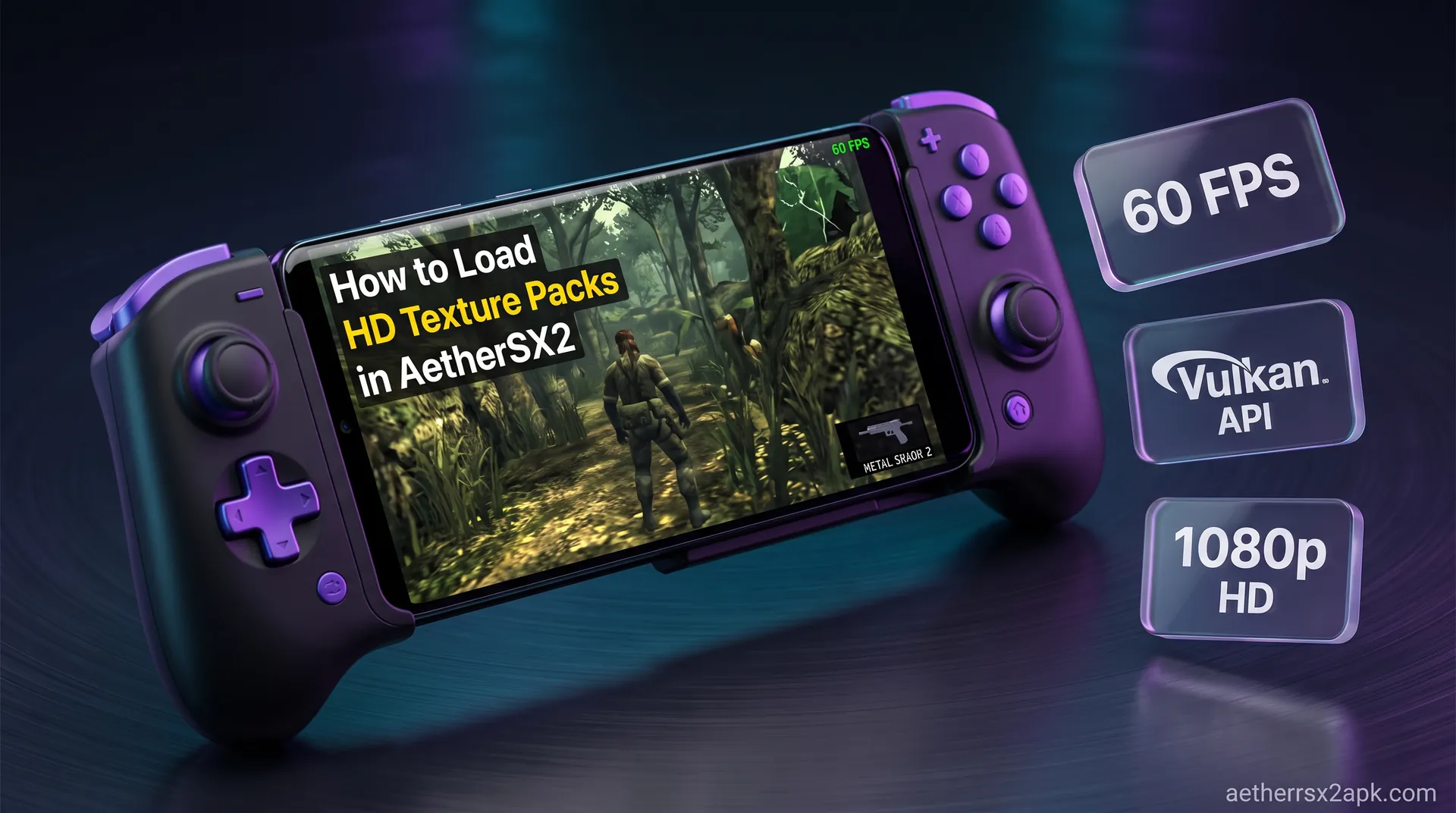
How to Load HD Texture Packs in AetherSX2
By HBKPublished Last updated
Quick summary
AetherSX2 texture packs replace dumped GS textures with HD PNGs in a per-game folder. They cost RAM and fill-rate; 8 GB is the comfortable floor. They do not replace a legal BIOS or a CHD.
- Path: replacement folder named for the serial/CRC the dump uses
- RAM: Partial preload on 6–8 GB; Full plus 3x *Colossus* hitches
- Enable: load replacements on, dumps off for play
- Skip: first playthrough of a heavy 3D title until 2x is stable
One of the most exciting features of emulation is the ability to breathe new life into classic games, and AetherSX2 is no exception. While upscaling internal resolution makes 3D models look crisp, the original flat textures (walls, faces, UI elements, and signs) often remain blurry and pixelated. That’s where AetherSX2 texture packs come in.
By replacing original PlayStation 2 textures with newly created, high-definition (HD) alternatives, you can make games from two decades ago look like modern remasters right on your Android phone. In this comprehensive guide, we will cover everything you need to know about HD texture mods in AetherSX2, from hardware requirements to step-by-step installation instructions and troubleshooting.
On this page ▾
When you play a PS2 game on AetherSX2, the emulator loads the game's assets (including textures) into memory and renders them on your screen. The PS2 was designed to output at standard definition (usually 480i or 480p), meaning its textures are typically low-resolution to fit within the console’s limited 4MB of VRAM and 32MB of system RAM.
When you use AetherSX2 to upscale a game to 1080p (3x or 4x resolution) to match your modern smartphone screen, the geometry (the 3D models of characters, vehicles, and the world) becomes razor-sharp. However, those original low-res 2D textures are simply stretched across the new, higher-resolution 3D surfaces. This often results in a muddy, blurry look that contrasts harshly with the sharp 3D models. Imagine a highly detailed, smooth 3D character face, but the eyes and mouth painted onto that face look like a pixelated blur. That is the exact problem texture packs solve.
AetherSX2 (inheriting features from its PC sibling, PCSX2) supports custom texture replacement. This feature allows the emulator to intercept the loading of original game textures on the fly. Instead of loading the blurry original asset, it swaps it out with an external, higher-resolution image file (typically in PNG or DDS format) located in a specific folder on your Android device.
Why Use HD Texture Packs?
- Modernized Visuals: HD textures can completely transform a game. Brick walls get individual grooves, grass looks like blades rather than green smudges, and character clothing shows fabric weaves. It essentially acts as a free "remaster" for your favorite classic games.
- Improved UI and Text: Text in old games can become unreadable when upscaled, especially on smaller mobile screens. HD UI mods fix this by providing crisp, sharp fonts, button prompts, and health bars. This is especially vital for text-heavy RPGs where reading dialogue is a major part of the experience.
- Customization and Translation: Texture packs aren't just for HD remasters; they can also be used for fan translations (replacing Japanese text in textures with English), re-texturing characters (like giving a character a custom outfit or color swap), or completely overhauling the game's visual style into something cell-shaded or hyper-realistic.
- Restoration: Some games used heavy blurring or post-processing on the PS2 to hide hardware limitations. Texture packs can remove these artifacts and restore the game to how the original artists intended it to look before compression.
The process of using these texture packs in AetherSX2 involves a feature called "Load Textures," which we will explain how to set up in detail in the sections below.
Hardware Requirements for HD Texture Replacement
While AetherSX2 itself is highly optimized for ARM processors, adding custom HD textures significantly increases the workload on your device. It is crucial to understand that texture replacement is extremely demanding on your phone's memory (RAM), graphics processor (GPU), and storage speed.
Before you attempt to load massive 4K texture packs, you must evaluate if your Android device is up to the task. Pushing beyond your hardware's capabilities will result in severe stuttering, audio crackling, or immediate app crashes.
RAM (Random Access Memory): The Biggest Bottleneck
This is the single biggest bottleneck for texture replacement on Android.
- Minimum (6GB of RAM): At 6GB, you are working with the bare minimum for emulation in general. You might be able to load smaller texture packs (like UI replacements, font upgrades, or 1080p lite packs), but large environmental overhauls will likely crash the emulator. Android needs RAM for the OS itself, leaving only a portion for AetherSX2.
- Recommended (8GB of RAM): For comprehensive HD texture packs, 8GB is the sweet spot for a smooth experience. You can comfortably load 2K textures for most games without the OS aggressively killing the app in the background.
- Ideal (12GB+ of RAM): Found primarily on modern gaming phones or high-end flagships. 12GB or more will ensure perfectly smooth loading of massive 4K texture packs (which can exceed 3GB in size) without ever running out of memory.
Texture packs are loaded directly into RAM so the GPU can access them instantly. If a texture pack is 2GB in size, it requires a large chunk of available RAM. Android OS aggressively manages memory, and if AetherSX2 uses too much RAM, the OS will force-close the app to prevent a system-wide freeze.
VRAM and GPU Power
Your GPU needs to process and render these larger textures continuously. A Snapdragon 865 or higher is highly recommended for standard emulation. When adding HD texture packs, the strain on the GPU increases, especially if you are also running at high internal resolutions (like 3x or 4x).
- Snapdragon processors with Adreno GPUs (e.g., Adreno 650, 730, 740) handle custom textures much better than MediaTek (Mali GPUs) or Exynos devices. This is entirely due to superior graphics driver support and better Vulkan API implementation on Snapdragon chips.
- Using the Vulkan renderer is generally recommended for the best performance and frame pacing when pushing high-resolution textures. However, if you experience graphical glitches, weird colors, or missing assets with textures loaded, you may need to switch the backend to OpenGL.
Storage Space and Speed
HD texture packs are massive files. A complete overhaul for a major RPG can range from 1GB to over 6GB when uncompressed.
- Capacity: Ensure you have ample internal storage space. Filling your phone's storage to 99% capacity will slow down the entire operating system.
- Speed: Loading textures from a slow external MicroSD card is highly discouraged. It will cause severe stuttering whenever a new texture needs to be loaded into memory (like entering a new room or triggering a cutscene). For the best performance, you must keep the textures on your device's fast internal UFS (Universal Flash Storage) storage.
If your device struggles with the base game, check out our guide on AetherSX2 best settings to optimize your base performance before attempting to add heavy HD mods.
How to Install & Enable Texture Packs in AetherSX2
Installing an HD texture pack in AetherSX2 is a relatively straightforward process once you understand the necessary folder structure. It does not require root access, but you will need a capable file manager.
Step 1: Locate the Right Texture Pack
You can find custom texture packs on forums like GBATemp, the official PCSX2 forums, Reddit (r/EmulationOnAndroid), or specialized Discord servers. Important: Make sure the texture pack matches your specific game version and region. A texture pack built for the US version (NTSC-U) of a game will often not work with the European (PAL) version because the internal texture IDs might differ slightly.
Step 2: Understand the Game ID (Serial Number)
Every PS2 game has a unique Serial Number (Game ID). For example, SLUS-20615 is the ID for the US version of Persona 4, while SLES-55411 is the European version. AetherSX2 needs this ID to know exactly which textures belong to which game. To find your game's ID:
- Open AetherSX2.
- Long-press the game cover in your game list.
- Select Game Properties.
- Navigate to the Summary tab. The "Serial" will be listed there near the top.
Step 3: Prepare the Folder Structure
AetherSX2 looks for replacement textures in a very specific folder path on your Android device. You need a file manager app (like Solid Explorer or ZArchiver) to access the Android data folder.
- Navigate to your AetherSX2 data directory. The path is typically:
Android/data/xyz.aethersx2.android/files/textures/
(Note: On newer Android versions (Android 11+), Google has restricted access to the Android/data folder. You may need to grant special permissions to your file manager or use a PC to transfer files into this specific directory.)
- Inside the
texturesfolder, create a new folder named exactly after your Game ID. For example,SLUS-20615. Do not include the hyphen in the folder name if the pack's readme instructions say otherwise, but usually, AetherSX2 expects the format exactly as it appears in the emulator, likeSLUS-20615orSLUS20615. Always check the texture pack's readme for the exact naming convention they used. - Inside that newly created Game ID folder, create another folder named exactly
replacements.
Android/data/xyz.aethersx2.android/files/textures/SLUS-20615/replacements/
Step 4: Extract the Textures
Extract the downloaded HD texture pack (which is usually a .zip, .rar, or .7z file). Move all the uncompressed .png, .jpg, or .dds files from the downloaded pack directly into the replacements folder you just created. Do not leave them in an extra subfolder inside the replacements folder.
Step 5: Enable Texture Replacement in AetherSX2
Now that the files are in place, you need to tell the emulator to use them.
- Open AetherSX2 and start your game.
- Pause the emulator to open the in-game menu overlay.
- Tap the i (information/settings) icon at the top of the screen.
- Go to the Graphics tab (represented by the monitor icon).
- Scroll down until you find the Texture Replacement section.
- Toggle on the setting for Load Textures.
- (Optional but highly recommended) Toggle on Async Texture Loading. This crucial setting allows the emulator to load the heavy HD textures in the background using multiple CPU threads. This helps prevent massive micro-stutters when the game demands a new texture on the fly.
Resume your game. If you placed the files correctly and the Game ID matches perfectly, you should immediately see the new HD textures appear on screen!
How to Dump Textures to Create Custom Mods
If you are an artist, a modder, or someone who wants to create your own HD texture packs, AetherSX2 allows you to "dump" the original PS2 textures straight out of the game as you play. You can also use this to extract clean UI elements, character portraits, or logos for other personal projects.
Enabling Texture Dumping
- Open AetherSX2 and start the game you want to mod.
- Pause and go to the Graphics settings via the pause menu.
- Scroll down to the Texture Replacement section.
- Toggle on Dump Textures.
Finding the Dumped Textures
As you play the game, AetherSX2 will now save every single texture it renders to your internal storage in real-time.
- Navigate to:
Android/data/xyz.aethersx2.android/files/textures/GAME_ID/dumps/ - Inside this folder, you will find hundreds (or thousands) of
.pngfiles. These are the raw, original textures from the game, exactly as they were stored on the PS2 disc.
Creating the Mod
- Copy these dumped
.pngfiles to your PC or a capable tablet. - Edit them using Photoshop, GIMP, or run them through AI upscaling software (like ESRGAN, Topaz Gigapixel AI, or waifu2x).
- Crucial Rule: The modified texture must retain the exact same filename as the original dumped texture. AetherSX2 uses this complex filename as a hash to identify precisely which in-game texture to replace. If you alter the filename, the emulator will ignore it.
- Move your newly edited, upscaled textures into the
replacementsfolder for that game on your Android device. - Turn off "Dump Textures" and turn on "Load Textures" in AetherSX2 to test your work in-game.
Warning: Leaving "Dump Textures" enabled while playing normally is a bad idea. It will rapidly fill up your phone's storage space with thousands of tiny images and cause severe, unplayable lag. Only turn it on when you specifically need to capture a scene's textures, and turn it off immediately after you have what you need.
Top 5 Popular HD Texture Packs for PS2 Games
The emulation community has spent years creating hundreds of incredible HD texture packs. While game compatibility varies depending on your hardware, here are five of the most popular, transformative, and impressive texture packs that run exceptionally well on AetherSX2.
1. Persona 4 (HD Overhaul)
Persona 4 is one of the most beloved RPGs on the PS2, and its community texture pack is legendary. It replaces the blurry 2D character portraits, UI elements, menus, text fonts, and 3D environments with razor-sharp 4K equivalents. Because P4 relies heavily on 2D art and reading text, the HD mod transforms it into a modern-looking title that rivals, and sometimes exceeds, the official Persona 4 Golden release on PC and modern consoles.
2. Final Fantasy X & XII
While there are official HD Remasters available for modern consoles, many emulation purists prefer the original PS2 versions due to specific art style preferences or gameplay tweaks. Community texture packs for FFX and FFXII upscale the sprawling environments, character faces, summons, and intricate armor details. These packs are massive (often exceeding 4GB) and require a powerful phone, but they showcase the sheer, jaw-dropping potential of PS2 emulation on a mobile device.
3. The Simpsons: Hit & Run
A beloved cult classic that desperately needs an official remaster. Until that day comes, the community HD texture pack does an incredible job of cleaning up Springfield. It replaces the blurry store signs, character textures, vehicle details, and road markings with crisp, colorful HD versions. Combined with 16:9 aspect-ratio patches, it makes the game feel like playing a native, high-end mobile port.
4. Silent Hill 2
Survival horror games rely heavily on atmosphere, and muddy, compressed textures can sometimes ruin the immersion by looking like a mess of pixels rather than rust or blood. The Silent Hill 2 Enhanced texture packs carefully upscale the textures without destroying the game's iconic, oppressive grime and grit. Warning signs become readable, the fog looks better, and the horrific monsters become terrifyingly detailed.
5. God of War I & II
Kratos’ original outings pushed the PS2 hardware to its absolute limits, resulting in visually stunning games that suffered from low-res textures upon close inspection. The HD texture packs for God of War 1 and 2 focus heavily on Kratos' model, his blades, the intricate architecture of Mount Olympus, and the massive environmental set pieces. Upscaling the UI, health meters, and crucial QTE (Quick Time Event) button prompts makes the intense combat much more playable on a high-resolution mobile screen.
Remember: Always verify that the texture pack you download matches the region (NTSC/PAL) of your game ISO, or it will not load!
Troubleshooting Texture Loading Issues
Adding gigabytes of custom assets to a complex Android emulator isn't always a flawless experience. Hardware limitations and software quirks can cause headaches. If you are running into persistent problems, check out our broader AetherSX2 crash fix guide, or consult these specific, common texture-related issues below.
1. The Emulator Crashes Immediately When Loading the Game
The Cause: You ran out of RAM. Android OS killed AetherSX2 because it tried to load a massive texture pack into memory all at once, exceeding your phone's capacity. The Fix:
- Ensure you have closed all other background apps before launching AetherSX2.
- If the texture pack is simply too large for your phone (e.g., a 4GB pack on a 6GB phone), you must delete some files from the
replacementsfolder to reduce the footprint. Try keeping only the crucial UI, text, and main character textures, and delete the heavy, numerous environmental textures (like floors and walls). - Look for "Lite" or downscaled versions of the texture pack online (e.g., a pack optimized for 1080p instead of 4K).
2. Textures Aren't Changing at All
The Cause: Incorrect folder naming, wrong Game ID, incorrect folder path, or a region mismatch. The Fix:
- Verify the Game ID. If you have the European version (SLES) of a game but downloaded a texture pack meant for the US version (SLUS), the filenames inside the pack will not match the game's internal requests, and AetherSX2 will ignore them completely.
- Double-check the exact folder path:
Android/data/xyz.aethersx2.android/files/textures/[GAME_ID]/replacements/(Ensure there are no typos in 'textures' or 'replacements'). - Ensure Load Textures is actually toggled on in the Graphics settings, as it is off by default.
3. Severe Stuttering When Moving to New Areas
The Cause: The emulator is pausing emulation entirely to read heavy HD textures from your storage and push them into RAM before it can draw the next frame. The Fix:
- Enable Async Texture Loading in the Graphics settings. This forces the emulator to load the textures on a separate background thread. You might briefly see the low-res original texture for a split second before it "pops" into the HD version, but it prevents the game from physically stuttering and ruining the gameplay.
- Ensure your textures are stored on your fast internal storage, not a slow external MicroSD card. MicroSD cards simply do not have the read speeds required for real-time 4K texture streaming.
4. Black Boxes, Rainbow Colors, or Glitchy Textures
The Cause: Renderer API incompatibility or corrupt, unsupported texture file formats. The Fix:
- Switch your GPU Renderer from Vulkan to OpenGL (or vice versa) in the Graphics settings. Sometimes, Vulkan drivers on specific mobile GPUs (especially Exynos or older Mali chips) handle custom texture injection poorly.
- Check if the texture pack uses
.ddsformats. While DDS is highly optimized, some older or non-Snapdragon mobile GPUs struggle with certain complex DDS compression formats (like BC7). If possible, look for a.pngversion of the texture pack, or manually convert the files to standard.pngformat on a PC. This may fix the visual glitches, though it will slightly increase load times.
Texture replacement is a PCSX2-era feature. Dump/load notes: PCSX2 wiki and PCSX2 GitHub. Android RAM-crash reports: r/EmulationOnAndroid.
Frequently Asked Questions
Can I use PCSX2 texture packs on AetherSX2?
Yes, absolutely. AetherSX2 was built directly upon the PCSX2 codebase, and it uses the exact same texture replacement system and hashing logic. Any texture pack designed for the PC version of PCSX2 will work on AetherSX2, provided your Android device has enough RAM and processing power to handle it.
Does using HD textures drain the battery faster?
Yes, significantly. Pushing higher-resolution textures requires more computational work from your GPU, increases memory bandwidth usage, and keeps more data active in RAM. This increased workload will cause your phone to heat up more quickly and drain the battery noticeably faster than playing with standard emulation settings.
What is the difference between .png and .dds textures?
PNG files are standard, lossless images that are easy to view and edit. DDS (DirectDraw Surface) files are heavily compressed, proprietary formats optimized specifically for GPUs. DDS files load much faster, take up less space on your drive, and use less VRAM. However, they can occasionally cause graphical glitches on certain Android mobile GPUs that lack proper hardware support for DDS decompression.
Why is the game screen completely black after enabling HD textures?
This is a classic, telltale symptom of running out of VRAM/RAM. The emulator successfully intercepted the texture load request, but it physically cannot load the massive HD textures into memory, so it renders a black void instead. You must use a smaller texture pack, reduce your upscaling resolution, or disable the pack entirely to continue playing.
Do I need to root my Android phone to install texture packs?
No, root access is not required to use this feature. However, on Android 11, 12, 13, and newer, Google has severely restricted user access to the Android/data folder for security reasons. You will need a capable third-party file manager (like ZArchiver or Solid Explorer) and must grant it specific scoped storage permissions to copy files into the protected AetherSX2 data directory. Alternatively, you can plug your phone into a PC and transfer the files via USB.
Where is the safest place to download AetherSX2 texture packs?
The official PCSX2 forums have a massive, dedicated section for custom textures created by the community over many years. GBATemp is also a very reliable and safe source. Crucial Warning: Avoid downloading random .exe or .apk files from sketchy YouTube videos claiming to be "HD texture mods." Legitimate texture packs will always be standard archive files (.zip, .7z, or .rar) containing only image files (.png, .jpg, .dds) and perhaps a readme text document.
Ready to dive deeper into the world of PS2 emulation? Return to our main download hub for the complete beginner's setup guide, or learn more about optimizing your gameplay experience!