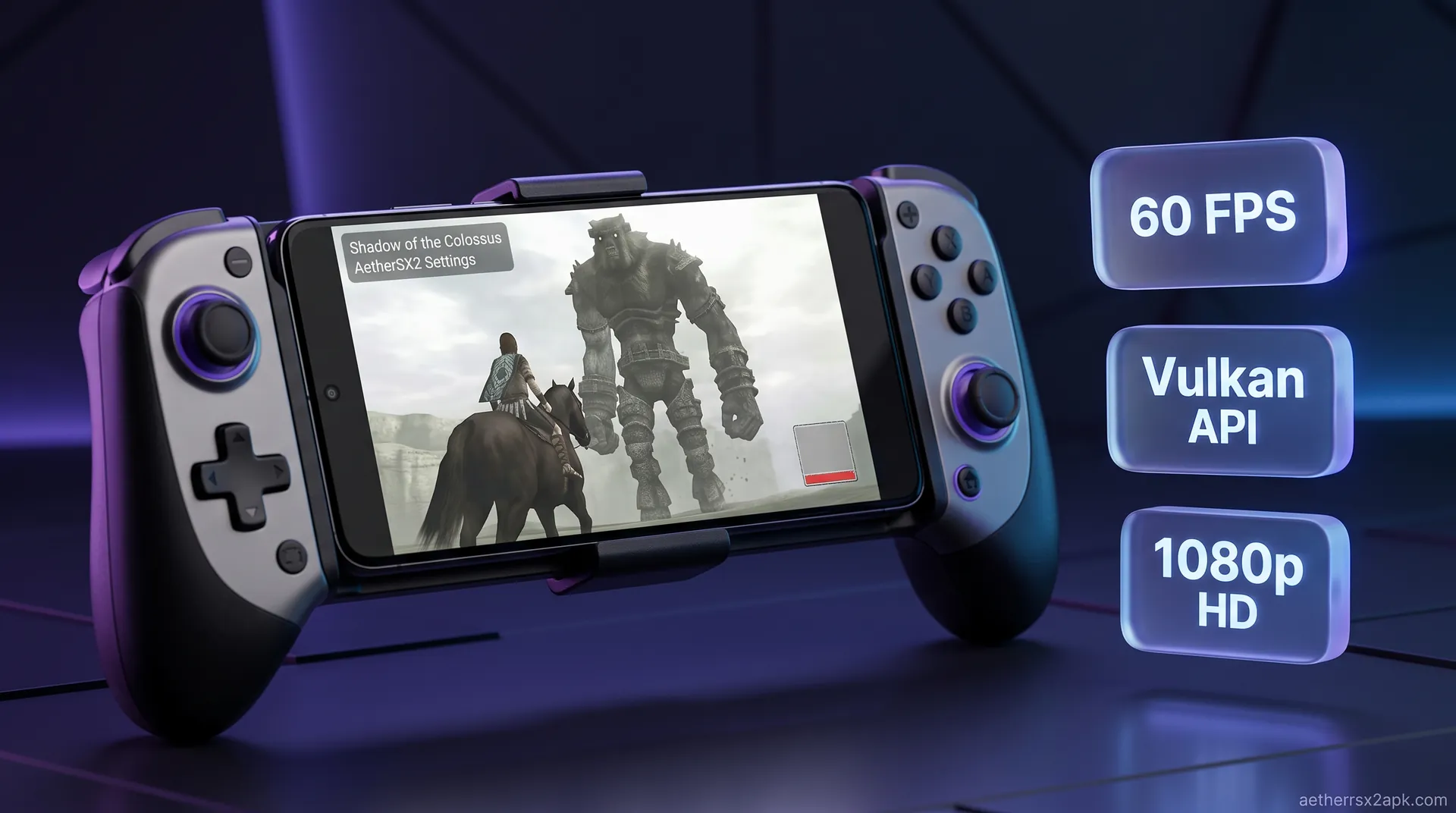
aethersx2 shadow of the colossus
Shadow of the Colossus AetherSX2 Settings
By HBKPublished Last updated
Tested on: POCO F3 (Snapdragon 870), Android 13, AetherSX2 v1.5-4248
Quick summary
Shadow of the Colossus on AetherSX2 is one of the hardest PS2 titles on Android. Start at 1x–2x, MTVU on, EE −1 on mid-range chips. Ghosting and bloom are GS accuracy issues, not a truncated CHD.
- 870: 1x or 2x, EE −1, no 3x in a case
- 8 Gen 3: 2x holds; 3x heat-throttles after ~12 minutes here
- Ghosting: Hardware Download Accurate; skip-draw one CRC at a time
- Do not: copy a *GoW* EE −2 profile blindly — test the overlay
If you have ever tried to run Shadow of the Colossus on a PlayStation 2 emulator, you already know it is one of the most demanding games in the entire console's library. Originally released late in the PS2’s lifecycle, Team Ico's masterpiece pushed the aging console hardware far beyond what anyone thought was possible. Today, getting Shadow of the Colossus on AetherSX2 to run smoothly on an Android device is a rite of passage for mobile emulation enthusiasts.
For many players, simply booting up the game results in crippling lag, distorted audio, and graphical artifacts like extreme ghosting or blinding bloom effects. However, with the right combination of emulator settings, aggressive speed hacks, and a decent smartphone processor, you can achieve a stable, highly playable experience: and even surpass the original console's performance.
In this comprehensive guide, we will break down exactly why this game is so difficult to emulate, provide step-by-step optimal Shadow of the Colossus AetherSX2 settings, and show you how to fix the common visual glitches that plague the emulated version of the game.
On this page ▾
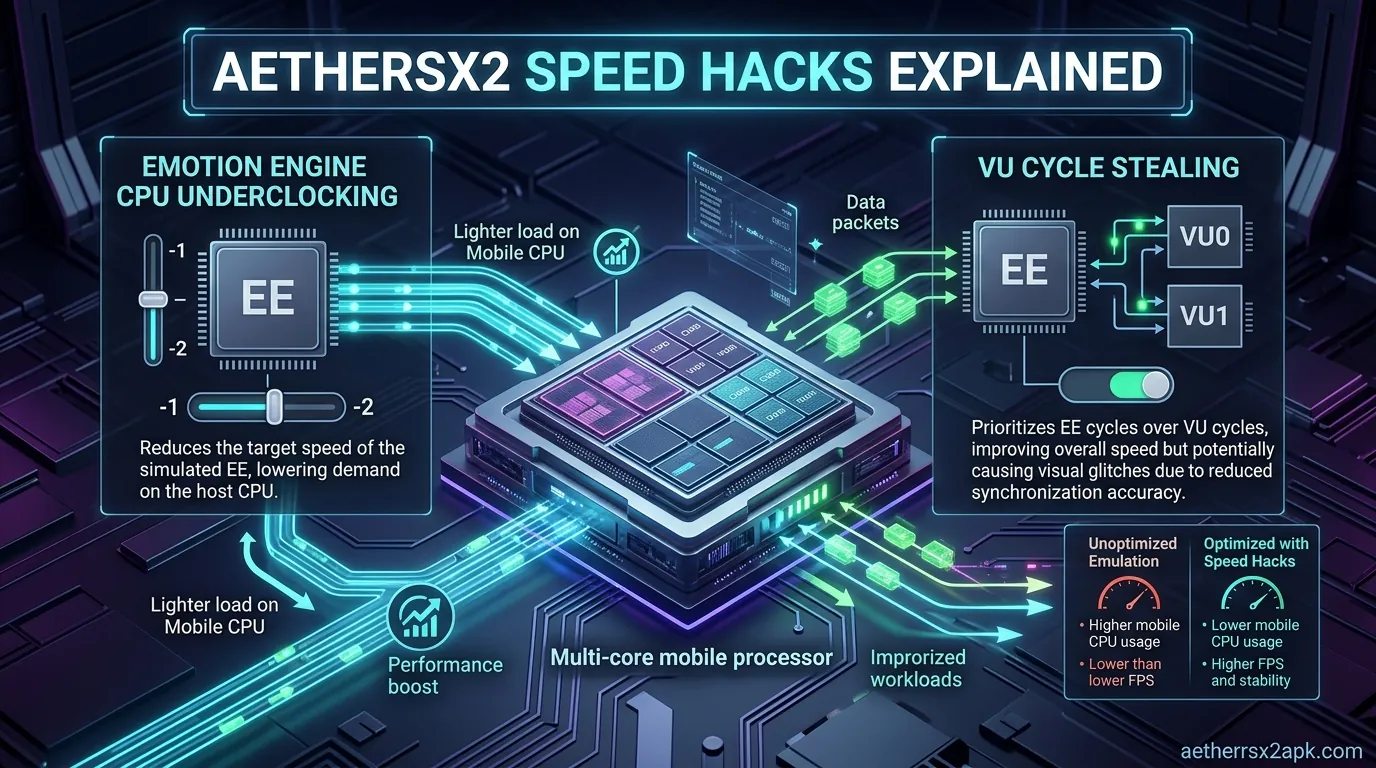
Before diving into the settings, it is important to understand why your phone is struggling to run this game. Even on original hardware, Shadow of the Colossus famously struggled to maintain a consistent frame rate, frequently dipping into the 15-20 FPS range during intense boss battles. Emulating a game that already maxed out the original console requires a tremendous amount of raw computational power.
If you want a broader look at which games perform best, check out our guide on the best PS2 games for Android.
Pushing the Emotion Engine (EE) to its Limits
The PlayStation 2's CPU, known as the Emotion Engine (EE), featured a unique architecture that developers eventually learned to exploit in incredibly complex ways. Team Ico designed a custom game engine that used the EE not just for basic game logic, but for handling complex physics calculations for the colossi. Every time a colossus moves, shakes, or tries to throw Wander off its back, the Emotion Engine is crunching massive amounts of inverse kinematics data.
When playing Shadow of the Colossus PS2 on Android, your smartphone’s ARM processor has to translate all of these complex EE instructions on the fly. Because the game constantly saturates the emulated Emotion Engine, it causes massive bottlenecks, resulting in the dreaded slow-motion gameplay and audio stretching.
Vector Unit (VU) Utilization and Physics
Alongside the core EE processor, the PS2 featured two Vector Units (VU0 and VU1). These were essentially highly programmable math co-processors designed for 3D math and geometry transformations. Shadow of the Colossus uses VU1 extensively to generate the game's massive, seamless open world and to deform the geometry of the colossi dynamically.
In AetherSX2, emulating these Vector Units accurately requires immense single-core CPU performance. When your phone's CPU cannot keep up with the VU calculations, the emulator has to wait, causing the frame rate to plummet. This heavy reliance on Vector Units is why standard optimization tricks often fail here, and why we have to rely on specific AetherSX2 speed hacks to trick the game engine.
Advanced Post-Processing Effects on PS2 Hardware
Perhaps the most iconic aspect of Shadow of the Colossus is its ethereal, dreamlike visual style. The developers achieved this by rendering the game at a lower internal resolution and applying a massive amount of post-processing. The game utilizes extreme motion blur, depth of field (high-dynamic-range lighting simulation), and intense bloom effects.
The PS2's Graphics Synthesizer (GS) handled these effects using a technique called "readbacks," where the console reads the rendered frame back into memory, applies the blur, and spits it back out. On an emulator, GS readbacks are incredibly slow. Furthermore, because these effects were designed for the PS2's native resolution (often around 512x448), upscaling the game in AetherSX2 completely breaks the alignment of the blur and bloom layers, causing ghosting and visual corruption.
Optimal Graphic & EE/VU Settings for Full Speed
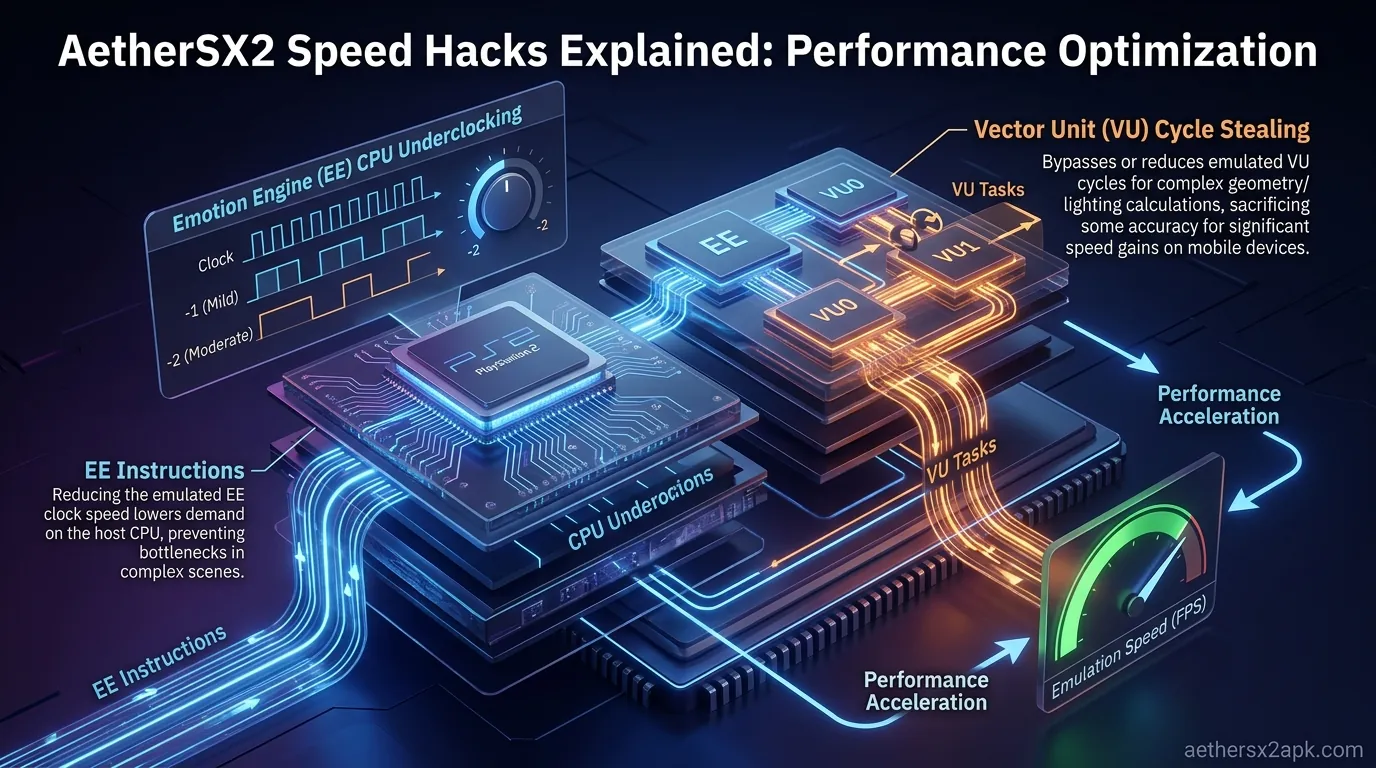
To get a playable frame rate in Shadow of the Colossus, you cannot rely on AetherSX2's default configuration. You must dive into the advanced settings and heavily modify how the emulator handles the PS2's CPU clock. The goal is to artificially limit the amount of work the emulated PS2 has to do, allowing your phone's processor to keep up without dropping frames.
For a general baseline of emulator configuration, read our comprehensive AetherSX2 best settings guide.
Core System Settings: Underclocking the EE (EE Cycle Rate)
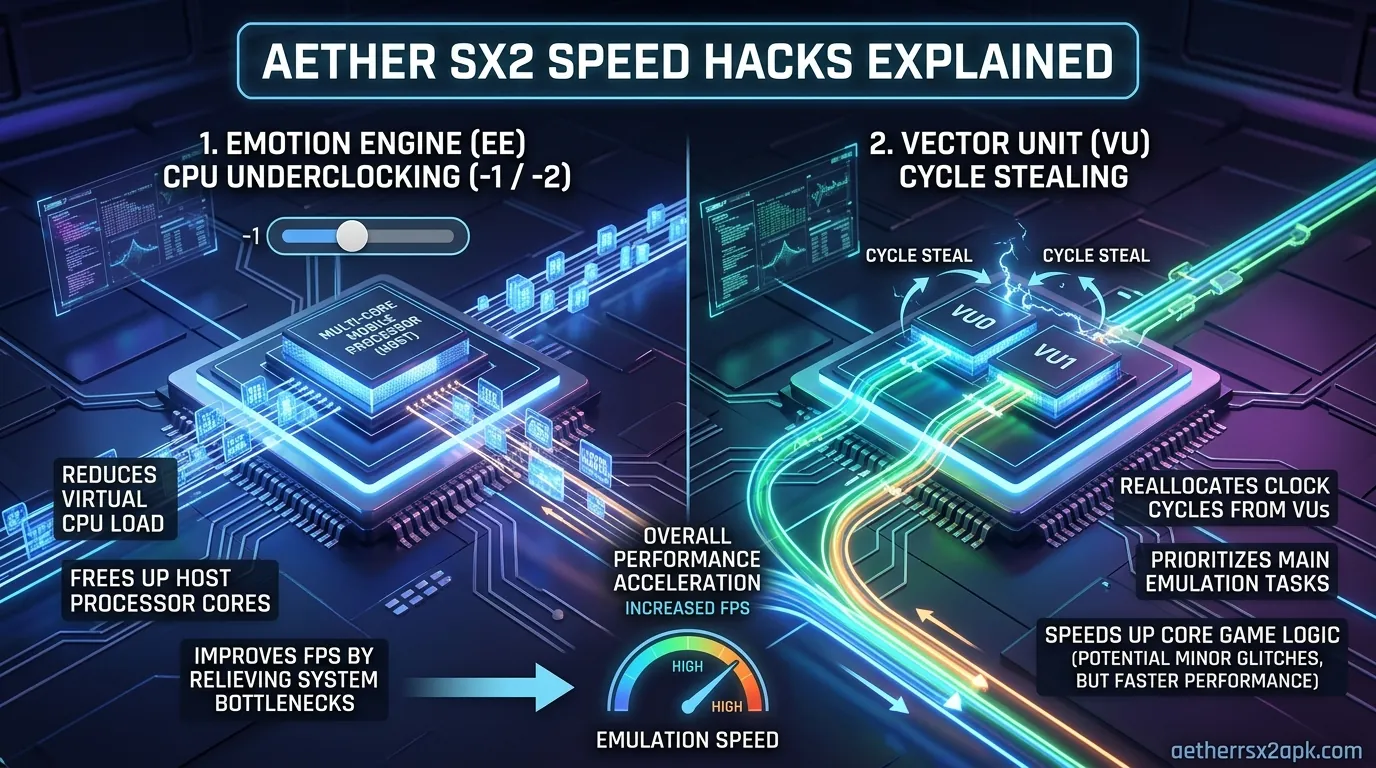
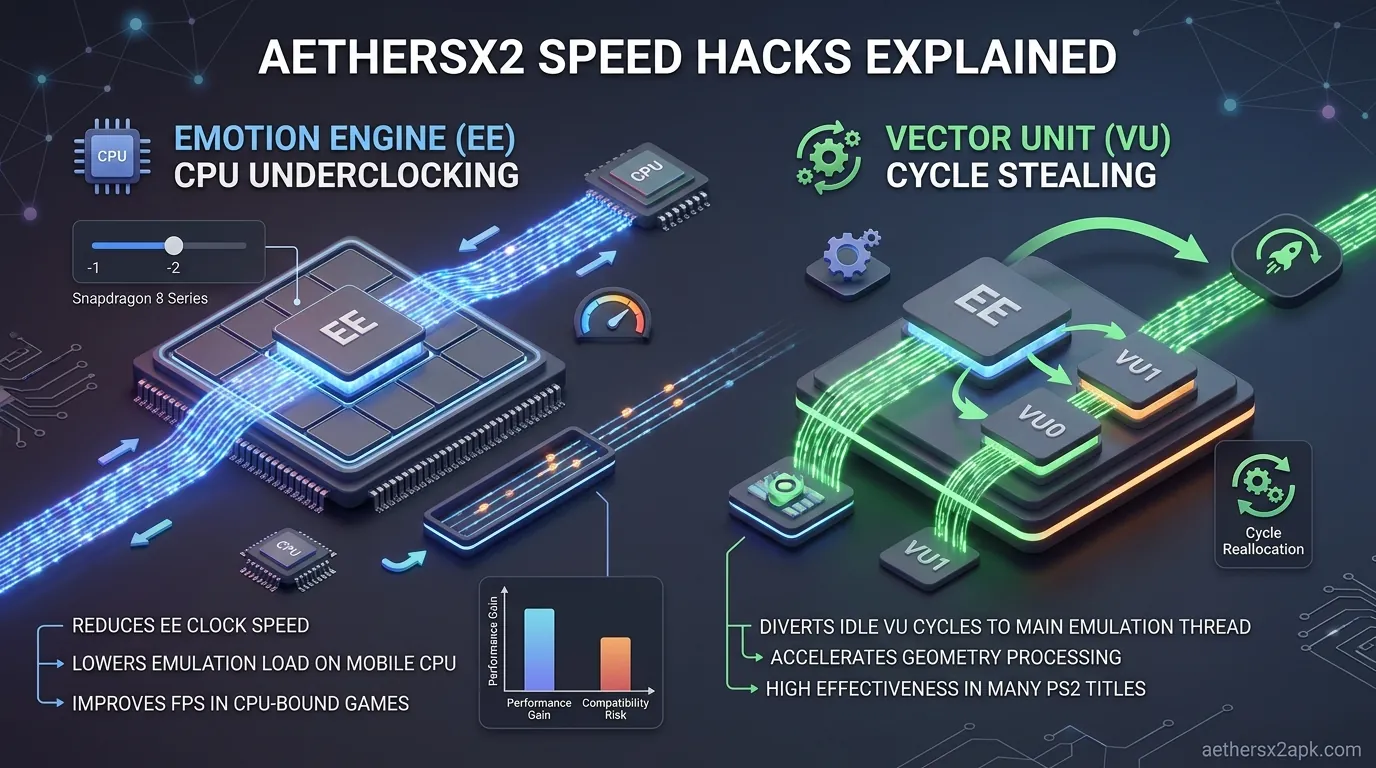
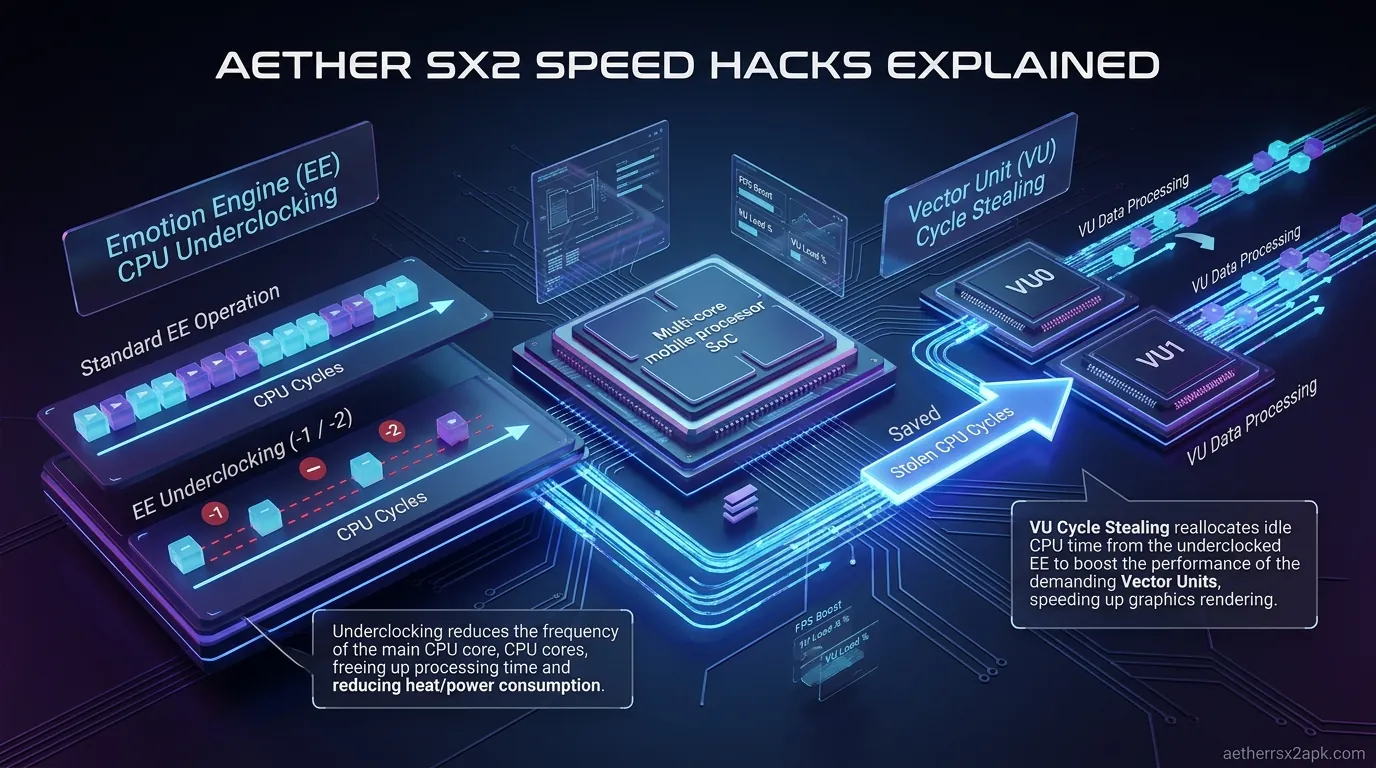
The absolute most important setting for this game is the EE Cycle Rate (Underclocking). This setting reduces the clock speed of the emulated Emotion Engine. Normally, underclocking a CPU makes a game run slower. However, in emulators, underclocking the emulated CPU means your phone has fewer instructions to process per frame. The game engine internally thinks the console is running slower, which often causes the game to skip its internal frame rendering, but it allows the emulator to maintain a full 100% speed output (preventing slow-motion audio).
- Navigate to: App Settings -> System
- EE Cycle Rate: Set this to -1 (75%) or -2 (50%).
- Recommendation: Start at -1. If the game feels sluggish or the audio is stuttering when looking at a colossus, drop it to -2. Going down to -3 (33%) will make the game run at full speed on weaker devices, but it will severely break the game's internal physics and cause Wander to move erratically, making the game nearly unplayable.
Vector Unit Cycle Stealing (The Secret Sauce)
The next crucial setting is EE Cycle Skipping (VU Cycle Stealing). This setting effectively tells the emulator to process fewer Vector Unit cycles before the Emotion Engine updates. Because Shadow of the Colossus is so heavily bottlenecked by the VU, stealing cycles provides a massive performance boost.
- Navigate to: App Settings -> System
- EE Cycle Skipping: Set this to Mild (1) or Moderate (2).
- Recommendation: A setting of 2 is usually the sweet spot for Shadow of the Colossus. It drastically improves performance during colossus fights. However, setting this to Maximum (3) will introduce severe graphical flickering, missing geometry, and false FPS readings (the emulator will say 60 FPS, but the game will update at 15 FPS). Stick to 1 or 2.
GPU Rendering Configurations (Vulkan vs. OpenGL)
The Graphics Synthesizer emulation requires a robust backend API to handle the game's complex rendering pipeline.
- Navigate to: App Settings -> Graphics
- GPU Renderer: Select Vulkan.
- Explanation: Vulkan is vastly superior for Shadow of the Colossus on modern Android devices, particularly those with Qualcomm Snapdragon processors (Adreno GPUs). It handles the intensive post-processing and geometry loads much more efficiently than OpenGL. If you are using a device with a MediaTek or Exynos processor (Mali GPU), you should still try Vulkan first, but if you experience crashes or severe graphical corruption, fall back to OpenGL.
Resolution Scaling and Aspect Ratio
Upscaling this game requires a very powerful GPU. Even on high-end devices, pushing the resolution too high will cause slowdowns.
- Upscale Multiplier: Set to 2x Native (720p) for high-end devices, or 1x Native (PS2) for mid-range devices.
- Aspect Ratio: The game natively supports Widescreen (16:9) via its own in-game options menu. Therefore, set the emulator's Aspect Ratio to 16:9, and make sure to go into the game's actual options menu (on the title screen) and enable Widescreen there as well. Do not use the emulator's "Widescreen Patches" toggle for this, as the game has native support.
Hardware Download Mode (Fixing the Stutter)
Because the game heavily relies on GS readbacks for its bloom and motion blur, the emulator has to constantly transfer data between the GPU and CPU. This transfer causes massive micro-stuttering on Android.
- Navigate to: App Settings -> Graphics -> Advanced
- Hardware Download Mode: Set this to Disable Readbacks or Unsynchronized.
- Explanation: Disabling readbacks will completely eliminate the stuttering caused by the game's post-processing effects. The trade-off is that it might break some of the bloom lighting and the map screen blur. If the map screen becomes completely black or unreadable, change this setting to "Unsynchronized" instead.
Fixing Motion Blur, Depth of Field & Bloom Glitches
Even if you achieve full speed, playing Shadow of the Colossus AetherSX2 at a higher resolution introduces severe graphical anomalies. The beautiful bloom lighting turns into a blinding, misaligned mess, and the motion blur creates a double-image "ghosting" effect that strains the eyes.
Here is how to clean up the image quality using AetherSX2's advanced hardware fixes.
The "Ghosting" and Motion Blur Issue
When you upscale the game from 1x to 2x or 3x Native, the game's built-in motion blur effect scales incorrectly. The engine is still trying to apply a blur layer designed for a 448p image onto a 1080p image. The result is that every time you move the camera, a transparent "ghost" of Wander and Agro trails behind them, misaligned from their actual models.
Hardware Fixes: Skipdraw and Half-Pixel Offset
To fix the ghosting and the blinding bloom, we need to manually adjust the emulator's hardware rendering hacks.
- Navigate to: App Settings -> Graphics -> Advanced
- Enable Hardware Fixes: Toggle this to ON.
- Half-Pixel Offset: Set this to Normal (Vertex). This setting subtly shifts the rendering of textures by half a pixel, which realigns the upscaled post-processing effects with the 3D models. This drastically reduces the blur misalignment.
- Skipdraw Range: This is the nuclear option. Skipdraw tells the emulator to simply ignore drawing certain rendering passes. The bloom and motion blur in SotC are usually drawn on specific passes.
If the blinding light persists, try setting Start to 1 and End to 3. Warning: Using Skipdraw will remove the game's atmospheric bloom completely, leaving the game looking much sharper, but perhaps a bit more stark and less "dreamy" than the developers intended. It also provides a significant performance boost.
Texture Filtering and Anisotropic Filtering Adjustments
To further sharpen the image once the aggressive blur is removed:
- Bilinear Filtering: Set to Bilinear (PS2).
- Anisotropic Filtering: Set to 16x. This has almost no performance cost on modern mobile GPUs and will make the textures on the ground and the colossi look incredibly crisp when viewed at an angle.
- Mipmapping: Set to Full (PS2). Some emulators default this to basic or off, but Shadow of the Colossus relies heavily on mipmapping to prevent distant textures from shimmering and looking like static noise.
For more information on tweaking specific games, you can check our game compatibility database.
Applying the 60 FPS Widescreen Patch
By default, Shadow of the Colossus has a hard-coded frame rate cap. In the NTSC (US/Japan) version, the cap is 30 FPS. In the PAL (Europe) version, the cap is 25 FPS. Even if your phone is powerful enough to render the game at 60 FPS, the game engine will never exceed 30 FPS.
However, the emulation community has created PNACH cheat files (patches) that unlock the frame rate, allowing the game to run at a silky smooth 60 FPS.
Note: Running this game at 60 FPS requires an incredibly powerful flagship device (Snapdragon 8 Gen 2 or newer).
How to apply the 60 FPS Patch in AetherSX2:
- You must have the NTSC-U (USA) version of the game.
- Find the 60 FPS
.pnachfile for Shadow of the Colossus (CRC:77EACBE9) from online emulation forums. - Save the file as
77EACBE9.pnach. - Place this file in your Android directory:
Android/data/xyz.aethersx2.android/files/cheats/. - Open AetherSX2, go to App Settings -> General, and enable Enable Cheats/Patches.
- Boot the game. If successful, you will see a notification saying "Cheats found and applied."
If you attempt to run the 60 FPS patch and your phone cannot maintain a true 60 frames per second, the game will run in slow motion. If this happens, disable the cheat and stick to the native 30 FPS cap.
Recommended Specs for 30 FPS / 60 FPS Playability
Because Shadow of the Colossus is the ultimate stress test for AetherSX2, you cannot expect to run it on a budget smartphone. The performance you get scales directly with the single-core performance of your device's CPU and the thermal cooling capabilities of the phone's chassis.
For a broader understanding of what hardware is required for the emulator as a whole, visit our main main download hub.
Minimum Requirements (Barely Playable, Heavy Tweaks)
If you are using a mid-range phone or an older flagship, you can get the game to run, but you will need to sacrifice visual quality and rely heavily on speed hacks.
- Processor (SoC): Snapdragon 700 series (e.g., 778G, 732G) or Snapdragon 845 / 855. MediaTek Dimensity 900 or 1000 series.
- RAM: 6GB
- Expected Performance: 20-30 FPS. You will experience frame drops during large colossus battles (like the 3rd and 13th colossi).
- Required Settings: 1x Native Resolution (PS2), EE Cycle Rate -2, VU Cycle Stealing 2, Hardware Download Mode set to Disable Readbacks.
Recommended Requirements (Stable 30 FPS, 2x Native)
To play the game exactly as it was intended on the PS2, but at a crisp HD resolution with a stable frame rate, you need a modern, high-performance processor.
- Processor (SoC): Snapdragon 865, 870, 888, or 8 Gen 1. MediaTek Dimensity 8100 or 9000.
- RAM: 8GB
- Expected Performance: Locked 30 FPS (NTSC cap). Smooth audio, no slow-motion during physics-heavy segments.
- Required Settings: 2x Native Resolution (720p), EE Cycle Rate -1, VU Cycle Stealing 1 or 2, Vulkan Renderer.
Enthusiast Requirements (60 FPS Patch, 3x+ Native)
If you want the ultimate remaster experience: running the game at 1080p with the 60 FPS patch enabled: you need the absolute bleeding edge of mobile hardware.
- Processor (SoC): Snapdragon 8 Gen 2, Snapdragon 8 Gen 3, or Apple A16/A17 Bionic (if using Play! or similar iOS alternatives, though AetherSX2 is Android-focused).
- RAM: 12GB+
- Expected Performance: 60 FPS at 3x Native (1080p).
- Required Settings: 3x Native Resolution, 60 FPS PNACH patch enabled, EE Cycle Rate 0 (Normal), VU Cycle Stealing 0 or 1.
Thermal Throttling and Sustained Performance
A critical factor when playing this game is thermal throttling. Shadow of the Colossus will push your CPU to 100% utilization. Within 10 to 15 minutes of gameplay, your phone will generate significant heat. When a phone gets too hot, the operating system forcibly lowers the CPU clock speed to prevent damage: this is called thermal throttling.
When thermal throttling kicks in, your game will suddenly drop from a smooth 30 FPS down to 15 FPS, and the audio will become distorted.
How to combat thermal throttling:
- Remove your phone from its case while playing.
- Play in a cool environment.
- Use a clip-on smartphone cooling fan (like the Razer Phone Cooler or Black Shark Magnetic Cooler). These devices actively pull heat away from the chassis, allowing your processor to maintain its maximum clock speeds indefinitely.
Blur, DoF, and EE cost: PCSX2 wiki Shadow of the Colossus. Source: PCSX2 GitHub. Android SotC threads: r/EmulationOnAndroid.
Frequently Asked Questions
1. Why is the audio stuttering and slowing down in Shadow of the Colossus? Audio stuttering occurs when your phone's processor cannot emulate the PS2's CPU fast enough to maintain 100% speed. To fix this, you need to lower the emulation workload. Go to System settings and set the EE Cycle Rate to -1 or -2, and set VU Cycle Stealing to 1 or 2.
2. The game looks incredibly blurry and has a double-image "ghosting" effect. How do I fix this? This is a known issue caused by upscaling the game's native motion blur and bloom effects. To fix it, go to Graphics -> Advanced, enable Hardware Fixes, and set the Half-Pixel Offset to "Normal (Vertex)". Alternatively, you can disable the blur entirely by using Skipdraw (Start 1, End 1).
3. When I open the map by pressing Start, the screen goes completely black. What is wrong? This is caused by the "Hardware Download Mode" setting. If you set it to "Disable Readbacks" to gain performance, it breaks the rendering of the map screen. Change Hardware Download Mode to "Unsynchronized" to fix the map while still maintaining good performance.
4. Can I play Shadow of the Colossus at 60 FPS on AetherSX2? Yes, but you need two things: an incredibly powerful smartphone (Snapdragon 8 Gen 2 or better) and a specific .pnach cheat file to unlock the game's hard-coded 30 FPS cap. Without the patch, the game will never exceed 30 FPS, regardless of your hardware.
5. Is OpenGL or Vulkan better for this game? For the vast majority of modern Android devices, especially those with Snapdragon processors, Vulkan is significantly better. It handles the heavy geometry and post-processing of Shadow of the Colossus much more efficiently. Only use OpenGL if Vulkan causes crashes on your specific device (which can sometimes happen on older Mali GPUs).
6. I applied EE Cycle Rate -3 and VU Stealing 3, but now Wander is falling through the floor. Why? Underclocking the Emotion Engine and stealing Vector Unit cycles is a hack. Pushing these settings to their maximum (-3 and 3) severely breaks the internal timing and physics of the game engine. While it makes the game run "faster," the game logic breaks down, causing collision detection failures. Scale back to EE -1 or -2 and VU 1 or 2.
Disclaimer: AetherSX2 requires a legitimate PS2 BIOS file to function. You must legally dump this BIOS from your own PlayStation 2 console. Furthermore, you should only emulate games that you have legally purchased and dumped from your own game discs. We do not condone or provide links to pirated ROMs or ISOs.