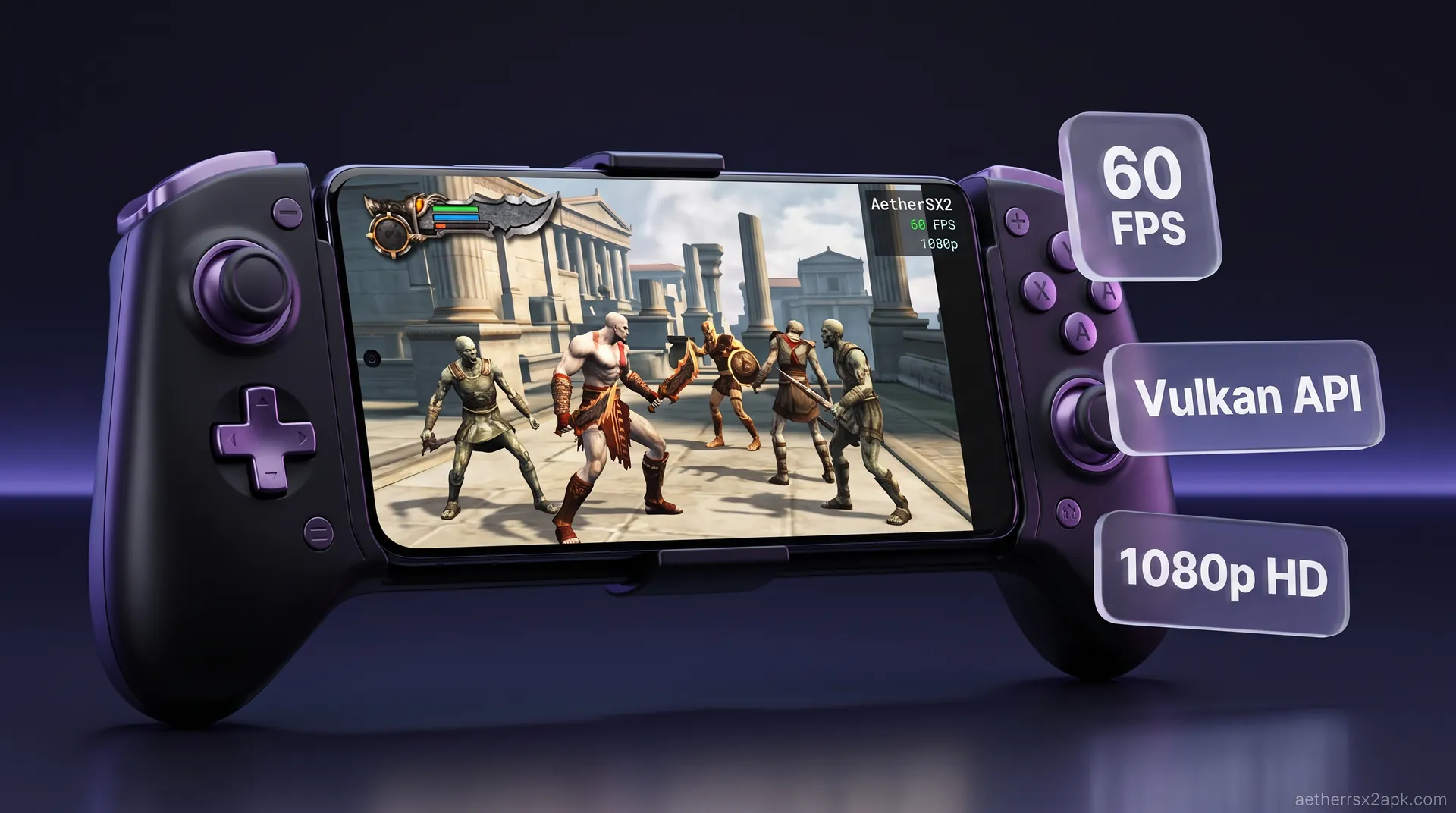
aethersx2 god of war settings
God of War 1 and 2 AetherSX2 Settings
By HBKPublished Last updated
Tested on: POCO F3 (Snapdragon 870) and Galaxy S24 Ultra (Snapdragon 8 Gen 3), AetherSX2 v1.5-4248
Quick summary
God of War on AetherSX2 is Emotion Engine bound. Flagships can try 2x–3x; an 870 should start at 1x Vulkan, MTVU on, and EE −1. Bloom/fog smears are GS dumps, not a bad ISO.
- 870 / mid-range: 1x, EE −1, MTVU on, no extra post dumps
- 8 Gen 3: 2x–3x if thermals hold; drop before you steal more EE cycles
- Fog / ghosting: Hardware Download Accurate; avoid Unsafe first
- Audio stutter: overlay below 100% — drop resolution, do not raise EE
Kratos' original rampages through Greek mythology stand as two of the most technically impressive games on the PlayStation 2. Even today, God of War and God of War II are absolute masterclasses in game design, combat mechanics, and graphical fidelity for their era. However, translating that sheer visual power to your Android device using a build from the APK download hub is no small feat. Because these titles pushed the original PS2 hardware to its absolute breaking point, they are notoriously difficult to emulate smoothly on mobile.
If you are struggling with stuttering audio, massive frame drops during intense combat, or bizarre graphical artifacts like glowing ghosting effects, you are not alone. Achieving a stable 60 frames per second (FPS) requires precision tweaking. In this comprehensive guide, we will break down the exact settings you need to optimize God of War I and God of War II on AetherSX2. Whether you are running a flagship Snapdragon 8 Gen 2 or a capable mid-range device, these configurations will help you unleash the Ghost of Sparta without the frustration of lag.
On this page ▾
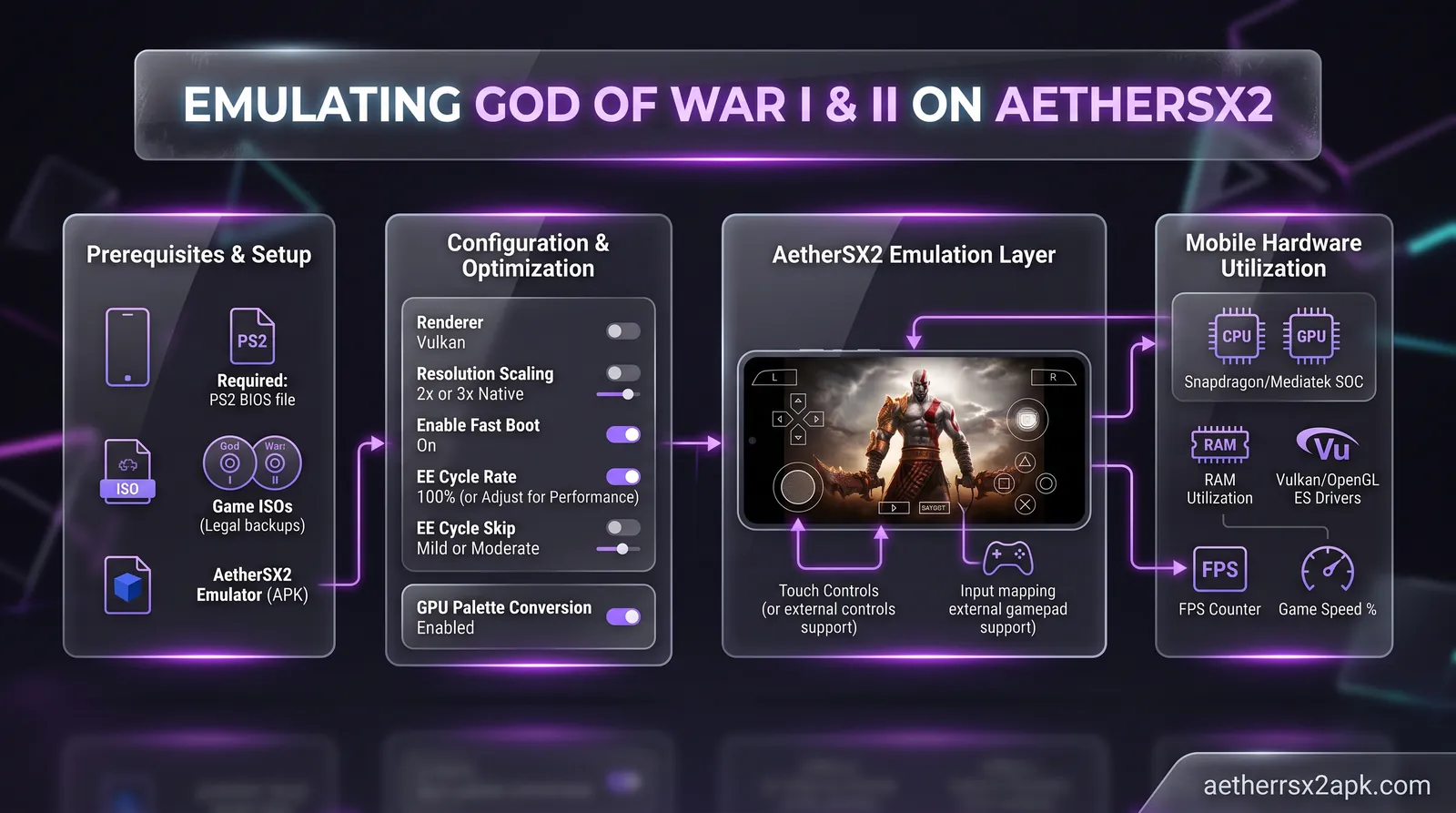
Before diving into the exact toggles and sliders, it is crucial to understand why the God of War series is so demanding on AetherSX2. Developed by Santa Monica Studio, these games utilized every trick in the PS2 development playbook to squeeze out unprecedented visuals. This legacy means modern emulation tools have to jump through numerous hoops to translate that highly customized architecture to the standard ARM architecture found in Android mobile devices.
The Heavy CPU Demand
First and foremost, the emulation of God of War is inherently CPU-bound. The original PlayStation 2 relied on a custom processor known as the Emotion Engine (EE) and two Vector Units (VU0 and VU1). Santa Monica Studio masterfully utilized these vector units to calculate complex physics, massive enemy counts, and the fluid, chained animations of Kratos' Blades of Chaos.
When you run these games on AetherSX2, your Android device's CPU has to translate and execute these highly specialized instructions in real-time. This dynamic is why raw CPU clock speed and single-core performance are far more critical than simply having a powerful GPU. If your device's CPU cannot keep up with the EE and VU calculations, the game will suffer from severe slowdowns, often colloquially known as slow-motion gameplay. This slowdown happens because the emulator physically cannot generate the necessary game logic frames fast enough, causing the entire experience to drag.
Graphic Intensity and Memory Bandwidth
Beyond the CPU demands, God of War and God of War II are incredibly intensive on the graphics front. They employ a vast array of post-processing effects, including intense bloom lighting, complex shadowing algorithms, and depth-of-field blur. These effects require significant memory bandwidth. On original hardware, the PS2's eDRAM provided lightning-fast access for these effects, allowing the console to blend multiple passes without a hitch. Translating this architecture to a modern mobile System on a Chip (SoC) requires the emulator to work overtime.
The games heavily utilize alpha blending: the process of combining a translucent foreground color with a background color. Every time Kratos uses magic, swings his flaming blades, or opens a red orb chest, hundreds of transparent sprites flood the screen. This causes extreme spikes in GPU usage and memory bandwidth consumption, leading to frame drops if your device isn't configured correctly.
Furthermore, the games dynamically stream data from the virtual disc to eliminate loading screens between zones: a revolutionary feature at the time. This constant data streaming means that your storage read speeds and the emulator's ability to cache textures are constantly being tested. This combination of heavy vector calculations, aggressive post-processing, and constant data streaming makes God of War one of the ultimate benchmark titles for testing the limits of AetherSX2.
For a broader overview of how other demanding titles perform, you can consult our expansive game compatibility database.
Best Renderer & Graphic Settings
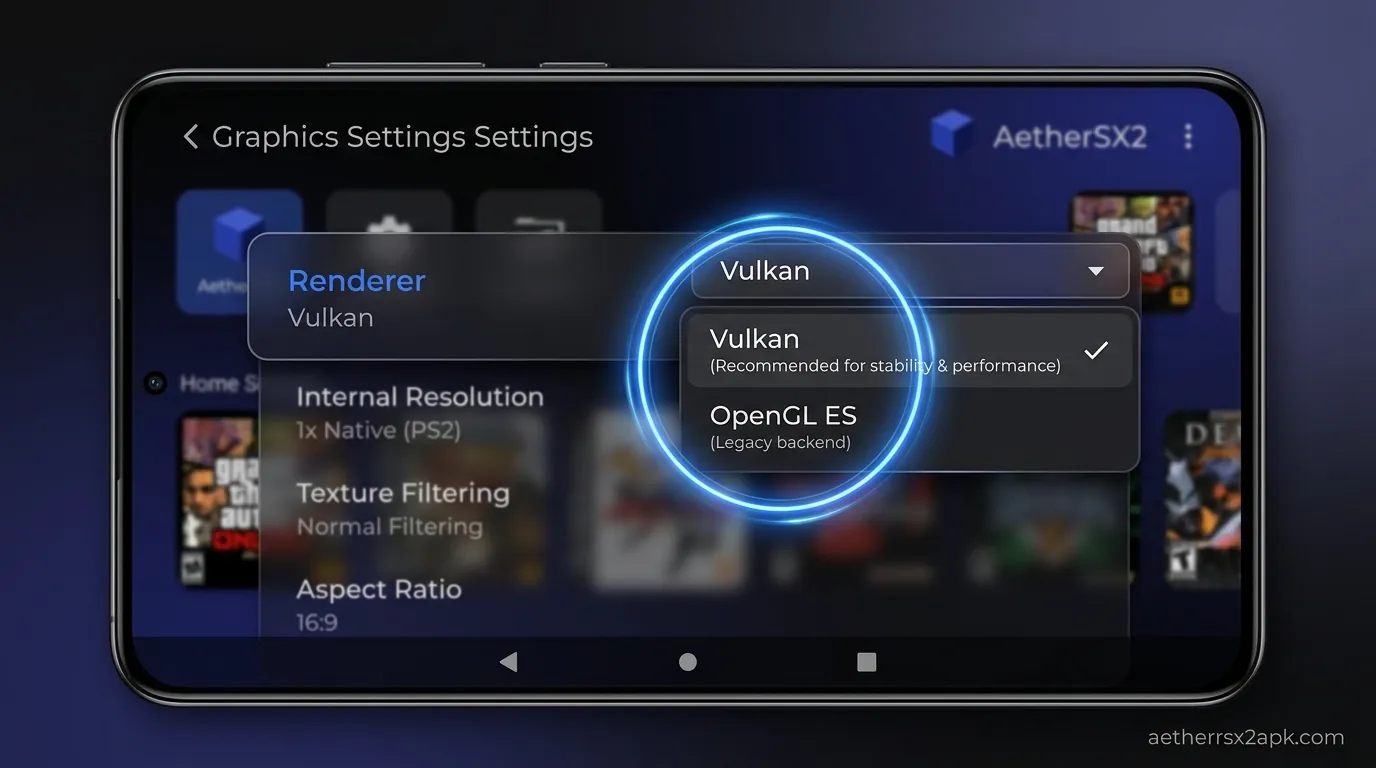
To conquer the graphical demands of God of War, we need to configure the Graphics settings in AetherSX2 meticulously. These settings dictate how the emulator renders the game's visuals and can make the difference between a blurry, laggy mess and a crisp, smooth experience.
Choosing the Right Renderer: Vulkan vs. OpenGL
The single most impactful setting in the Graphics menu is the GPU Renderer. For the vast majority of modern Android devices, especially those equipped with Qualcomm Snapdragon processors (Adreno GPUs), Vulkan is the absolute best choice.
Vulkan is a low-overhead API that significantly reduces the CPU workload compared to OpenGL. Given that God of War is heavily CPU-bound, utilizing Vulkan frees up precious processing cycles, resulting in dramatically improved framerates. Vulkan allows the emulator to communicate more directly with your device's graphics hardware, bypassing the heavier driver overhead associated with older OpenGL implementations.
If you are using a device with a MediaTek or Exynos processor (Mali GPU), Vulkan is generally still recommended. However, some specific Mali driver versions might occasionally perform better on OpenGL due to driver quirks. Always start with Vulkan, and only switch to OpenGL if you encounter game-breaking visual bugs that cannot be fixed otherwise or if performance is surprisingly terrible on Vulkan.
Resolution Scale and Texture Tweaks
While it is tempting to crank the resolution up to 4x (1440p) for crystal-clear visuals on your high-definition phone screen, God of War will quickly humble even high-end devices at those settings. Upscaling the resolution multiplies the amount of work the GPU has to do exponentially, especially when dealing with the game's heavy post-processing effects.
- Flagship Devices (Snapdragon 8 Gen 2 / Gen 3): Aim for 2x Native (720p) to 3x Native (1080p). This provides a massive visual upgrade over the original PS2 resolution while maintaining a stable 60 FPS. Going higher often results in thermal throttling over extended play sessions.
- Mid-Range Devices (Snapdragon 7-series, Dimensity 7000-8000 series): Stick to 1x Native or 1.5x Native. Pushing higher will almost certainly induce lag during heavy combat sequences and magic usage.
- Budget Devices: You may need to drop below native resolution (e.g., 0.75x) to maintain a playable framerate, though the visual quality will suffer.
Texture Preloading and Hardware Download Mode
To combat the game's aggressive data streaming and prevent micro-stutters when entering new areas or triggering cutscenes, you must adjust how AetherSX2 handles textures.
- Texture Preloading: Set this to Full (Hash Cache) or Partial. This forces the emulator to load textures into your device's RAM ahead of time, rather than streaming them on the fly. It uses more memory but significantly reduces stuttering when the camera pans to a new environment or when large, new enemy models are loaded into the scene.
- Hardware Download Mode: Set this to Accurate or Unsynchronized. This handles how the emulator reads data back from the GPU to the CPU. For God of War, 'Accurate' is generally best for preventing graphical glitches related to lighting and shadows. 'Unsynchronized' can offer a slight speed boost if you are desperate for frames, but it may cause minor visual tearing or flickering.
Blending Accuracy
As mentioned earlier, God of War relies heavily on alpha blending for effects like fire, magic, glowing orbs, and environmental fog.
- Recommendation: Set Blending Accuracy to Minimum or Basic.
For more general graphical tuning advice across a wider variety of games, check out our master guide on AetherSX2 best settings.
System & Speed Hack Settings for 60 FPS
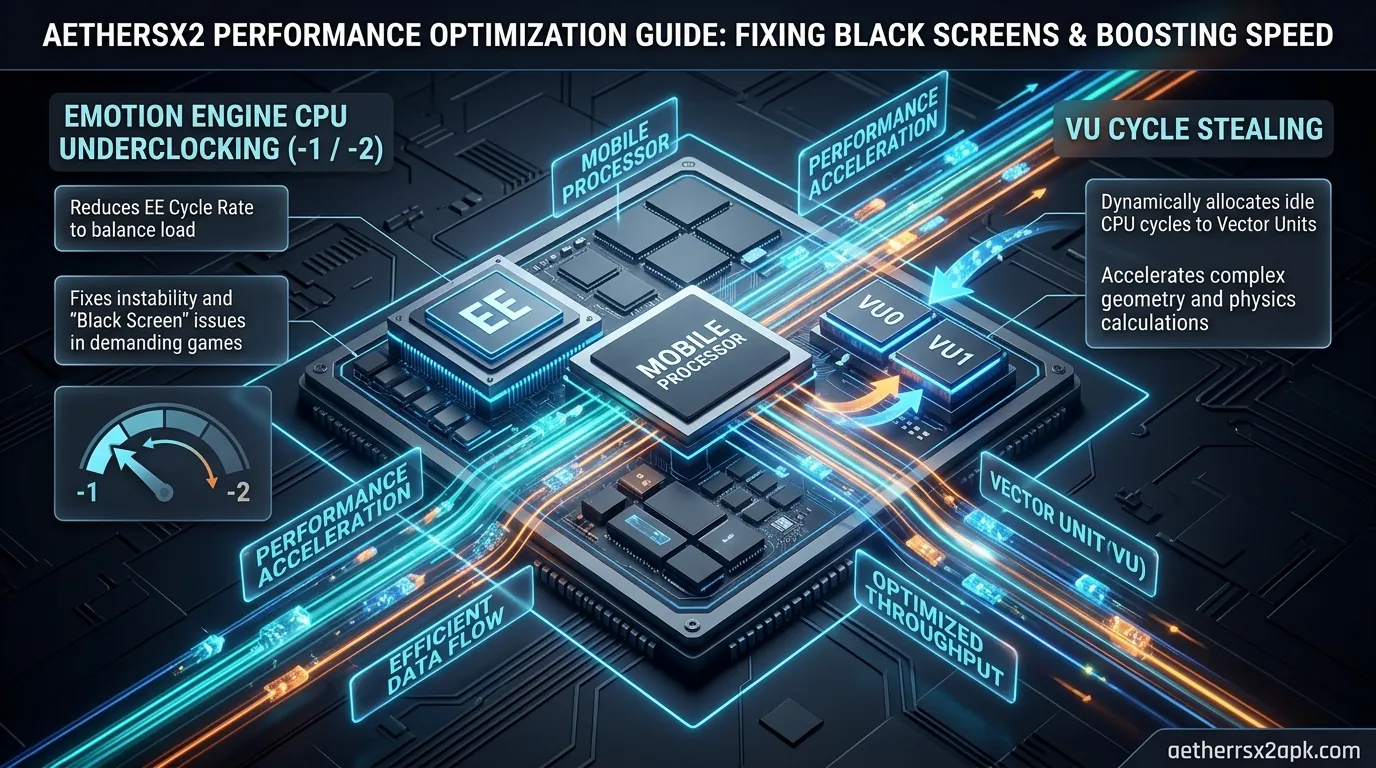
If adjusting the graphics settings wasn't enough to hit a locked 60 FPS, it is time to delve into the System settings and leverage AetherSX2's powerful speed hacks. These settings alter how the emulated PS2 processor operates, effectively cutting corners to gain performance. This is where the magic happens for mid-range devices.
EE Cycle Rate (Underclocking)
The Emotion Engine (EE) Cycle Rate controls the simulated clock speed of the PS2's main processor. In many demanding games, underclocking the EE can actually improve performance. By forcing the emulated game to run internally at a lower framerate (e.g., 30 FPS instead of 60 FPS internally), the emulator has more time to render the frames before outputting them to your screen.
- Recommendation: Set the EE Cycle Rate to -1 (75%) or -2 (50%).
EE Cycle Skip (VU Cycle Stealing)
This setting dictates how often the emulator skips rendering frames to keep the audio and game logic running at full speed. It is a more aggressive form of performance tuning compared to the EE Cycle Rate.
- Recommendation: Set EE Cycle Skip to 1 (Mild Underclock) or 2 (Moderate Underclock).
Multi-Threaded VU1 (MTVU)
The Multi-Threaded VU1 setting is perhaps the most critical speed hack for multi-core Android devices. It offloads the processing of Vector Unit 1 to a separate CPU core entirely.
- Recommendation: Keep MTVU Enabled.
Affinity Control and Fastmem
These are smaller system tweaks that can provide a nice stability boost.
- Affinity Control: Set this to Performance. This instructs the Android operating system to prioritize the emulator's threads on the device's high-performance cores (e.g., the Cortex-X series cores on Snapdragon chips) rather than delegating them to the weaker efficiency cores. This ensures the emulator always has access to the most powerful hardware available.
- Enable Fastmem: Keep this Enabled. It allows the emulator to access memory more efficiently, providing a small but consistent performance uplift across the board without introducing graphical bugs.
If you are experiencing crashes after tweaking these settings or modifying the system behavior too aggressively, refer to our AetherSX2 troubleshooting guide for advanced solutions and crash logs.
Fixing Fog, Bloom & Ghosting Artifacts in God of War
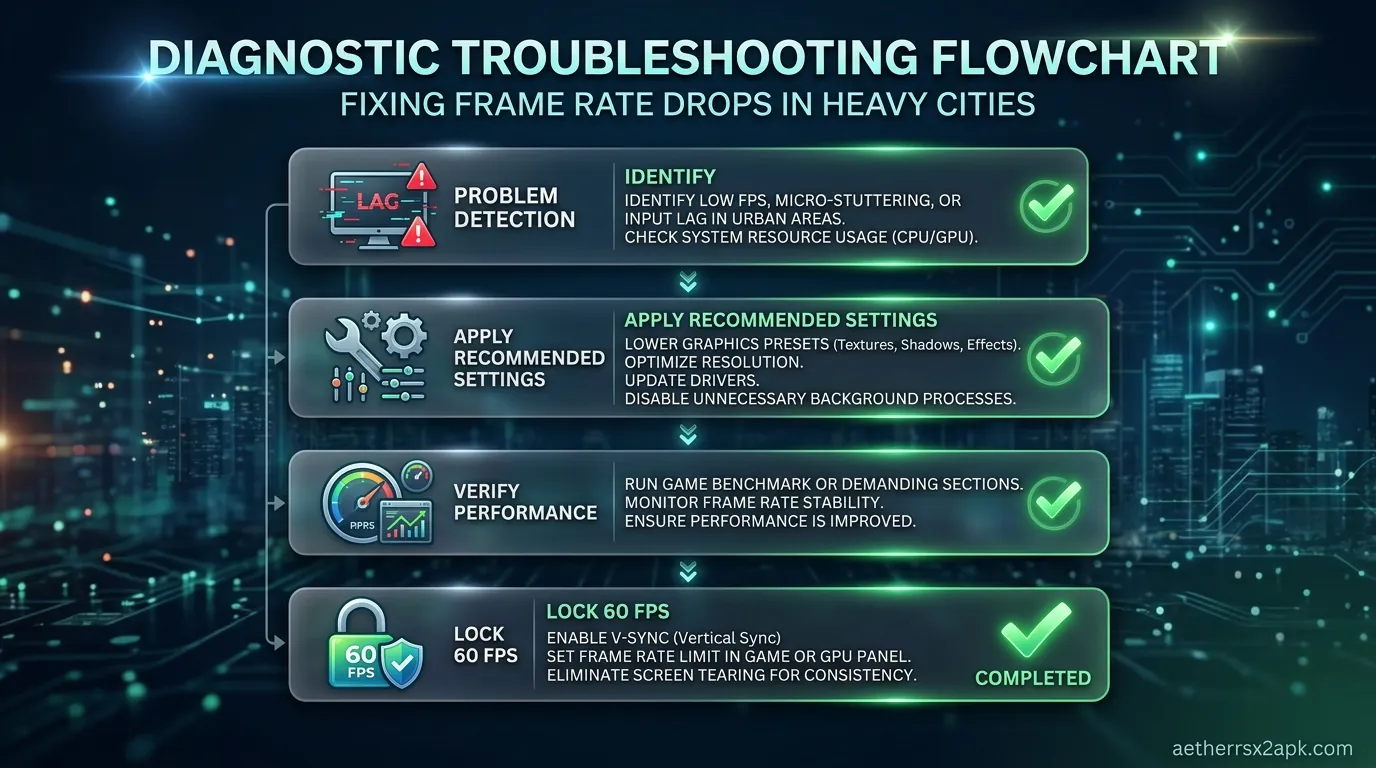
Even with perfect performance and a locked 60 FPS, God of War I and God of War II are notorious for exhibiting frustrating graphical bugs when upscaled on AetherSX2. Because the original games were designed specifically for CRT televisions at 480i resolution, the post-processing effects often break when rendered at higher resolutions on progressive scan displays. The most common issues are an overpowering green or gray fog, blinding bloom lighting, and a weird ghosting or double-vision effect around Kratos and enemies. Thankfully, these can be resolved using the Advanced Settings menu.
The Ghosting / Double-Vision Fix
When you increase the internal resolution above 1x Native (e.g., to 2x or 3x), the game's post-processing effects: which are often rendered at native resolution: fail to align correctly with the high-resolution 3D models. This causes a trailing ghosting effect or a blurry double-vision aura around characters, especially noticeable during movement.
- The Fix: Navigate to App Settings -> Advanced -> Upscaling Hacks.
- Locate the Half-Pixel Offset setting.
- Change it from 'Off' to Special (Texture) or Normal (Vertex).
Fixing the Blinding Bloom and Glitched Fog
Sometimes, particularly in God of War II, the bloom lighting becomes so intense that it washes out the entire screen in a blinding white light, making it impossible to see. Alternatively, a thick layer of glitched green or gray fog might obscure the environment, particularly in outdoor areas or during cutscenes.
- The Fix: We need to use the Skip Draw setting. This tells the emulator to completely ignore the specific rendering layers responsible for these broken effects.
- Navigate to App Settings -> Advanced -> Hardware Fixes.
- Enable Manual Hardware Fixes.
- Find the Skip Draw Range settings (Start and End).
- Set Skip Draw Start to 1 and Skip Draw End to 3.
Align Sprite Fix for 2D Elements
If you notice vertical lines appearing through 2D elements like the health bar, the magic meter, the red orb counter, or menu text, this is another common upscaling artifact. The emulator struggles to scale these 2D sprites smoothly alongside the 3D graphics.
- The Fix: In the Advanced -> Upscaling Hacks menu, ensure that Align Sprite is turned On. This will stitch those 2D elements back together properly at higher resolutions, removing the annoying vertical gaps and keeping your HUD looking pristine.
Mid-Range vs Flagship Performance Expectations
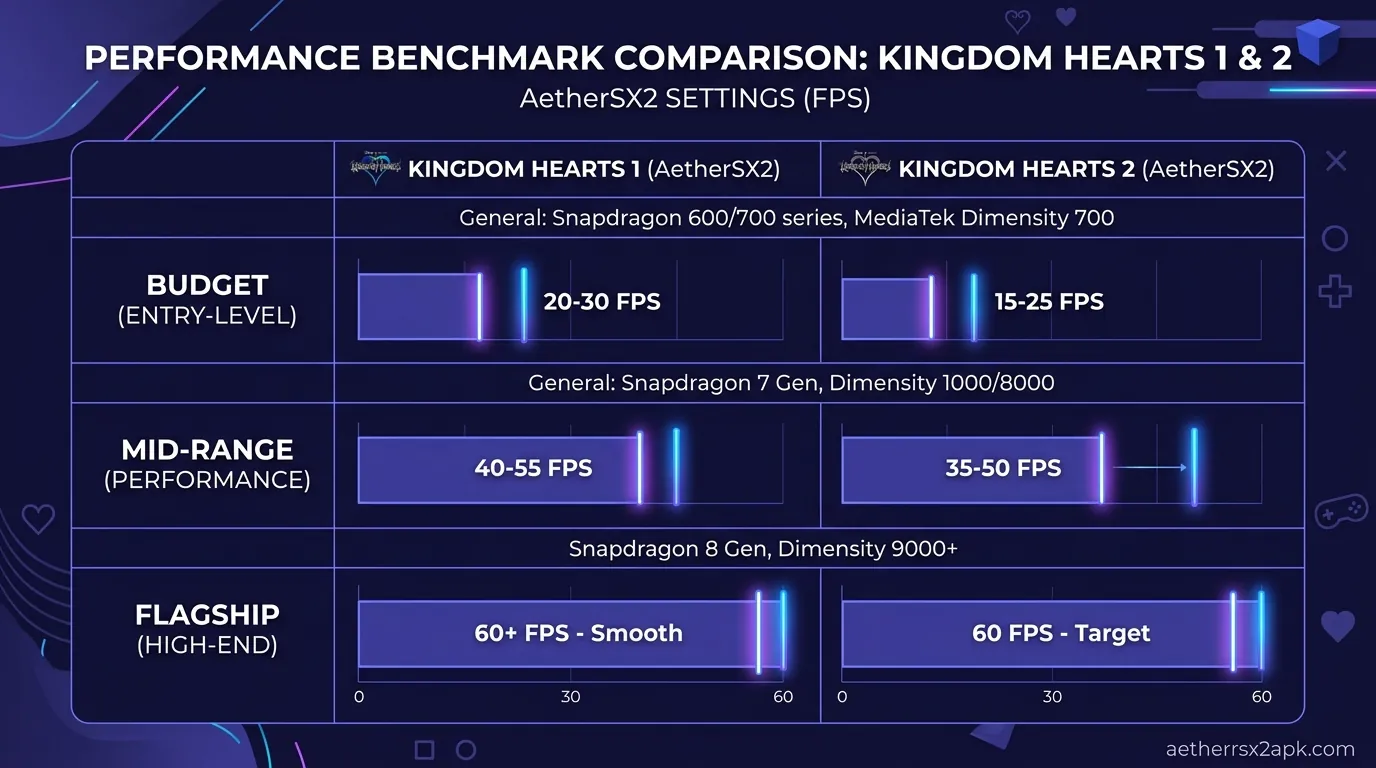
To help you set realistic expectations before you spend hours tweaking sliders, we have compiled a performance matrix based on different tiers of Android hardware. Keep in mind that sustained performance relies heavily on your device's cooling capabilities. Even a flagship device will throttle and drop frames if it overheats.
| Device Tier / Chipset Example | Recommended Resolution | Recommended EE Cycle Rate | Expected Performance | Common Issues |
|---|---|---|---|---|
| Flagship (Snapdragon 8 Gen 2 / 8 Gen 3) | 2.5x to 3x Native (1080p+) | 0 (Normal) or -1 | Locked 60 FPS | Device may heat up during long sessions, causing thermal throttling. Excellent overall experience. |
| High-End (Snapdragon 870 / 8+ Gen 1 / Dimensity 8100) | 2x Native (720p) | -1 (75%) | 55-60 FPS | Minor frame drops during large boss fights, magic use, or opening chests. Very playable. |
| Mid-Range (Snapdragon 778G / Dimensity 7050) | 1x to 1.5x Native | -2 (50%) | 45-60 FPS | Noticeable slowdowns in complex areas; relies heavily on cycle skipping. Requires compromises. |
| Budget (Snapdragon 680 / Helio G99) | 1x Native (or 0.75x) | -2 (50%), Skip 2 | 30-45 FPS (Choppy) | Frequent slow-motion, audio stuttering, input lag. Best played at native or lower with heavy hacks. |
Note: For the absolute best experience on Android, and to see games that require far less hardware horsepower, consider checking out our list of the best PS2 games for Android that require less intensive tweaking than the notoriously heavy God of War series.
Post-processing and EE cost for this title: PCSX2 wiki God of War. Engine: PCSX2 GitHub. Android GoW threads: r/EmulationOnAndroid.
Frequently Asked Questions
Why is the audio stuttering in God of War?
Audio stuttering occurs when the emulator cannot maintain full speed (100% execution speed). When the framerate drops, the audio buffer empties faster than the emulator can fill it, resulting in choppy, distorted sound. To fix this, you must improve performance by lowering the resolution scale, changing to the Vulkan renderer, or increasing the EE Cycle Rate underclock (setting it to -1 or -2). Do not use the 'Async Mix' audio setting to try and fix this, as it can cause audio desynchronization during pre-rendered cutscenes; stick to the default 'TimeStretch' audio mode.
Can I play God of War on AetherSX2 without a controller?
Yes, AetherSX2 features a fully customizable on-screen touch controller interface. However, due to the fast-paced, combo-heavy nature of God of War's combat, the need for precise analog stick movement, and the frequent button-mashing quick-time events (QTEs), playing with touch controls is exceptionally difficult and frankly unrewarding. We highly recommend using a physical Bluetooth controller (like an Xbox Wireless Controller, a DualSense, or a telescopic mobile controller like the Razer Kishi or Backbone One) for the best experience.
Why is my screen covered in green fog?
The green fog is a well-known rendering bug related to how the emulator handles the PS2's depth-of-field and atmospheric post-processing effects when upscaled beyond native resolution. To resolve this, go to App Settings -> Advanced, enable Manual Hardware Fixes, and set the Skip Draw Range to Start: 1 and End: 3. This will force the emulator to bypass the glitched fog layer entirely, restoring clear visibility.
Is God of War 2 harder to emulate than God of War 1?
Yes, generally speaking, God of War II is slightly more demanding on your hardware. Santa Monica Studio pushed the aging PS2 hardware even further for the sequel, resulting in more complex lighting engines, larger environments, and more enemies on screen simultaneously. You may need to lower your resolution scale by a half-step (e.g., from 2.5x to 2x) or increase your EE Cycle Rate underclock when moving from the first game to the second to maintain a stable 60 FPS.
Why does the game slow down when I open chests or use magic?
Opening red orb chests or casting screen-filling magic like Poseidon's Rage or Cronos' Rage spawns hundreds of individual alpha-blended particle effects. This massive influx of transparent textures creates an immense bottleneck for your mobile GPU's memory bandwidth. Setting 'Blending Accuracy' to Minimum in the Graphics settings is the single most effective way to reduce slowdowns during these specific actions, as it significantly lowers the quality and computational cost of those transparency effects.
Where can I download the God of War ISO files?
For legal and ethical reasons, we do not provide links to download copyrighted game files (ISOs or ROMs). Piracy is illegal. You must legally dump the ISO files from your own physical disc copies of God of War and God of War II using a PC and a DVD drive. You will also need to legally dump your own PS2 BIOS file from your original console to run the emulator. For more information on this process, check our main guides.
Conclusion
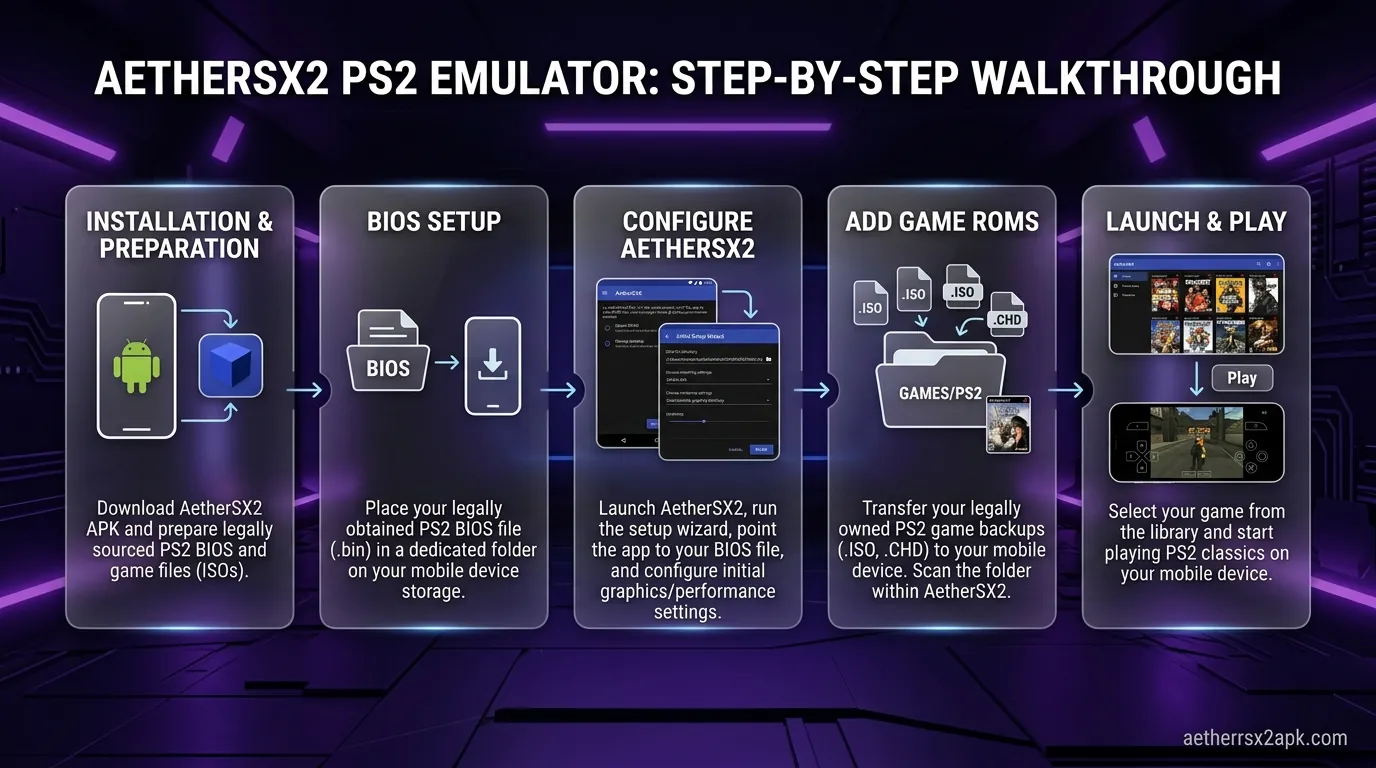
Emulating God of War I and II on your Android device is a true test of your hardware's capabilities and your patience with configuration settings. These games pushed the PlayStation 2 to its absolute limits, and emulating them requires a delicate balance of performance and visual fidelity. By leveraging the low overhead of the Vulkan renderer, carefully managing the Emotion Engine cycle rates to reduce CPU load, and applying the necessary advanced hardware fixes for upscaling artifacts, you can transform a sluggish, glitched mess into a portable masterpiece.
Remember that every Android device is slightly different, and thermal throttling can affect performance during long sessions. Use our recommended settings as a baseline, and fine-tune the resolution and speed hacks until Kratos is destroying the pantheon of Olympus at a buttery-smooth 60 frames per second. With the right setup, AetherSX2 provides an incredible way to experience these timeless action classics on the go.