aethersx2 crash fix
Fix AetherSX2 Game Crashes and Freezes
By HBKPublished Last updated
Tested on: POCO F3 (Snapdragon 870), Android 13, AetherSX2 v1.5-4248
Quick summary
AetherSX2 crashes on Android are usually RAM (texture preload Full), heat, a bad Vulkan driver, or a truncated CHD — not a random "game bug." Lower GPU cost before you wipe the app.
- RAM: Partial or Off texture preload; close Chrome on 6 GB phones
- GPU: drop to 1x, then swap Vulkan ↔ OpenGL
- MTVU: turn off only if a title hard-locks on a specific SoC
- Saves: copy .ps2 cards before a reinstall; states may not survive a patch
If AetherSX2 keeps crashing on your Android device, you already know the intense frustration it causes. You might be right in the middle of a tense, sweaty boss fight in God of War, navigating a complicated corner in Gran Turismo 4, or perhaps you are simply trying to load up the start screen of Need for Speed: Underground 2, and suddenly: a frozen black screen. Or even worse, the emulator closes completely without warning and throws you abruptly back to your Android home screen.
PlayStation 2 emulation on Android is a massive, borderline miraculous technical achievement. It pushes modern mobile hardware to its absolute limits, demanding top-tier CPU and GPU performance. But that massive high-performance demand means AetherSX2 is highly susceptible to memory leaks, thermal throttling, rendering errors, and bad configurations that lead straight to a fatal crash. Because the app is translating the highly customized, proprietary architecture of the PS2 into something an ARM processor can understand in real-time, even the slightest miscalculation or resource bottleneck can cause the entire system to collapse.
In this comprehensive, step-by-step guide, we are going to walk through the exact, proven steps you need to take to stop AetherSX2 from crashing on startup and during gameplay. Whether you are dealing with random mid-game freezes, immediate force-closes upon booting, or graphics driver panics, these fixes will help you get back to a stable, smooth PS2 emulation experience.
On this page ▾
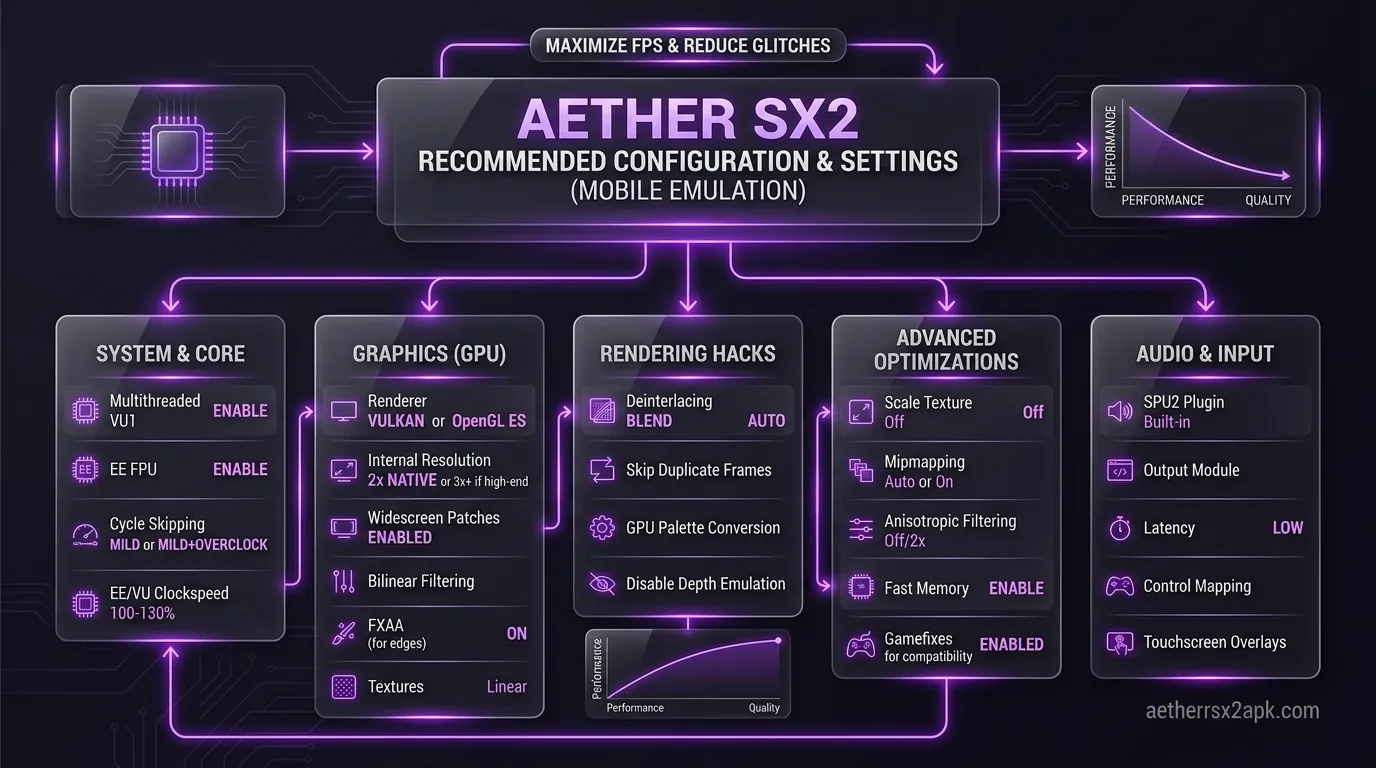
Before you start tweaking settings at random and making the problem worse, it is incredibly helpful to understand why AetherSX2 is crashing in the first place. Unlike simpler 2D retro console emulators (like those for the SNES or GBA), AetherSX2 is a complex piece of software based on the renowned PC emulator PCSX2. It has to simulate the PS2’s Emotion Engine (EE), Vector Units (VU0 and VU1), and Graphics Synthesizer (GS).
Here are the primary culprits behind AetherSX2 instability:
1. Out of Memory (OOM) Errors
PS2 emulation is incredibly RAM-hungry, especially when upscaling resolutions. While AetherSX2 technically runs on devices with 4GB of RAM, 8GB or more is strongly recommended for a crash-free experience. If you have background apps running, or if you are using aggressive texture upscaling, your Android operating system might simply run out of available RAM. When Android detects critical memory shortages, its aggressive memory management system (known as the OOM Killer) will immediately kill the heaviest background app to save the OS: which is almost always AetherSX2. This results in an abrupt crash back to your home screen with absolutely no error message.
2. Thermal Throttling Crashes
Emulating the PS2 pushes your CPU and GPU to their maximum frequencies. Within minutes of heavy gameplay, your phone will start generating significant heat. To prevent physical hardware damage, your phone's thermal management system will "throttle" (slow down) the processor. If this throttling happens too suddenly, or if AetherSX2 fails to synchronize the audio and video threads under the new, slower CPU speeds, the emulator can hang, freeze, and subsequently crash. This is often the cause of crashes that mysteriously happen 15 to 20 minutes into a heavy gaming session, rather than right at the start.
3. Invalid or Corrupted BIOS
AetherSX2 cannot function without a legitimate PlayStation 2 BIOS file. The BIOS is the core firmware of the console. If your BIOS file is corrupted, incomplete, or from an incompatible region compared to the game you are trying to boot, AetherSX2 will likely crash on startup before the game even manages to load the PlayStation logo. As a reminder, for legal reasons, you must use a BIOS dumped from your own PS2 console. (See the install walkthrough for how BIOS files fit into first-time setup).
4. Bad Vulkan Drivers on specific SoCs
The Vulkan graphics API is generally the preferred backend for AetherSX2 because it offers vastly superior performance compared to OpenGL. However, Vulkan relies heavily on your phone's GPU drivers. Many devices with MediaTek processors (which use Mali GPUs) or older Exynos processors ship with buggy or non-compliant Vulkan drivers straight from the factory. When AetherSX2 sends a standard Vulkan rendering command that the buggy driver doesn't understand, the GPU driver panics and crashes, taking the entire emulator down with it. If you are experiencing AetherSX2 crashing on startup on a MediaTek device, this is almost certainly the reason.
5. Corrupted Game Dumps (ISO or CHD)
Sometimes the fault lies not with the emulator or the phone, but with the game file itself. If an ISO file was improperly dumped from a scratched DVD, or if it was corrupted during file transfer to your phone, it will have missing data. When the emulator reaches that sector of missing data during gameplay, it doesn't know what to do and crashes.
For more general help outside of hard crashes, you can also consult our broader AetherSX2 troubleshooting guide.
Fix 1: Clear App Cache & System Memory (RAM allocation)
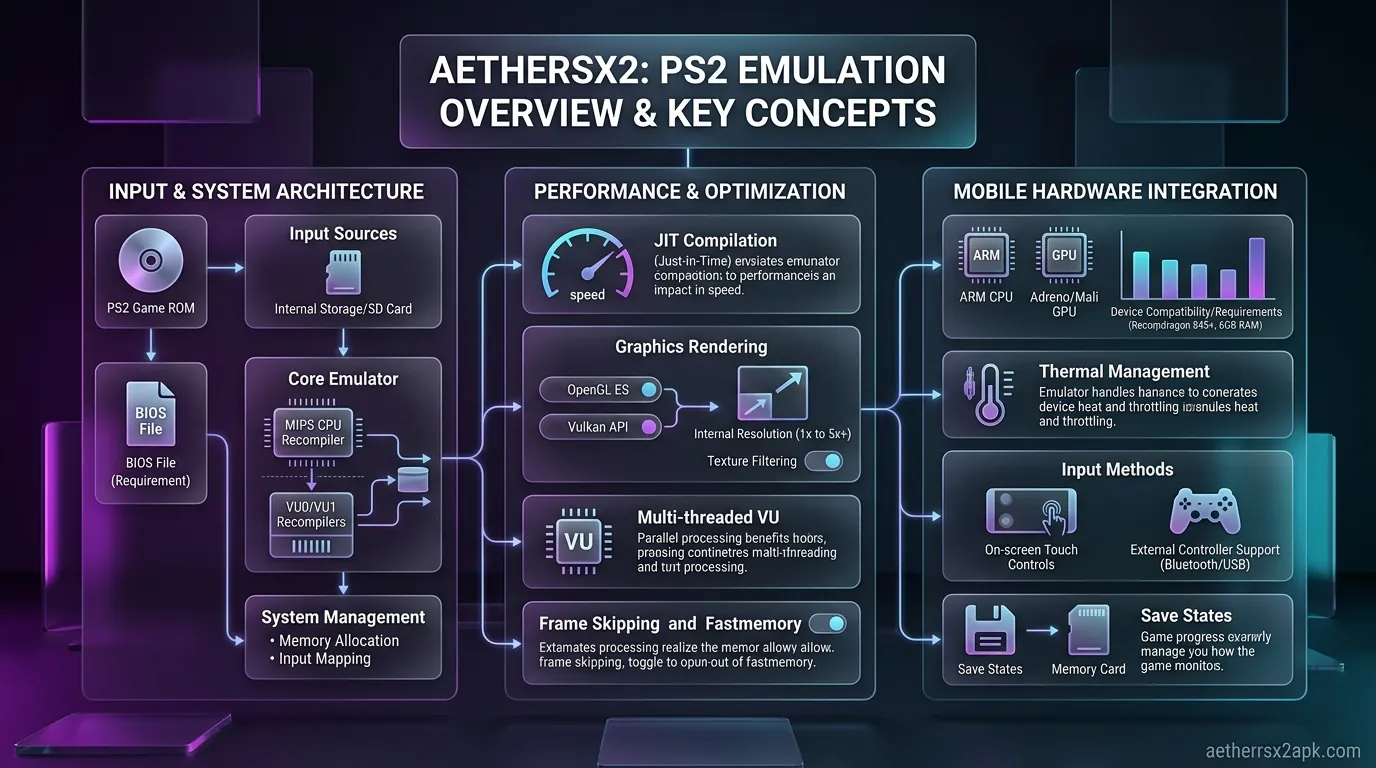
If AetherSX2 keeps crashing, the very first and easiest step is to address potential memory allocation issues. Over time, the app's temporary shader cache can become bloated or corrupted, leading to instability. Furthermore, if your system is running out of RAM, you need to manually free up system resources before booting a demanding game.
Step-by-Step Instructions:
1. Force Stop and Clear Cache
- Navigate to your Android Settings app.
- Go to Apps or App Management.
- Scroll down and tap on AetherSX2.
- Tap on Force Stop to ensure no background processing threads are hanging in limbo.
- Tap on Storage & cache.
- Tap Clear Cache. (CRITICAL WARNING: Do NOT tap Clear Data or Clear Storage yet! Doing so will instantly delete your save files, memory cards, and emulator settings.)
2. Free Up System RAM
- Open your Android Recent Apps menu and swipe away every single app except AetherSX2.
- If your phone has a built-in "Game Booster" or "Performance Mode" (such as Samsung's Game Plugins, Xiaomi's Game Turbo, or OnePlus's Pro Gaming Mode), make sure to add AetherSX2 to it. This explicitly tells the Android OS to prioritize RAM allocation to the emulator and prevents the system from killing it aggressively in the background.
- If your device supports "Virtual RAM" or "RAM Plus" (a feature that allocates slow internal storage space as extra RAM), try disabling it in your phone's settings. Emulation requires incredibly fast memory access; Virtual RAM is significantly slower than physical RAM and can cause severe timing desyncs, leading to crashes in AetherSX2.
3. Adjust AetherSX2 Underclocking Settings
- Open AetherSX2 and go to App Settings.
- Navigate to the System tab.
- Look for EE Cycle Rate (Underclocking). If your phone is struggling to keep up and crashing from thermal overload, reducing this to 75% or 50% (sometimes labelled as -1 or -2) can lower the computational burden on your RAM and CPU. This is a fantastic way to stop mid-game crashes, though it may introduce some artificial game slowdown.
Fix 2: Disable MTVU (Multi-Threaded VU1) on Certain SoCs
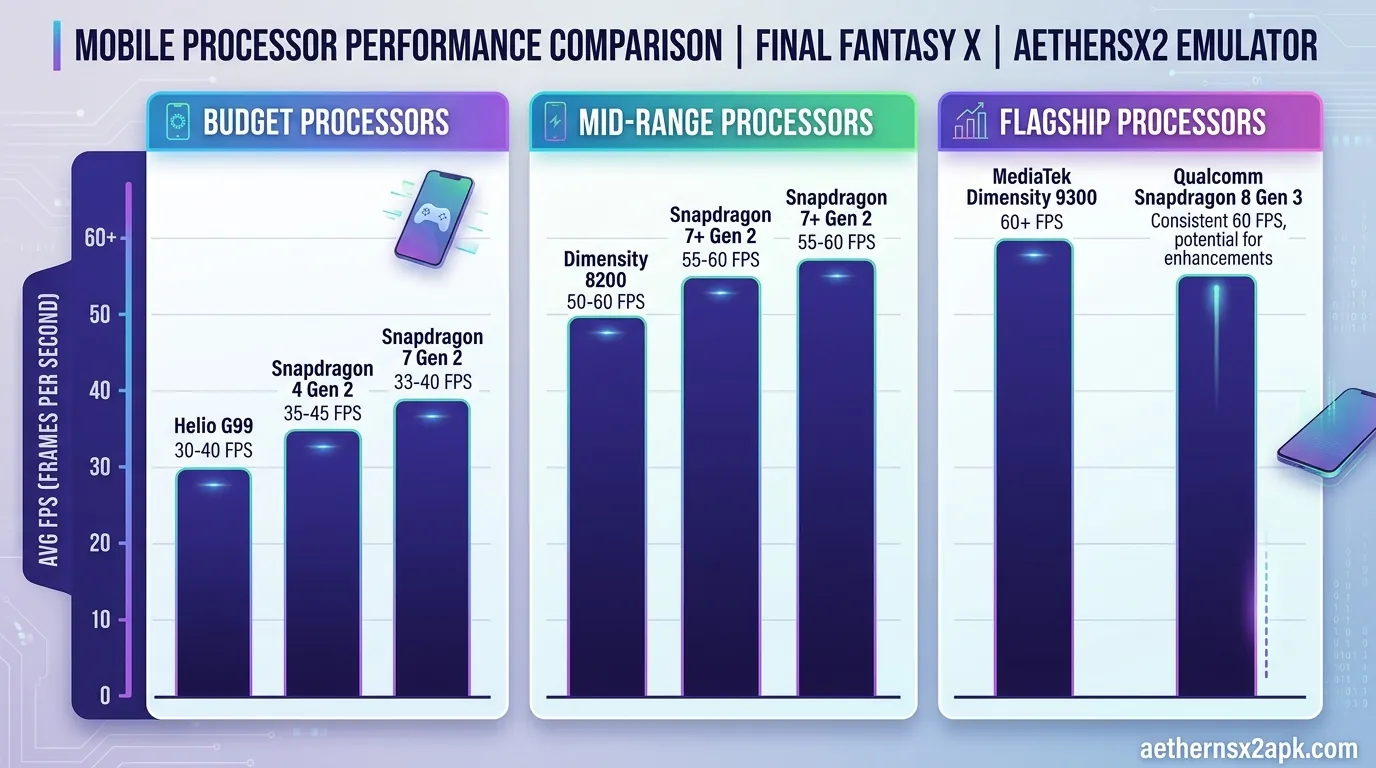
One of the absolute biggest performance boosters in AetherSX2 is a feature called MTVU, which stands for Multi-Threaded Vector Unit 1. This setting takes the PS2's Vector Unit 1 (which handles the vast majority of the complex 3D geometry calculations) and separates it, forcing it to run on an entirely separate CPU thread from the main Emotion Engine thread. On modern, multi-core Snapdragon processors, MTVU provides a massive speed increase.
However, on certain processors: specifically older MediaTek chips, some Exynos models, and budget processors with fewer than 4 high-performance cores: MTVU can cause severe synchronization issues. When the main emulation thread and the VU1 thread get out of sync, the emulator panics, halts all processing, and crashes instantly. This is an extremely common cause of random crashes during intense gameplay segments. Furthermore, certain game engines (like the Snowblind engine used in Baldur's Gate: Dark Alliance and Champions of Norrath) are notoriously incompatible with MTVU on almost any device.
How to Disable MTVU safely:
- Open AetherSX2 and load the specific game that is causing you trouble.
- Pause the emulator by tapping the pause icon or swiping to bring up the quick menu.
- Tap the Information (i) icon or the Settings gear icon in the top right to access per-game settings. (It is highly recommended to change this on a per-game basis rather than globally, as MTVU is incredibly beneficial for games that don't crash).
- Navigate to the System tab within the per-game settings.
- Scroll down to the Advanced Settings section at the bottom.
- Find the toggle for Enable Multi-Threaded VU1 (MTVU).
- Toggle it OFF.
- Resume your game. You may notice a slight drop in overall frame rate, but the stability should improve dramatically, and the crashes should stop.
If disabling MTVU stops the crashes, you know that CPU thread synchronization was the root issue. For a deeper dive into optimizing your performance after disabling this setting, check out our extensive guide on the best AetherSX2 settings.
Fix 3: Turn Off Texture Pre-loading (Full/Partial)
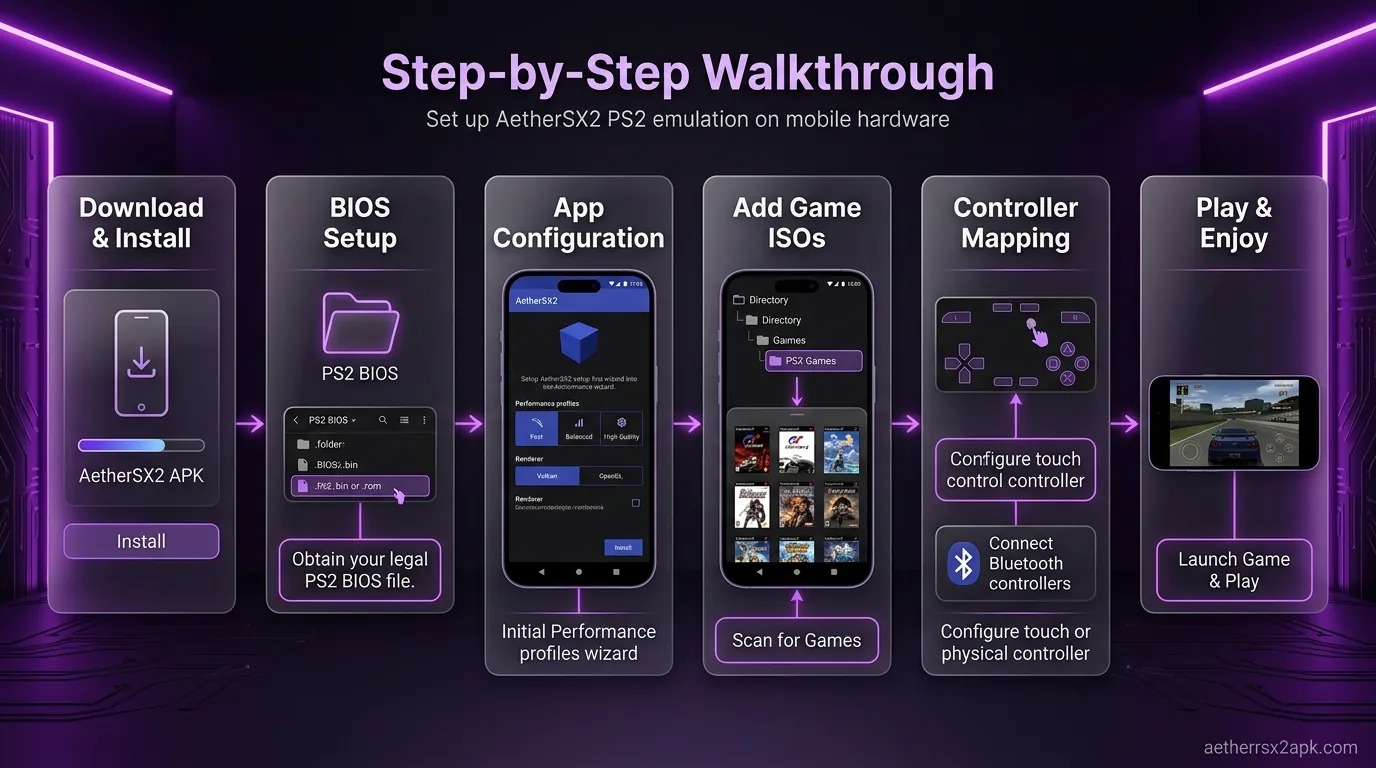
Texture pre-loading is a specialized feature designed to eliminate micro-stutters when moving through game worlds. Normally, a game loads textures from the storage into RAM exactly as they are needed on screen. Pre-loading forces the emulator to load massive amounts of texture data into the GPU's memory (VRAM) ahead of time, predicting what you might see next so the assets are instantly ready.
While this makes camera panning incredibly smooth, it uses a catastrophic amount of memory. If you are playing a game with large, open environments (like Grand Theft Auto: San Andreas, Shadow of the Colossus, or Final Fantasy XII) and you have Texture Pre-loading enabled on a mid-range phone, your phone will quickly run out of VRAM and crash instantly.
How to Adjust Texture Pre-loading:
- Open AetherSX2 from your app drawer.
- Tap the three horizontal lines in the top left corner to open the main side menu, and select App Settings.
- Navigate to the Graphics tab.
- Scroll all the way down to the Advanced section.
- Find the setting labeled Hardware Download Mode or Texture Preloading (the name varies slightly depending on whether you are using the final v1.5-4248 build or older iterations).
- Change the setting to None (Default) or Partial.
- Crucial Rule: Ensure that Full is NEVER selected if your device has less than 8GB of RAM.
By turning off texture pre-loading, you are allowing the emulator to manage memory dynamically exactly as the original PS2 did. You might experience a tiny, barely noticeable stutter when entering a new, massive area, but the trade-off is completely eliminating out-of-memory crashes.
Fix 4: Downgrade Upscale Resolution to 1x
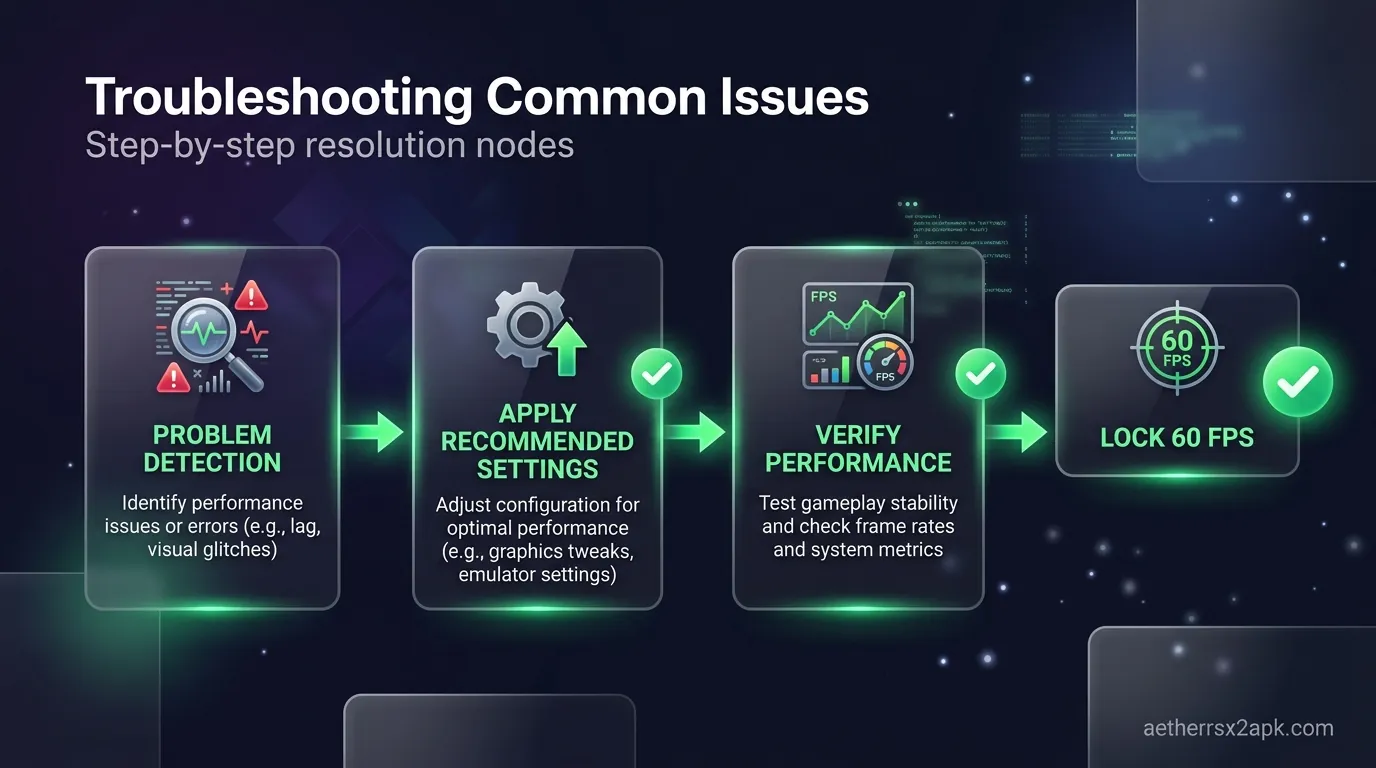
Upscaling the internal resolution is the primary reason we love emulating PS2 games on our phones rather than playing them on native hardware. Playing Persona 4 in crisp, clean 1080p (3x or 4x native resolution) looks vastly superior to the jagged edges of the original console. However, every single time you increase the resolution multiplier, the mathematical workload on your GPU increases exponentially, and the VRAM requirement skyrockets.
If AetherSX2 is crashing precisely when a lot of visual chaos happens: such as massive particle effects, explosions, heavy rain, or dust clouds: it is because your GPU cannot handle rendering all those effects at the upscaled resolution and is forcing the driver to crash.
How to Test and Fix Resolution Crashes:
- Open your game in AetherSX2.
- Open the pause menu and tap the Settings gear.
- Go to the Graphics tab.
- Find the Upscale Multiplier option.
- Change it aggressively back down to 1x Native.
- Play the game through the specific section that usually causes the crash.
If the crash no longer happens at 1x Native resolution, you have found the culprit: your GPU was simply being pushed beyond its physical limits. From here, you can slowly try increasing the resolution to 1.5x or 2x to see if it remains stable.
Recommended Resolution by Device Specs:
| Device Specs (RAM & Processor) | Recommended Safe Resolution | Crash Risk if Exceeded |
|---|---|---|
| Budget (4GB RAM, MediaTek Helio/Snapdragon 400s) | 1x Native (480p) | Very High |
| Mid-Range (6GB RAM, Snapdragon 700s/Dimensity 900) | 1.5x to 2x (720p) | High |
| High-End (8GB+ RAM, Snapdragon 8 Gen 1+) | 3x to 4x (1080p+) | Low to Moderate |
Never jump straight to 3x or 4x on mid-range phones. Finding the sweet spot between visual fidelity and stability is key to preventing crashes.
Fix 5: Switch Graphics Backend (Vulkan vs OpenGL)
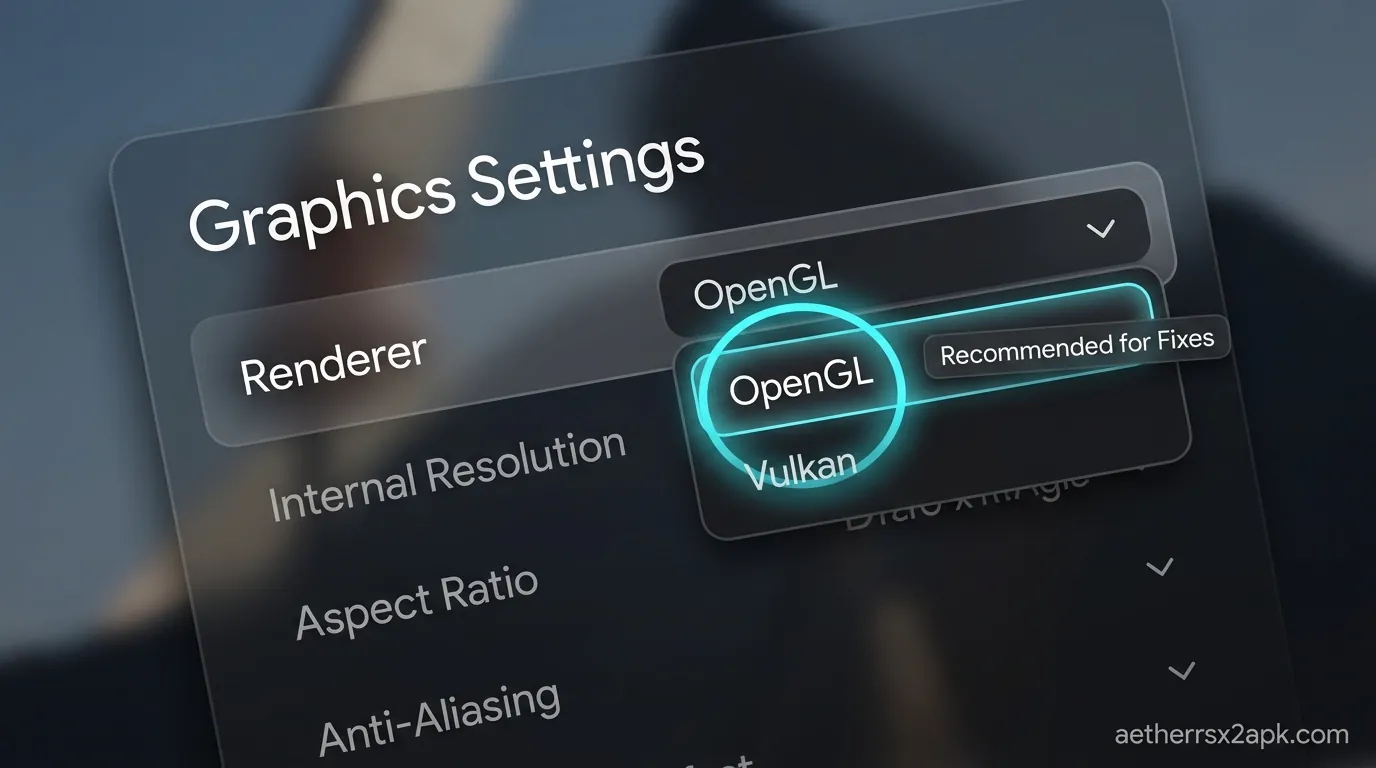
As mentioned in the common causes section, graphics driver issues are a primary reason AetherSX2 crashes on startup or presents black screens with background audio still playing. The emulator offers two main hardware rendering APIs (backends): Vulkan and OpenGL.
- Vulkan is modern, highly efficient, and offers the absolute best performance. It allows for lower CPU overhead. It is heavily recommended for devices with Snapdragon processors (which utilize Adreno GPUs).
- OpenGL is an older, slightly slower standard, but it is incredibly mature, stable, and widely compatible. It is often the only stable option for devices with MediaTek or Exynos processors (which utilize Mali GPUs).
If AetherSX2 crashes immediately upon booting a game, switching the graphics backend is the most reliable, instant fix.
How to Switch Renderers:
- In the AetherSX2 main menu (the game list), long-press on the cover art of the game that is crashing.
- Select Game Properties from the pop-up menu.
- Go to the Graphics tab.
- The very first option will be GPU Renderer.
- If it is currently set to Vulkan, tap it and change it to OpenGL.
- Conversely, if it is set to OpenGL and crashing, try switching it to Vulkan.
- Boot the game to test.
Important Note for Mali GPU Users: If you are using a device with a Mali GPU (this includes almost all MediaTek chips, older Samsung Exynos chips, and Google Tensor chips) and Vulkan keeps crashing, you must use OpenGL. While Vulkan drivers on Mali have improved over the years, many older chips simply cannot handle AetherSX2's complex Vulkan calls without triggering driver panics.
If you are unsure which backend is best for your specific device, architecture, and game, we have an in-depth, highly technical breakdown in our Vulkan vs OpenGL comparison guide.
Fix 6: Install Custom Turnip Drivers (Snapdragon Only)
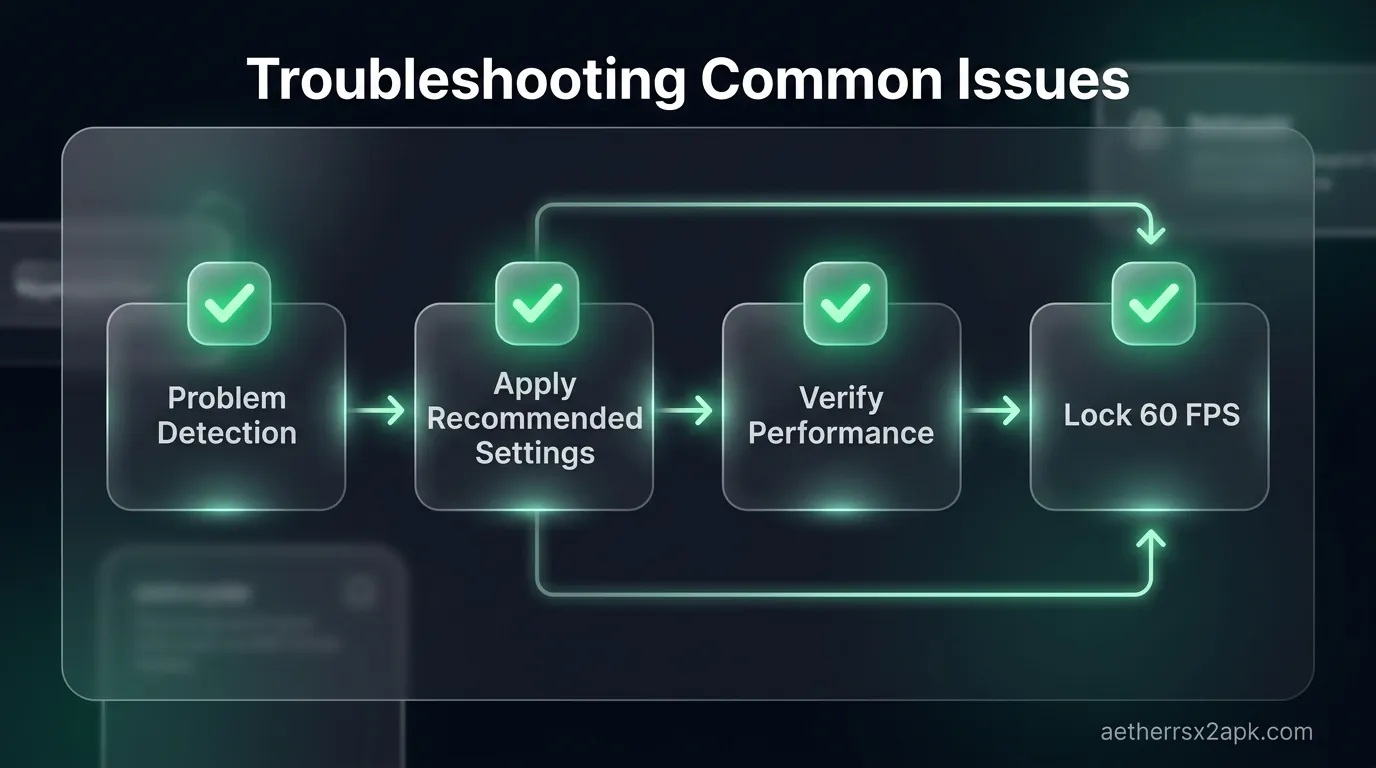
If you have a device with a Snapdragon processor (Adreno GPU) and you are experiencing crashes while using the Vulkan backend, you have a unique advantage: you can install custom GPU drivers directly into AetherSX2.
The open-source community has developed "Turnip" drivers, which are custom Mesa drivers that often fix the specific Vulkan bugs present in the factory drivers shipped by phone manufacturers.
How to Install Turnip Drivers:
- Download a compatible Turnip driver zip file (often found on the developer's GitHub or emulation forums). Ensure it matches your specific Adreno series (e.g., Adreno 600 or 700 series).
- Open AetherSX2 and go to App Settings > Graphics.
- Scroll down and look for GPU Driver.
- Tap Install Custom Driver and navigate to the zip file you downloaded.
- Select the newly installed driver from the list.
- Restart the emulator.
Note: This feature is only available on Snapdragon devices. If you have a MediaTek or Exynos device, you cannot install custom drivers and must rely on the factory ones or switch to OpenGL.
Fix 7: Clean Reinstall & Save State Backup Walkthrough
If you have methodically tried all the above fixes: cleared your memory, disabled MTVU, dropped down to 1x resolution, switched to OpenGL, and tried custom drivers: and AetherSX2 still keeps crashing, you are likely dealing with deeply corrupted emulator configuration files or a fundamentally corrupted game ISO/CHD.
At this point, the absolute final solution is a completely clean reinstall of the emulator. However, a clean reinstall requires deleting all the app data, which will permanently delete your save games if you are not careful. We must back up your progress first. Due to scoped storage restrictions introduced in Android 11 through 14, this process requires a capable file manager.
Step 1: Back Up Your Memory Cards and Save States
Before deleting a single thing, you must extract your save data.
- Open a robust Android file manager that can access
Android/data(we highly recommend ZArchiver or Solid Explorer). - Navigate precisely to this path:
Android/data/xyz.aethersx2.android/files/. - Locate the folder named memcards. This folder contains your actual virtual PS2 memory cards (usually named
Mcd001.ps2andMcd002.ps2). - Locate the folder named sstates. This contains your quick-save states.
- Copy both the
memcardsandsstatesfolders and paste them somewhere safe on your internal storage, such as your Downloads folder, or upload them to Google Drive for cloud backup.
Step 2: Uninstall and Re-download
- Go to Android Settings > Apps > AetherSX2 and hit Uninstall. This completely wipes the corrupted configuration, shader cache, and old preferences.
- Restart your phone to clear any lingering cached system files.
- Reinstall the emulator. Since development has officially stopped, ensure you are using the final stable build (v1.5-4248). Alternatively, many users dealing with persistent, unfixable crashes on newer Android versions have found vastly better stability by switching to the community-patched version of the app. You can learn everything about downloading and setting up the NetherSX2 APK on our dedicated patch page.
Step 3: Re-verify Your BIOS and Game Files
- Boot the freshly installed app and walk through the initial setup wizard.
- Select your PS2 BIOS file. Ensure it is a valid, uncorrupted 4MB dump from your own console.
- Point the emulator to your game directory.
- The Crucial Check: If your game is still crashing on a perfectly fresh install, your game file (the ISO or CHD) is undeniably corrupted, poorly patched, or a bad dump. You will need to re-dump the game from your original PS2 disc using a PC.
Step 4: Restore Your Saves
- Close the emulator completely (force close it from the recent apps menu).
- Go back to your file manager (ZArchiver).
- Copy the
memcardsandsstatesfolders you backed up in Step 1. - Paste them back into
Android/data/xyz.aethersx2.android/files/, confirming the prompt to overwrite the newly created empty folders. - Launch your game; your progress will be right where you left off, and hopefully, the crashes will be banished for good.
Force-closes after MTVU or texture preload are the same class of bugs the desktop team tracks on PCSX2 GitHub issues. Per-game history: PCSX2 wiki. Android crash threads: r/EmulationOnAndroid.
Frequently Asked Questions
Why does AetherSX2 crash on startup with a completely black screen? A black screen crash immediately upon startup is almost always caused by one of two major things: an incompatible/missing BIOS file, or a catastrophic GPU driver panic. First, ensure you have correctly imported a valid PS2 BIOS (from the correct region). If the BIOS is verified and working, go to App Settings > Graphics and switch the GPU Renderer from Vulkan to OpenGL.
Is it normal for my phone to get extremely hot before a crash? Yes. PS2 emulation is incredibly demanding on both the CPU and GPU. If your phone gets too hot, the CPU will drastically throttle its speed to cool down. This sudden, violent loss of processing power causes the complex emulator threads to desynchronize, leading directly to a freeze and crash. Try playing in shorter bursts, lowering the resolution, or using an active mobile gaming cooling fan attached to the back of your phone.
Does using save states cause crashes in AetherSX2? While save states don't directly cause crashes upon creation, repeatedly loading and saving states over a long period can sometimes cause memory leaks or state corruption within the emulator. If a specific game keeps crashing immediately after loading a save state, that specific state is likely corrupted. You will need to abandon it and load a traditional in-game memory card save instead. Always use normal memory card saves as your primary backup!
Why did AetherSX2 suddenly start crashing today when it worked perfectly fine yesterday? If you haven't touched or changed any settings in the app, a sudden onset of crashes is often related to Android OS background processes, a system update, or an automatic OS update that secretly messed with your GPU drivers overnight. Try clearing the app cache (Fix 1) and entirely restarting your phone. Also, ensure you haven't recently filled up your phone's internal storage, as the emulator needs a bit of free space for virtual memory allocation.
Are CHD files more stable than ISO files to prevent crashes? CHD (Compressed Hunks of Data) files are functionally identical to ISO files in terms of game logic, but they take up significantly less storage space. In extremely rare cases, a heavily fragmented ISO file might cause read/write errors that lead to a crash. Converting your ISO to a CHD format using chdman can sometimes fix arbitrary loading screen crashes by restructuring the data, but it is primarily intended as a space-saving measure rather than a stability fix.
Will the developer release an update to fix these crashes? Unfortunately, no. The original sole developer of AetherSX2, known as Tahlreth, suspended development indefinitely in early 2023 due to extreme community toxicity, harassment, and personal reasons. The final official build available is v1.5-4248. For ongoing bug fixes, removed advertisements, and community-driven support, you should strongly look into utilizing the NetherSX2 patch.
Emulating the mighty PlayStation 2 on a pocket-sized mobile device is a complex, delicate balancing act of raw hardware power and precise software optimization. By methodically following the steps outlined in this guide: aggressively managing your RAM, tweaking MTVU settings per-game, lowering upscaled resolution, and choosing the correct graphics backend for your chip: you can finally stop AetherSX2 from crashing and get back to enjoying the greatest console library of all time.