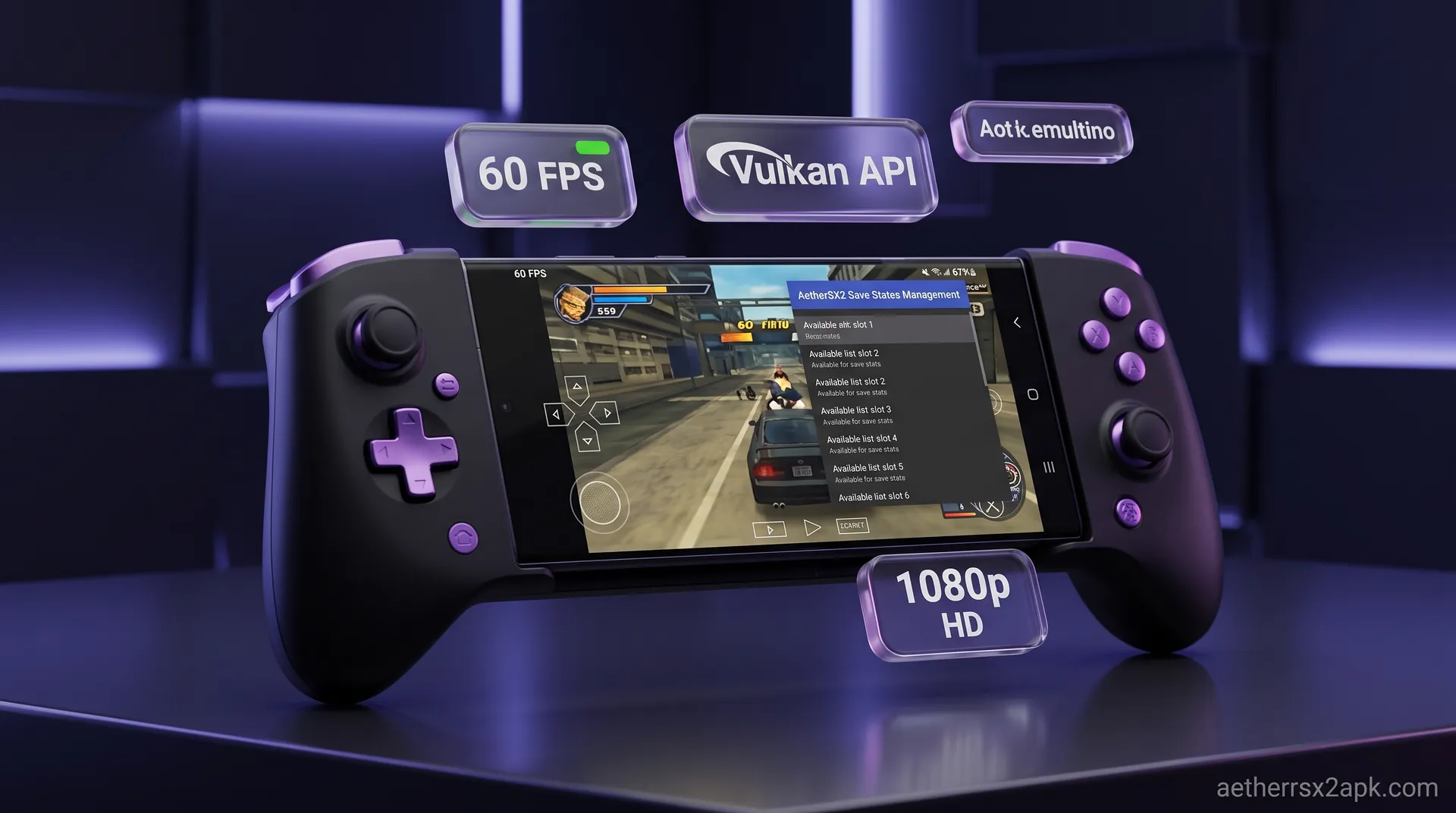
aethersx2 black screen
Fix Black Screen Issues on AetherSX2
By HBKPublished Last updated
Tested on: POCO F3 (Snapdragon 870) and Redmi Note 12 Pro (Mali-G68), AetherSX2 v1.5-4248
Quick summary
An AetherSX2 black screen is usually a renderer, readback, or BIOS-region miss — not a dead APK. Audio with a black frame points at the Graphics Synthesizer; silence points at BIOS or a truncated dump.
- First swap: Vulkan ↔ OpenGL for that CRC
- Then: Hardware Download Reads to Disable / Unsynchronized
- BIOS: match NTSC-U / PAL / NTSC-J to the disc; file size 4,194,304 bytes
- Last: Software renderer only to confirm a GS bug, then switch back
You’ve set everything up perfectly. You’ve configured your PS2 BIOS, selected your game, and tapped the icon with anticipation, only to be met with a frustrating wall of nothing. You are experiencing the dreaded AetherSX2 black screen. In many cases, you might even hear the game’s audio playing in the background while the screen remains pitch dark.
This issue is arguably one of the most common hurdles faced by emulation enthusiasts on Android, but it is rarely a fatal error. AetherSX2 is an incredibly capable PS2 emulator, but its complex hardware emulation means that slight misconfigurations or hardware incompatibilities can result in display failures.
Whether you are using the final official build (v1.5-4248) or the community-driven NetherSX2 fork, the underlying mechanics remain the same. The good news is that 99% of black screen issues can be resolved with a few simple settings tweaks.
In this comprehensive guide, we will break down exactly why this happens and walk you through 7 working solutions to fix the AetherSX2 black screen so you can get back to playing your favorite classics.
On this page ▾
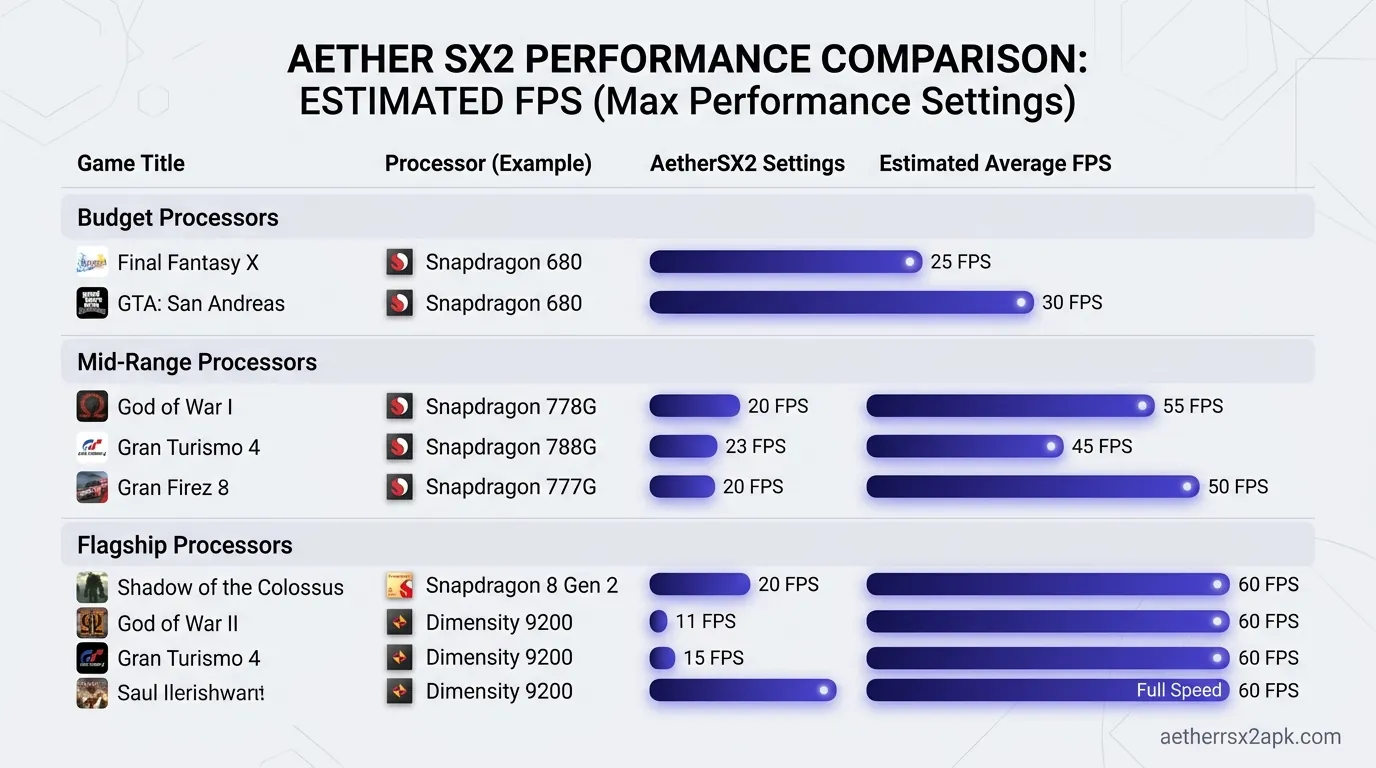
Before diving into the fixes, it helps to understand why AetherSX2 games black screen in the first place. The emulator works by translating complex PlayStation 2 instructions into instructions your modern Android device's CPU and GPU can understand. When this translation hits a snag, the visual output fails.
The most frequent culprits include:
- Renderer Incompatibility: Your phone's GPU drivers might have bugs when handling specific Vulkan or OpenGL calls required by the game. This is especially common on devices with Mali GPUs (Exynos/MediaTek chips).
- Aggressive Speed Hacks: While tweaking EE (Emotion Engine) cycle rates or VU (Vector Unit) cycle stealing can improve performance, pushing these settings too far will completely break the game's timing, resulting in a black screen crash upon boot.
- Bad or Mismatched BIOS: If you are trying to play a European (PAL) game but only have a Japanese (NTSC-J) BIOS configured, some games will fail to boot past the initial PlayStation 2 logo.
- Corrupted Disc Images: If your ISO or CHD file was poorly dumped from your original disc or became corrupted during file transfer, AetherSX2 won't be able to read the game data properly.
- Hardware Readbacks: Some games require the CPU to read data back from the GPU to render effects (like sun glare or shadows). If your device struggles with this synchronization, it can cause the screen to go black while the game continues running (which is why you often have the black screen with audio playing in AetherSX2).
By systematically addressing these potential causes, you can narrow down the issue. Let’s look at the solutions, starting with the most common and effective fixes. For broader setup advice, you can also check our general AetherSX2 best settings guide.
Fix 1: Switch Renderer (Vulkan to OpenGL or vice-versa)
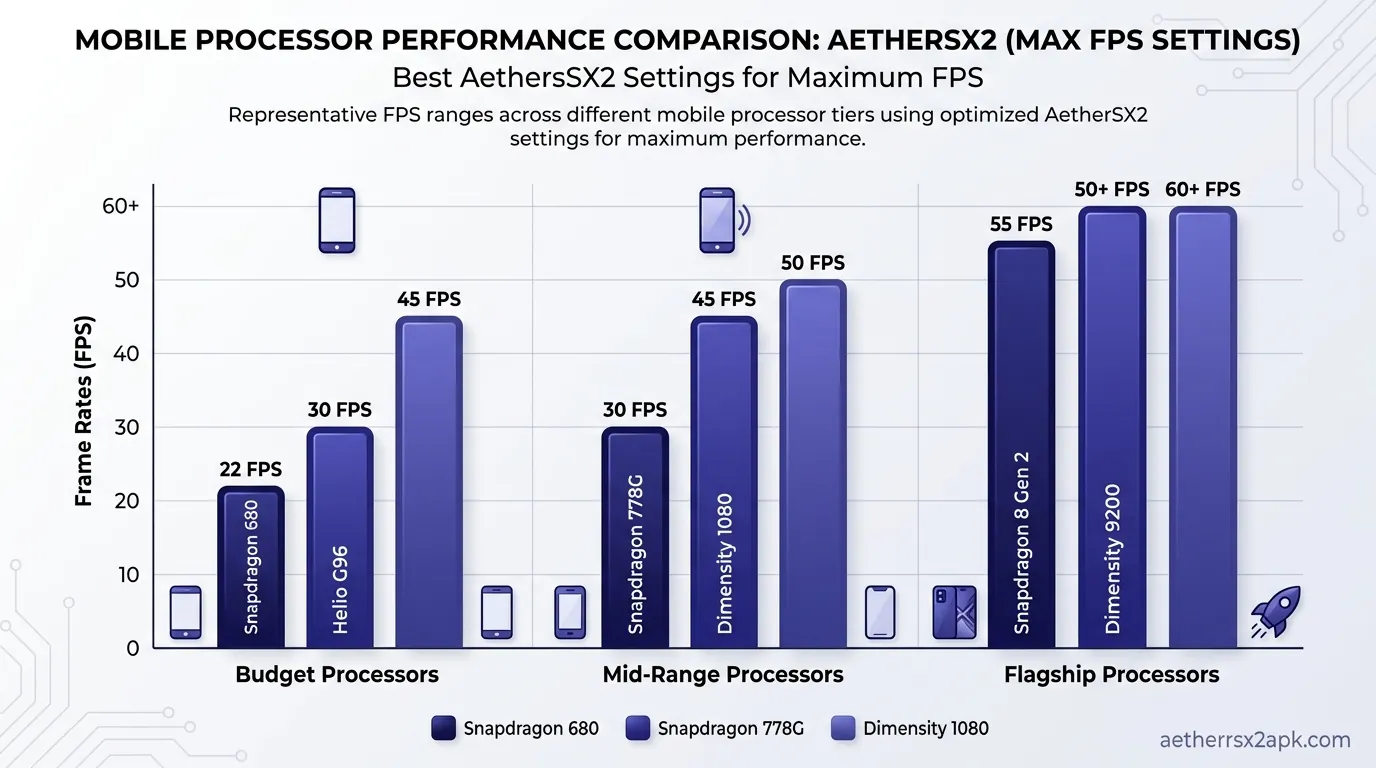
The single most effective fix for an AetherSX2 black screen is simply changing the Graphics Renderer.
AetherSX2 supports two main hardware renderers: Vulkan and OpenGL. Vulkan generally provides superior performance and lower CPU overhead, making it the preferred choice for devices with Snapdragon processors (Adreno GPUs). However, Vulkan drivers on Mali GPUs (found in Exynos, Tensor, and MediaTek Dimensity chips) are notoriously buggy. These driver bugs frequently manifest as black screens, missing textures, or flickering graphics.
If a game boots to a black screen, your first step should always be to toggle the renderer.
How to Switch the Renderer:
- Open AetherSX2 and tap the three horizontal lines (menu icon) in the top left corner.
- Select App Settings and navigate to the Graphics tab.
- Look for the GPU Renderer option at the top.
- If it is set to Vulkan, tap it and change it to OpenGL. If it is already on OpenGL, try Vulkan.
- Completely close AetherSX2 (swipe it away from your recent apps).
- Relaunch the emulator and try booting the game again.
Note: You can also change the renderer on a per-game basis by long-pressing the game cover in your library, selecting Game Properties, and changing the renderer in the Graphics tab. This is recommended so you don't reduce performance in other games that work fine on Vulkan.
For a deeper dive into which API is right for your specific phone, read our AetherSX2 Vulkan vs OpenGL comparison.
Fix 2: Disable Hardware Download Reads / Readbacks
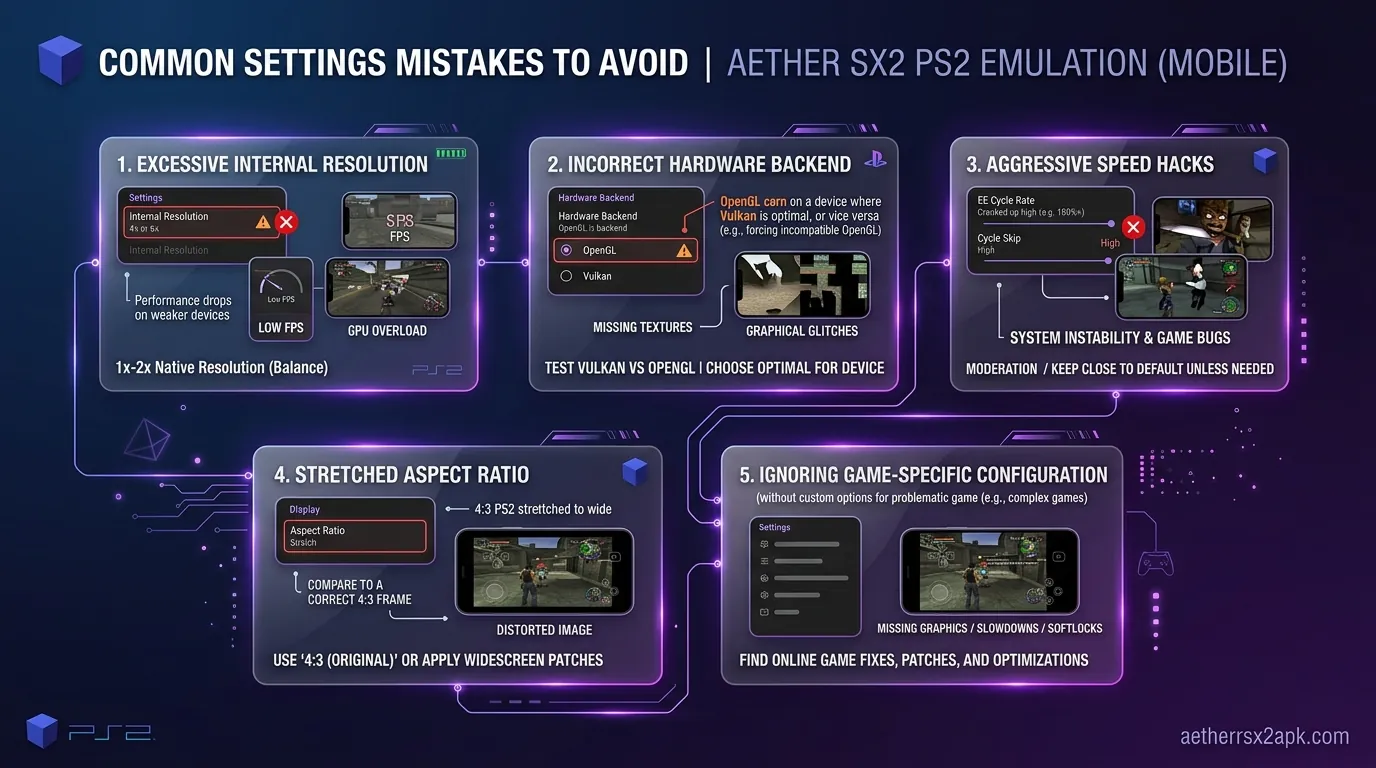
If you are experiencing the specific phenomenon of a black screen while audio is playing in AetherSX2, the issue is almost certainly related to Hardware Download Reads (also known as GPU readbacks).
Certain PS2 games heavily rely on reading visual data back from the graphics processing unit to calculate effects. Emulating this process on mobile hardware is incredibly taxing. If the emulator gets out of sync during a readback, the game engine will continue running (hence the audio), but the visual output will stall, leaving you staring at a black screen.
Games from the Burnout series, Sly Cooper, and various EA Sports titles are particularly prone to this issue.
How to Tweak Hardware Download Reads:
- Long-press the problematic game in your AetherSX2 library.
- Select Game Properties.
- Navigate to the Graphics tab.
- Scroll down until you find the Advanced or Hacks section (depending on your build version).
- Locate the setting named Hardware Download Mode or Disable Hardware Readbacks.
- If the mode is set to "Accurate," change it to Unsynchronized or Disable.
- Save the settings and launch the game.
Disabling readbacks entirely might cause some minor visual glitches (like missing lens flares or corrupted shadows), but it will often restore the main visual output and cure the black screen.
Fix 3: Reset EE/VU Speed Hacks to Default (Cycle Rate & Stealing)
We all want 60 FPS, and it is incredibly tempting to crank up the speed hacks in AetherSX2 to achieve it on lower-end hardware. However, altering the Emotion Engine (EE) Cycle Rate and Vector Unit (VU) Cycle Stealing settings is a double-edged sword.
These settings artificially underclock the emulated PS2 CPU or skip instructions to ease the burden on your Android phone. While effective for framerates, moving these sliders too far will cause the game logic to break. If a game's internal timing is disrupted, it will crash immediately upon boot, resulting in an AetherSX2 games black screen.
If you have been tinkering with system settings, a reset is in order.
How to Reset Speed Hacks:
- Open App Settings from the main AetherSX2 menu.
- Navigate to the System tab.
- Scroll down to the EE Cycle Rate (Underclocking) setting. Ensure this is set to 100% (Normal).
- Right below it, check the EE Cycle Skip (Underclocking) setting. Set this to 0 (Normal).
- Next, find Affinity Control and Multi-Threaded VU1. If you recently enabled these, try disabling them to see if it resolves the boot issue.
- Alternatively, you can simply tap the Reset to Defaults button at the bottom of the System settings page.
Once you have verified the game boots properly on default settings, you can carefully re-introduce speed hacks one step at a time, testing the game after each adjustment.
Fix 4: Verify PS2 BIOS Region Match (NTSC-U vs NTSC-J vs PAL)
The PlayStation 2 was heavily region-locked, and AetherSX2 faithfully emulates this hardware restriction. To play any game, AetherSX2 requires a copy of the PS2 BIOS, which must be legally dumped from your own console.
A common reason for a black screen immediately after the AetherSX2 logo is a region mismatch between your BIOS file and your game file. For example, if you dumped a BIOS from a European console (PAL format) but are trying to run a North American game dump (NTSC-U), the emulator may fail to initialize the game environment properly.
How to Fix BIOS Region Issues:
- Check the region of your game file. This is usually indicated by the game ID (e.g., SLUS/SCUS for North America, SLES/SCES for Europe, SLPM/SLPS for Japan).
- Go to AetherSX2 App Settings > BIOS.
- Ensure you have the correct BIOS region imported and selected.
- It is highly recommended to dump and import a BIOS file for each region if you own consoles from different regions. You can have multiple BIOS files in your AetherSX2 list; the emulator will automatically try to select the appropriate one.
- If the screen is still black, try disabling the Fast Boot option in the System settings. Fast Boot skips the PS2 startup animation, but some games require the full BIOS initialization sequence to load properly.
For detailed instructions on dumping and configuring your firmware, visit our complete AetherSX2 BIOS guide.
Fix 5: Change Aspect Ratio & Upscaling Resolution
While less common, extreme graphical upscaling can overwhelm your device's memory, causing the GPU driver to crash silently. When this happens, AetherSX2 won't necessarily close, but it will stop rendering graphics, leaving you with a black screen.
Similarly, forcing a Widescreen Hack on a game that inherently breaks when its aspect ratio is altered can cause rendering failures during cutscenes or menu transitions.
How to Fix Resolution and Aspect Ratio Issues:
- Long-press your game and select Game Properties.
- Go to the Graphics tab.
- Locate the Upscale Multiplier setting. If it is set to 3x, 4x, or higher, dial it back down to 1x (Native) or 2x (720p).
- Find the Aspect Ratio setting and ensure it is set to Auto (Standard) or 4:3.
- Scroll down and ensure the Widescreen Patches toggle is turned OFF.
- Launch the game. If it boots successfully, you can incrementally increase the resolution until you find your device's stable limit.
If you are encountering crashes specifically during FMVs (Full Motion Videos/Cutscenes), look for the Switch to Software Rendering for FMVs hack in the advanced graphics settings and enable it.
Fix 6: Re-extract or Convert Disc Image (CHD/ISO verification)
Sometimes the emulator isn't the problem at all; the problem is the file you are feeding it. A corrupted .iso file, an improperly compressed .chd, or a game still zipped in a .7z or .rar archive will absolutely cause an AetherSX2 black screen.
AetherSX2 can read .iso, .chd, and .cso files directly. It cannot reliably run games while they are still compressed in standard archive formats.
How to Verify and Fix Your Game Files:
- Unzip Your Games: If your game file ends in
.zip,.rar, or.7z, you must extract it first using an app like ZArchiver or Solid Explorer. You need the raw.isoor.bin/.cuefiles inside. - Check File Size: A standard PS2 DVD ISO should be roughly between 1GB and 4.7GB. If your ISO file is only a few megabytes, it is broken or incomplete. You will need to re-dump the game from your physical disc using a PC tool like ImgBurn.
- Convert to CHD: If you have a
.bin/.cueformat game, AetherSX2 may struggle to read it if the.cuesheet is incorrectly formatted, leading to a black screen. The best solution is to convert these files into a single, compressed CHD file. This not only saves storage space on your phone but ensures perfect file integrity.
Learn exactly how to compress your library flawlessly in our ISO to CHD conversion guide.
Fix 7: Enable Software Renderer Temporary Workaround
If you have tried all six previous fixes and are still staring at a black screen, there is a "nuclear option" to determine if the game is playable at all: The Software Renderer.
The Software Renderer abandons your phone's GPU entirely and forces the CPU to draw every single pixel on the screen. Because it doesn't rely on potentially buggy Vulkan or OpenGL drivers, the Software Renderer is incredibly accurate and will boot almost any game without visual glitches or black screens.
The massive catch? It is devastatingly slow. Very few Android phones have CPUs powerful enough to run PS2 games in Software mode at full speed.
How to use the Software Renderer Test:
- Open AetherSX2 App Settings > Graphics.
- Change the GPU Renderer to Software.
- Launch your game.
If the game boots and you can see graphics (even if it's running at 5 frames per second), you have confirmed that your game file is good, your BIOS is working, and your speed hacks are fine. The black screen is purely a GPU hardware/driver compatibility issue with that specific game on your specific Android phone.
In this scenario, your best bet is to wait for potential driver updates for your phone, try the NetherSX2 fork if you haven't already, or check our AetherSX2 troubleshooting hub for game-specific community workarounds.
Black screens after a renderer swap are usually GS readbacks or a Mali Vulkan driver bug. Cross-check the title on the PCSX2 wiki, the PCSX2 issue tracker, and r/EmulationOnAndroid.
Frequently Asked Questions
Why do I hear audio but see a black screen in AetherSX2? When you experience black screen audio playing in AetherSX2, the CPU emulation is working fine (processing game logic and sound), but the GPU emulation has failed or desynced. This is usually caused by buggy Vulkan drivers on Mali GPUs or the emulator struggling with Hardware Download Reads (GPU readbacks). Switching to OpenGL or disabling hardware readbacks in the game properties usually fixes it.
Does NetherSX2 fix the black screen issues? NetherSX2 is an excellent, ad-free community fork based on the final AetherSX2 build (v1.5-4248). While it includes some updated controller profiles and quality-of-life improvements, the core emulation engine is identical to AetherSX2. Therefore, if a game gives you a black screen in AetherSX2 due to driver incompatibility, it will likely do the same in NetherSX2. The same fixes outlined in this guide apply to both versions.
Why does my game go black after the PlayStation 2 logo? If you see the BIOS startup animation but the game blacks out immediately after, it indicates a failure to hand off from the BIOS environment to the game executable. This is almost always caused by either a corrupted ISO/CHD file or having EE/VU speed hacks set too high, causing the game to crash on boot. Reset your System settings to default and verify your game dump.
Will clearing the AetherSX2 app cache fix the black screen? Sometimes, yes. If a game previously worked but suddenly started black screening, a corrupted shader cache might be to blame. Go to your Android Settings > Apps > AetherSX2 > Storage and tap "Clear Cache". (Do not tap "Clear Data," as this will wipe your memory cards and settings).
Does my phone's chipset matter for black screen bugs? Yes, significantly. Devices with Snapdragon chipsets (Adreno GPUs) have the best driver support and experience far fewer graphical bugs. Devices with Exynos, MediaTek, or Google Tensor chipsets (Mali GPUs) are much more prone to AetherSX2 games black screen issues, particularly when using the Vulkan renderer.
Are some PS2 games just impossible to fix on AetherSX2? Unfortunately, yes. While AetherSX2's compatibility is astounding, it is not perfect. A small percentage of the PS2 library relies on obscure hardware quirks that have not been fully emulated. If you have tried every renderer, disabled speed hacks, and verified your game dump, the game might simply be incompatible. Always check the official compatibility lists or community forums for specific titles.
For more guides on optimizing your Android emulation setup, return to the main download hub.