aethersx2 vulkan vs opengl
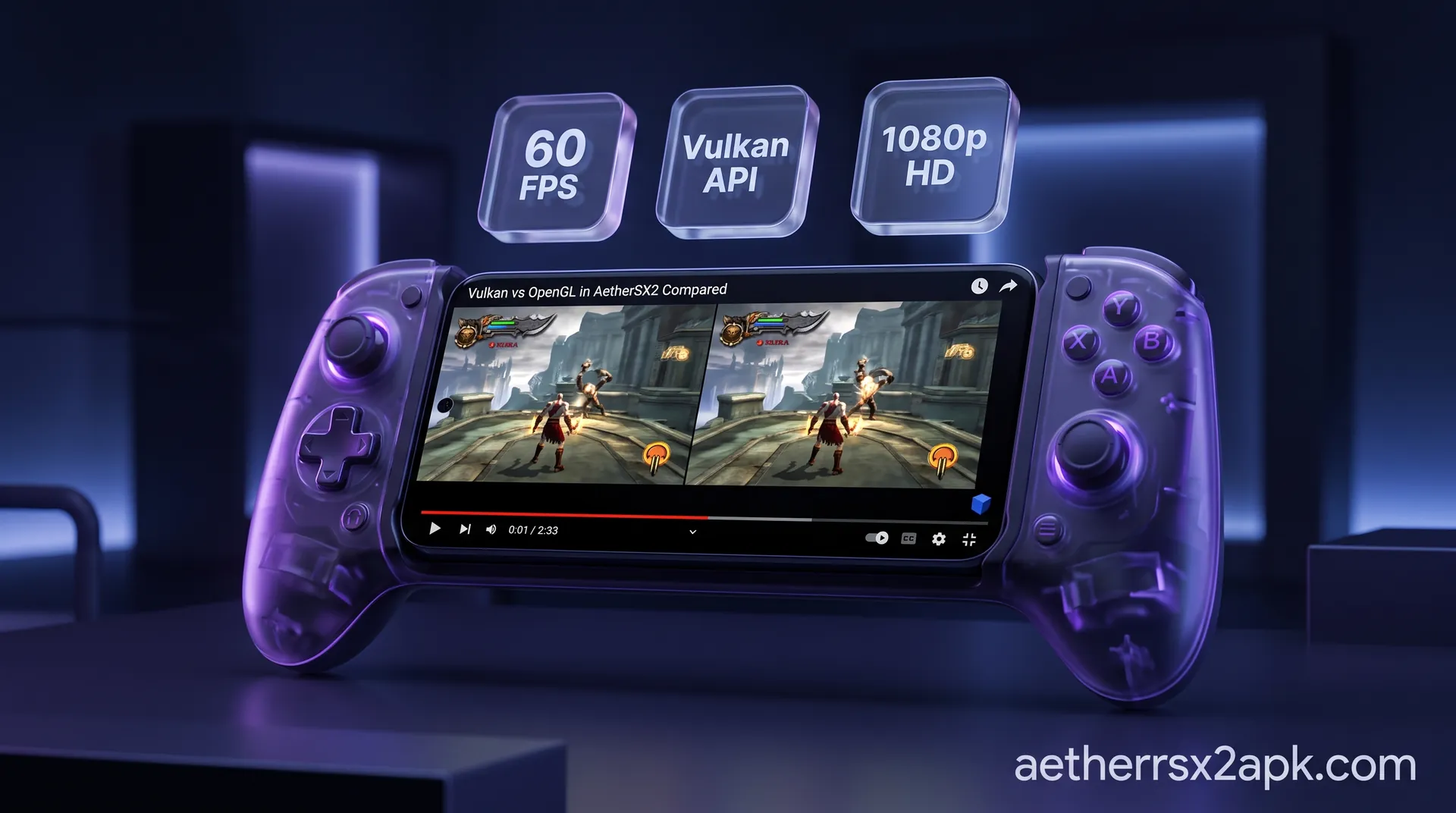
Vulkan vs OpenGL in AetherSX2 Compared
By HBKPublished Last updated
Tested on: POCO F3 (Adreno 650) and Redmi Note 12 Pro (Mali-G68), Android 13, AetherSX2 v1.5-4248
Quick summary
Vulkan vs OpenGL in AetherSX2 is a GPU-driver choice. Snapdragon/Adreno phones should start on Vulkan; Mali (MediaTek/Exynos) often needs OpenGL to avoid missing textures or a black GS output.
- Use Vulkan: Adreno GPUs, upscaling, and most flagship phones
- Use OpenGL: Mali artifacts, black screens on Vulkan, or older drivers
- Software renderer: debug only — it will not hold full speed
- Per game: save the renderer on that CRC; do not change the global default for one title
If you have ever dove into the graphics settings of the AetherSX2 emulator, you have inevitably faced the ultimate emulation question: should you use Vulkan or OpenGL? For many users, switching between these two graphics renderers feels like flipping a magic switch. On one setting, your game might crawl at a miserable 15 frames per second; on the other, it suddenly runs at a buttery smooth 60 FPS in full 1080p resolution. But why does this happen, and how do you know which one to choose for your favorite PlayStation 2 classics?
AetherSX2, developed by Tahlreth and based on the legendary PCSX2 project, is a miracle of modern Android software. However, faithfully translating the bizarre, highly complex architecture of the PS2’s Graphics Synthesizer (GS) to a modern smartphone screen is incredibly demanding. To accomplish this, the emulator relies on graphics APIs (Application Programming Interfaces) to communicate with your phone's GPU. The two primary hardware-accelerated APIs available in the final AetherSX2 build (v1.5-4248) are Vulkan and OpenGL.
In this comprehensive guide, we are going to break down the highly debated "Vulkan vs OpenGL" showdown. We will explore how your specific phone hardware changes the equation, when you should use each renderer to maximize performance, and how to fix common graphical glitches just by swapping your API.
Legal Disclaimer: AetherSX2 is an emulator. To use it legally, you must provide your own PS2 BIOS dumped directly from a PlayStation 2 console you own. Furthermore, you should only emulate games that you have legally purchased and dumped from your own physical discs. We do not support or link to piracy.
Table of Contents
- The Core Difference: Vulkan vs OpenGL on Mobile
- Adreno (Snapdragon) vs Mali (MediaTek/Exynos) GPU Performance
- Side-by-Side Comparison: Vulkan vs OpenGL
- When You Should Use Vulkan in AetherSX2
- When You Should Use OpenGL in AetherSX2
- How to Change Renderers and Save Per-Game Profiles
- Frequently Asked Questions
The Core Difference: Vulkan vs OpenGL on Mobile
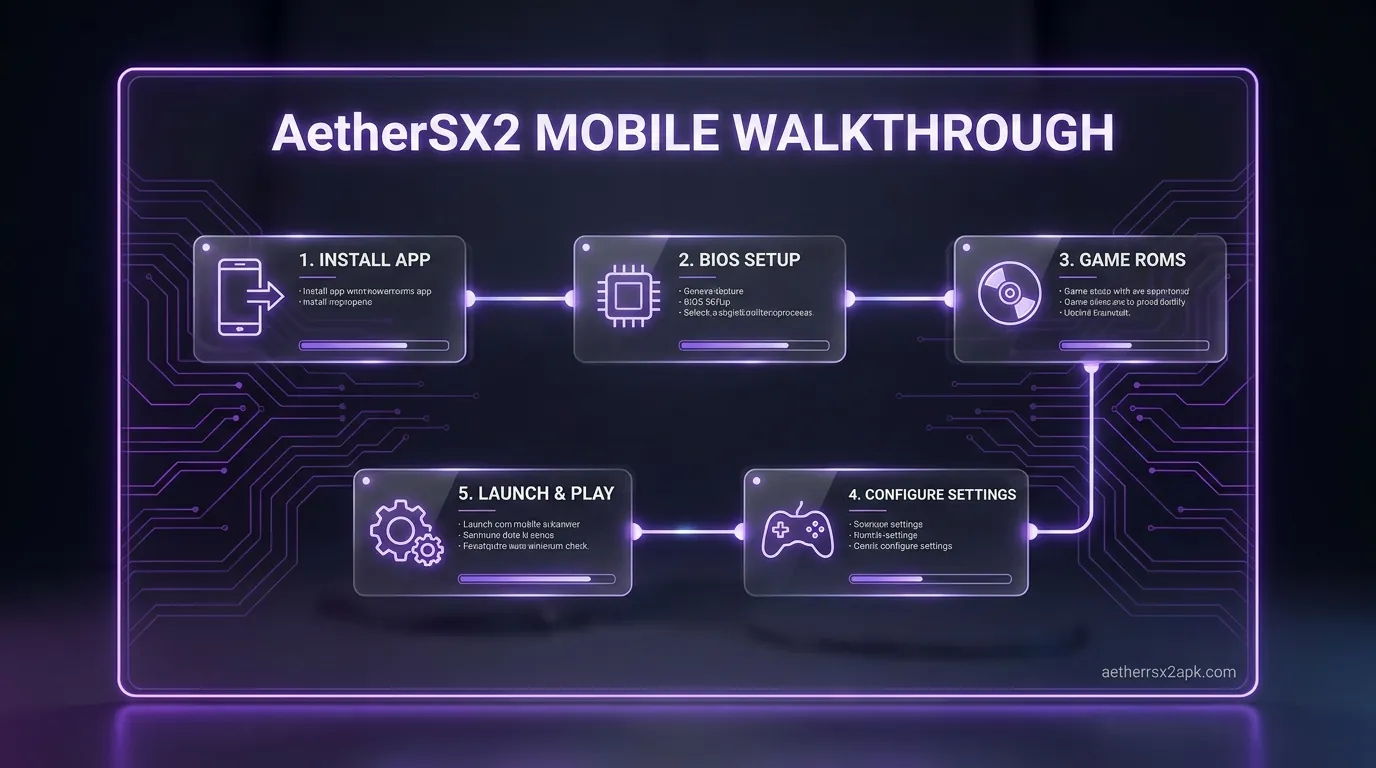
To understand why one renderer might outperform the other in AetherSX2, you first need to understand what they are fundamentally doing behind the scenes. When AetherSX2 emulates a PlayStation 2 game, it intercepts the instructions that the PS2 game is sending to the original PS2 hardware, translates them, and hands them off to your Android device’s GPU to draw the image on your screen.
OpenGL: The Veteran High-Level API
OpenGL (Open Graphics Library) and its mobile counterpart, OpenGL ES, have been the industry standard for 3D graphics on Android for over a decade. It is a "high-level" API. This means that OpenGL handles a lot of the background resource management, memory allocation, and state tracking for the developer.
Because OpenGL does so much of the heavy lifting automatically, it requires a robust, heavy driver on your Android device to interpret its commands. The downside of this approach in emulation is CPU overhead. Translating PS2 graphics calls into OpenGL calls requires your phone's processor (CPU) to work incredibly hard before the data even reaches the GPU. In CPU-heavy games like Shadow of the Colossus or Metal Gear Solid 2, OpenGL can cause your CPU to bottleneck, leaving your powerful GPU sitting idle waiting for instructions.
However, because OpenGL has been around for so long, and because PCSX2 (the underlying codebase for AetherSX2) relied heavily on OpenGL for many years, the OpenGL renderer is often the most graphically accurate. If a game has complicated alpha blending, weird fog effects, or unique shadows, OpenGL is traditionally more likely to render it correctly without visual bugs.
Vulkan: The Low-Overhead Challenger
Vulkan is a modern, "low-level" API created by the Khronos Group (the same consortium behind OpenGL) to address the inherent bottlenecks of older APIs. Vulkan strips away the automatic background management that OpenGL provides. Instead, it gives the emulator direct, explicit control over the GPU's memory and state.
For a complex emulator like AetherSX2, Vulkan is a godsend. By reducing the driver overhead, Vulkan significantly lowers the burden on your phone's CPU. It also features excellent multi-threading capabilities, allowing AetherSX2 to distribute the workload across multiple CPU cores much more efficiently than OpenGL can.
In practical terms, Vulkan generally offers much higher framerates (FPS) in AetherSX2, especially when upscaling games to 1080p or higher. Because it frees up CPU cycles, your phone has more breathing room to handle the heavy emulation of the PS2's Emotion Engine, while the GPU churns out frames unhindered. The trade-off? Vulkan drivers on Android are historically younger and sometimes buggier, meaning you might occasionally encounter missing textures, flickering geometry, or black screens that wouldn't happen on OpenGL.
To learn more about optimizing your device beyond just the renderer, check out our comprehensive guide on AetherSX2 best settings.
Adreno (Snapdragon) vs Mali (MediaTek/Exynos) GPU Performance
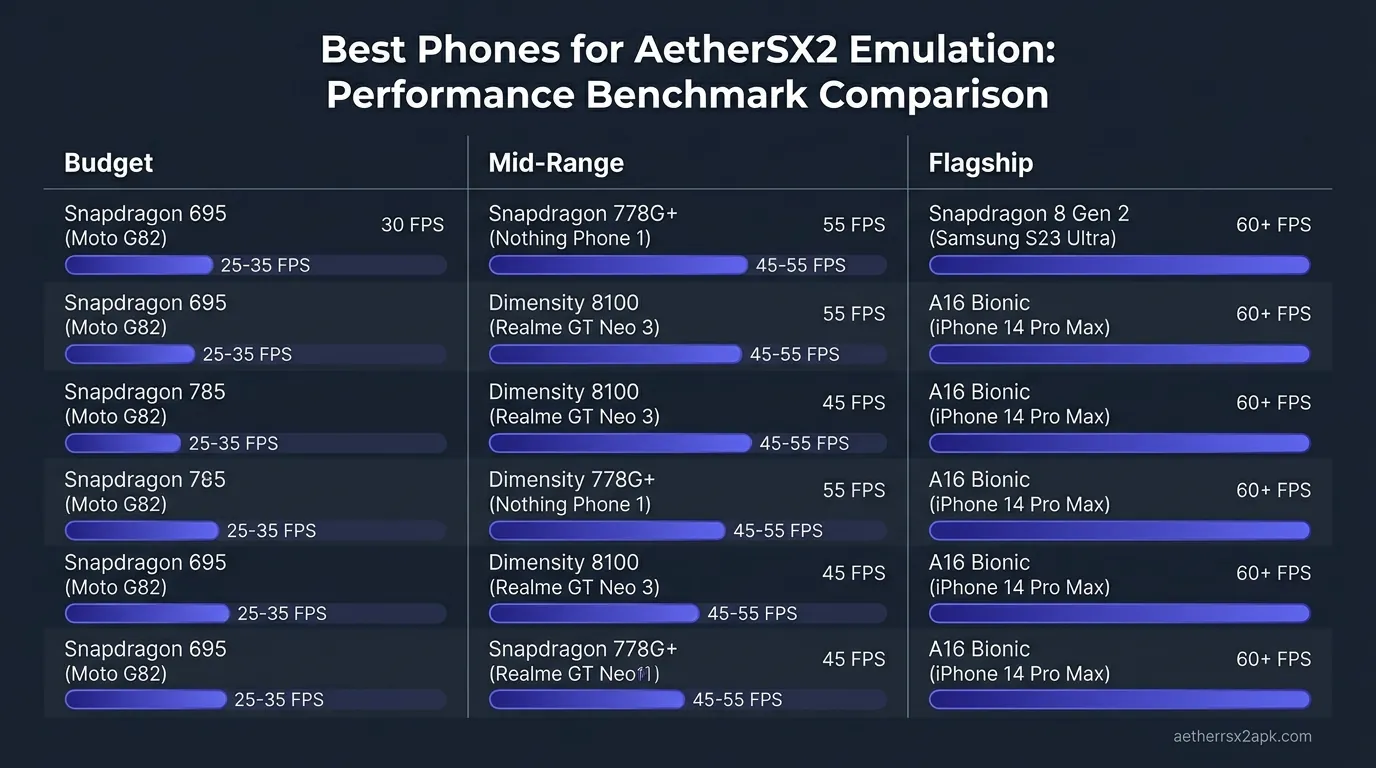
The Vulkan vs OpenGL debate in AetherSX2 is not just about software; it is heavily dictated by the silicon inside your smartphone. Android devices generally fall into two major GPU camps: Qualcomm's Adreno GPUs (found in Snapdragon chips) and ARM's Mali GPUs (found in MediaTek and older Samsung Exynos chips). How these two manufacturers write their GPU drivers drastically impacts which renderer you should choose.
Snapdragon and Adreno GPUs
If you have a phone with a Qualcomm Snapdragon processor (such as the Snapdragon 8 Gen 2 or Gen 3), you have an Adreno GPU. Qualcomm has historically provided excellent driver support for Android, which is why Snapdragon devices are widely considered the gold standard for Android emulation.
On Adreno GPUs, Vulkan is almost always the superior choice. Qualcomm's Vulkan drivers are robust, fast, and relatively bug-free. When using Vulkan on a Snapdragon device, you will enjoy massive performance gains, lower battery consumption, and the ability to push upscaling multipliers much higher than on OpenGL.
Furthermore, Snapdragon devices have a hidden superpower: custom drivers. Because of the open-source community, users can install custom Turnip/Mesa GPU drivers for Adreno hardware. These custom drivers often fix the rare graphical glitches that occur in Vulkan, effectively giving you the high speed of Vulkan with the graphical accuracy of OpenGL.
If you are running a top-tier Snapdragon device, you can see our specific performance tweaks in our AetherSX2 settings for Snapdragon 8 Gen 3 guide.
MediaTek, Exynos, and Mali GPUs
If you are using a device with a MediaTek Dimensity chip or a Google Tensor chip, you are utilizing an ARM Mali GPU (or an architecture heavily based on it).
Mali GPUs have a troubled history with emulation. Historically, Mali's OpenGL drivers on Android were notoriously poor, lacking support for essential extensions that emulators rely on. This meant that trying to use OpenGL on a Mali device often resulted in terrible performance and broken graphics.
For Mali users, Vulkan is practically mandatory for good performance. The Vulkan drivers on modern MediaTek Dimensity chips are vastly superior to their OpenGL counterparts. Using Vulkan on a Dimensity 9000 or 9200 will yield excellent results, allowing you to run most of the PS2 library at full speed.
However, because Mali Vulkan drivers can still be a bit finicky compared to Adreno, you may run into specific game incompatibilities where Vulkan simply crashes or renders a black screen. In these rare "worst-case scenarios," you may be forced to switch back to OpenGL just to make the game boot, even if it means sacrificing framerate.
For users rocking MediaTek hardware, we highly recommend checking out our dedicated AetherSX2 settings for MediaTek Dimensity guide to squeeze every last drop of performance out of your Mali GPU.
Side-by-Side Comparison: Vulkan vs OpenGL
To help you visualize the differences, here is a quick reference table comparing how Vulkan and OpenGL stack up in the final AetherSX2 release.
| Feature / Metric | Vulkan Renderer | OpenGL Renderer |
|---|---|---|
| Raw Performance (FPS) | Excellent. Usually the fastest option, especially at high internal resolutions. | Average to Good. Often bottlenecks the CPU, resulting in lower FPS in heavy games. |
| CPU Overhead | Low. Frees up CPU resources, great for complex PS2 physics and AI emulation. | High. The driver does heavy lifting, which can max out CPU cores quickly. |
| Graphical Accuracy | Good. Renders 90% of games perfectly, but can suffer from missing textures or broken shadows in tricky titles. | Excellent. Highly accurate blending and depth. The go-to renderer when Vulkan shows visual bugs. |
| Adreno (Snapdragon) Support | Flawless. Highly optimized, supports custom Turnip drivers for even better performance. | Great. Stable and accurate, though slower than Vulkan. |
| Mali (MediaTek) Support | Great. The best option for Mali GPUs by a wide margin, though driver bugs occasionally appear. | Poor. Often suffers from missing extensions, slow speeds, and graphical glitches on Mali. |
| Multi-Threading | Superior. Distributes draw calls efficiently across multiple CPU cores. | Limited. Relies more heavily on single-core performance. |
| Battery Consumption | Lower. Greater efficiency means less heat and slower battery drain. | Higher. High CPU overhead leads to faster thermal throttling and battery drain. |
When You Should Use Vulkan in AetherSX2
As a general rule of thumb for AetherSX2, Vulkan should be your default global renderer. Unless you have a specific reason to switch, you should set your app-wide graphics settings to Vulkan. Here is a closer look at the scenarios where Vulkan truly shines.
Maximizing Framerates on High-End Devices
If your primary goal is to hit a locked 60 FPS (or 50 FPS for PAL region games), Vulkan is your best friend. Games that push the PS2 hardware to its absolute limits: such as God of War II, Gran Turismo 4, Burnout 3: Takedown, and Zone of the Enders: The 2nd Runner: require immense processing power.
Because Vulkan operates with minimal CPU overhead, it ensures that AetherSX2's Emotion Engine emulation (the PS2's CPU) isn't being held back by graphics API bottlenecks. In heavy scenes with lots of explosions, particles, and complex geometry, Vulkan will maintain a steady framerate where OpenGL would stutter and slow down the audio.
Pushing Internal Resolutions (Upscaling)
One of the best features of AetherSX2 is the ability to render classic PS2 games at 2x, 3x, 4x, or even 5x their original resolution, turning jagged messes into crisp, modern-looking HD titles. However, increasing the internal resolution drastically increases the GPU workload and memory bandwidth requirements.
Vulkan handles high-resolution upscaling much more efficiently than OpenGL. If you are trying to play Final Fantasy X or Kingdom Hearts II at 1080p (roughly a 3x or 4x multiplier on Android) and output it to a TV or large tablet screen, Vulkan will allow you to maintain high framerates at resolutions that would cause OpenGL to chug.
When You Should Use OpenGL in AetherSX2
If Vulkan is so great, why does OpenGL even exist in AetherSX2? Because hardware emulation is incredibly unpredictable. While Vulkan is fast, the underlying PCSX2 architecture that AetherSX2 relies upon spent many years optimizing its OpenGL renderer. There are specific scenarios where OpenGL is not just the better choice: it is the only choice.
Fixing Graphical Glitches and Missing Textures
The number one reason to switch to OpenGL is to fix visual bugs. If you boot up a game using Vulkan and notice that characters are missing their eyes, shadows are rendering as giant black boxes, or the screen is covered in a weird colorful static, you have likely encountered a Vulkan driver bug or an API incompatibility.
Games like Silent Hill 3 (known for complex flashlight and shadow rendering), Need for Speed: Underground 2 (headlight beams and motion blur), and Black (heavy post-processing particle effects) can sometimes exhibit strange artifacts on Vulkan.
If you encounter these issues, your first troubleshooting step should always be switching the renderer to OpenGL. More often than not, OpenGL's mature, high-level API will handle the PS2's unique blending and depth calculations correctly, instantly curing the visual glitches. If you are dealing with other types of crashes or controller issues, you can also consult our AetherSX2 troubleshooting hub.
Older Devices and Immature Vulkan Drivers
While Vulkan is the modern standard, not all Android devices support it perfectly. If you are playing AetherSX2 on an older smartphone (e.g., a device released around 2018 or 2019 running Android 9 or 10), its Vulkan drivers might be an early, unoptimized version.
In these niche cases, the Vulkan drivers provided by the phone's manufacturer might be so buggy that they actually perform worse than OpenGL, or fail to boot games entirely. If you are on an older budget device and Vulkan crashes immediately upon starting a game, switching to OpenGL might be your only lifeline to get the emulator running.
Software Rendering Fallback
It is worth noting that AetherSX2 also includes a "Software" renderer. This does not use Vulkan or OpenGL hardware acceleration at all; instead, it forces your phone's CPU to draw every single pixel. While Software rendering is too slow for normal gameplay, it is the most 100% accurate way to emulate the PS2. If both Vulkan and OpenGL show graphical glitches, you can temporarily switch to Software rendering to pass a problematic area of a game.
How to Change Renderers and Save Per-Game Profiles
One of the most powerful features of AetherSX2 (and the community fork, NetherSX2) is the ability to set global settings and then override them with per-game profiles. This means you don't have to manually swap between Vulkan and OpenGL every time you change games. You can set Vulkan as your default for speed, but tell the emulator to automatically switch to OpenGL only when you boot up a glitchy game like Silent Hill.
Changing the Global Renderer Setting
To set your default renderer for the entire app:
- Open AetherSX2 and tap the Three Horizontal Lines (hamburger menu) in the top left corner.
- Select App Settings.
- Navigate to the Graphics tab (the monitor icon).
- Look for the GPU Renderer option at the very top.
- Tap it and select Vulkan (Recommended for most users) or OpenGL.
This will now be the renderer used for any game you launch, unless a per-game profile dictates otherwise.
Setting a Per-Game Renderer Profile
To fix a specific game that has visual glitches without ruining the performance of your other games:
- Go to your AetherSX2 game list.
- Long-press (press and hold) on the cover art of the game you want to modify (e.g., Need for Speed).
- A menu will pop up. Select Game Properties.
- Tap on the Graphics tab (the monitor icon) within this specific game menu.
- Tap on GPU Renderer and change it from Global Setting to OpenGL.
- Back out of the menu.
Now, every time you launch that specific game, AetherSX2 will automatically switch to OpenGL to fix the graphical bugs, and then revert back to Vulkan when you play anything else! You can also use this per-game menu to lower the upscaling resolution for particularly demanding games while keeping your global settings high. If you need a fresh build or want to learn how to set up the emulator from scratch, visit the APK install walkthrough.
Vulkan vs OpenGL on Android is a driver choice. Desktop GS backends: PCSX2 wiki and PCSX2 GitHub. Mali vs Adreno reports: r/EmulationOnAndroid.
Frequently Asked Questions
1. Will Vulkan or OpenGL drain my phone battery faster?
Generally, the OpenGL renderer will drain your smartphone battery significantly faster than Vulkan. Because OpenGL is a high-level API with a lot of driver overhead, it forces your phone's CPU to work harder. This increased CPU utilization generates more heat, which not only drains the battery faster but can also lead to thermal throttling, causing your game's framerate to drop after 15 to 20 minutes of play. Vulkan is much more efficient and runs cooler.
2. Why does the screen go black when I select Vulkan in AetherSX2?
A black screen when using the Vulkan renderer usually indicates a driver incompatibility or a missing feature in your phone's GPU drivers. This is most common on older devices, budget smartphones, or certain MediaTek/Mali chipsets. If the game audio is playing but the screen is black, you will need to switch the GPU Renderer back to OpenGL for that specific game. Alternatively, if you have a Snapdragon device, installing custom Turnip drivers may fix the black screen issue on Vulkan.
3. Which renderer is better for upscaling to 1080p or 4K?
Vulkan is hands-down the better choice for upscaling internal resolutions. Pushing a PS2 game to 3x, 4x, or 5x resolution requires immense memory bandwidth and efficient draw call distribution. Vulkan handles these massive workloads with far less overhead than OpenGL. If you try to run a heavy game at 4x resolution on OpenGL, you are highly likely to experience massive lag and audio stuttering.
4. Can I change the renderer while a game is actively running?
No, it is highly recommended that you do not change the primary GPU renderer while a game is actively being played. Because the renderer completely changes how the emulator communicates with your phone's GPU, switching it on the fly can cause the game to freeze, crash, or corrupt your current session. Always save your game (via in-game memory card or a save state), pause the emulation, exit to the main menu, change the renderer, and then restart the game.
5. What is the Software renderer option?
Alongside Vulkan and OpenGL, you will see an option for "Software" rendering. Software rendering completely ignores your phone's GPU and uses only the CPU to draw the graphics. While it is incredibly slow and will likely run at 10-15 FPS, it is the most accurate way to render PS2 graphics. It is strictly used as a fallback to bypass game-breaking visual bugs or crashes when both Vulkan and OpenGL fail.
6. Do custom Turnip drivers work on OpenGL?
No, Turnip drivers (and the Mesa driver ecosystem they belong to on Android) are specifically designed to optimize and replace the Vulkan drivers on Qualcomm Snapdragon Adreno GPUs. They do not affect the OpenGL renderer. If you install Turnip drivers in AetherSX2 or NetherSX2, you must have the GPU Renderer set to Vulkan to see any benefits in performance or graphical glitch resolution.
Summary: For the vast majority of Android gamers using AetherSX2, Vulkan is the undisputed king of performance, offering higher framerates and cooler device temperatures, especially on Snapdragon hardware. However, OpenGL remains a crucial backup tool: its superior graphical accuracy makes it the perfect solution for fixing broken textures, missing shadows, and specific game glitches via AetherSX2's powerful per-game profile system. By mastering both, you can ensure flawless PS2 emulation on your Android device.