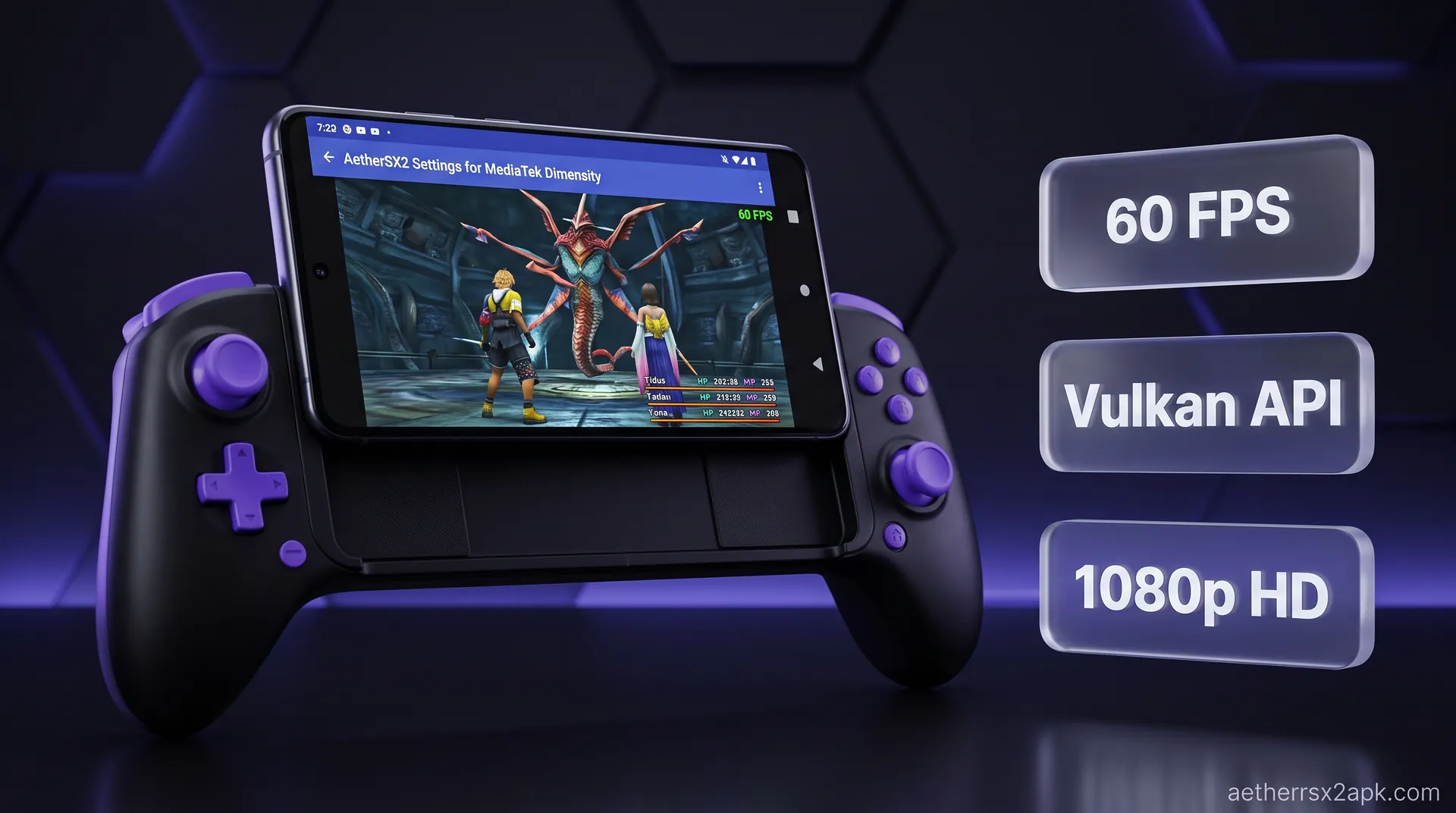
aethersx2 mediatek dimensity
AetherSX2 Settings for MediaTek Dimensity
By HBKPublished Last updated
Tested on: Redmi Note 12 Pro (Dimensity 1080, Mali-G68), Android 13, AetherSX2 v1.5-4248
Quick summary
Dimensity AetherSX2 settings start on OpenGL more often than Snapdragon guides admit. Mali Vulkan drivers cause missing textures and black screens; flagship 9200-class chips can stay on Vulkan if a title is clean.
- Renderer: OpenGL first on mid-range Mali; retry Vulkan per CRC
- Resolution: 1x–2x; 3x is rare off 9200 / 9300
- EE: 100% for RPGs; −1 only for *GoW* / *Colossus*
- Do not: copy an 8 Gen 3 4x profile onto a Dimensity 1080
If you are diving into the world of Android PS2 emulation with a smartphone powered by a MediaTek Dimensity chipset, you have likely encountered a mixed bag of impressive raw CPU performance and frustrating Mali GPU graphical glitches. While Qualcomm Snapdragon processors with their Adreno GPUs have traditionally been the gold standard for emulation, modern MediaTek Dimensity chips are incredibly powerful. However, unlocking their full potential in AetherSX2 requires specialized knowledge and specific configurations. In this comprehensive guide, we will break down the exact aethersx2 mediatek settings you need to fix Mali GPU issues, maximize framerates, and enjoy seamless PS2 emulation on your Dimensity-powered device.
On this page ▾
When discussing PS2 emulation on Android, it is impossible to ignore the elephant in the room: the GPU architecture. MediaTek processors, including the highly capable Dimensity lineup, utilize ARM’s Mali GPUs. Unlike the Adreno GPUs found in Snapdragon chips, Mali GPUs have historically struggled with specific driver limitations, particularly when translating the complex architecture of the PlayStation 2's Graphics Synthesizer (GS).
The Mali Vulkan Driver Conundrum
Vulkan is a modern, low-overhead graphical API designed to provide high-efficiency hardware control, which is exactly what an emulator like AetherSX2 needs. In theory, Vulkan should always deliver superior performance over older APIs like OpenGL. However, the Vulkan drivers supplied with many Mali GPUs suffer from various bugs and implementation quirks. When AetherSX2 attempts to utilize hardware rendering via the Vulkan backend on a Mali GPU, these driver bugs often manifest as severe graphical glitches: think missing textures, polygon spikes, black screens, or heavily distorted lighting.
Because the final build of AetherSX2 (v1.5-4248) was compiled before many of these Mali Vulkan drivers received critical updates from device manufacturers, the emulator cannot always rely on the Vulkan backend to render games accurately on Dimensity chips. While the community-developed NetherSX2 fork attempts to streamline performance, the underlying hardware driver limitations remain largely the same.
Why OpenGL is Sometimes Required
Due to the aforementioned Vulkan driver bugs, many AetherSX2 users on MediaTek devices find themselves forced to switch to the OpenGL renderer. OpenGL is an older, more established API. While it generally requires more CPU overhead and might not offer the same peak framerates as Vulkan, its drivers on Mali GPUs are significantly more stable and accurate. For games that exhibit game-breaking visual bugs under Vulkan, OpenGL serves as the reliable fallback that ensures the game is actually playable, albeit sometimes at the cost of a few frames per second.
Understanding this dynamic is the key to mastering download hub for a clean Mediatek-ready install. You cannot simply set the emulator to Vulkan and forget it; you must be prepared to toggle between Vulkan and OpenGL on a per-game basis, depending on whether speed or graphical accuracy is the priority for that specific title.
Recommended Renderer Settings for Dimensity Chips
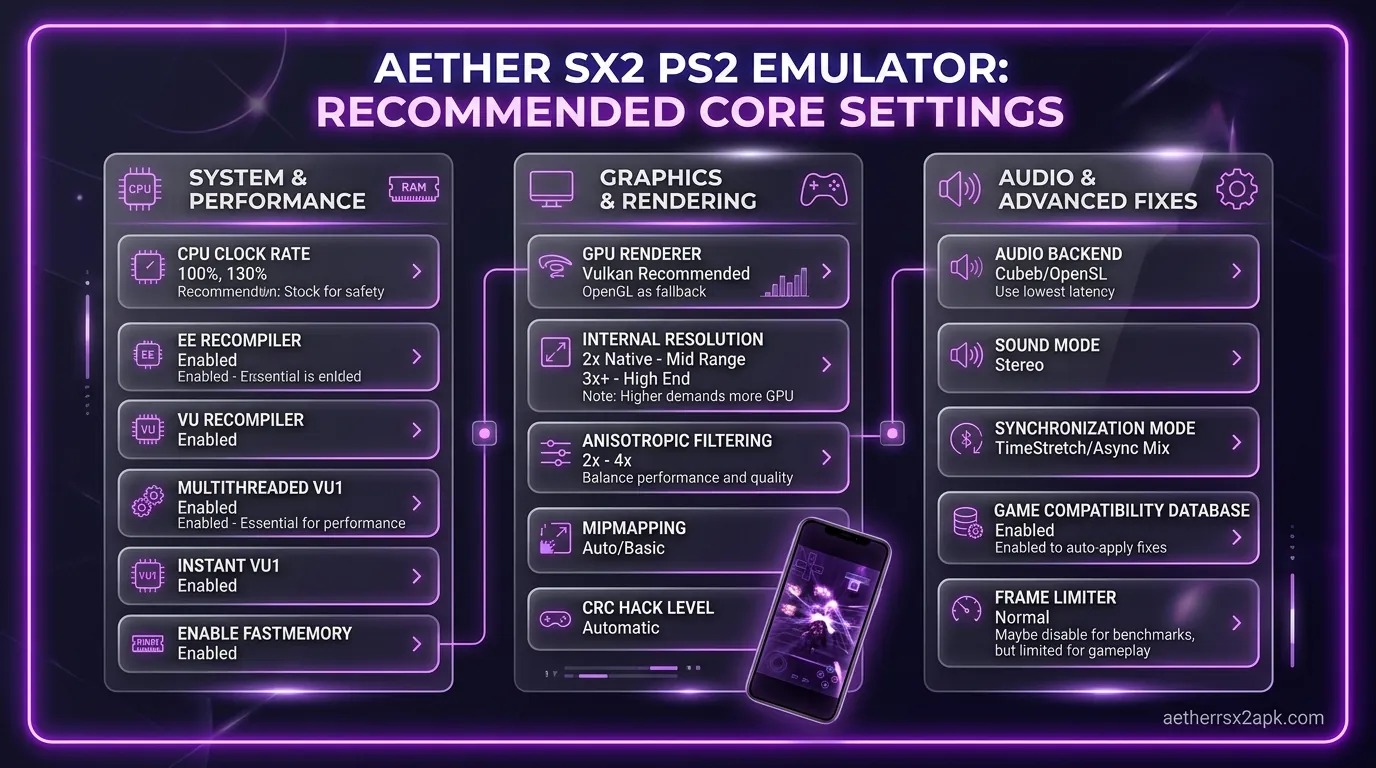
To get the absolute best out of your Dimensity processor, you need to configure your GPU settings meticulously. The following settings are specifically tailored to navigate the quirks of the Mali GPU architecture.
GPU Renderer: The Great Divide
As established, your choice of GPU renderer is the most critical decision.
- Vulkan: Start every new game with the Vulkan renderer. For many lighter titles or games that don't rely heavily on specific GS effects, Vulkan will provide the best performance and allow you to upscale the internal resolution higher than OpenGL. If the game runs well and looks correct, leave it on Vulkan. For a deeper dive into the technical differences, check out our aethersx2 vulkan vs opengl comparison.
- OpenGL: If you boot a game using Vulkan and immediately notice missing character models, pitch-black environments, or bizarre geometric explosions, switch to OpenGL. This will instantly fix about 90% of Mali-specific visual bugs.
Upscale Multiplier (Internal Resolution)
The Dimensity series boasts significant raw power, but pushing the resolution too high can quickly bottleneck the Mali GPU.
- Dimensity 7000/8000 series: Stick to 2x (720p) or 2.5x resolution. Some lighter games can handle 3x (1080p), but 2x is the sweet spot for stable 60 FPS.
- Dimensity 9000/9200 series: These flagship chips can comfortably push 3x (1080p) and often 4x (1440p) on most titles. However, if you are forced to use OpenGL due to graphical glitches, you may need to drop the resolution by one notch (e.g., from 3x to 2x) to maintain a steady framerate, as OpenGL is more demanding on the CPU.
Texture Preloading
Mali GPUs sometimes struggle with the rapid texture swapping required by PS2 games, leading to micro-stutters or texture pop-in.
- Texture Preloading: Set this to Full (Hash Cache). This setting forces the emulator to load textures into the GPU memory more aggressively, significantly reducing stuttering as you traverse through game worlds. Since modern Dimensity phones typically come with ample RAM (8GB+), dedicating memory to texture caching is highly recommended.
Hardware Download Mode
This setting dictates how the emulator handles the transfer of data from the emulated GPU back to the CPU: a process known to cause massive slowdowns on Mali GPUs.
- Hardware Download Mode: Set this to Accurate or Unsynchronized. "Accurate" provides the best visual fidelity but can cause slowdowns. If you experience severe lag when particular effects (like motion blur or heat haze) appear on screen, switch this to "Unsynchronized." This essentially skips the synchronization step, providing a massive speed boost on MediaTek chips, though it might occasionally cause minor visual artifacts in certain post-processing effects.
Threaded Presentation
- Threaded Presentation: Enable this. It offloads the final image presentation to a separate CPU thread, freeing up the main emulation threads and slightly improving overall frame pacing on multi-core Dimensity processors.
System & Speed Hack Tweaks for Dimensity Processors
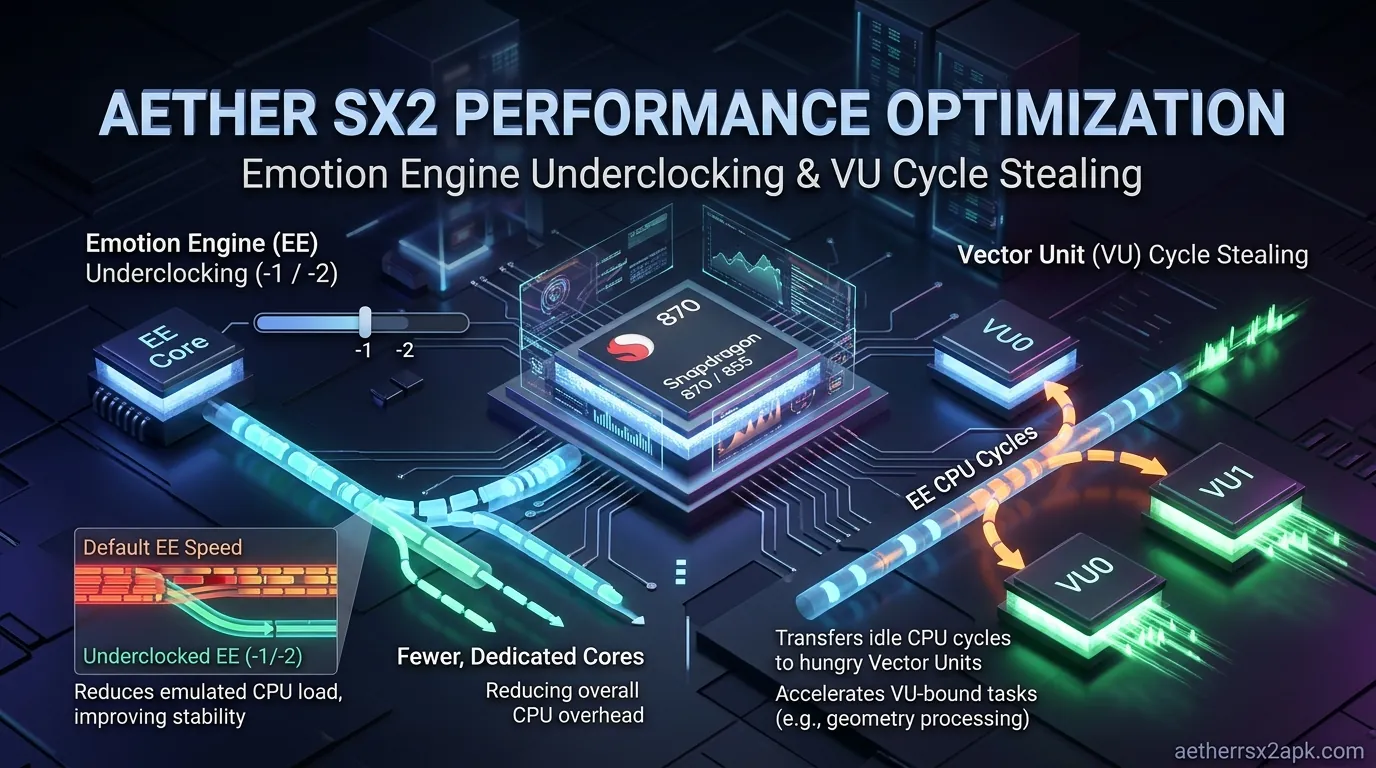
While the GPU handles the rendering, the CPU must emulate the incredibly complex Emotion Engine (EE) and Vector Units (VU) of the PS2. Dimensity processors excel in multi-core performance, making them prime candidates for AetherSX2's system tweaks.
Multi-Threaded VU1 (MTVU)
The PlayStation 2 utilized a unique processor architecture featuring multiple co-processors, notably the Vector Units. Emulating these sequentially on a single mobile CPU core is a monumental task.
- Enable Multi-Threaded VU1 (MTVU): This is absolutely essential for Dimensity chips. It forces the emulator to calculate VU1 operations on a separate CPU core. Given that even mid-range Dimensity chips are octa-core processors, enabling MTVU leverages this multi-core design, resulting in a dramatic performance increase across nearly all 3D games. Never turn this off unless a specific game (which is rare) explicitly breaks when it's enabled.
EE Cycle Rate (Underclocking)
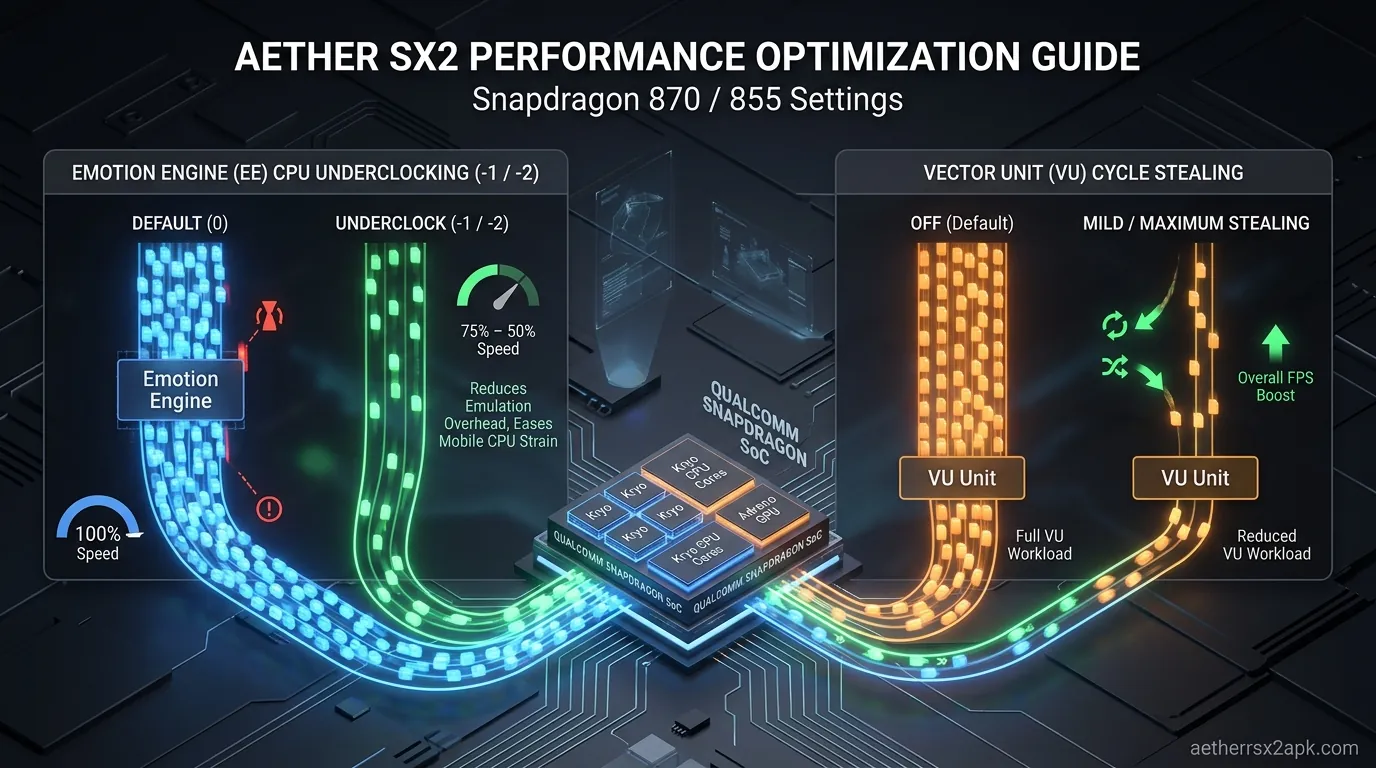
The Emotion Engine Cycle Rate setting allows you to artificially slow down the emulated PS2 CPU. This might sound counterintuitive: why would you want to slow down the console? The answer lies in the concept of workload balance. If the emulated PS2 CPU is running at 100% speed, it might demand more processing power than your mobile CPU can provide, resulting in emulator slowdown (the whole game runs in slow motion). By underclocking the EE, you tell the game that the PS2 CPU is slower, causing the game's internal framerate to drop (e.g., from 60 FPS to 30 FPS, or causing internal lag), but allowing the emulator itself to run at full speed.
- EE Cycle Rate: Leave it at 100% (Normal) by default. If a game is lagging heavily and you are sure your GPU isn't the bottleneck (e.g., it still lags at 1x resolution), try dropping this to 75% (-1) or 50% (-2). This is a vital aethersx2 speed hack for incredibly demanding games like Shadow of the Colossus or God of War II, allowing them to run smoothly on mid-range Dimensity devices.
EE Cycle Skip (Underclocking)
This is a more aggressive form of underclocking that physically skips EE cycles.
- EE Cycle Skip: Keep this at 0 (Normal). Only use 1 (Mild Underclock) as a last resort if EE Cycle Rate tweaks aren't enough. Using cycle skipping often introduces severe audio stuttering and game logic bugs, making it a less desirable option than simple rate adjustment.
Affinity Control
AetherSX2 allows you to dictate how the emulator assigns tasks to your CPU's cores. Modern Dimensity chips utilize a big.LITTLE architecture, meaning they have a mix of high-performance "prime" cores and lower-power "efficiency" cores.
- Affinity Control: Set this to Performance. This instructs the operating system to prioritize running the emulator's most demanding threads (the EE and VU emulation) on the high-performance cores of your Dimensity chip, rather than accidentally offloading them to efficiency cores, which would cause sudden performance drops.
Fixing Graphics Glitches on MediaTek
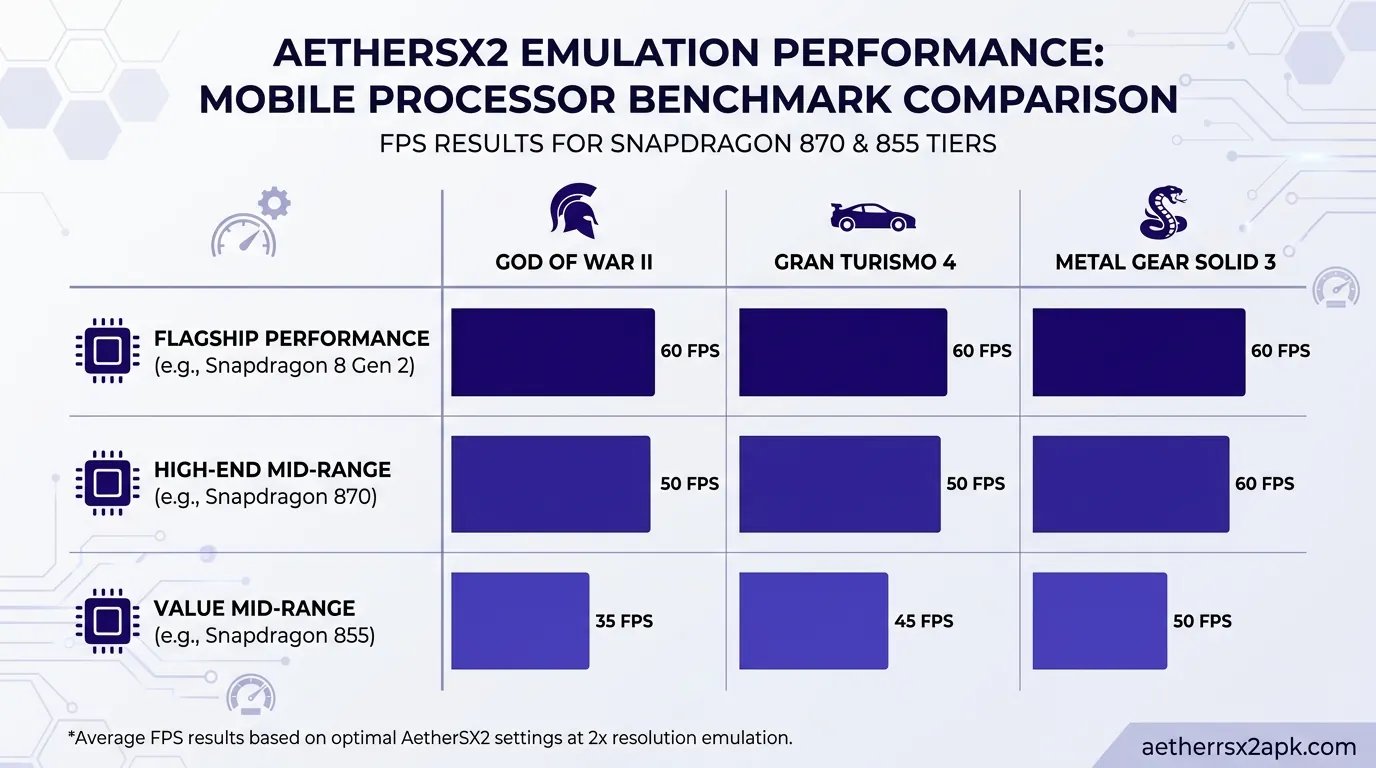
Even with the best settings, you will inevitably encounter visual anomalies due to the Mali GPU. Here are specific fixes for the most common issues you will face when tweaking your dimensity 1200 aethersx2 or similar setups.
The "Black Textures" or "Missing Polygons" Bug
This is the most infamous Mali Vulkan bug. You boot a game, and the environment is entirely black, characters are missing their heads, or the screen is covered in geometric spikes.
- The Fix: As mentioned earlier, immediately switch your GPU Renderer from Vulkan to OpenGL. If the game runs too slowly on OpenGL, you must compromise: lower your Upscale Multiplier to 1x or 2x, or enable aggressive EE Underclocking to compensate for the higher CPU overhead of the OpenGL API. Unfortunately, until Mali driver updates miraculously fix the Vulkan implementation on older devices, OpenGL is your only reliable solution for these severe bugs.
Blurry Output or "Ghosting" Effects
Many PS2 games utilized a technique called field rendering or interlacing, which looks terrible on modern progressive-scan smartphone displays, resulting in a blurry, shaky, or "ghosting" image.
- The Fix: Navigate to the Graphics settings and locate Deinterlacing. Set this to Automatic or Bob. If the image still looks strange, experiment with Blend bff or Blend tff. Furthermore, some games have built-in post-processing filters that cause blurring. You can often disable these by using specific game patch codes or by enabling the Skip Draw setting in the Advanced settings (start by setting Skip Draw to 1 and slowly increase it until the blur disappears, but be careful as this can also remove intended UI elements).
Buffer Overflow and Screen Garbage
Sometimes, the bottom or sides of the screen will display random, flickering colored pixels or distorted textures. This is often related to how the emulator handles the PS2's display buffer.
- The Fix: Go to Advanced Settings and look for options related to Half-Pixel Offset and Align Sprite. Toggling Half-Pixel Offset to Normal (Vertex) or Special (Texture) can often correct misaligned textures and remove screen garbage on the edges of the display. Additionally, enabling Align Sprite can fix vertical black lines that sometimes appear on 2D UI elements or character portraits.
Extreme Slowdown During Particle Effects
If a game runs perfectly at 60 FPS until an explosion occurs, smoke fills the screen, or you enter a heavily fogged area, you are experiencing fill-rate bottlenecking: a common weakness of mobile GPUs when rendering numerous transparent textures overlapping each other.
- The Fix: If you are using Vulkan, ensure Hardware Download Mode is set to Unsynchronized. If that fails, or if you are on OpenGL, your only recourse is to reduce the Upscale Multiplier. Lowering the internal resolution drastically reduces the fill-rate requirements, allowing the Mali GPU to handle the particle effects without bogging down. If the issue persists, check our comprehensive aethersx2 troubleshooting guide for more obscure game-specific fixes.
Dimensity Series Performance Breakdown
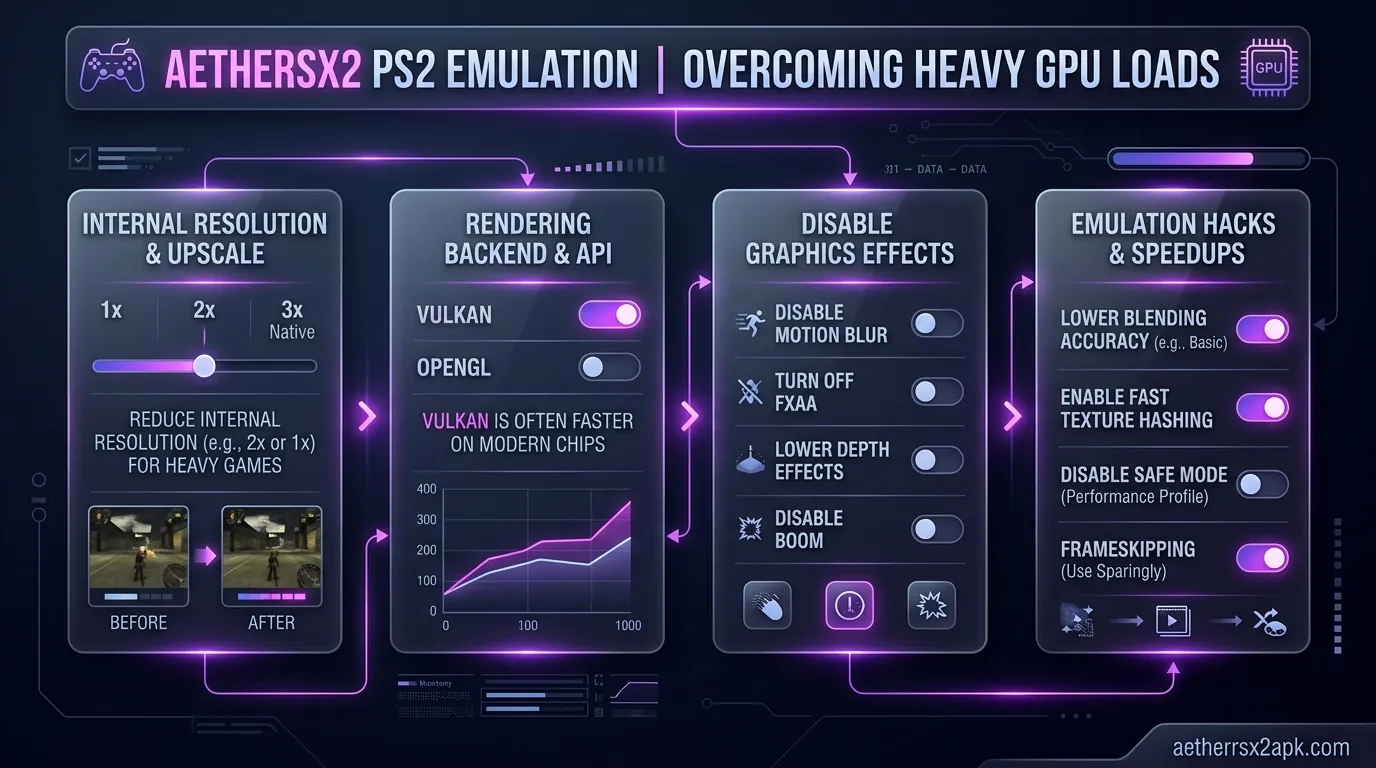
Not all MediaTek chips are created equal. The Dimensity lineup spans from budget-friendly options to absolute powerhouse flagship processors. Here is what you can expect from different tiers regarding AetherSX2 performance.
Flagship Tier: Dimensity 9200, 9200+, 9000, 9000+
These are the heavy hitters. Equipped with the latest ARM Cortex-X prime cores and immensely powerful Mali-G710 or G715 Immortalis GPUs, these chips can brute-force their way through almost the entire PS2 library.
- Expected Performance: Flawless 60 FPS on 95% of the PS2 library.
- Resolution: You can comfortably play most games at 3x (1080p) or 4x (1440p) resolution.
- Mali Caveats: While powerful, they are still Mali GPUs. You will still encounter Vulkan driver bugs in specific games (like Ratchet & Clank or Jak and Daxter), requiring a switch to OpenGL. However, because the CPUs in these chips are so strong, they can handle the increased overhead of OpenGL without dropping below full speed.
High-End Tier: Dimensity 8200, 8100, 1200, 1100
This is arguably the most popular tier for mobile gamers, offering incredible price-to-performance ratios. The Dimensity 8100, in particular, is legendary for its sustained performance and thermal efficiency.
- Expected Performance: Excellent 60 FPS on the vast majority of games.
- Resolution: The sweet spot is 2x (720p) to 2.5x resolution. Some lighter titles can push 3x.
- Mali Caveats: You will need to actively manage your renderer. While Vulkan is preferred for speed, switching to OpenGL for bugged games might require you to implement mild EE Underclocking (setting Cycle Rate to 75%) or dropping the resolution back to native 1x to maintain a smooth 60 FPS in heavy titles like Gran Turismo 4. The dimensity 1200 aethersx2 experience is fantastic, provided you are willing to tinker with the settings.
Mid-Range Tier: Dimensity 7050, 1080, 920, 900
These chips are common in budget-friendly smartphones. They feature capable CPUs but significantly weaker GPUs compared to the higher tiers.
- Expected Performance: Good performance on most games, but heavy titles will struggle.
- Resolution: Stick strictly to 1x (Native) or 1.5x resolution. Pushing to 2x will often cause unacceptable lag.
- Mali Caveats: You must utilize every trick in the book. MTVU must be enabled. You will likely rely heavily on Vulkan for speed, but when forced to use OpenGL to fix graphical bugs, you will almost certainly have to use EE Underclocking (Cycle Rate 50% or 75%) to keep the game playable. Some exceptionally demanding games might simply be too much for these GPUs to handle smoothly at full speed.
Entry-Level Tier: Dimensity 700, 720, 6080
These chips are designed for basic smartphone functionality, not heavy emulation.
- Expected Performance: Playable on lighter 2D or early 3D PS2 games. Heavy games will run in slow motion.
- Resolution: 1x (Native PS2 resolution) only. Do not attempt to upscale.
- Mali Caveats: Expect to use aggressive EE Underclocking and Cycle Skipping on nearly every 3D title. You will be fighting a constant battle between speed and accuracy. While it is possible to play games like Final Fantasy X or Persona 4 smoothly, action-heavy titles will require significant compromises.
Mali Vulkan bugs are driver-side. Cross-check GS issues on the PCSX2 wiki and PCSX2 issues. Android Mali threads: r/EmulationOnAndroid.
Frequently Asked Questions
Q: Why does my Dimensity phone run AetherSX2 worse than an older Snapdragon phone? A: This usually comes down to GPU drivers. Snapdragon Adreno GPUs have highly optimized Vulkan and OpenGL drivers that translate PS2 graphical calls very efficiently. MediaTek's Mali GPUs often suffer from unoptimized drivers that cause graphical bugs or excessive overhead, forcing the emulator to work harder to achieve the same results, even if the MediaTek chip has superior raw CPU benchmark scores.
Q: Should I use AetherSX2 or NetherSX2 on a MediaTek device? A: NetherSX2 is highly recommended. It is a community modification of the final AetherSX2 build that removes advertisements, patches out some artificial limitations introduced in the final official releases, and often includes slight performance optimizations. However, the core emulation engine is identical, so the fundamental Mali GPU limitations and required settings tweaks remain exactly the same across both versions.
Q: Will updating my phone's software fix the Mali GPU bugs in AetherSX2? A: It is possible, but unlikely. AetherSX2 development is halted, meaning the emulator will not be updated to accommodate new GPU drivers. While a major Android OS update might include updated Mali drivers from ARM that coincidentally fix a specific Vulkan bug, you cannot rely on it. Your best approach is to learn how to toggle between Vulkan and OpenGL as needed.
Q: Is it safe to use EE Underclocking? Will it damage my phone? A: Yes, it is perfectly safe. EE Underclocking does not physically underclock your phone's hardware CPU. It simply instructs the emulator to simulate a slower PlayStation 2 processor. This actually reduces the workload on your phone's processor, leading to lower temperatures and better battery life.
Q: Why do some games look blurry even when I increase the Upscale Multiplier? A: This is usually due to the game's internal post-processing effects or interlacing methods, not the emulator's resolution settings. Try changing the Deinterlacing setting to 'Automatic' or 'Bob', or look for specific game patch codes (.pnach files) that disable depth-of-field or blur filters for that specific game.
Q: Can I play games from a micro SD card on my Dimensity phone? A: Yes, AetherSX2 supports loading ISOs directly from a micro SD card. However, be aware that loading times might be slightly longer compared to running the games from your phone's fast internal UFS storage. Furthermore, heavily compressed formats like CSO or CHD might cause minor stuttering when streamed from a slow SD card, as the CPU has to decompress the data on the fly. We recommend sticking to uncompressed ISOs or the highly efficient CHD format and keeping your most frequently played games on your internal storage.
By understanding the unique relationship between AetherSX2 and MediaTek's Mali GPUs, you can transform your Dimensity-powered smartphone into a formidable portable PS2 console. While it requires a bit more tinkering than a Snapdragon device, the raw power of chips like the Dimensity 8100 or 9200 ensures that with the right settings, the nostalgia of the PlayStation 2 is always right in your pocket. Remember to experiment with Vulkan and OpenGL, utilize MTVU, and don't be afraid to underclock the Emotion Engine when necessary. Happy emulating!