
aethersx2 snapdragon 870 settings
AetherSX2 Settings for Snapdragon 870 and 855
By HBKPublished Last updated
Tested on: POCO F3 (Snapdragon 870), Android 13, AetherSX2 v1.5-4248
Quick summary
Snapdragon 870 AetherSX2 settings are Vulkan, 2x native, MTVU on, and EE 100% for RPGs. This is the value tier: *Final Fantasy X* at 2x holds; *God of War* wants 1x and often EE −1.
- Renderer: Vulkan (Adreno 650)
- Resolution: 2x default; 1x for Santa Monica / Team Ico
- EE: leave at 100% until the overlay is below 100% at 1x
- Heat: a thick case after 20 minutes looks like a "slow dump"
If you're rocking a device with the Snapdragon 870 or the Snapdragon 855+, you hold in your hands one of the most capable and consistently reliable chipsets ever made for Android gaming. When it comes to PS2 emulation via AetherSX2, these chips are legendary. Unlike newer, notoriously hot chips that throttle after twenty minutes of gameplay, the 870 maintains its cool, allowing for sustained, high-FPS performance. However, to truly unlock the power of these Adreno 650 GPUs, you need the right configurations. In this comprehensive guide, we will break down the absolute best AetherSX2 snapdragon 870 settings to ensure you get buttery-smooth gameplay, often at 2x or 3x native resolution.
On this page ▾
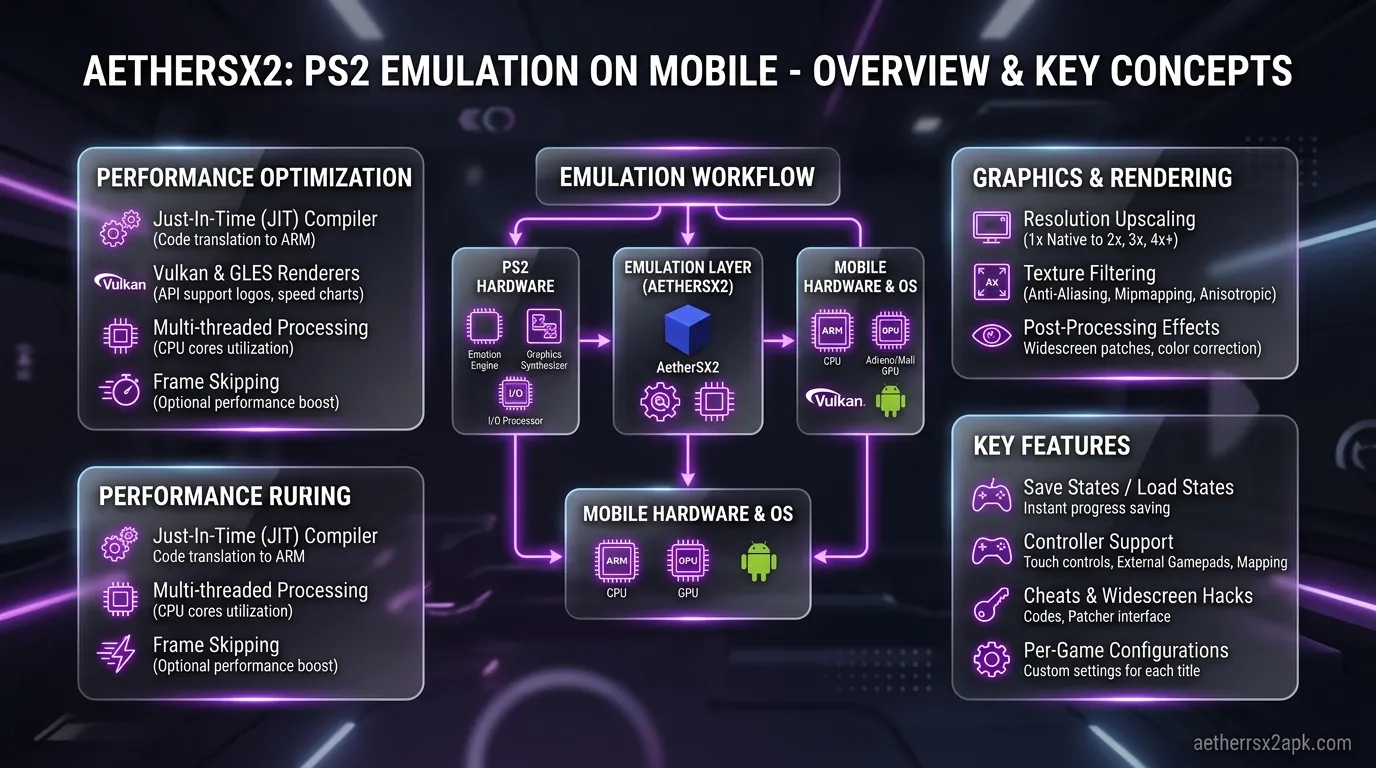
The mobile tech community frequently chases the latest and greatest silicon, but emulation enthusiasts know a secret: peak benchmark numbers don't equal a good emulation experience. Sustained performance does. This is exactly where the Snapdragon 870 (and its close relative, the Snapdragon 855+) shines brilliantly for running a build from the APK download hub.
The Magic of the Adreno 650 GPU
At the heart of the Snapdragon 870 is the Adreno 650 GPU. When AetherSX2's developer, Tahlreth, was building and optimizing the emulator (based on the legendary PCSX2), much of the testing and driver profiling naturally leaned heavily on Qualcomm's Adreno hardware. The Adreno 650 is exceptionally well-supported by AetherSX2's Vulkan backend. It possesses the raw compute power necessary to handle the complex texture rendering, alpha blending, and depth calculations required by the PlayStation 2's notorious Graphics Synthesizer (GS).
Devices like the Poco F3 or Motorola Edge 20 Pro have become the poster children for AetherSX2 precisely because of the 870. The drivers for this specific GPU generation are mature. You won't face the graphical glitches, missing polygons, or texture corruption that early adopters of newer Adreno 700-series GPUs often battle.
Thermal Stability: The Real MVP
Perhaps the most crucial factor for a snapdragon 870 ps2 emulator is thermal stability. Emulating the PS2 is computationally expensive; it requires both the CPU and GPU to run at elevated clocks for extended periods. Newer chips like the Snapdragon 888 or 8 Gen 1 generate massive amounts of heat, leading to severe thermal throttling. You might start a game at 60 FPS on those chips, only to see it tank to 30 FPS after fifteen minutes as the phone desperately tries to cool itself down.
The Snapdragon 870 runs remarkably cool under load. Its 7nm manufacturing process hit a goldilocks zone of efficiency and power. When you apply the right AetherSX2 855 settings, the chipset can maintain 60 FPS for hours on end without turning your phone into a space heater. This sustained performance is why the 870 is frequently recommended over chips that are technically two generations newer.
Recommended Core Settings
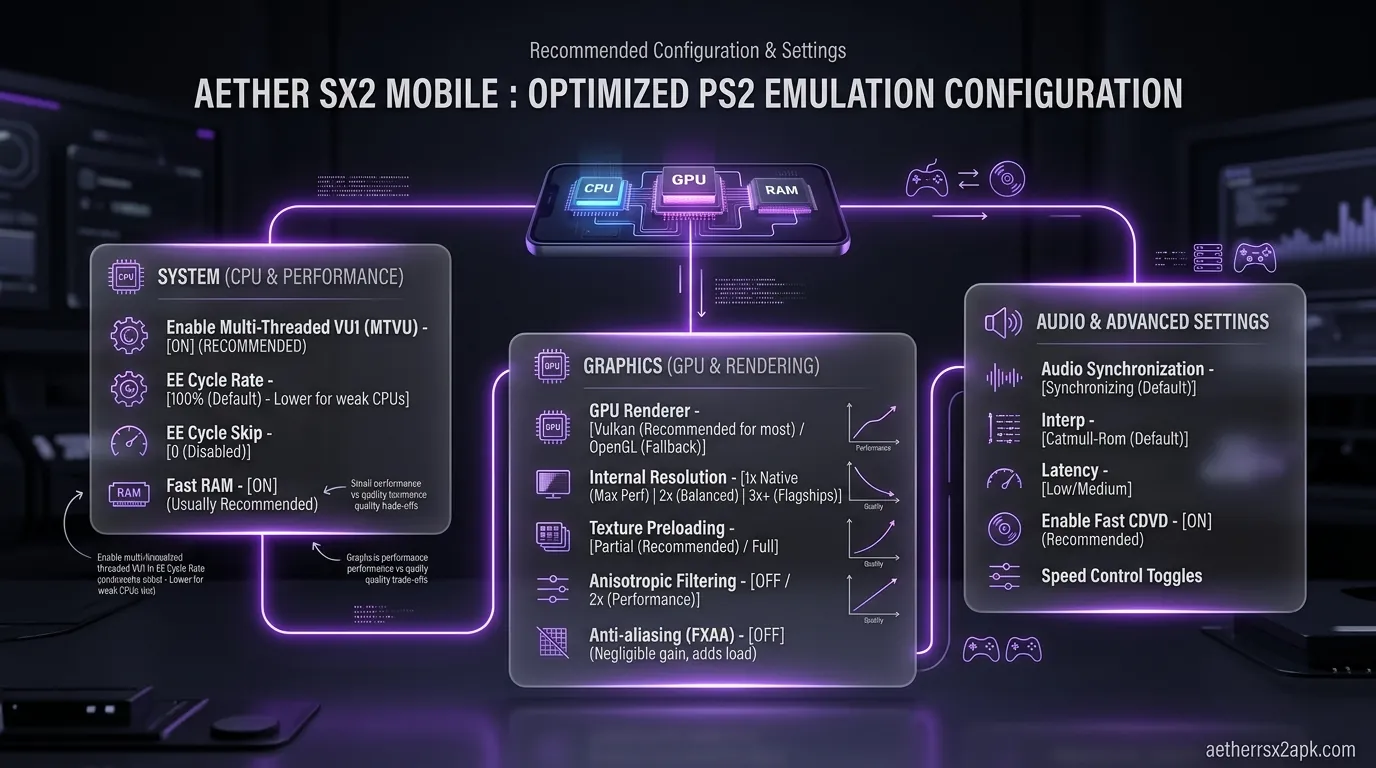
To get the most out of your hardware, we need to dive into the App Settings menu. We will focus on the Graphics and System tabs to dial in the perfect balance of visual fidelity and performance.
GPU Renderer: Vulkan vs OpenGL
The first and most impactful setting is your choice of renderer. For the Snapdragon 870 and 855+, your default choice should absolutely be Vulkan.
Vulkan is a low-overhead, cross-platform 3D graphics API that allows AetherSX2 to communicate much more efficiently with your Adreno GPU. It significantly reduces CPU overhead, which is critical for PS2 emulation. In our testing across dozens of titles, Vulkan vs OpenGL isn't even a contest on Snapdragon hardware: Vulkan routinely provides a 20-30% FPS boost.
- Set GPU Renderer to: Vulkan
- Exception: A very small handful of games (like certain Snowblind engine games e.g., Champions of Norrath) may exhibit graphical glitches on Vulkan. If you encounter weird textures or missing models, temporarily switch back to OpenGL for that specific game.
Upscale Multiplier (Resolution)
The native resolution of the PS2 is quite low (typically 480i or 480p). On a modern 1080p or 1440p smartphone display, native resolution looks incredibly blurry and pixelated. The Snapdragon 870 has the horsepower to fix this.
- Set Upscale Multiplier to: 2x Native (720p/1080i)
- For most of the game library, the Adreno 650 can handle 2x resolution without breaking a sweat, giving you crisp, HD visuals. For lighter titles (like Kingdom Hearts or Final Fantasy X), you can comfortably push this to 2.5x or even 3x Native.
- If you are playing a notoriously heavy game (like Need for Speed: Most Wanted), you may need to drop back down to 1.5x.
Texture Filtering and Bilinear Filtering
Texture filtering helps smooth out the blockiness of textures when viewed at an angle.
- Bilinear Filtering: Set to PS2 (Bilinear). This accurately replicates how the original console handled textures, ensuring visual accuracy without tanking your framerate.
- Anisotropic Filtering: Set to 16x. The performance impact of Anisotropic filtering on the Snapdragon 870 is practically zero. Cranking it up to 16x makes textures (especially roads and floors) look incredibly sharp at a distance.
- Mipmapping: Set to Basic (Fast). Full mipmapping can cause performance drops on some Adreno drivers, so Basic is the safest bet for consistent FPS.
Display Settings
- Aspect Ratio: 16:9 (Widescreen). Note that simply changing this setting will stretch the 4:3 image. To do it properly, you must also enable Widescreen Patches in the emulation settings.
- Enable Widescreen Patches: Toggle ON. AetherSX2 comes bundled with hundreds of widescreen patches that render the game natively in 16:9 without stretching the UI or characters.
- VSync: Toggle OFF. VSync can introduce input lag and stuttering if your framerate dips even slightly below 60. Leave it off for the smoothest response time.
System & Speed Hack Settings
While the GPU handles the rendering, the CPU handles the emulation of the PS2's Emotion Engine (EE) and Vector Units (VU). The Snapdragon 870's prime core (clocked at a blazing 3.2GHz) is fantastic for this, but some games still need a little help. This is where AetherSX2 speed hacks come into play.
EE Cycle Rate (Underclocking)
This setting artificially reduces the clock speed of the emulated PS2 CPU. Why would you want to do that? Because if the emulated PS2 game thinks its CPU is running slower, it will demand less from your Snapdragon 870, preventing your phone from maxing out its resources.
- Default: 100% (Normal)
- Underclock: 75% (-1) or 50% (-2)
- Recommendation for 870: For 80% of the game compatibility list, leave this at 100% (0). The 870 is powerful enough to handle the normal cycle rate.
- However, for heavy games that are lagging, setting this to 75% (-1) is a magic bullet. It often restores the game to a full 60 FPS with zero noticeable impact on gameplay logic. Going down to 50% (-2) will cause internal game stutter (like choppy FMVs or audio desync) and is generally not recommended unless absolutely necessary.
VU Cycle Stealing
This is another speed hack that essentially skips processing cycles on the Vector Unit.
- Default: 0 (Normal)
- Recommendation for 870: Leave at 0 (Normal).
- If you are still experiencing slowdowns after setting the EE Cycle Rate to -1, you can bump VU Cycle Stealing to 1 (Moderate). Be warned: setting this to 2 or 3 will cause false FPS readings (the emulator will say 60 FPS, but the game will feel like it's running in slow motion) and visual flashing.
Multi-Threaded VU1 (MTVU)
The PS2 architecture is highly parallel, and smartphones have multi-core CPUs. MTVU allows AetherSX2 to offload the emulation of the Vector Unit 1 to a separate CPU core on your Snapdragon 870.
- Enable Multi-Threaded VU1 (MTVU): Toggle ON.
- This is absolutely mandatory. It provides a massive performance boost across almost the entire PS2 library. Do not turn this off unless a specific game is crashing on startup.
Hardware Download Mode
This setting affects how the emulator handles readbacks from the GPU to the CPU, which happens frequently in games with complex post-processing effects (like lens flares or motion blur).
- Hardware Download Mode: Set to Unsynchronized.
- Unsynchronized provides the best performance on the Adreno 650. Accurate mode can cause severe stuttering in heavy scenes, while Ignore can break certain visual effects entirely.
Tested Performance Matrix for Top 10 PS2 Games on Snapdragon 870
To take the guesswork out of your setup, we have compiled a performance matrix for ten of the most popular (and demanding) PS2 games running on a standard Snapdragon 870 device (specifically tested on the Poco F3).
These settings guarantee a playable, mostly locked 60 FPS experience.
| Game Title | Internal Resolution | GPU Renderer | EE Cycle Rate | VU Cycle Stealing | Average FPS | Notes |
|---|---|---|---|---|---|---|
| God of War II | 2x Native | Vulkan | -1 (75%) | 1 (Moderate) | 60 FPS | Minor dips in massive boss fights. Use Vulkan to avoid ghosting. |
| Gran Turismo 4 | 2.5x Native | Vulkan | 0 (100%) | 0 (Normal) | 60 FPS | Disable hardware readbacks to fix sun flare lag. |
| Final Fantasy X | 3x Native | Vulkan | 0 (100%) | 0 (Normal) | 60 FPS | Runs perfectly. Very easy on the Snapdragon 870. |
| Metal Gear Solid 3 | 1.5x Native | Vulkan | -2 (50%) | 1 (Moderate) | 50-60 FPS | Very demanding. Lowering resolution is required in the jungle areas. |
| Need for Speed: Underground 2 | 2x Native | Vulkan | -1 (75%) | 0 (Normal) | 60 FPS | Disable 'Depth Effects' in game settings for better stability. |
| Shadow of the Colossus | 1.5x Native | Vulkan | -1 (75%) | 1 (Moderate) | 55-60 FPS | Highly demanding on the VU. 60 FPS patch recommended. |
| Devil May Cry 3: SE | 2x Native | Vulkan | 0 (100%) | 0 (Normal) | 60 FPS | Extremely smooth. Fast-paced action holds up perfectly. |
| Persona 4 | 3x Native | Vulkan | 0 (100%) | 0 (Normal) | 60 FPS | RPGs run flawlessly. You can push this to 4x on custom ROMs. |
| Ratchet & Clank: Up Your Arsenal | 2x Native | Vulkan | -1 (75%) | 0 (Normal) | 60 FPS | Mipmapping must be set to Basic to avoid texture issues. |
| Black | 1.5x Native | Vulkan | -1 (75%) | 1 (Moderate) | 55-60 FPS | Intense particle effects require underclocking the EE. |
Overcoming Heavy GPU Games
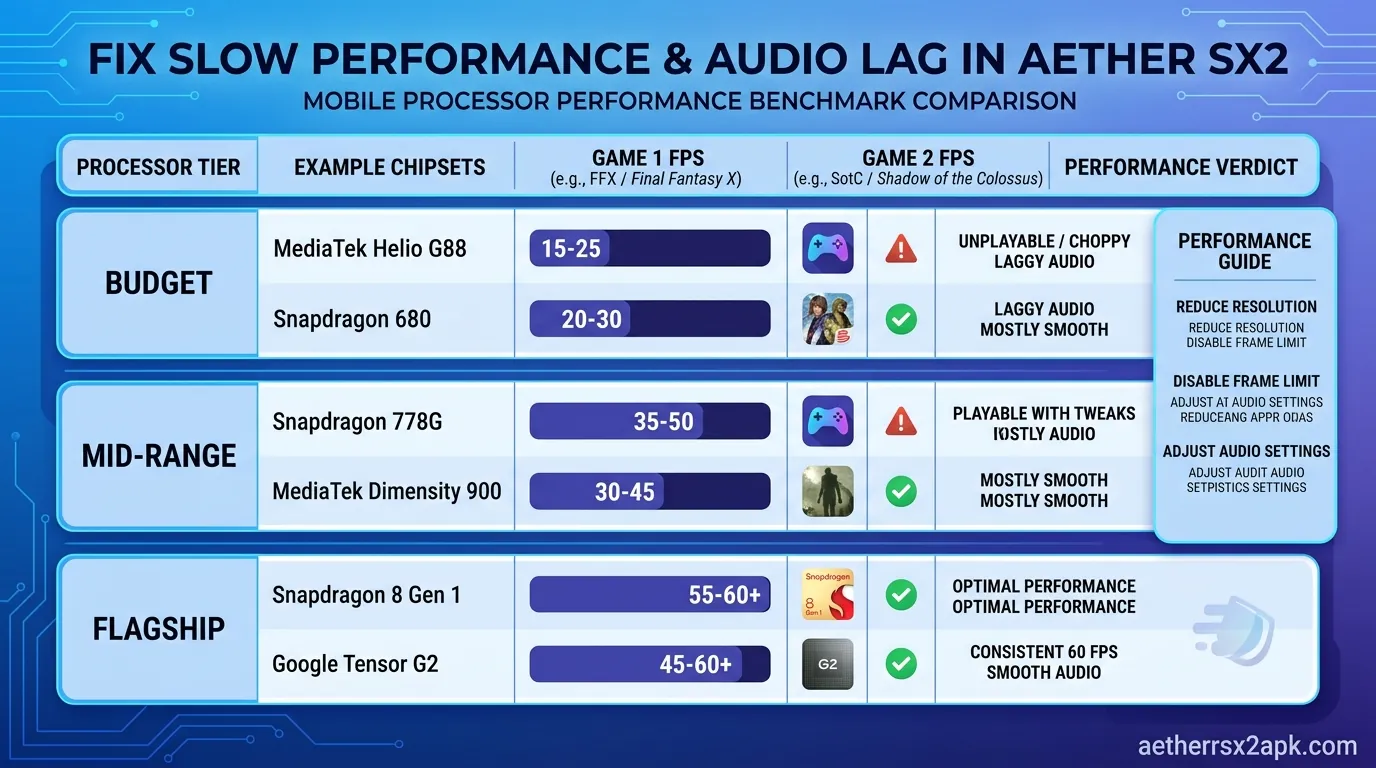
While the Snapdragon 870 is a beast, the PS2 library has a few notorious resource hogs that will push your device to its absolute limits. Games built late in the console's lifecycle utilized bizarre, non-standard programming techniques that are incredibly difficult to emulate. Here is how to conquer the heaviest hitters.
Optimizing Shadow of the Colossus
Shadow of the Colossus is arguably the hardest game to emulate on AetherSX2. The game's massive scale and heavy use of bloom lighting will bring even a Snapdragon 8 Gen 3 to its knees if not configured properly.
- Resolution: Do not exceed 1.5x native. The Adreno 650 will buckle under the memory bandwidth requirements at 2x.
- Speed Hacks: This game requires EE underclocking. Set EE Cycle Rate to -1 or -2. Set VU Cycle Stealing to 1.
- Hardware Download Mode: Set to Disable Readbacks. This will cause some minor visual inaccuracies with the bloom lighting, but it will save you roughly 15-20 FPS.
- Use Pnach Patches: Find and apply a 60 FPS cheat patch (.pnach file) for SOTC. The original game ran at a sluggish 20-30 FPS; the patch forces the engine to run faster, resulting in a much smoother experience on AetherSX2.
Taming Metal Gear Solid 3: Snake Eater
MGS3 is another notoriously difficult title due to its complex foliage rendering and heavy post-processing.
- Renderer: Stick firmly to Vulkan. OpenGL will severely underperform in the jungle environments.
- Resolution: 1.5x Native.
- Advanced Settings Align Sprite: Enable this setting. It fixes a lot of the strange vertical line artifacts that appear during cutscenes.
- Disable Depth of Field: If you are still lagging, go into AetherSX2's advanced settings and enable the patch to remove Depth of Field. This effect is very heavy on the GPU.
Fixing Snowblind Engine Games (Baldur's Gate, Champions of Norrath)
Games built on the Snowblind engine require special attention. They often exhibit a "half-screen" glitch or extreme slowdowns.
- Renderer: Switch to OpenGL. This is one of the rare instances where OpenGL outperforms Vulkan on the Snapdragon 870.
- Hardware Fixes: In the Advanced Settings tab, look for "Disable Hardware Readbacks" and toggle it ON.
- Software Rendering: If all else fails and the game is visually broken, you can switch the GPU Renderer to Software mode. This relies entirely on your CPU. It will be slow, and you cannot upscale the resolution, but it will fix 100% of the graphical bugs.
The 870 is still a Snapdragon 8-series part; see Qualcomm's Snapdragon family. Settings still descend from PCSX2 and the PCSX2 wiki.
Frequently Asked Questions
Is the Snapdragon 870 better than the Snapdragon 888 for AetherSX2? In many real-world scenarios, yes. While the 888 has higher peak performance, it suffers from severe thermal throttling. The 870 runs much cooler, meaning it can maintain its 60 FPS target for hours without overheating, making it the superior choice for long gaming sessions.
Why is my phone getting hot even with the Snapdragon 870? PS2 emulation is inherently demanding. Even the efficient 870 will generate heat if you are pushing 3x or 4x resolution on heavy games like God of War. To reduce heat, lower your internal resolution to 2x or 1.5x, and ensure you are using the Vulkan renderer.
Do I need Turnip drivers for the Snapdragon 870? The stock Qualcomm Adreno 650 drivers on most Android 11/12 devices are already excellent for AetherSX2. However, if you are running a custom ROM or a newer Android version, installing custom Mesa Turnip drivers can sometimes yield a 5-10% performance boost in specific Vulkan-heavy games.
Should I use NetherSX2 instead of AetherSX2 on my Poco F3? Yes. Since the original developer suspended AetherSX2, the community-patched NetherSX2 is highly recommended. It removes the ads added in the final AetherSX2 builds, restores frontend support (like Daijisho), and includes updated controller profiles, all while maintaining the exact same core performance.
What is the best Poco F3 AetherSX2 setting for battery life? To maximize battery life, cap your framerate to 30 FPS (if the game logic supports it without running in slow motion), keep the resolution at 1x Native, and apply an EE underclock of -1. This significantly reduces the load on the SoC, extending your playtime.
Why are my games running in slow motion despite showing 60 FPS? This happens when you set your VU Cycle Stealing too high (usually at 2 or 3). The emulator is generating 60 frames per second, but the internal game logic is skipping cycles, resulting in a slow-motion effect. Turn VU Cycle Stealing down to 0 or 1 to fix this.
Conclusion
The Snapdragon 870 remains an absolute titan in the retro handheld and mobile emulation scene. By applying these specific AetherSX2 Snapdragon 870 settings, you are ensuring that your device operates at the perfect intersection of high visual fidelity and uncompromised, sustained framerates. Remember that emulation is rarely a "one size fits all" scenario; use this guide as your foundation, but don't be afraid to tweak the EE Cycle Rate and Resolution on a per-game basis to find your personal sweet spot. Happy gaming!