
aethersx2 snapdragon 8 gen 3
AetherSX2 Settings for Snapdragon 8 Gen 3
By HBKPublished Last updated
Tested on: Samsung Galaxy S24 Ultra (Snapdragon 8 Gen 3), Android 14, AetherSX2 v1.5-4248
Quick summary
Snapdragon 8 Gen 3 AetherSX2 settings are Vulkan, 3x native on most of the library, MTVU on, and EE at 100%. *God of War* and *Shadow of the Colossus* still heat-throttle at 3x–4x in a case.
- Renderer: Vulkan (Adreno)
- Resolution: 3x for RPGs; 2x for *Colossus*; 1x–2x + EE −1 for *GoW* if it dips
- Thermals: 4x is a short-session hobby, not a two-hour profile
- SKU: US Galaxy S24 Ultra is this chip; EU Exynos S24 is the Mali path
If you are holding a modern flagship smartphone powered by the Snapdragon 8 Gen 3, you possess a pocket-sized powerhouse capable of running nearly the entire PlayStation 2 library flawlessly. The AetherSX2 emulator, developed by Tahlreth based on the renowned PCSX2 core, completely transformed Android emulation. With a Snapdragon 8 Gen 3 device, you no longer have to settle for native resolution or heavily compromised performance hacks. Instead, you can comfortably upscale most games to 3x or 4x resolution (1080p to 1440p equivalent), apply high-quality texture filtering, and enjoy blistering 60 FPS gameplay. In this comprehensive guide, we will explore the absolute best AetherSX2 settings for Snapdragon 8 Gen 3 smartphones, ensuring you extract every ounce of performance out of your device without melting it into slag.
On this page ▾
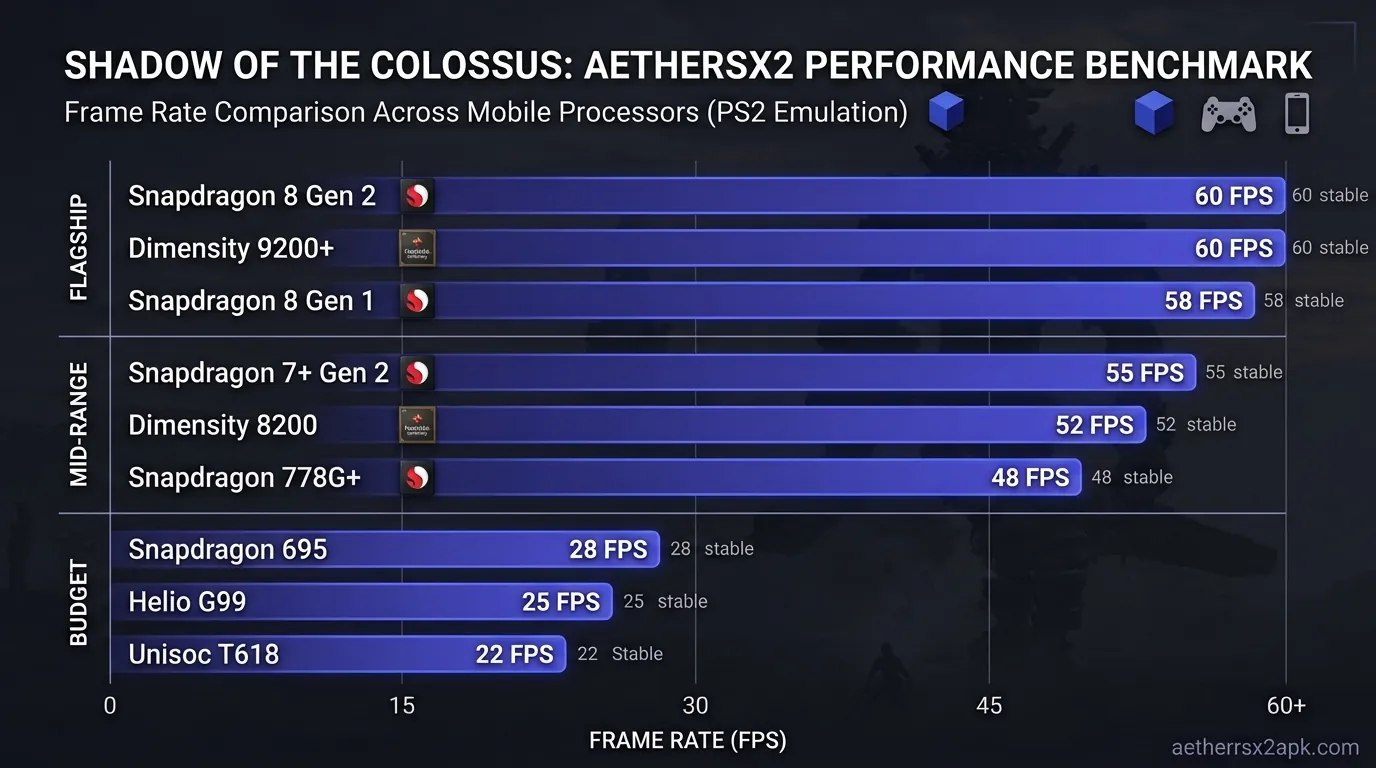
When discussing PS2 emulation on Android, the conversation usually revolves around compromises. However, the Snapdragon 8 Gen 3 flips that narrative completely on its head. Qualcomm's powerhouse SoC (System on Chip) features an architecture that is borderline overkill for sixth-generation console emulation. To understand why your best phones for AetherSX2 list usually features this chip at the top, we need to look at what makes it tick.
The Power of Adreno 750 and Cortex-X4
At the heart of the 8 Gen 3 is the Cortex-X4 prime core, clocked at up to 3.3 GHz. Emulation is heavily reliant on single-core CPU performance, and the Cortex-X4 delivers IPC (Instructions Per Clock) gains that make brute-forcing complex Emotion Engine calculations a breeze.
Complementing the CPU is the Adreno 750 GPU. In the context of AetherSX2, the GPU is primarily responsible for rendering at higher internal resolutions and applying post-processing effects. The Adreno 750 features a massive memory bandwidth improvement and boasts ray-tracing hardware (though the latter isn't utilized by AetherSX2). This overwhelming graphical horsepower means that GPU bottlenecks are essentially non-existent in 95% of the PS2 library, even at extreme resolutions.
Why 3x to 4x Upscaling is the New Normal
On older chipsets like the Snapdragon 870 or even the 8 Gen 1, playing at 2x resolution (720p) was considered the sweet spot for a balance between visual clarity and stable framerates. With the Snapdragon 8 Gen 3, the new baseline is 3x resolution (1080p).
Because the Adreno 750 handles pixel pushing so efficiently, running a game at 3x resolution often uses barely more battery than running it at 1x resolution, assuming the CPU load remains constant. For lighter titles, pushing the upscaler to 4x (1440p) or even 5x is entirely possible, providing a breathtaking, razor-sharp image that looks better than many modern mobile games. If you are starting fresh, we recommend making 3x resolution your default starting point across all titles.
Optimal Renderer & Graphics Settings
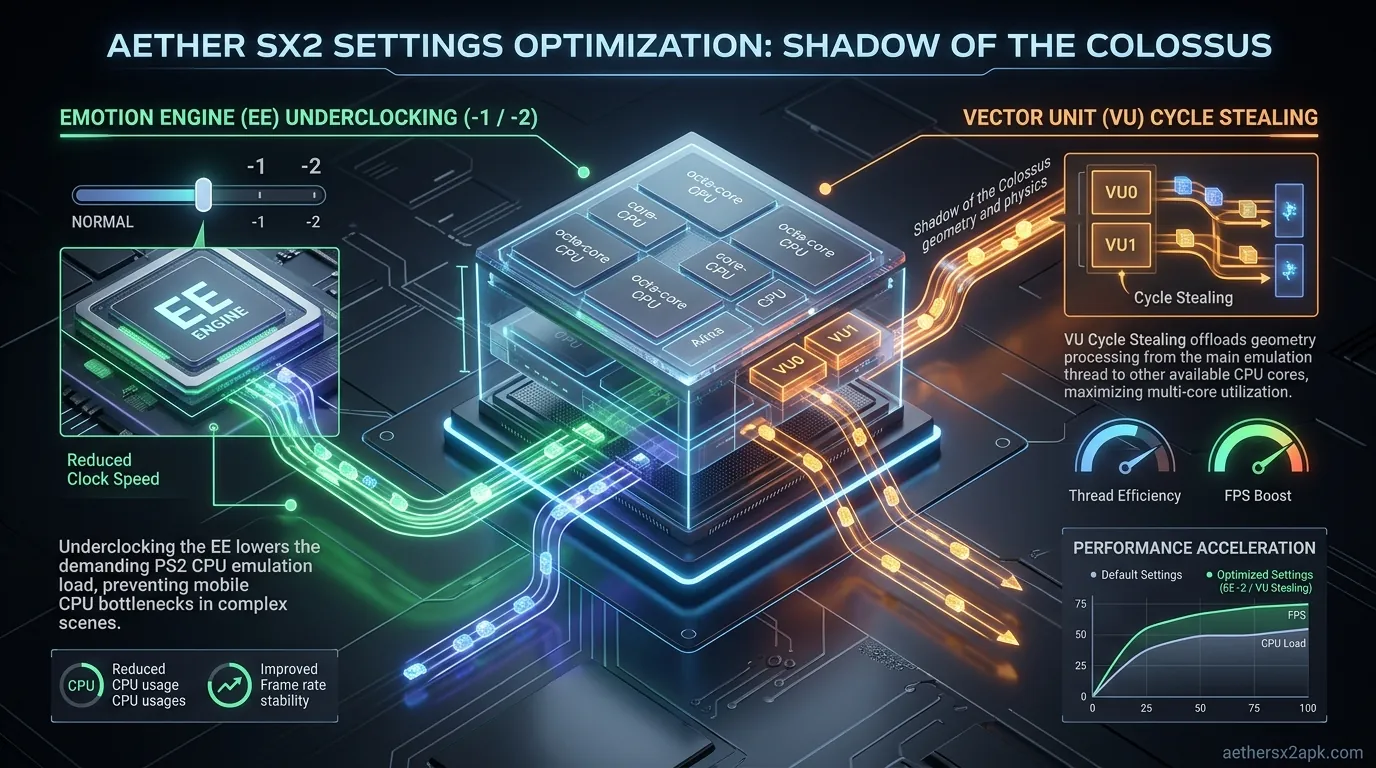
To get the absolute best out of your Snapdragon 8 Gen 3, you need to configure the graphics settings properly. AetherSX2 provides a wealth of options, and while the default settings are safe, they don't take full advantage of your flagship hardware. For a deep dive into all settings, check out our general AetherSX2 best settings guide, but below are the specifics for the 8 Gen 3.
Choosing the Right GPU Renderer
The renderer you choose dictates how AetherSX2 talks to your Adreno 750 GPU.
- Vulkan (Highly Recommended): For Snapdragon devices, Vulkan is the undisputed king. The Adreno drivers have excellent Vulkan support, providing significantly lower CPU overhead compared to OpenGL. This means your Cortex-X4 doesn't have to work as hard to feed instructions to the GPU, leading to cooler temperatures and higher framerates. You should use Vulkan for 99% of your games. For more details on this, read our AetherSX2 Vulkan vs OpenGL breakdown.
- OpenGL: Keep this as a backup. A small handful of games might exhibit graphical glitches or missing textures on Vulkan. If you encounter missing geometry or flashing lights, switch to OpenGL on a per-game basis.
- Software: Never use this unless absolutely necessary for a specific bug, as it relies entirely on the CPU to render graphics, crippling performance even on an 8 Gen 3.
Resolution Upscaling (3x/4x)
Navigate to App Settings > Graphics > Upscale Multiplier.
- Set to 3x Native (~1080p): This is the optimal setting. It provides a massive leap in visual clarity over the original PS2's 480i output and scales perfectly on modern smartphone displays.
- Set to 4x Native (~1440p): If you are playing games like Final Fantasy X, Persona 4, or Kingdom Hearts, the 8 Gen 3 can handle 4x without breaking a sweat.
Texture Filtering and Anisotropic Filtering
- Bilinear (PS2) Filtering: Leave this on default. It mimics the original hardware's texture filtering method.
- Anisotropic Filtering: Set this to 16x. The Adreno 750 processes Anisotropic Filtering (AF) practically for free. Setting this to 16x drastically improves the clarity of textures viewed at an angle, such as roads in racing games or long hallways. There is zero reason to leave this off on an 8 Gen 3 device.
- Mipmapping: Set to Basic (Fast) or Full (Slow). Full is recommended for the 8 Gen 3, as it fixes many texture shimmering issues in games like Ratchet & Clank without causing a performance hit on high-end silicon.
Blending Accuracy and Advanced Graphics Hacks
- Hardware Download Mode: Set to Accurate. This ensures effects that read back from the frame buffer (like sun glare, reflections, or motion blur) render correctly.
- Blending Accuracy: Set to Basic for most games. If a game has broken shadows (like Valkyrie Profile 2 or Silent Hill 3), you can bump this to High or Ultra. The 8 Gen 3 has enough GPU muscle to handle Ultra blending in many titles, though it may cause minor thermal build-up over long sessions.
- Anti-Aliasing (FXAA): Optional. At 3x or 4x resolution, the pixel density is so high that jagged edges are mostly eliminated. FXAA can blur the image slightly, so many users prefer to leave it off for a sharper look.
System & CPU Settings for 8 Gen 3
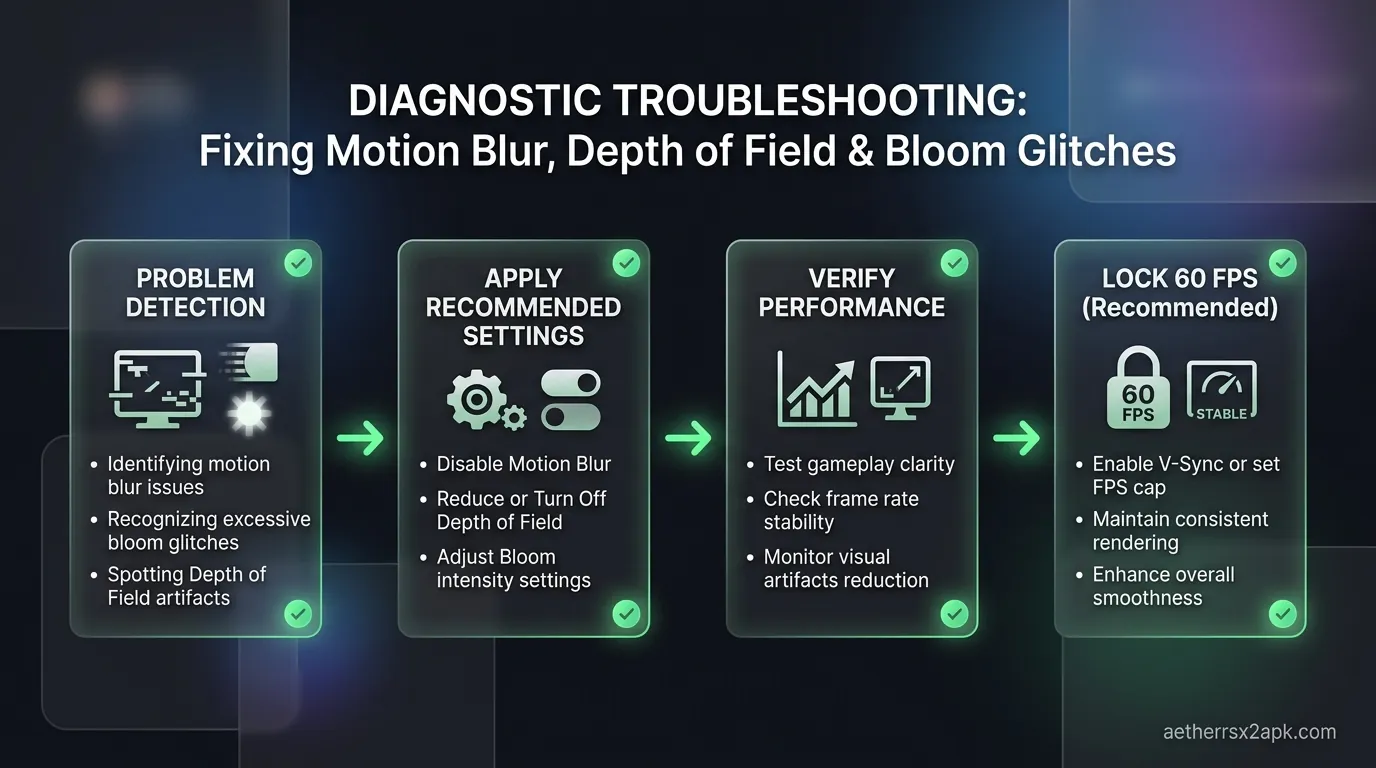
While the GPU handles the visuals, the CPU has to emulate the complex, multi-core architecture of the PlayStation 2. The Snapdragon 8 Gen 3 is incredibly fast, meaning we can disable most of the aggressive speed hacks that lower-end phones rely on.
Emotion Engine (EE) Cycle Rate and Cycle Stealing
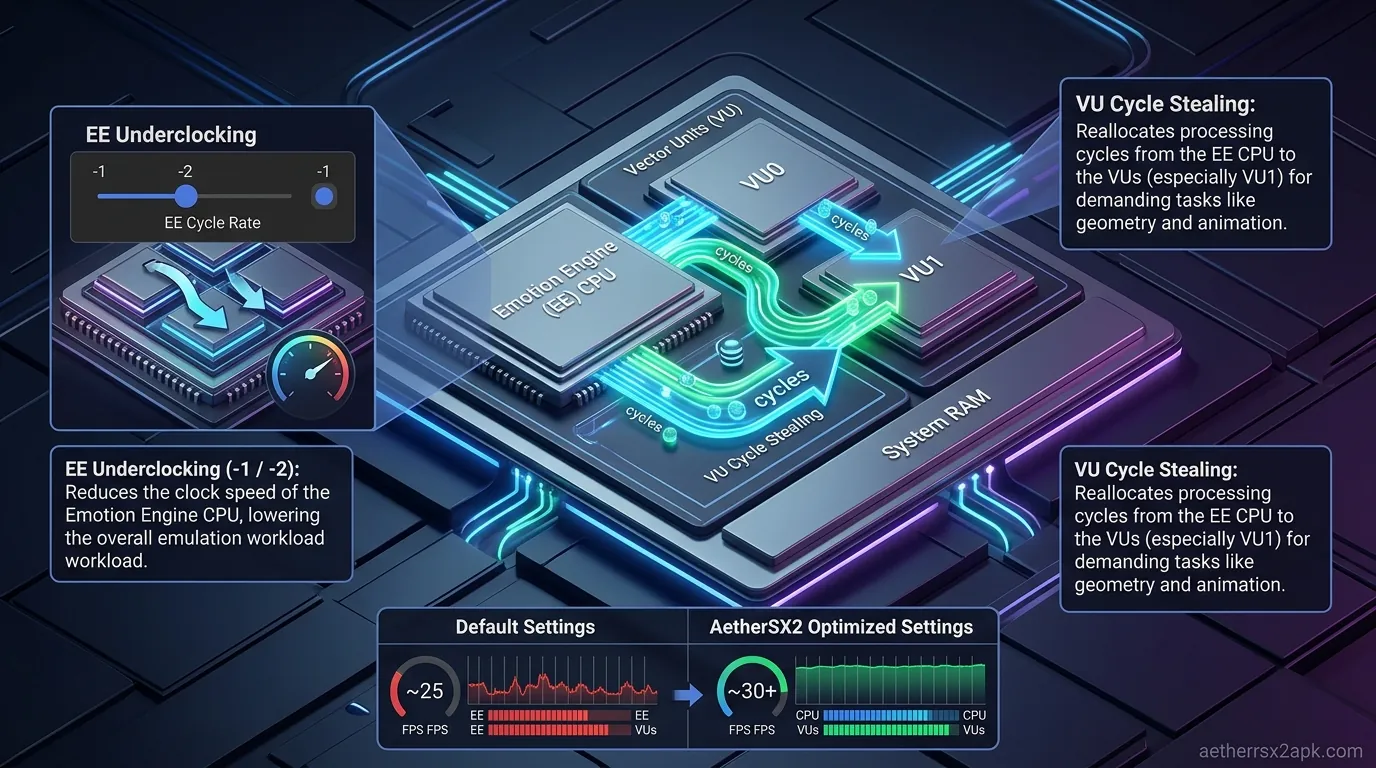
If you have read about AetherSX2 speed hacks, you know that underclocking the EE is a common trick to gain FPS. Do not do this on the 8 Gen 3.
- EE Cycle Rate: Keep this at 100% (Normal). Underclocking the EE can cause internal game logic to slow down, breaking physics, audio sync, and causing artificial stuttering. Your 8 Gen 3 can run the EE at full speed for almost every game.
- EE Cycle Skip (Underclocking): Keep this at 0 (Normal). Never use cycle skipping on flagship hardware unless you are dealing with a notoriously heavy game that refuses to run at 60 FPS (like Snowblind engine games), and even then, only use Mild (1).
Multi-Threaded VU (MTVU)
- Enable Multi-Threaded VU1 (MTVU): ON. This is mandatory. MTVU offloads Vector Unit 1 processing to a separate CPU thread. Since the Snapdragon 8 Gen 3 has an 8-core CPU, spreading the workload across multiple cores is essential for smooth performance.
- Thread Presentation: ON. This helps smooth out frame pacing and prevents micro-stutters by presenting frames in a separate thread.
- Affinity Control Mode: Performance Cores. This setting tells Android's task scheduler to prioritize the powerful Cortex-X4 and Cortex-A720 cores for emulation, preventing the OS from dumping the emulator onto the weaker efficiency cores.
Fastmem and Hardware Hacks
- Fast Memory (Fastmem): ON. This provides a massive speedup to memory operations without causing compatibility issues in the vast majority of games.
- VU1 sync: Keep this disabled unless you experience severe graphical spikes in specific titles.
Game-Specific Recommended Settings for Snapdragon 8 Gen 3
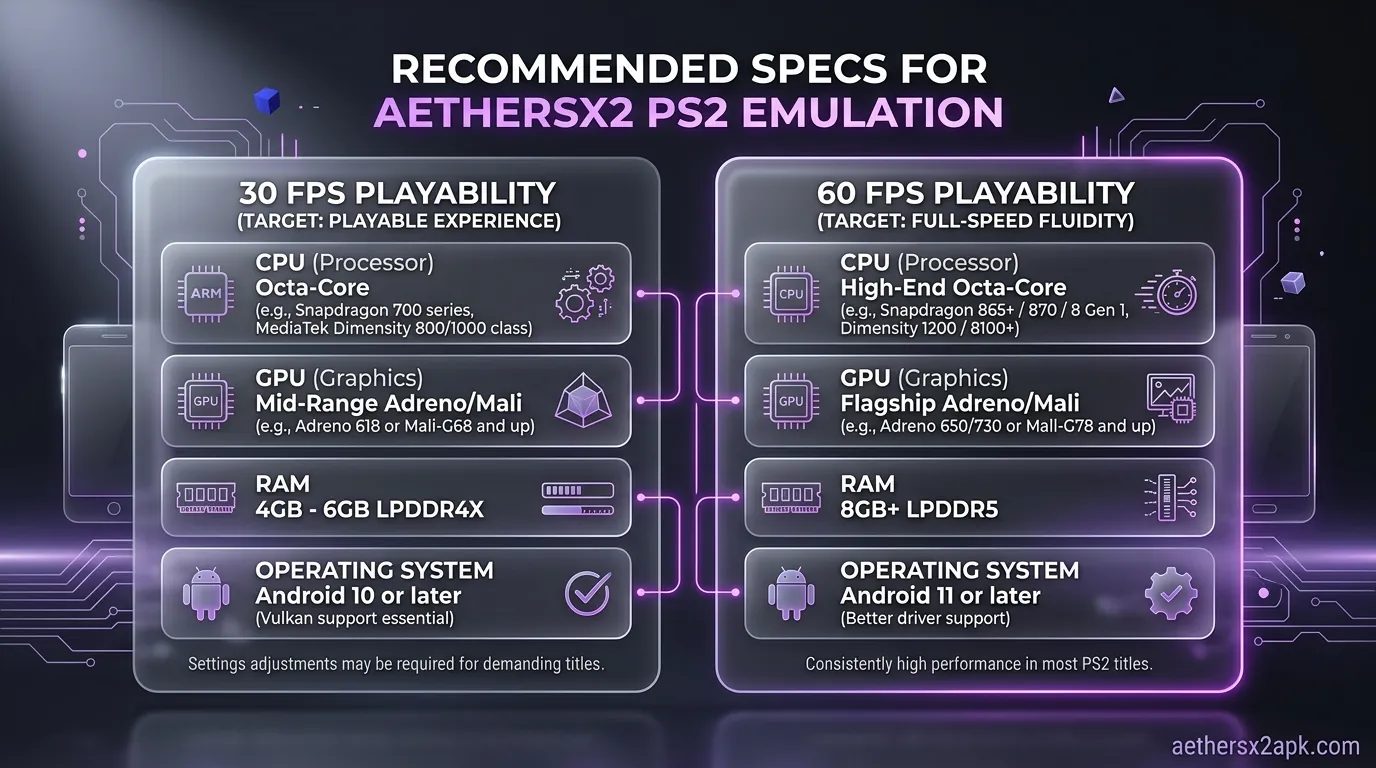
Even with the might of the Snapdragon 8 Gen 3, the PS2 library is wildly diverse. Some games are notoriously difficult to emulate due to how they abused the original hardware. Before tweaking blindly, we always recommend checking our game compatibility database for specific patches. Here is how the 8 Gen 3 handles the most demanding titles.
God of War II
God of War II pushes the PS2 to its absolute limits, and it does the same to emulators.
- Resolution: 3x Native.
- Renderer: Vulkan.
- Settings: Keep EE Cycle Rate at 100%. The 8 Gen 3 will lock this game to a flawless 60 FPS. If you experience minor slowdowns during massive boss fights with heavy particle effects, you can enable the "Align Sprite" hack to fix vertical line issues, but no underclocking is needed.
Shadow of the Colossus
One of the most demanding games in the library. The original console struggled to maintain 20 FPS.
- Resolution: 2x or 3x Native.
- Renderer: Vulkan.
- Settings: Set EE Cycle Rate to 130% (Overclock) if you want to brute-force the internal framerate to a smoother 30 FPS. The 8 Gen 3 has enough raw single-core speed to handle an overclocked EE in this title, resulting in a much smoother experience than the original console provided.
Gran Turismo 4
A racing masterpiece that runs at 1080i on original hardware, making it a unique emulation case.
- Resolution: 3x Native.
- Renderer: Vulkan.
- Settings: You must enable the Hardware Download Mode to Accurate to fix the missing sun glare and blurry license plates. Set Blending Accuracy to High to resolve issues with car shadows on certain tracks. The Adreno 750 chews through GT4 effortlessly.
Metal Gear Solid 3: Snake Eater
The jungle environments and post-processing effects are incredibly heavy on the emulator.
- Resolution: 2x or 3x Native.
- Renderer: Vulkan.
- Settings: MGS3 uses a lot of complex blending. If you experience slowdowns during thermal vision or cutscenes, you may need to temporarily drop the resolution to 2x. However, the 8 Gen 3 generally handles the swamps of Tselinoyarsk at a solid 60 FPS.
Thermal Throttling & Sustained Performance Tips
The single biggest enemy of the Snapdragon 8 Gen 3 is not the AetherSX2 emulator: it is heat. Emulation creates a continuous, heavy sustained load on both the CPU and GPU. If your phone gets too hot, the operating system will forcefully throttle (slow down) the processor to prevent damage, turning your 60 FPS gameplay into a stuttering mess.
Managing Heat on S24 Ultra and Other Flagships
Different phones handle the 8 Gen 3 differently. The Samsung Galaxy S24 Ultra, Asus ROG Phone 8, and RedMagic 9 Pro all have varying sizes of vapor chambers.
- Remove Thick Cases: If you are playing a heavy game at 3x resolution for more than 30 minutes, take your phone out of its case. Cases act as insulators, trapping heat against the chassis.
- Play in a Cool Environment: Ambient temperature matters. Playing outside in the sun will cause your 8 Gen 3 to throttle within 10 minutes.
Game Booster and Thermal Profiles
Most Android phones come with built-in gaming software (like Samsung's Game Booster or Xiaomi's Game Turbo).
- Alternate Game Performance Management (Samsung): If you are on an S24 Ultra, go to Game Booster settings > Labs, and enable "Alternate game performance management." This disables Samsung's overly aggressive GOS (Game Optimizing Service) throttling, allowing the 8 Gen 3 to run hotter but maintain high frame rates for longer.
- Performance Mode: Always ensure your phone's battery profile is set to Performance or Gaming mode while running AetherSX2. Battery Saver modes will cap CPU frequencies and ruin emulation performance.
Active Cooling Solutions
If you plan on playing demanding games like Need for Speed: Most Wanted or God of War for hours on end at 4x resolution, you need a phone cooler. A high-quality thermoelectric Peltier cooler (like those from Black Shark or Razer) attaches to the back of your phone and actively draws heat away. With an active cooler attached, a Snapdragon 8 Gen 3 will never throttle, allowing you to maintain peak Cortex-X4 frequencies indefinitely.
SoC specs: Snapdragon 8 Gen 3. Emulation lineage: PCSX2 and the PCSX2 wiki.
Frequently Asked Questions
1. Do I need to underclock the EE on a Snapdragon 8 Gen 3? No. Underclocking the Emotion Engine (EE Cycle Rate below 100%) is a hack designed for low-end and mid-range devices. The Snapdragon 8 Gen 3 has enough processing power to run almost all games at 100% normal speed. Underclocking will only cause bugs and broken game logic on a flagship device.
2. Why am I getting lag in AetherSX2 on my S24 Ultra? If a Snapdragon 8 Gen 3 device is lagging, it is almost certainly due to thermal throttling. Emulation generates immense heat. If your phone gets too warm, it reduces CPU speeds. Ensure you aren't playing in a hot environment, remove thick phone cases, and consider using a clip-on phone cooler for long sessions. Also, ensure you are using the Vulkan renderer.
3. What is the maximum resolution AetherSX2 can handle on the 8 Gen 3? For many lightweight and 2D games, the Adreno 750 can push 6x or even 8x native resolution. However, anything beyond 4x (1440p) provides severely diminishing returns on a 6.8-inch smartphone screen. 3x to 4x is the optimal sweet spot for a sharp image and stable 60 FPS.
4. Does the NetherSX2 patch improve performance on the 8 Gen 3? The NetherSX2 patch primarily removes the intrusive advertisements added in the final versions of AetherSX2 and restores some frontend functionality. While it doesn't fundamentally change the core emulation performance, removing the background ad-tracking processes can slightly improve system stability and reduce battery drain. You can grab a clean build and follow the full install walkthrough before applying the Gen 3 presets below.
5. Which renderer is better for the Snapdragon 8 Gen 3: Vulkan or OpenGL? Vulkan is significantly better. Qualcomm's Adreno GPU drivers are highly optimized for Vulkan. It provides drastically lower CPU overhead, allowing for better framerates and cooler operating temperatures. Only use OpenGL if a specific game has graphical glitches on Vulkan.
6. Do I still need a PS2 BIOS file with a flagship phone? Yes. No matter how powerful your phone is, AetherSX2 requires a PlayStation 2 BIOS file to operate. The BIOS contains the essential operating system code of the original console. You must dump this BIOS from a PS2 console that you legally own. Emulation power does not bypass the need for proper system files.
Summary: The Snapdragon 8 Gen 3 is a monumental leap forward for Android emulation. By utilizing the Vulkan renderer, pushing the resolution to 3x, and avoiding unnecessary underclocking speed hacks, you can transform your smartphone into the ultimate portable PlayStation 2. Keep your device cool, apply the settings outlined above, and enjoy revisiting the greatest gaming library of all time in stunning high definition.